IP transit in the NetOz Portal: ASNs, prefixes, AS-SETs and RPKI
A tour of the IP transit area of the NetOz Portal: register your ASNs, AS-SETs and IP prefixes, see their approval and RPKI status, and reply to the NetOz network team.
On this page
If you buy IP transit from NetOz, the IP transit page is where you tell us what you will announce over BGP. You register your autonomous systems (ASNs), any AS-SET you publish, and each IP prefix with its origin ASN. NetOz checks the registry, you prove you control each resource, our network team approves it, and every approved prefix is checked against the global RPKI each day. This guide shows where everything lives.
Before you start
- IP transit must be turned on for your account by NetOz. If you buy IP transit from us and don’t see IP transit under Network in the sidebar, contact NetOz support.
- You need to be an account admin, or have IP transit set to View (to look) or Manage (to make changes) on your team access.
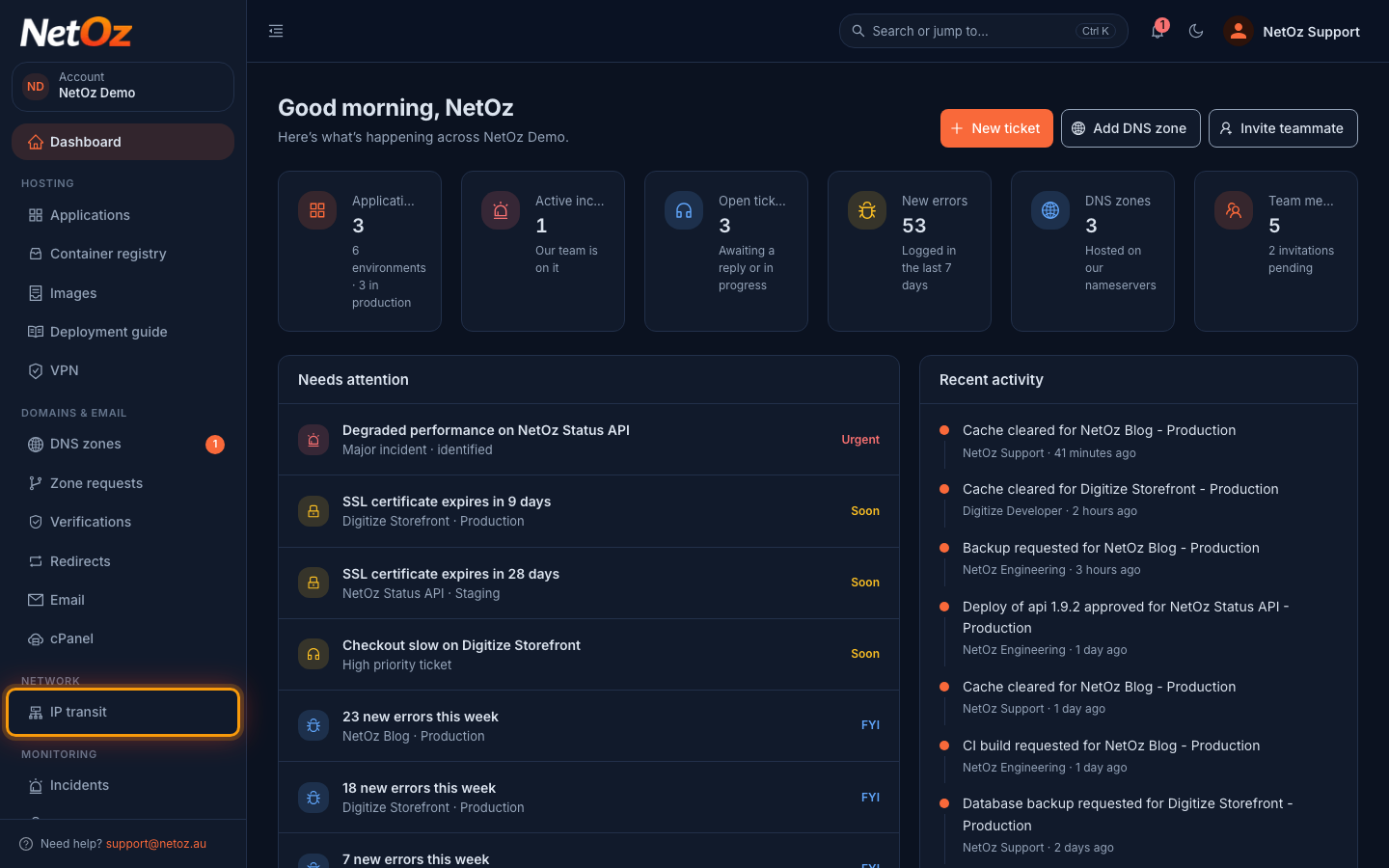
Step 1 Open IP transit from the sidebar
Sign in to the NetOz Portal and choose IP transit under Network in the sidebar. If it isn’t there, IP transit hasn’t been turned on for your account yet, or your team access doesn’t include it.
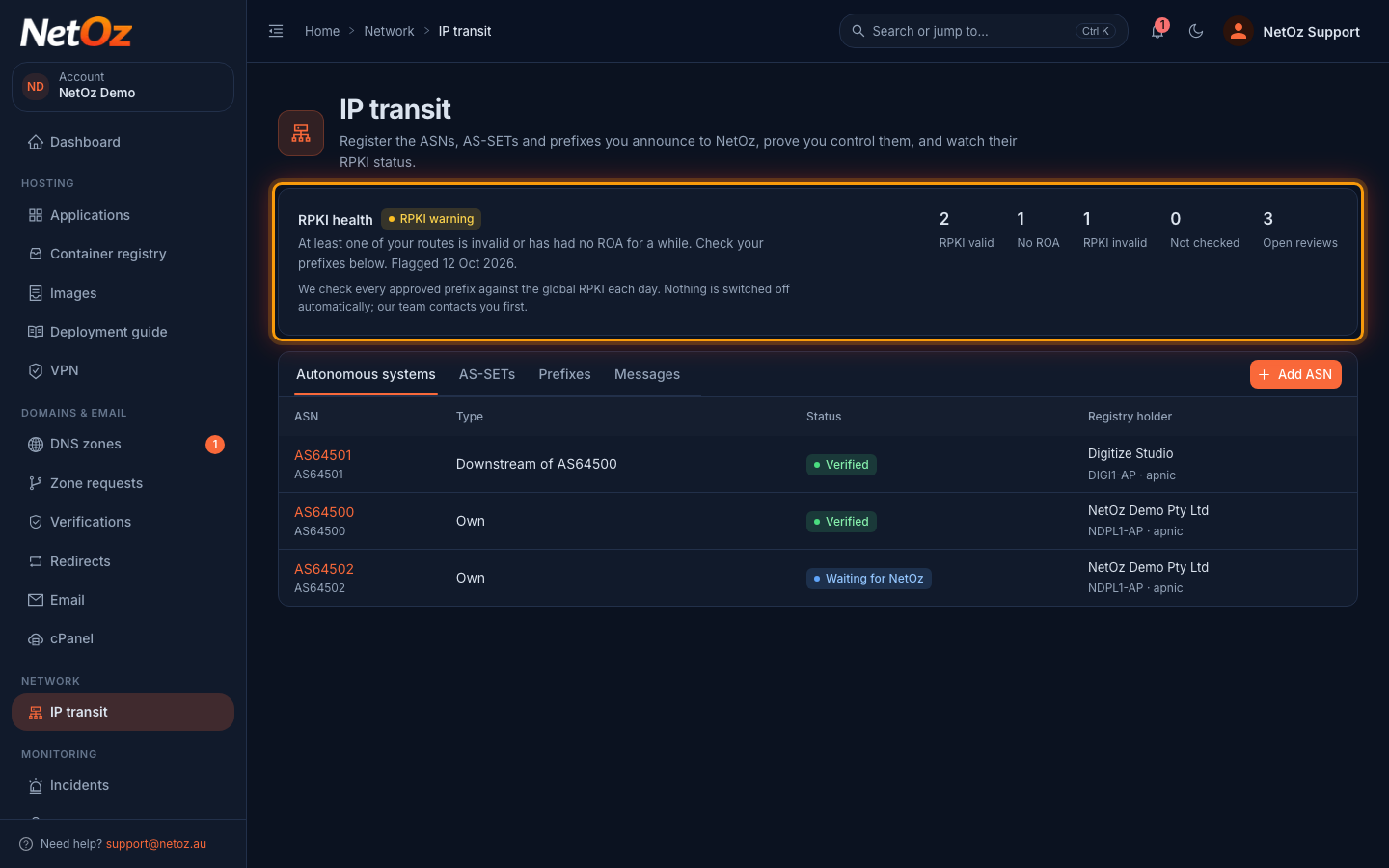
Step 2 Check your RPKI health
The RPKI health card sums up every approved prefix: how many are RPKI valid, have No ROA, are RPKI invalid or could not be checked, plus how many reviews are open with NetOz. The badge next to the heading reads RPKI healthy when nothing is flagged, RPKI warning when a route is invalid or has had no ROA for 30 days, and RPKI failing when a route has stayed invalid for several days. Nothing is switched off automatically; our team contacts you first.
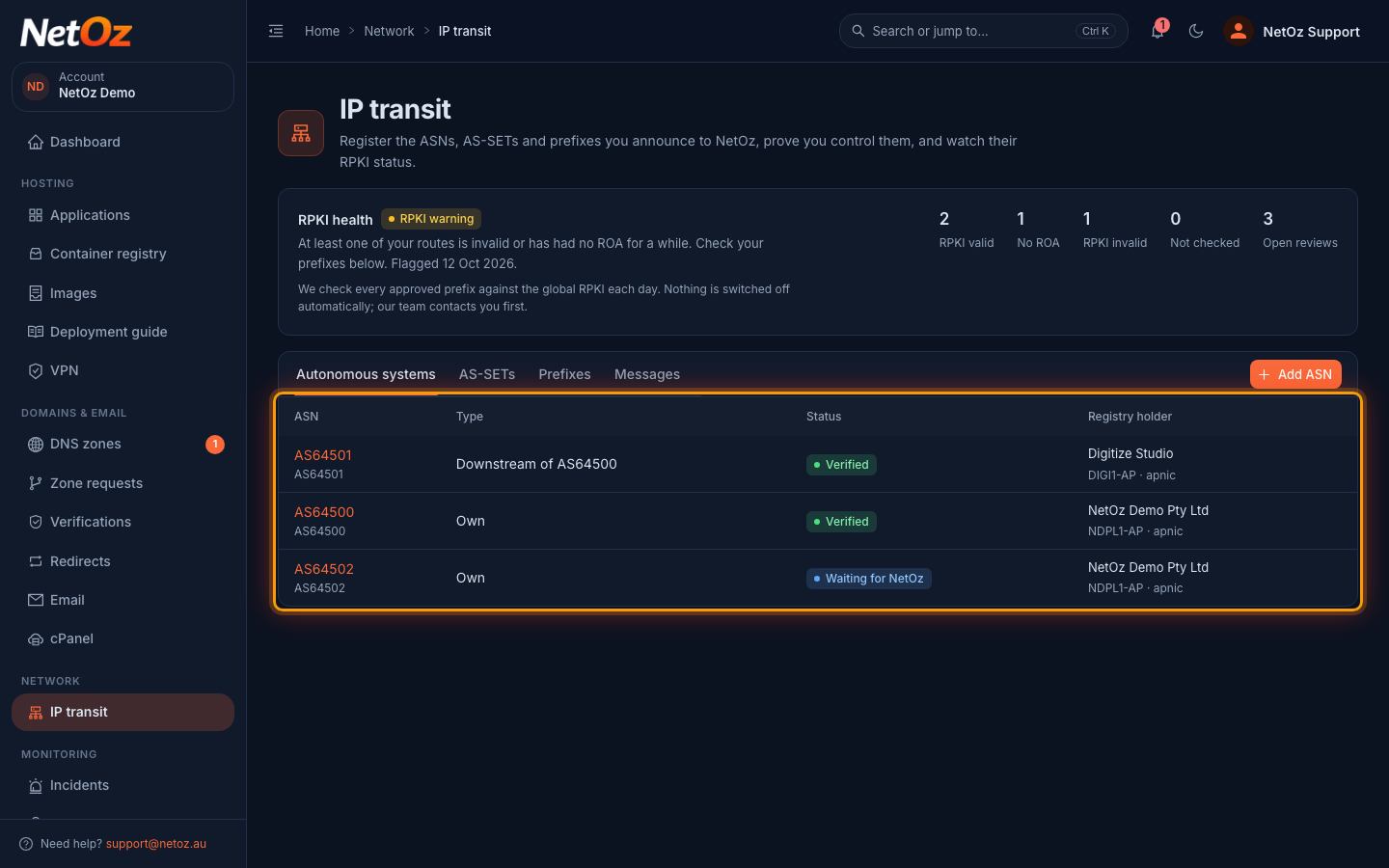
Step 3 See your autonomous systems
Autonomous systems lists every ASN on your account. Type shows whether it is your Own ASN or a downstream customer network, Status shows where it is in the approval process, and Registry holder shows who the regional internet registry (RIR) says holds it. Select an ASN to open its details and proof options.
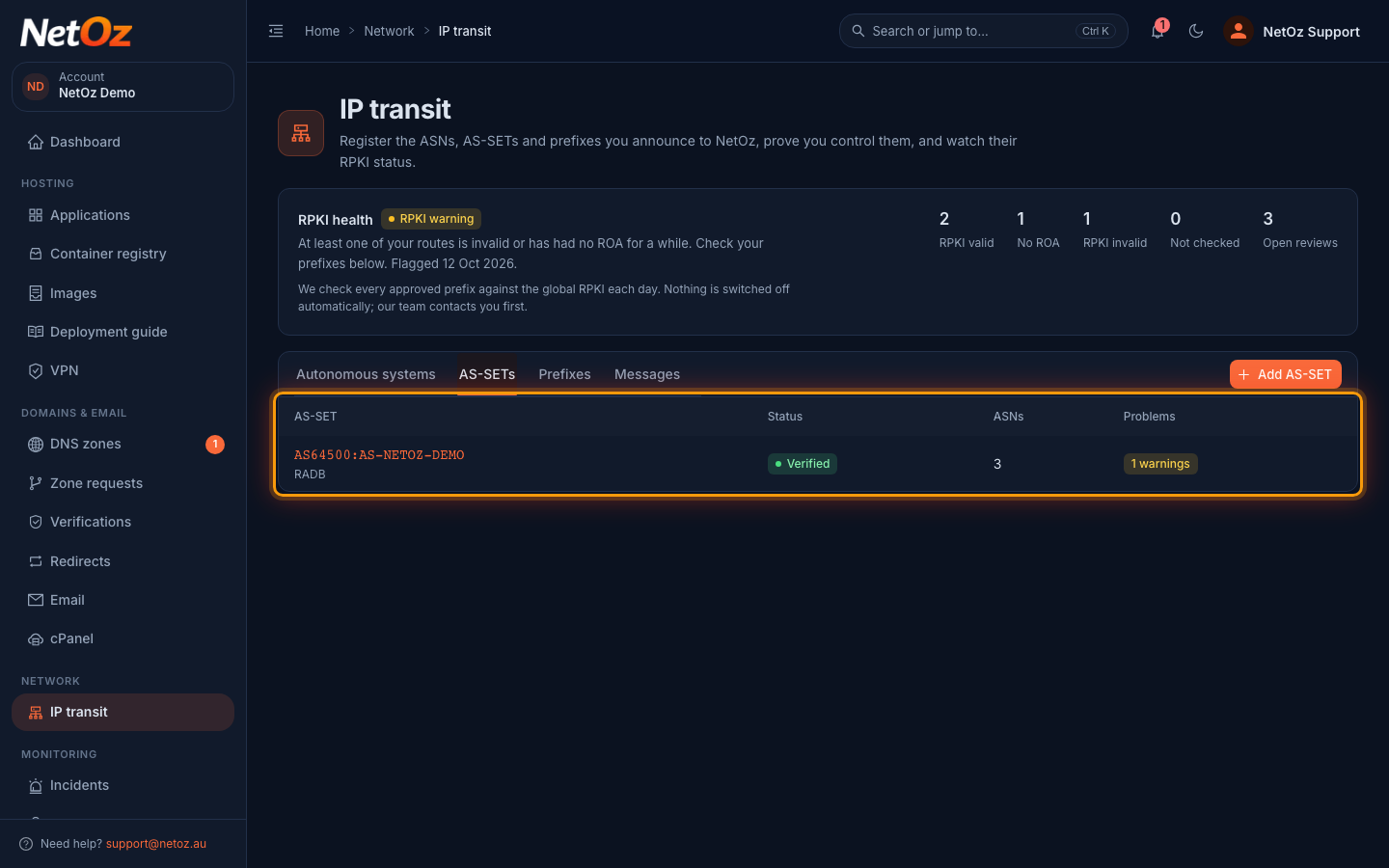
Step 4 Review your AS-SETs
AS-SETs lists the IRR AS-SET objects you use to describe the networks behind you. ASNs is how many ASNs the set expands to, and Problems flags anything in it that isn’t approved on your account or could cause a route leak.
Step 5 Check your prefixes and their RPKI status
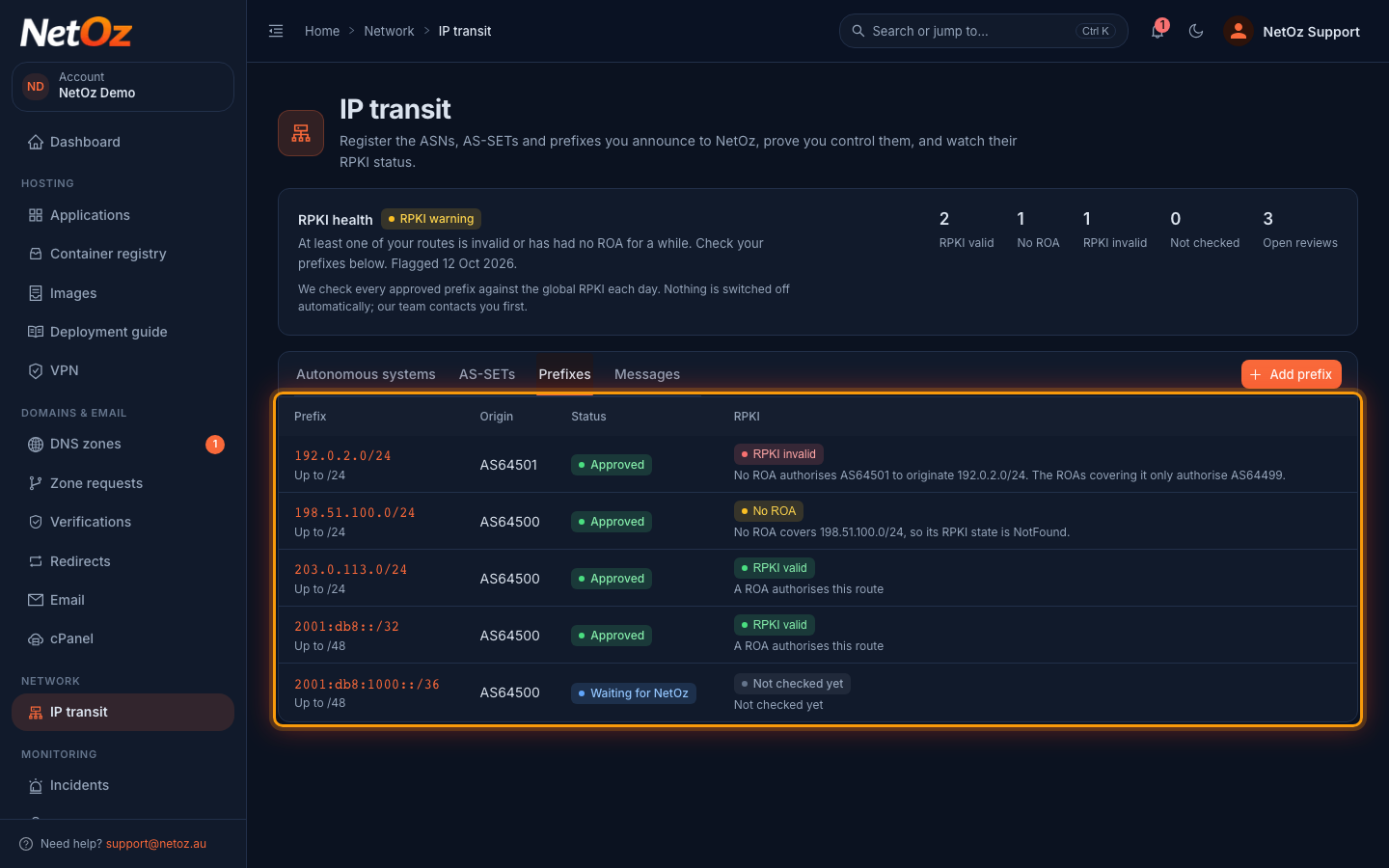
Prefixes lists each IP prefix you announce to NetOz with its Origin ASN and the most specific length you’ll announce (Up to /24, for example). Status is NetOz’s approval, and RPKI is the latest result from the global RPKI: RPKI valid, No ROA or RPKI invalid. Select a badge to see why.
Step 6 Read messages from the NetOz network team
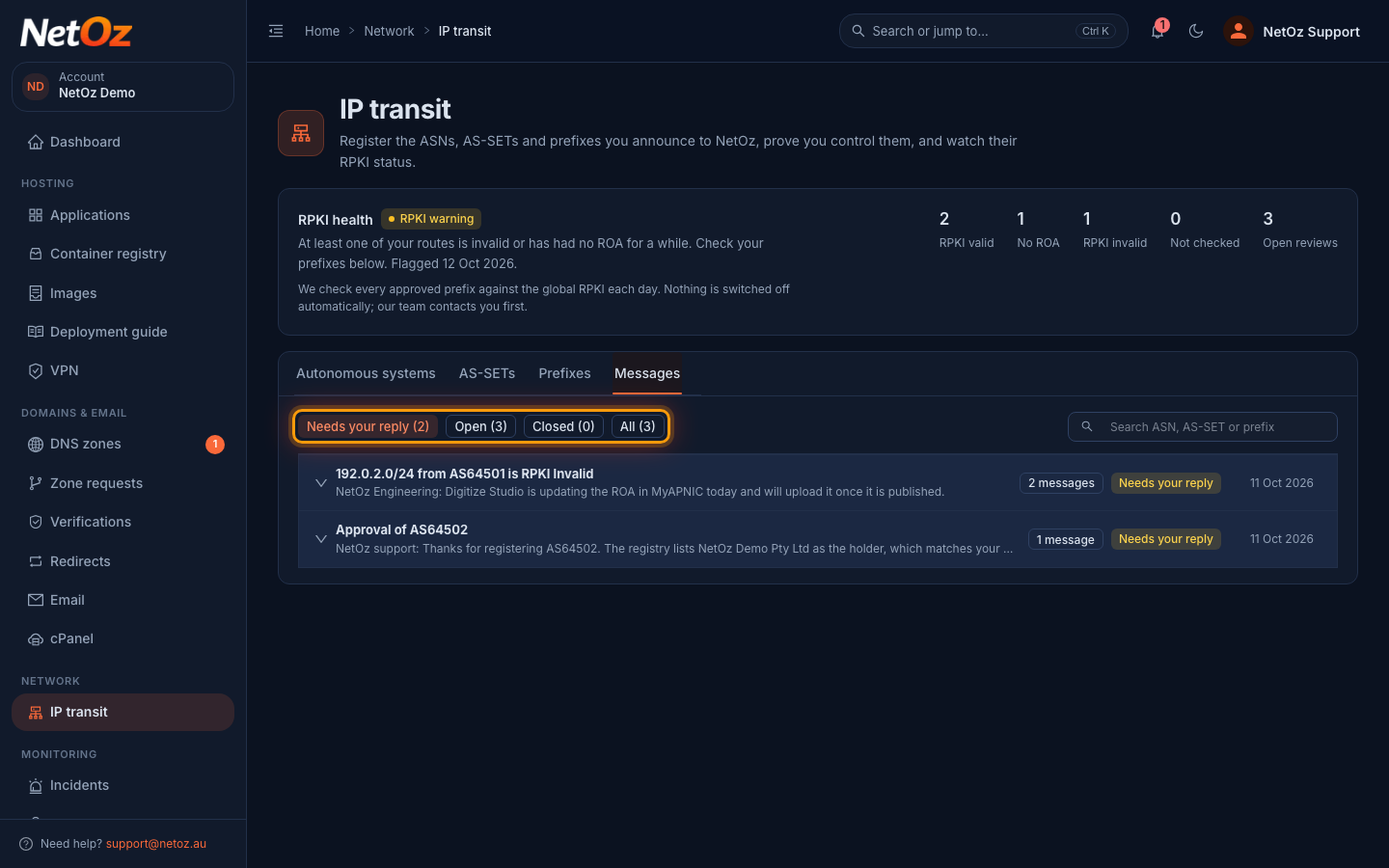
Messages holds every review NetOz has open on your ASNs, AS-SETs and prefixes. Anything waiting on you appears under Needs your reply first. See Reply to a network review.
Where to next
- New to the page? Start with Register your ASN, then prove you hold it.
- Ready to announce space? See Register an IP prefix.
- Seeing RPKI invalid or No ROA? Read Understand RPKI status and Fix an RPKI Invalid prefix.
- To give a colleague access, set IP transit on their team access.
Was this guide helpful?
Your answer helps us keep these guides accurate.