Register an IP prefix for NetOz IP transit
Add an IPv4 or IPv6 prefix with its origin ASN and max length so NetOz accepts the route. Learn the /24 and /48 limits, evidence options, approval and daily RPKI checks.
On this page
NetOz builds its BGP filters from the prefixes approved on your account, so every prefix you announce to us needs to be registered with the ASN it originates from. When you add one, we check it against the registry and the global RPKI straight away, then our network team approves it.
Before you start
- IP transit must be turned on for your account by NetOz. If you buy IP transit from us and don’t see IP transit under Network in the sidebar, contact NetOz support.
- You need to be an account admin, or have IP transit set to Manage on your team access.
- The origin ASN must be Verified on your account, either your own or a downstream. See Register your ASN.
- IPv4 prefixes must be between /8 and /24, and IPv6 prefixes between /16 and /48. Anything longer won’t be accepted across the internet. Private and reserved space isn’t accepted.
- Ideally, publish a ROA for the prefix and origin ASN at your RIR first, so the prefix is RPKI valid from day one.
Step 1 Select Add prefix
On the IP transit page, open the Prefixes tab and select Add prefix.
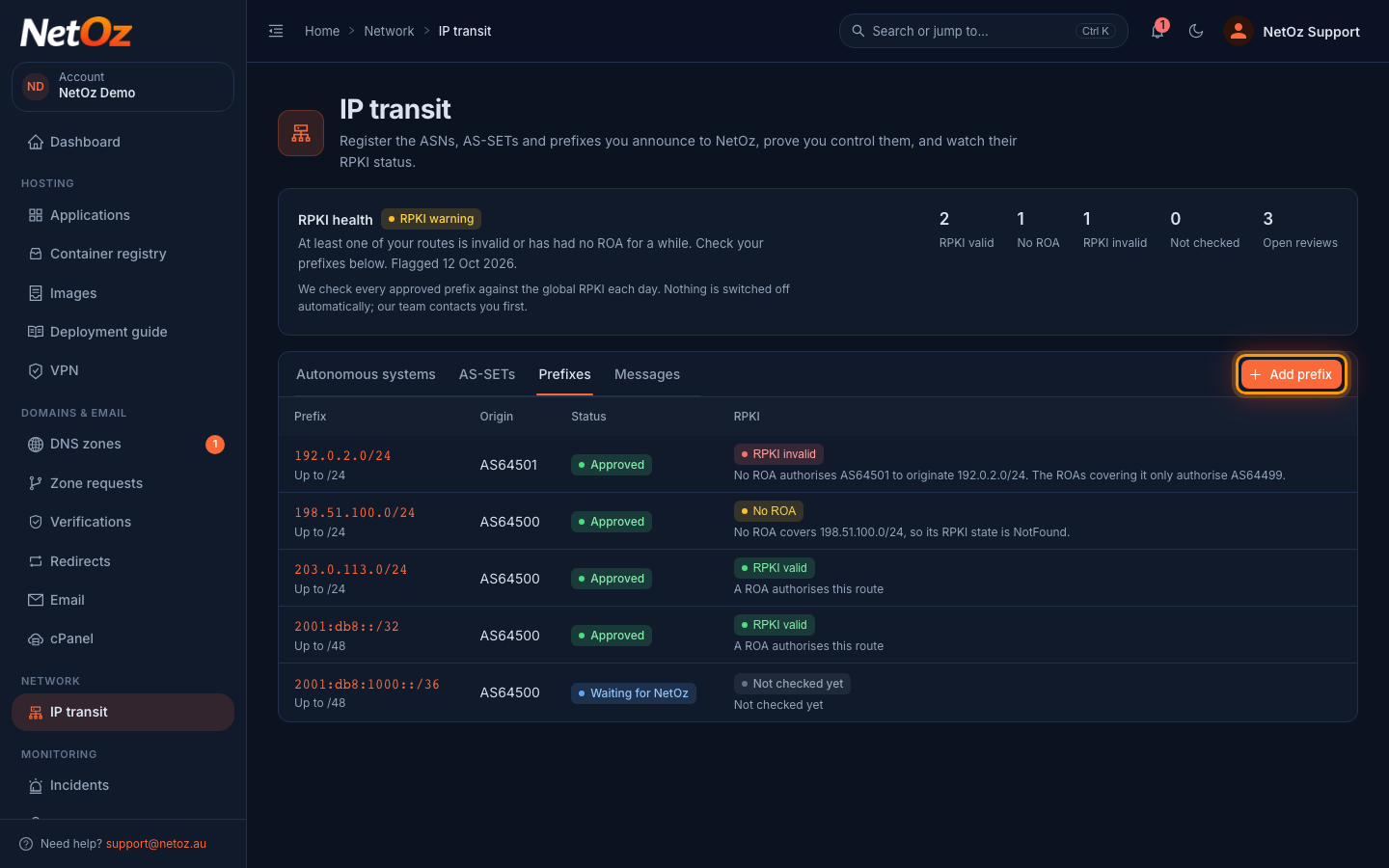
Step 2 Enter the prefix and origin ASN
Choose the Origin ASN the route will come from, then enter the Prefix, for example 203.0.113.0/24 or 2001:db8:1000::/36. Use the network address, with no host bits set.
Leave Max length empty if you’ll only announce the prefix as entered. If you’ll also announce more specific routes, enter the longest length you’ll use, up to /24 for IPv4 or /48 for IPv6. Keep it as short as you can: a loose max length makes it easier for others to hijack your space.
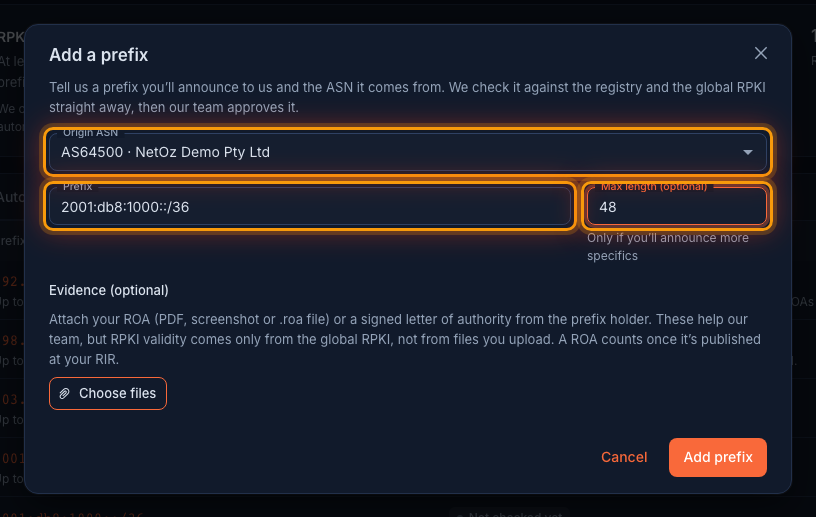
Step 3 Attach evidence if you have it
Under Evidence (optional), select Choose files to attach your ROA (PDF, screenshot or .roa file) or a signed letter of authority from the prefix holder. Files help our team, but the RPKI result only comes from the global RPKI. Select Add prefix when you’re done.
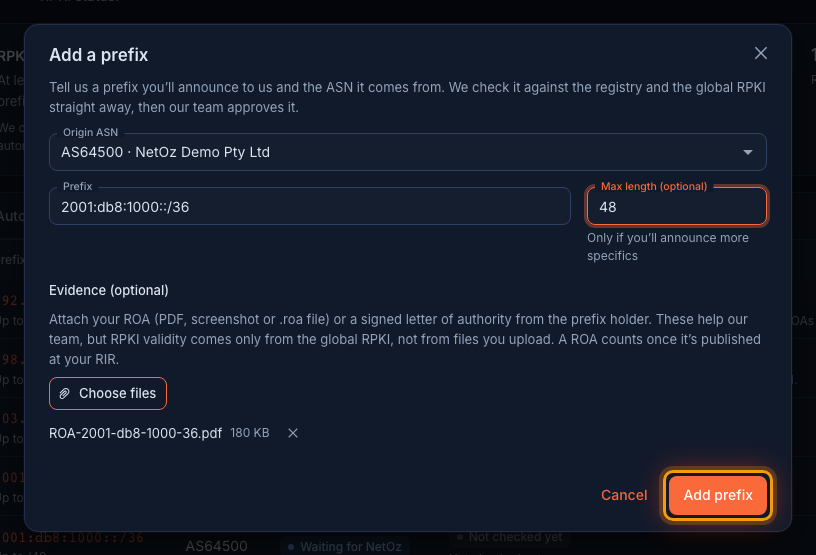
Step 4 Wait for approval
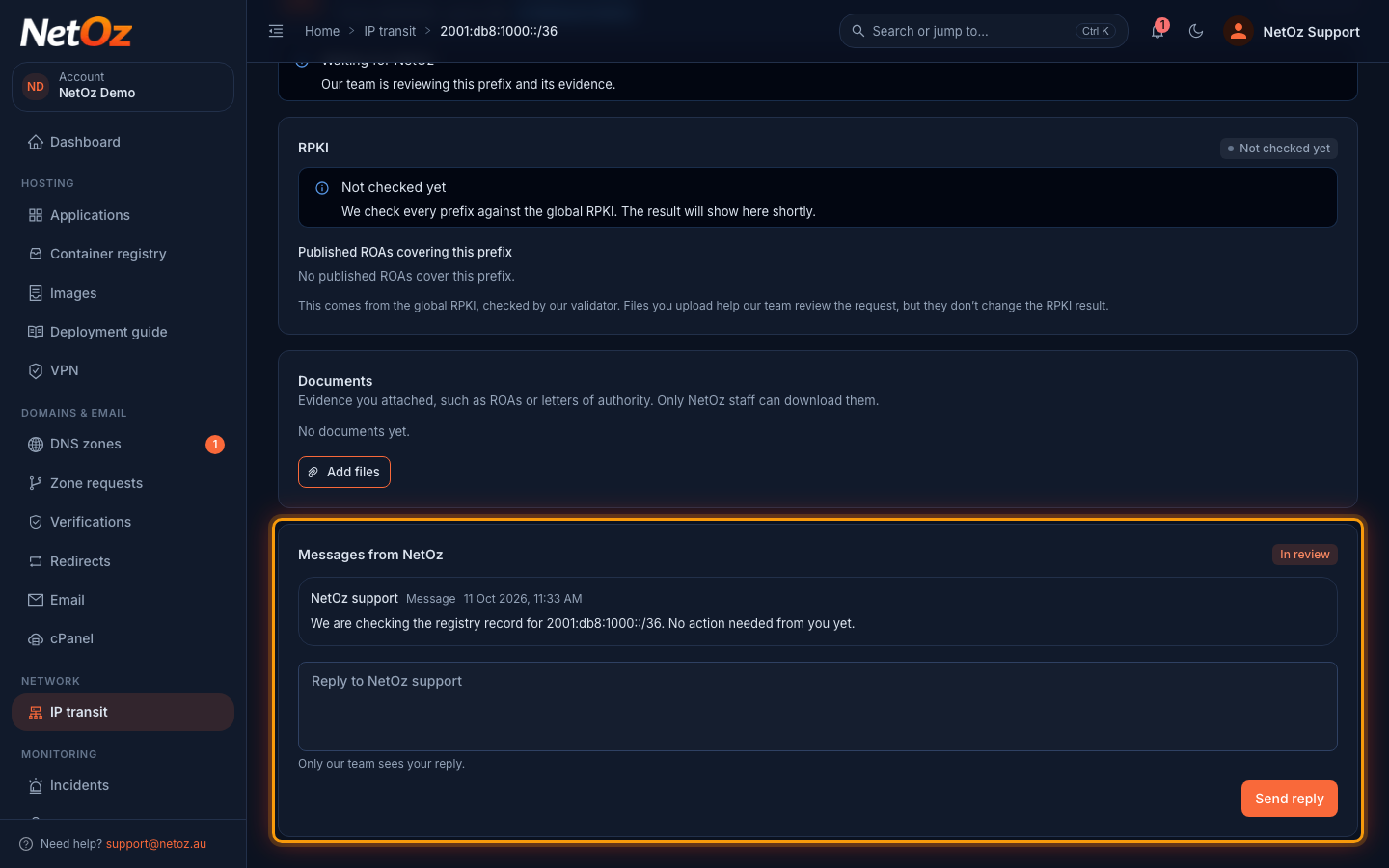
The prefix opens showing Waiting for NetOz. The RPKI card fills in after the first automatic check, usually within a few minutes, and lists any published ROAs that cover the prefix.
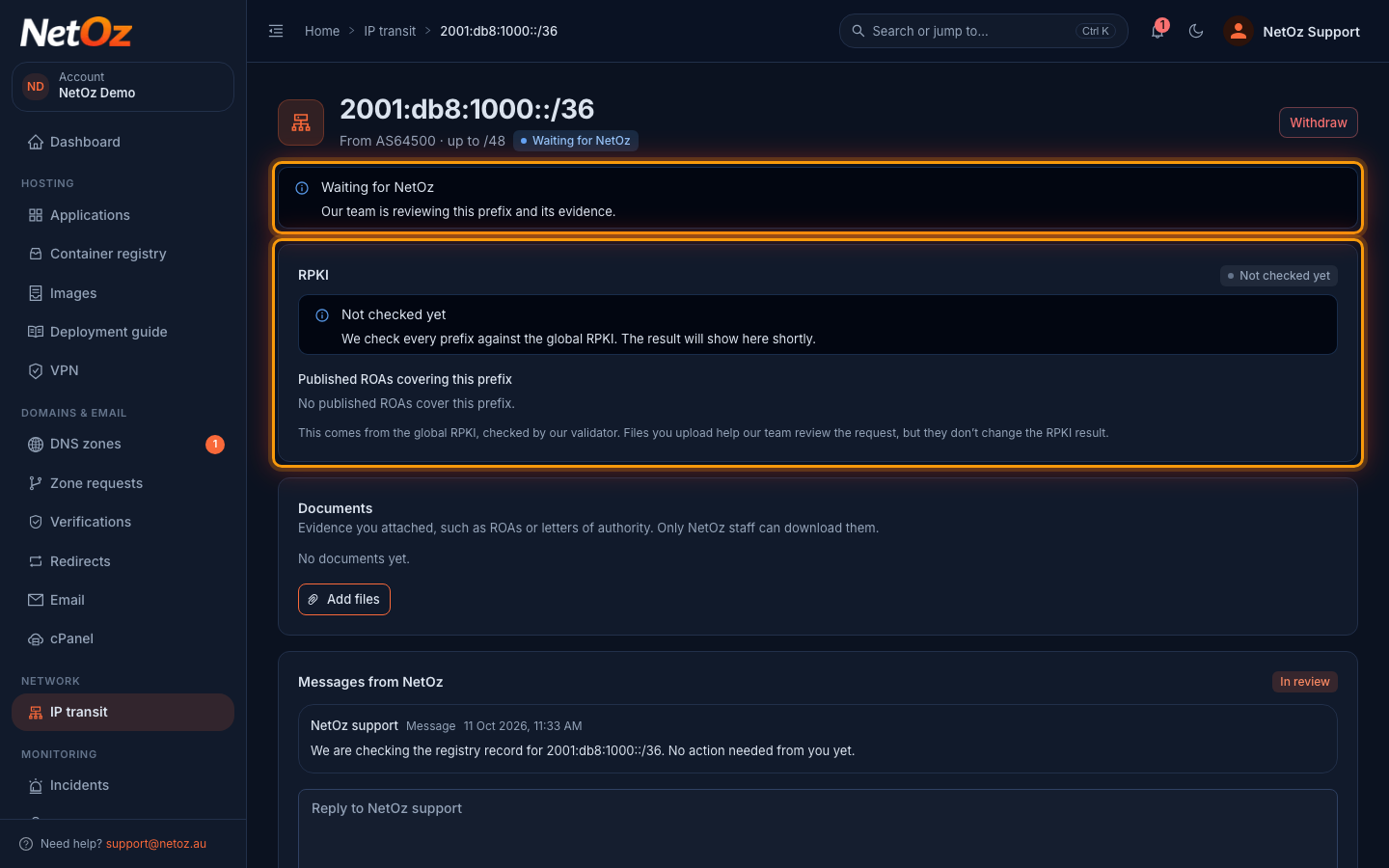
Step 5 Watch for messages from NetOz
Our team’s notes and questions appear under Messages from NetOz. If they need something from you, the badge changes to Needs your reply and you get an email. Once it’s approved, the status changes to Approved and NetOz starts accepting the route.
What happens next
- Our team checks that the prefix holder matches the origin ASN’s holder. If they’re different organisations, attach a letter of authority from the prefix holder.
- A prefix that is RPKI invalid won’t normally be approved until its ROA is fixed. No ROA doesn’t block approval, but we recommend creating one.
- When it is Approved, NetOz accepts the route and checks it against the global RPKI every day. See Understand RPKI status.
- To stop announcing a prefix, open it and choose Withdraw.
Was this guide helpful?
Your answer helps us keep these guides accurate.