Add a downstream customer ASN to your NetOz IP transit
Register a customer network you provide transit to as a downstream ASN behind your own, and prove the holder agrees with a registry contact link or a signed LOA.
On this page
If you resell transit, the networks behind you need to be registered too, so NetOz knows to accept their routes through your session. A downstream ASN is linked to one of your own verified ASNs, and its holder needs to confirm that you are their upstream.
Before you start
- IP transit must be turned on for your account by NetOz. If you buy IP transit from us and don’t see IP transit under Network in the sidebar, contact NetOz support.
- You need to be an account admin, or have IP transit set to Manage on your team access.
- At least one of your own ASNs must be Verified. Until then the downstream option is greyed out.
- Ask your customer for their ASN and a contact on its registry record, or a signed letter on their letterhead naming you as their upstream provider.
Step 1 Choose downstream and pick its upstream
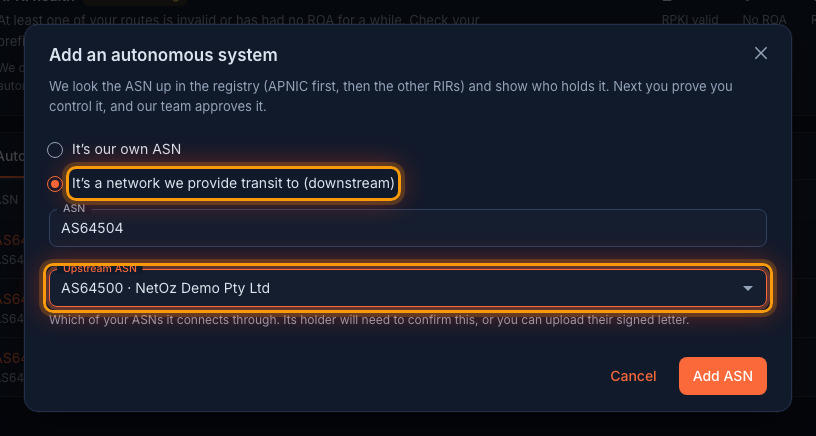
Select Add ASN on the Autonomous systems tab. Choose It’s a network we provide transit to (downstream), enter your customer’s ASN, and under Upstream ASN pick which of your verified ASNs it connects through. Then select Add ASN.
Step 2 Check the holder
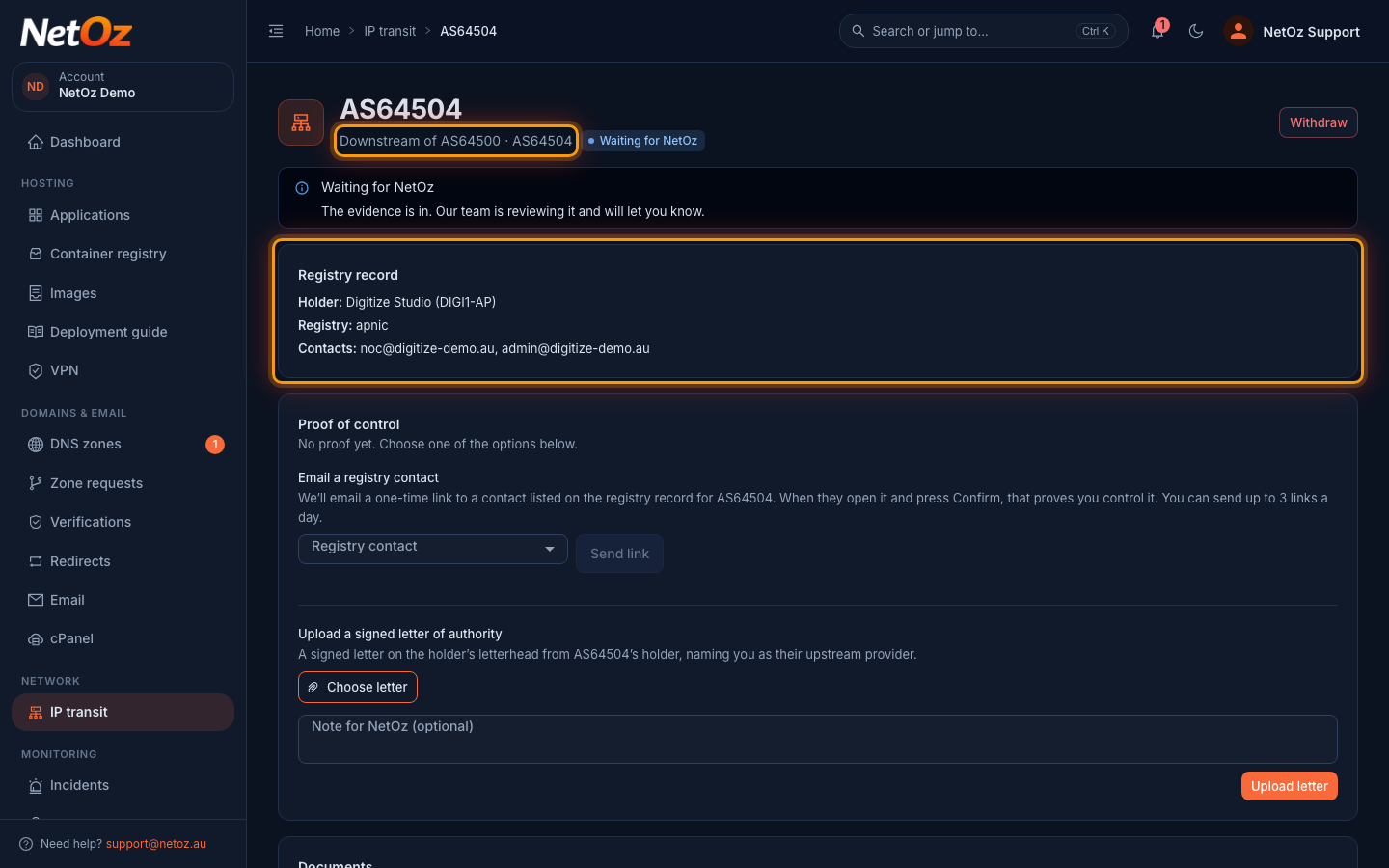
The ASN opens marked Downstream of AS64500. Registry record shows your customer as the holder, with the contacts on their record.
Step 3 Get the holder’s agreement
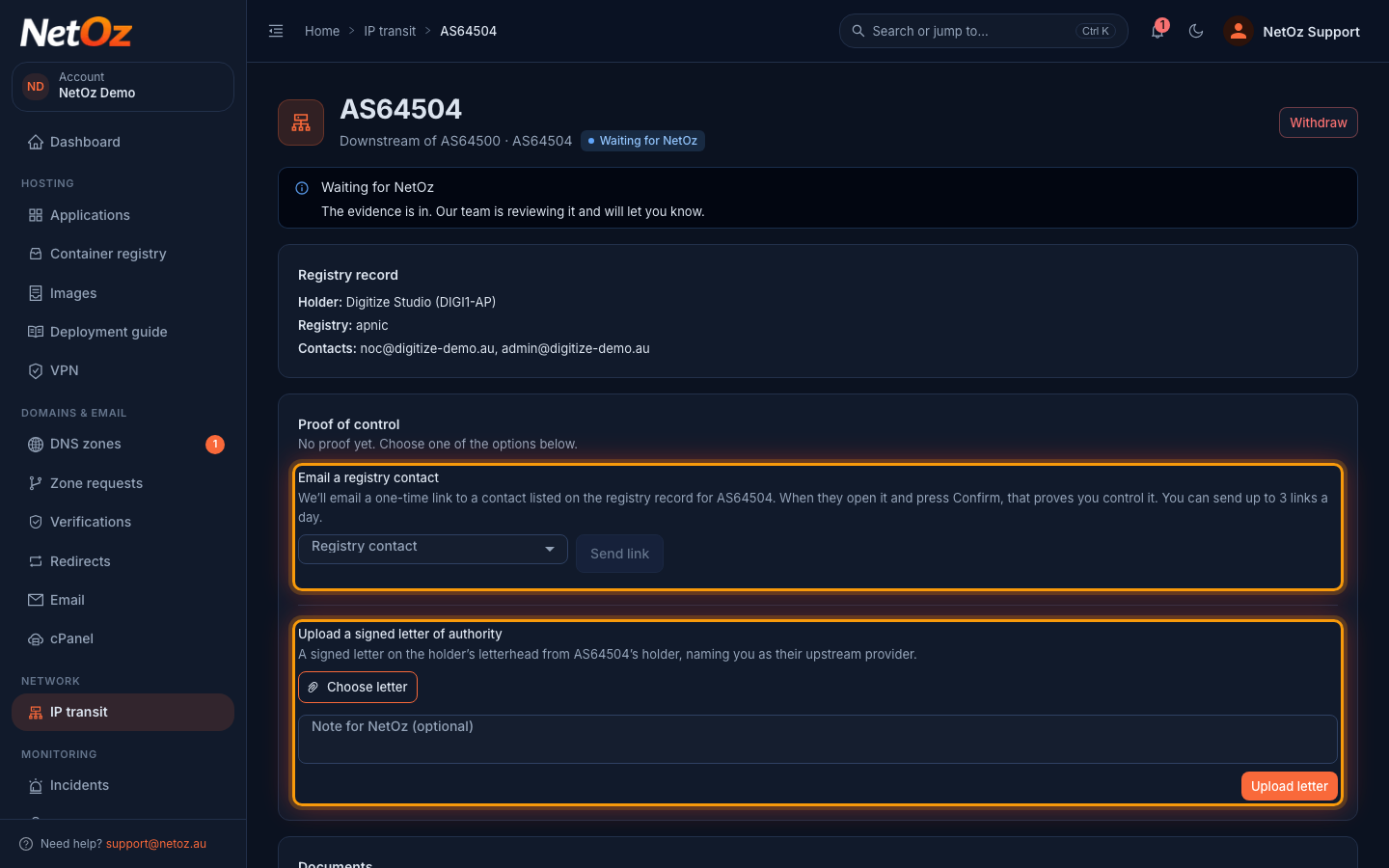
A downstream ASN needs proof from its holder, not from you, so there is no IRR remark option. Either email one of their registry contacts a link with Send link, which they confirm, or upload a signed letter on their letterhead naming you as their upstream provider with Upload letter.
Step 4 See it listed once it’s verified
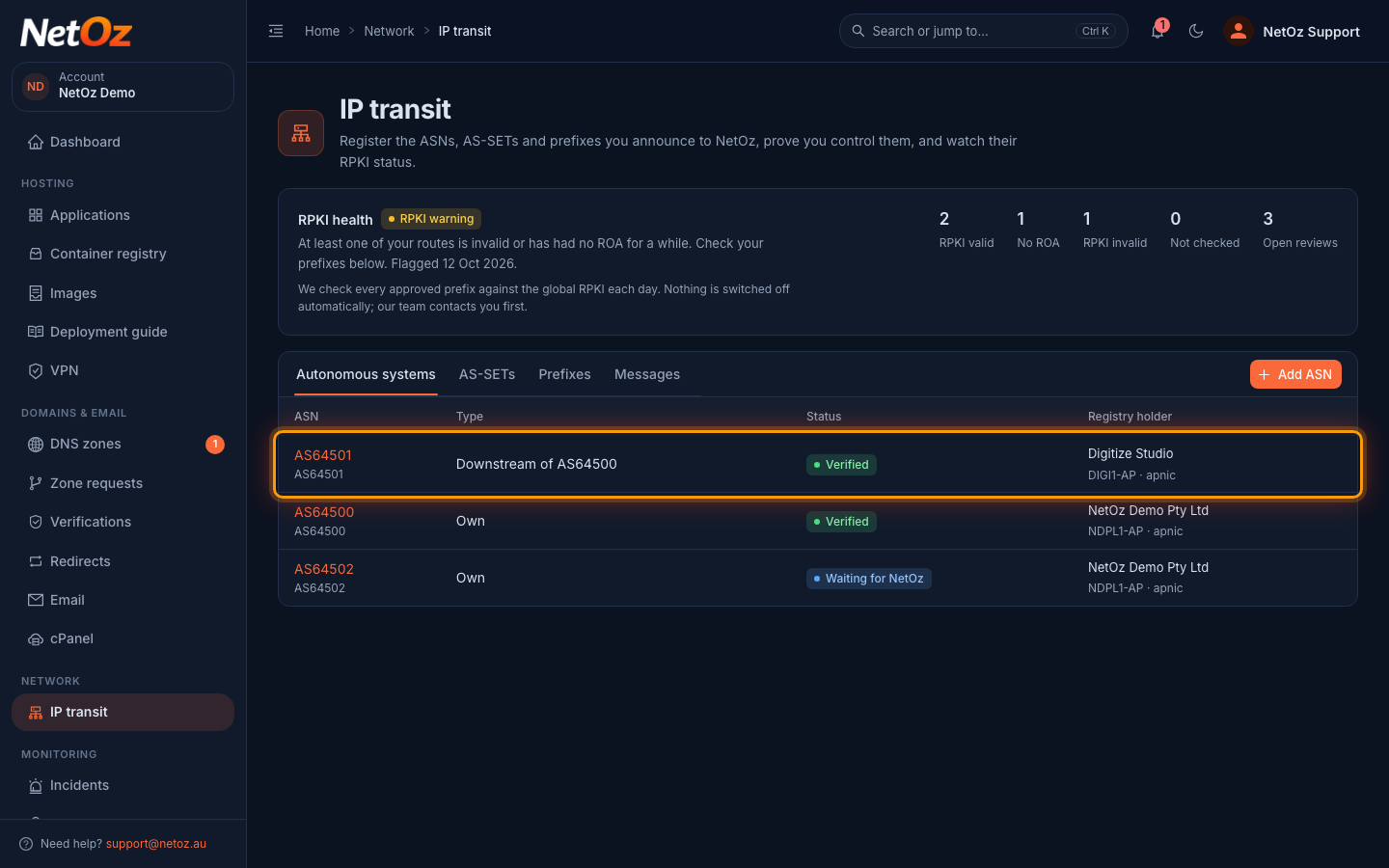
After NetOz approves it, the ASN appears as Verified with the type Downstream of your ASN. You can then pick it as the origin when you add prefixes.
Next steps
- Once the downstream ASN is Verified, register its prefixes with it as the origin.
- Add it to your AS-SET in the IRR so filters built from your set include it. See Register an AS-SET.
Was this guide helpful?
Your answer helps us keep these guides accurate.