Fix an RPKI Invalid prefix
A prefix shows RPKI invalid in the NetOz Portal? Find out which ROA is causing it, create or correct the ROA in MyAPNIC, and let NetOz know so your route is accepted everywhere again.
On this page
An RPKI invalid route is being dropped by every network that validates RPKI, which today includes most large carriers and content networks. It almost always means a ROA exists for the prefix but authorises a different ASN, or a shorter max length than you announce. This guide walks through a real example and how to fix it.
Before you start
- IP transit must be turned on for your account by NetOz. If you buy IP transit from us and don’t see IP transit under Network in the sidebar, contact NetOz support.
- You need to be an account admin, or have IP transit set to Manage on your team access.
- You, or the prefix holder, need access to the RIR portal where the address space is registered, such as MyAPNIC.
Step 1 Find the invalid prefix
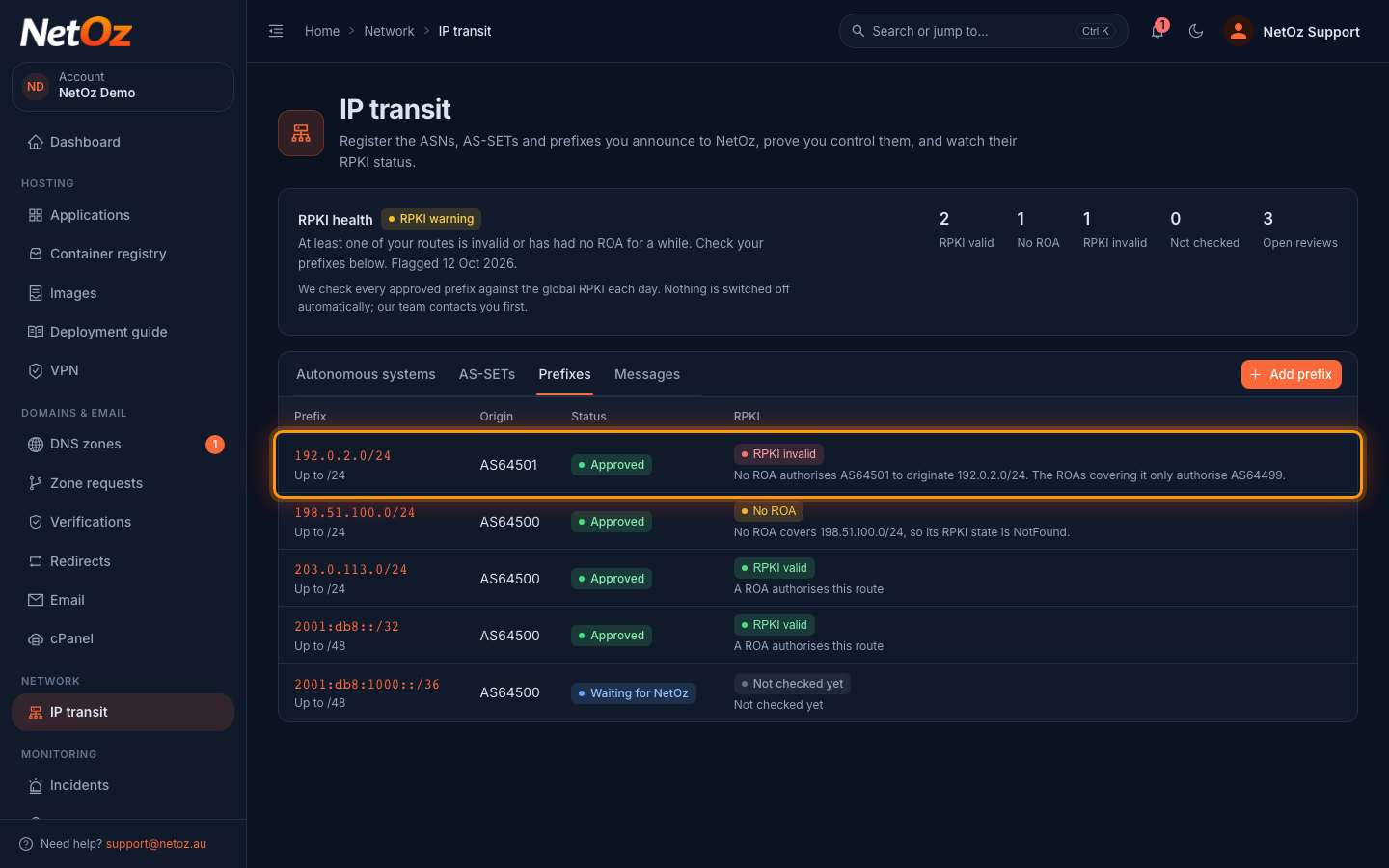
On the Prefixes tab, look for a red RPKI invalid badge. You also get an email, and a review titled … is RPKI Invalid appears under Messages.
Step 2 Read why it’s invalid
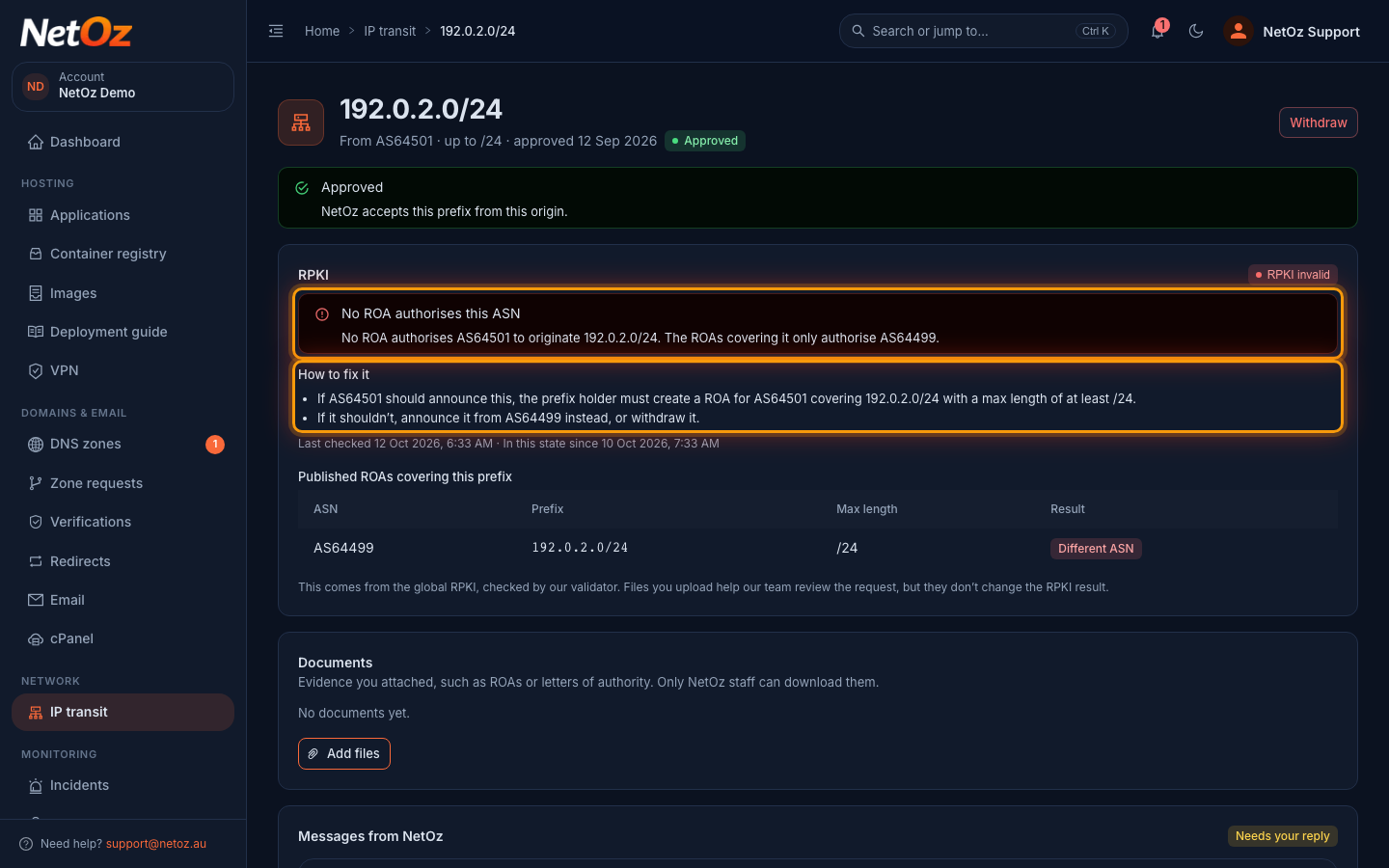
Open the prefix. The RPKI card says exactly what’s wrong. Here, No ROA authorises this ASN: the only ROA for 192.0.2.0/24 allows AS64499, but the route comes from AS64501. Other reasons you may see are More specific than the ROA allows (the ROA’s max length is shorter than the prefix you announce) and an AS0 ROA, which tells everyone the space must not be announced. How to fix it lists the change to make.
Step 3 Check the ROAs covering the prefix
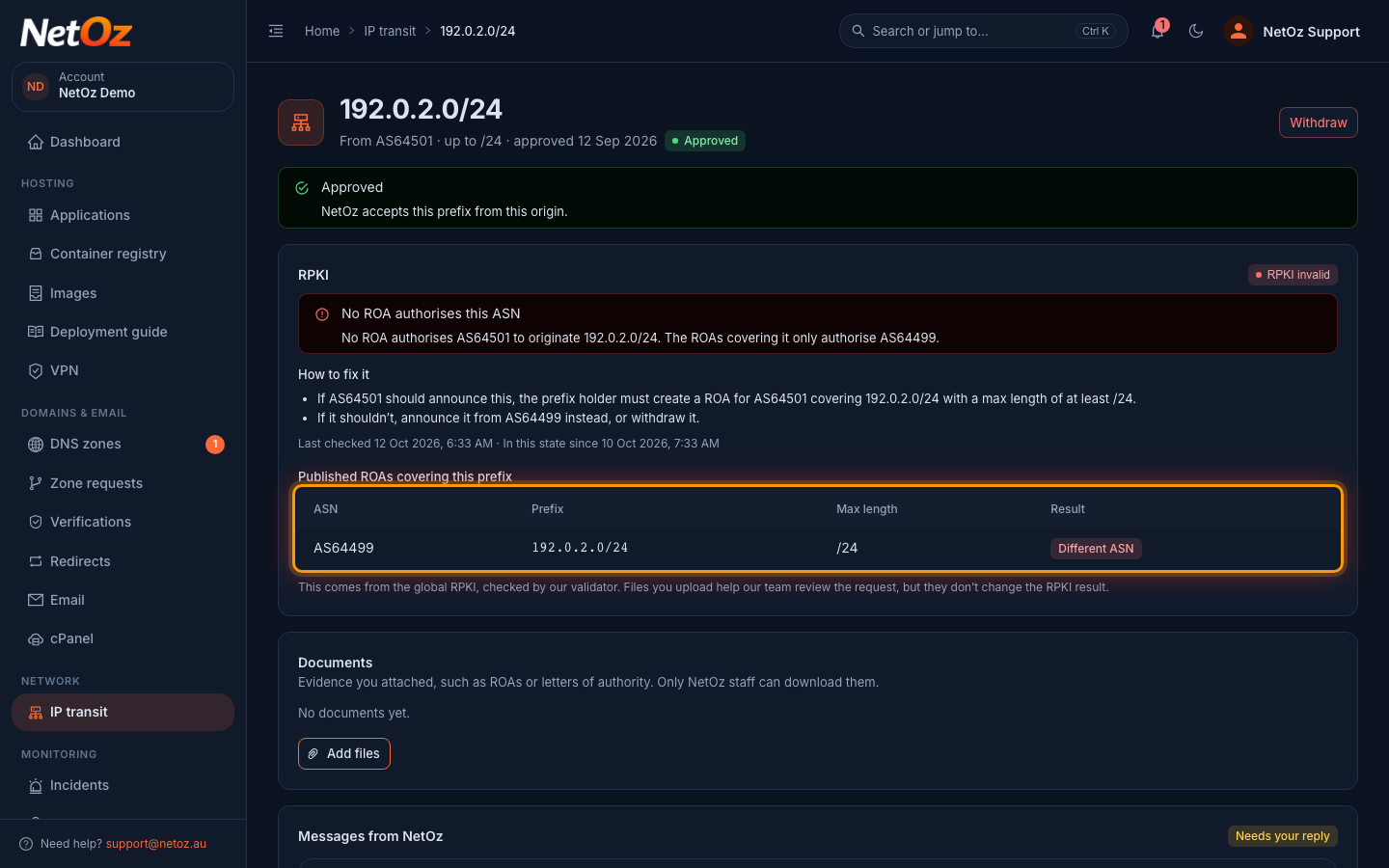
Published ROAs covering this prefix lists each ROA we found, with its ASN, prefix and max length. Matches means it authorises your route, Different ASN means it’s for another origin and Prefix too specific means its max length is too short.
Step 4 Create or correct the ROA at your RIR
Sign in to your RIR’s portal (MyAPNIC for most Australian and Asia-Pacific space) as the holder of the prefix and open its ROA or route management area. Then either:
- Add a ROA with the origin ASN from the portal (here AS64501), the exact prefix (192.0.2.0/24) and a max length of the prefix length (/24), or
- Edit the existing ROA so its ASN and max length match what you announce.
Remove ROAs for origins that no longer announce the space, and avoid raising the max length further than you need. If the space belongs to your customer, ask them to make the change.
Step 5 Upload the new ROA for our team (optional)
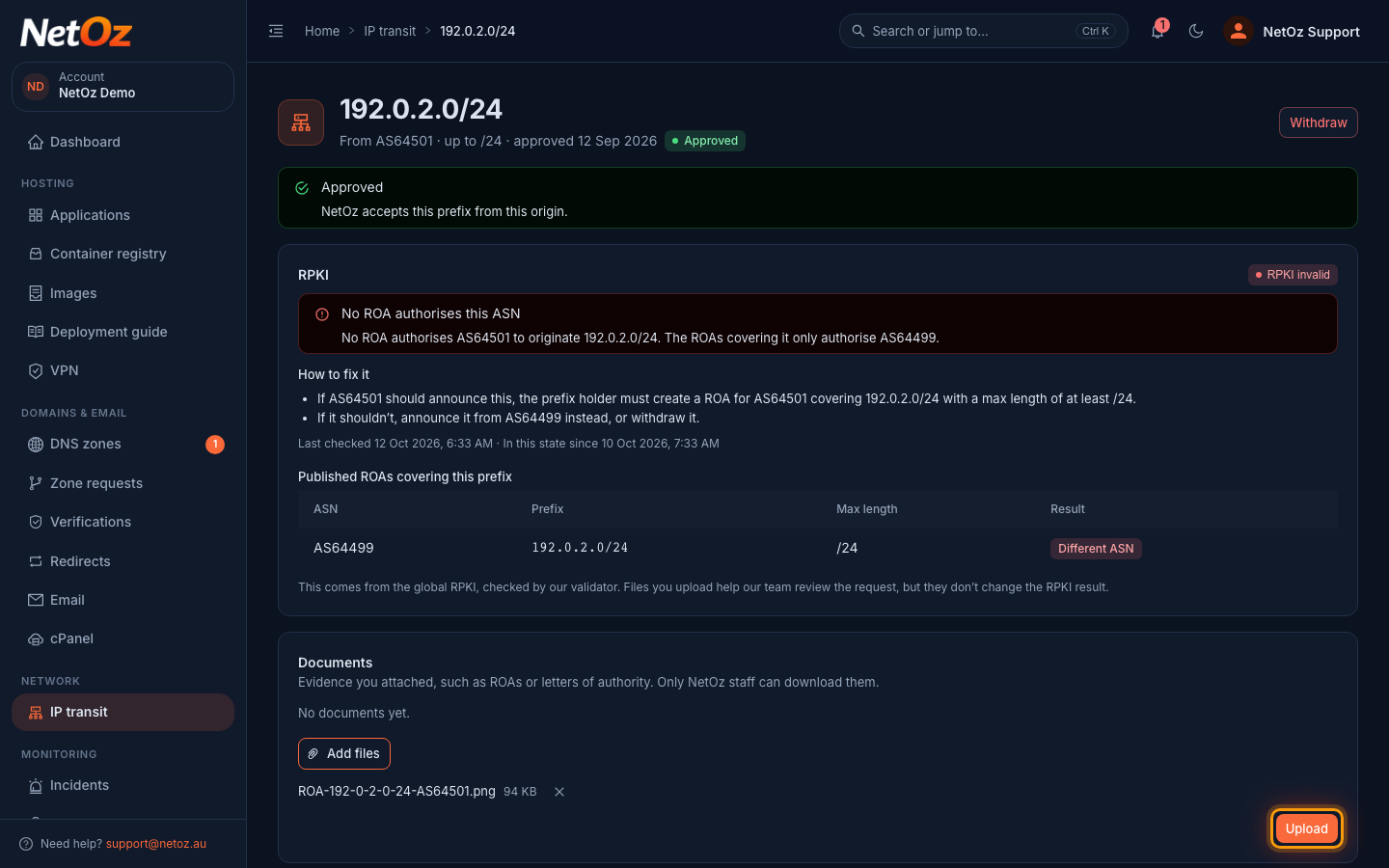
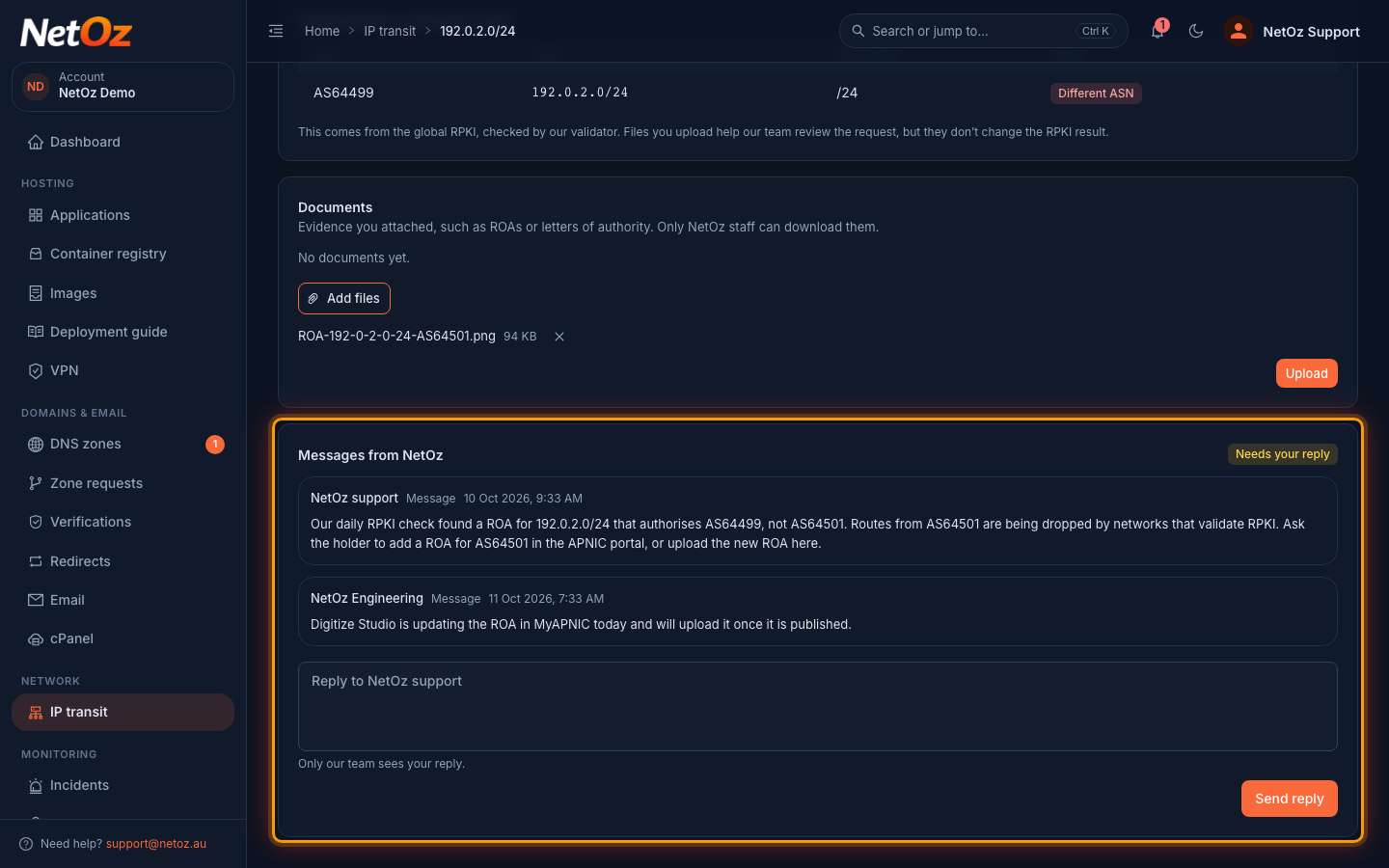
Under Documents, select Add files and attach a screenshot or export of the new ROA, then select Upload. Files help our team follow along, but the badge only changes when the global RPKI does.
Step 6 Reply to NetOz
Further down, Messages from NetOz shows the review we opened when the route became invalid. Let us know what you’ve changed, or when you expect the fix, and select Send reply.
After you fix the ROA
RPKI changes take up to a few hours to reach every validator. Our daily check picks up the new ROA, the badge changes to RPKI valid, the review closes by itself and we email you to confirm. If a prefix stays invalid for 3 days, your account shows RPKI failing and our team escalates the review, so fix the ROA as soon as you can.
If the prefix shouldn’t be announced at all, open it and choose Withdraw instead.
Was this guide helpful?
Your answer helps us keep these guides accurate.