Change what a team member can access in the NetOz Portal
Edit a team member’s role and permissions in the NetOz Portal. Choose View or Manage per area and limit people to specific applications, environments or domains.
On this page
You can change what someone can do at any time. Give contractors access only to the site they work on, let your accounts team manage email without touching DNS, or promote someone to account admin.
Before you start
- You need to be an account admin. You cannot change your own access, so ask another admin if you need to.
Step 1 Open the person’s actions
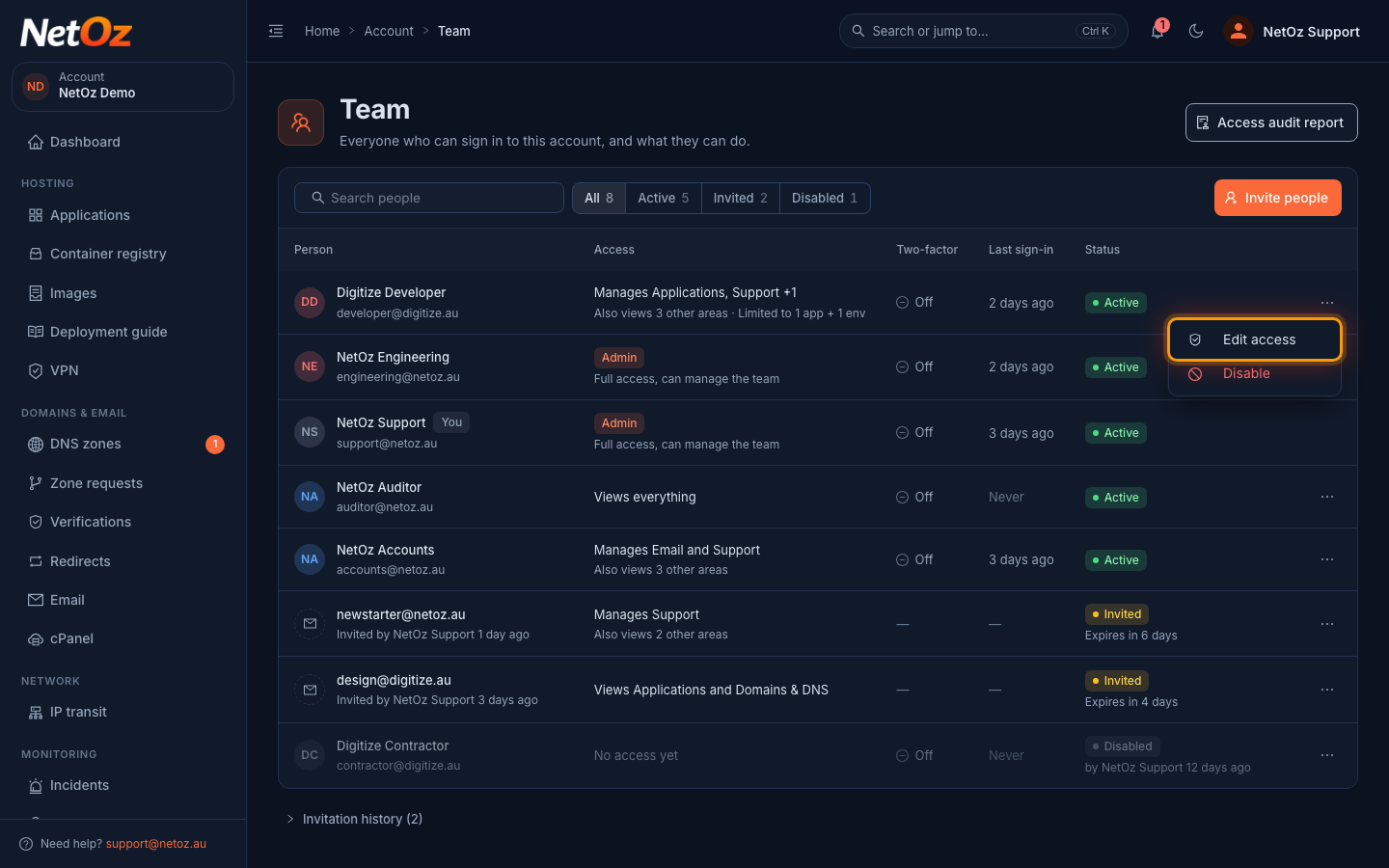
On the Team page, select the ⋯ button at the end of the person’s row and choose Edit access. You can also select the row itself.
Step 2 Review their role and areas
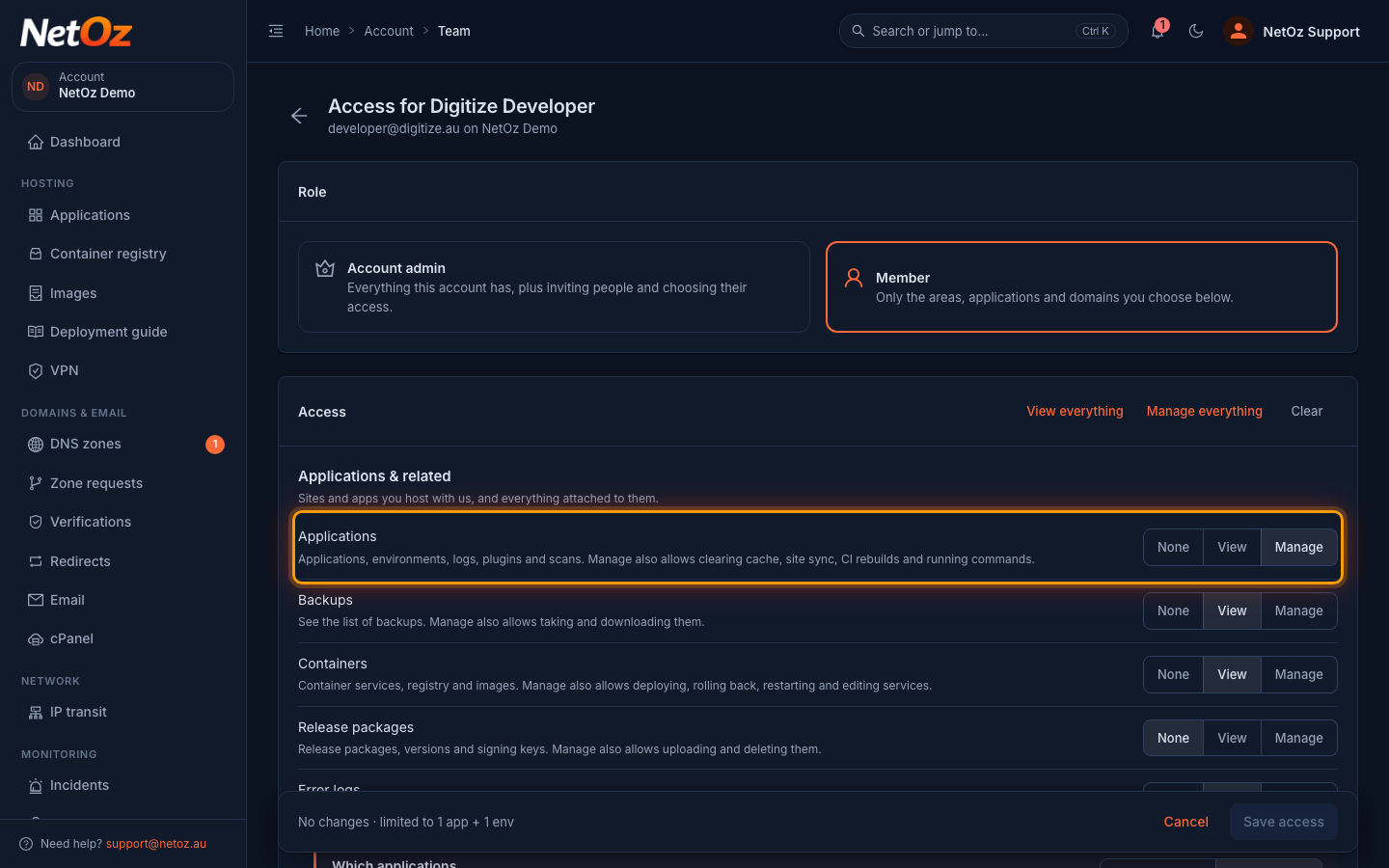
The page shows their Role and, for members, the level they have in each area: None, View or Manage. Select a different level to change it.
Step 3 Limit access to specific applications
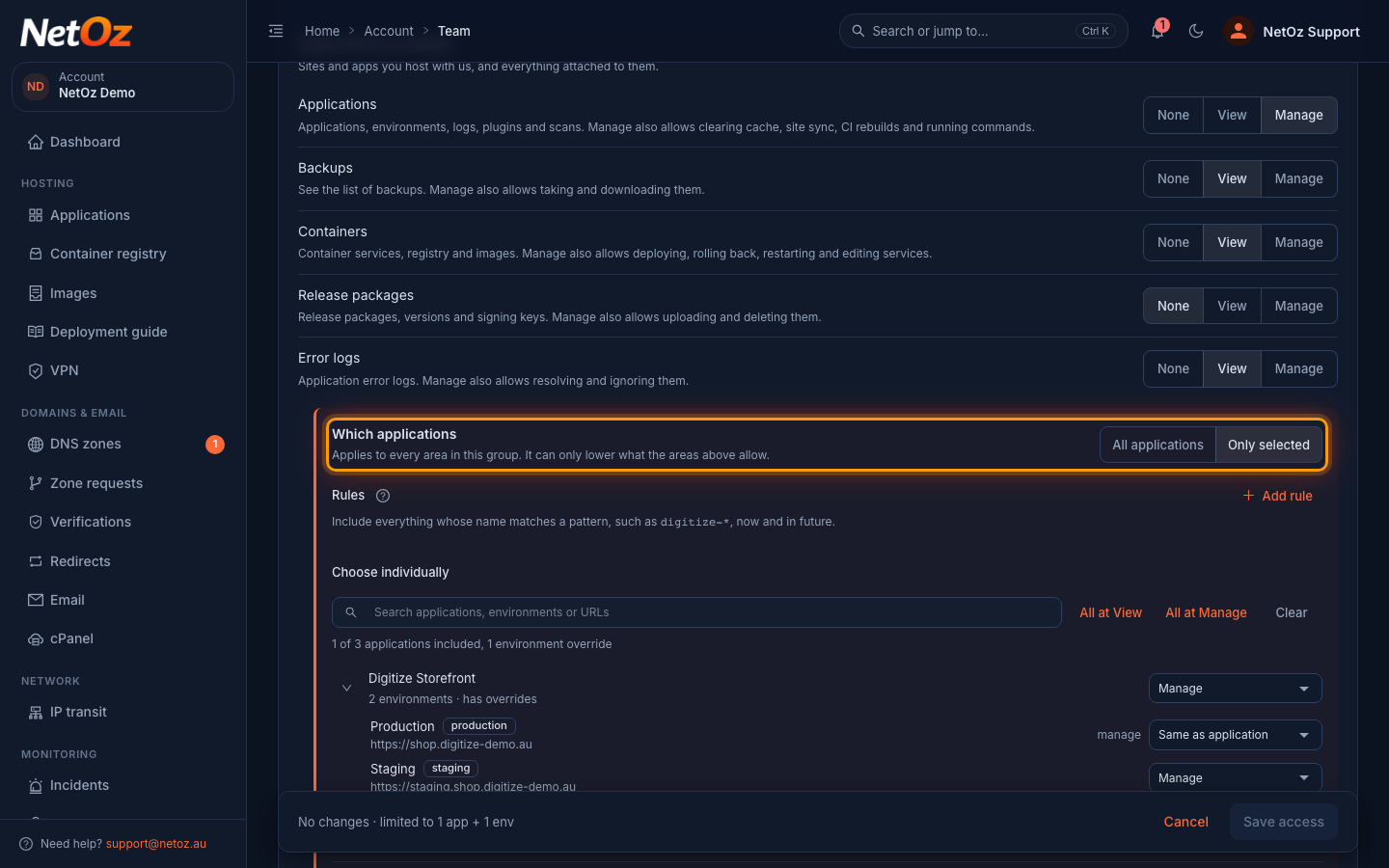
With Only selected, the person only sees the applications you list. Choose a level for each application, and expand it to set a different level for individual environments, for example Manage on staging but nothing on production.
Step 4 Save your changes
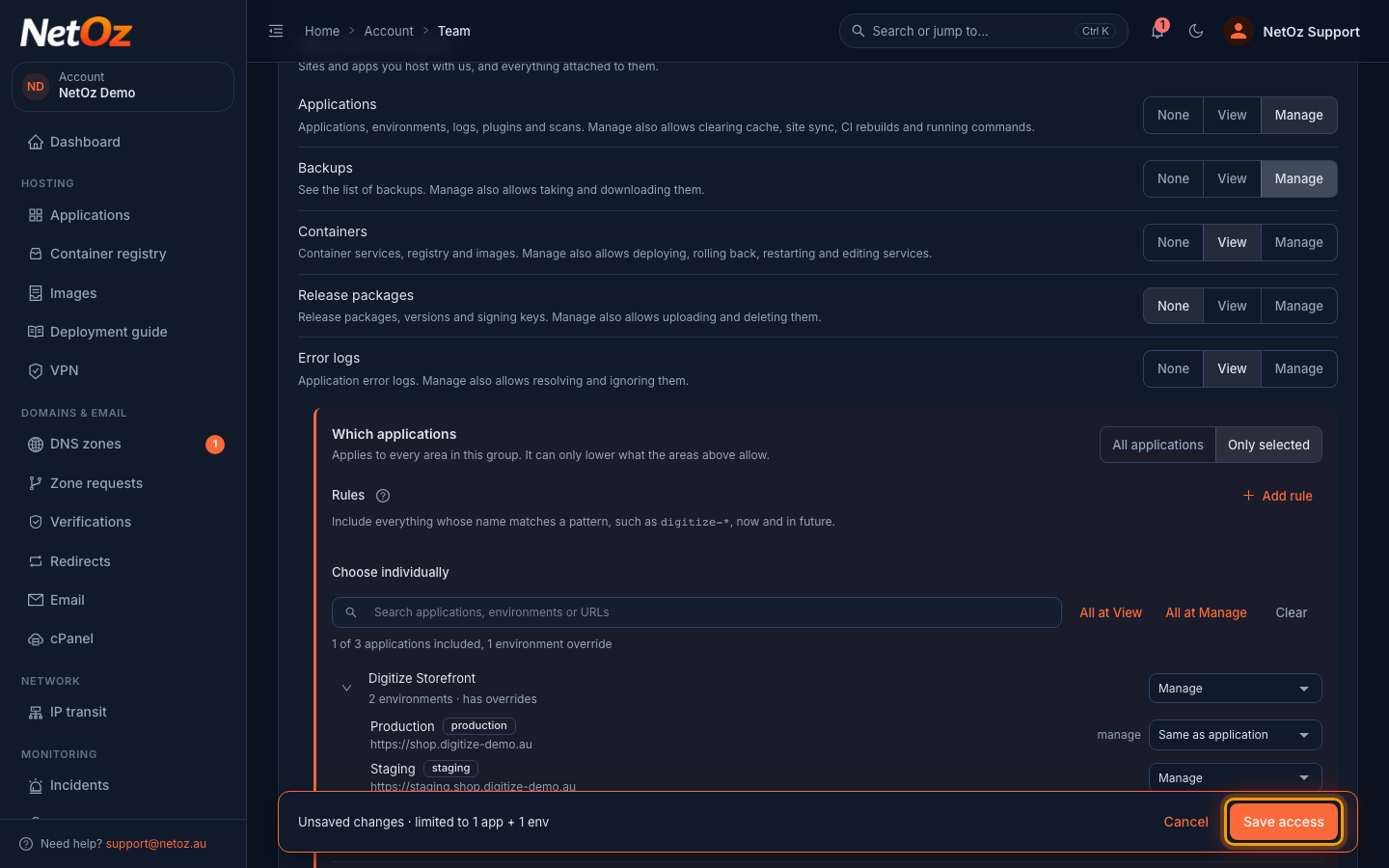
As soon as you change something, the bar at the bottom of the page shows Unsaved changes. Select Save access to apply them straight away, or Cancel to leave without saving.
Tips
- Give people the least access they need. You can always add more later.
- Use Only selected for contractors and agencies so they only see the applications they work on.
- Review everyone’s access regularly with the access audit report.
Was this guide helpful?
Your answer helps us keep these guides accurate.