Disable or re-enable a team member’s portal access
Stop a departing staff member or contractor signing in to your NetOz Portal account straight away, and restore their access later if you need to.
When someone leaves your organisation or no longer needs access, disable them. They can no longer sign in to your account, and their access settings are kept in case you need to re-enable them.
Before you start
- You need to be an account admin. You cannot disable yourself.
- Disabling portal access does not remove someone from your VPN or mailboxes. See Remove a device or revoke someone’s VPN access.
Step 1 Open the person’s actions
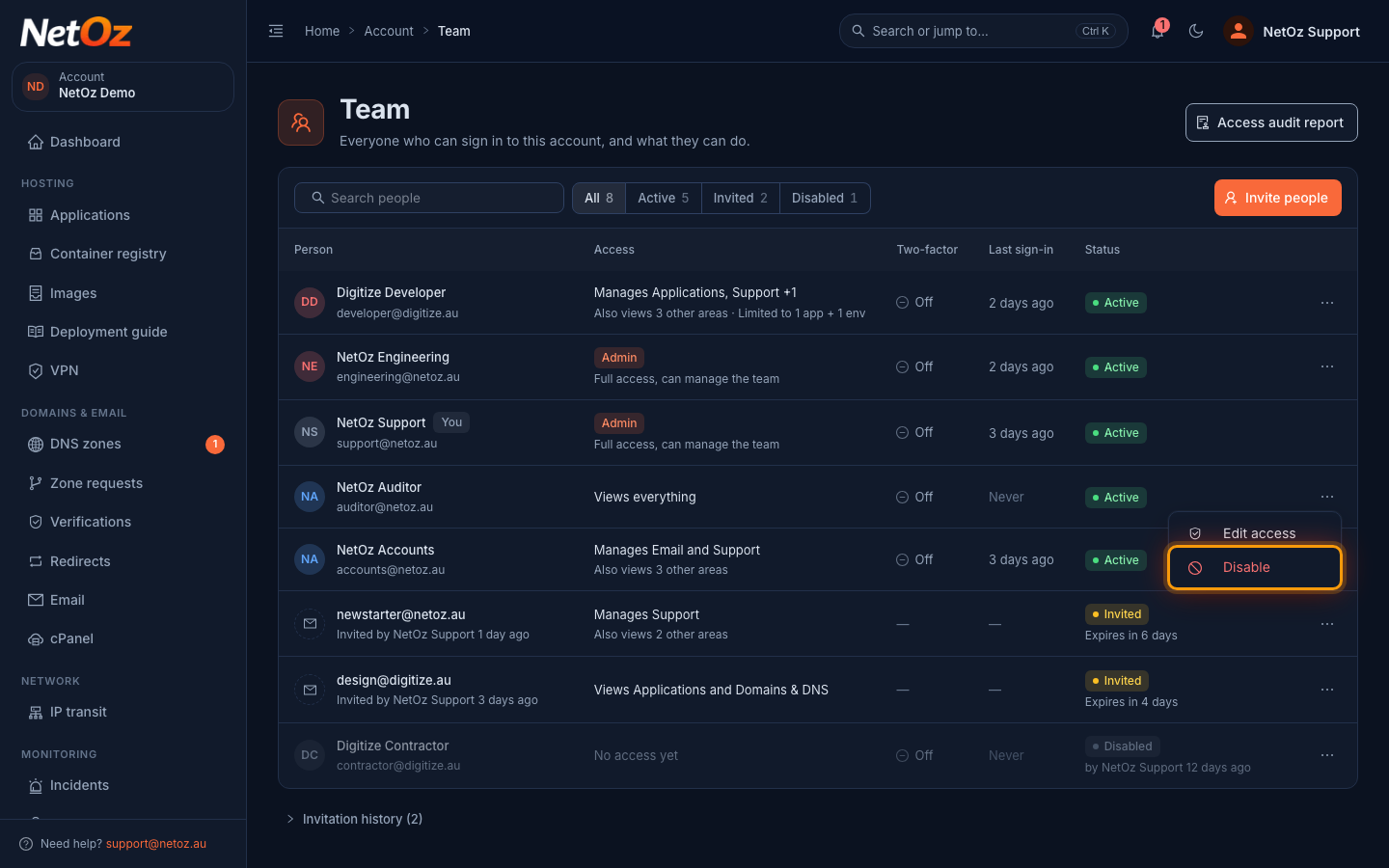
On the Team page, select the ⋯ button at the end of the person’s row and choose Disable.
Step 2 Confirm
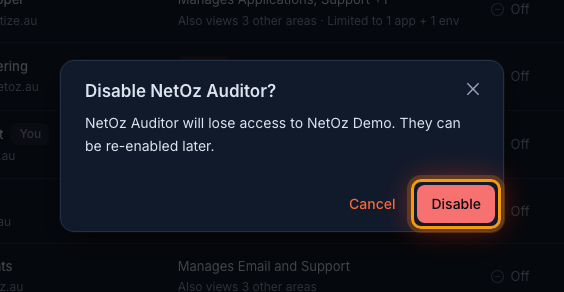
Check the name and select Disable. They lose access to your account immediately and show as Disabled on the Team page, along with who disabled them and when.
Step 3 Re-enable someone
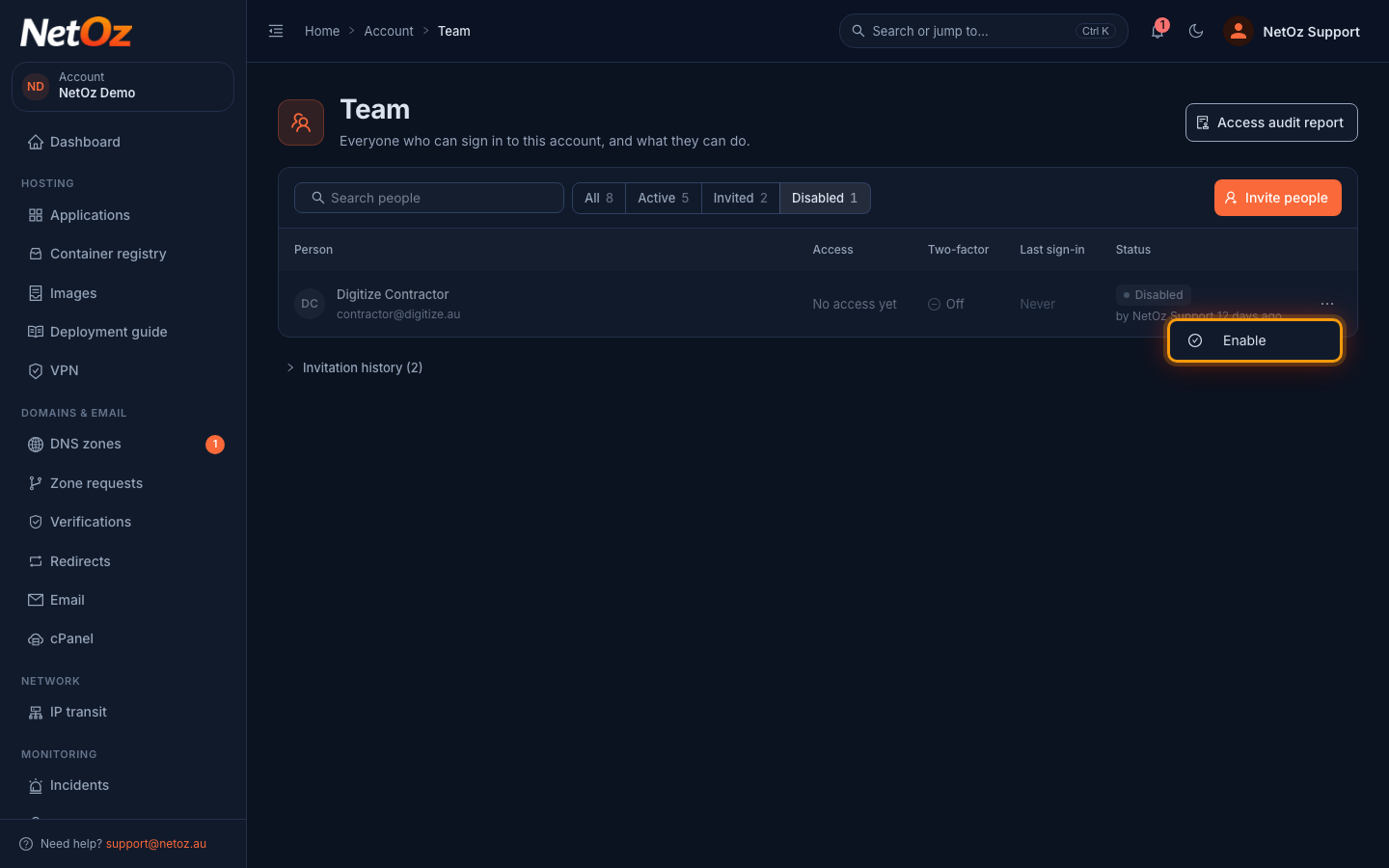
To restore access, select Disabled above the list to show only disabled people. Open the person’s ⋯ menu and choose Enable. Their previous access settings are restored.
Was this guide helpful?
Your answer helps us keep these guides accurate.