Remove a device or revoke someone’s VPN access
Revoke a lost laptop or remove a departing staff member from your NetOz VPN. Access stops immediately and their usage history is kept.
Last updated 1 min read3 steps
When a device is lost or someone leaves, remove their access from the NetOz Portal. The WireGuard peer is revoked on your VPN server immediately, and their past usage stays on record.
Before you start
- You need to be an account admin, or have VPN set to Manage.
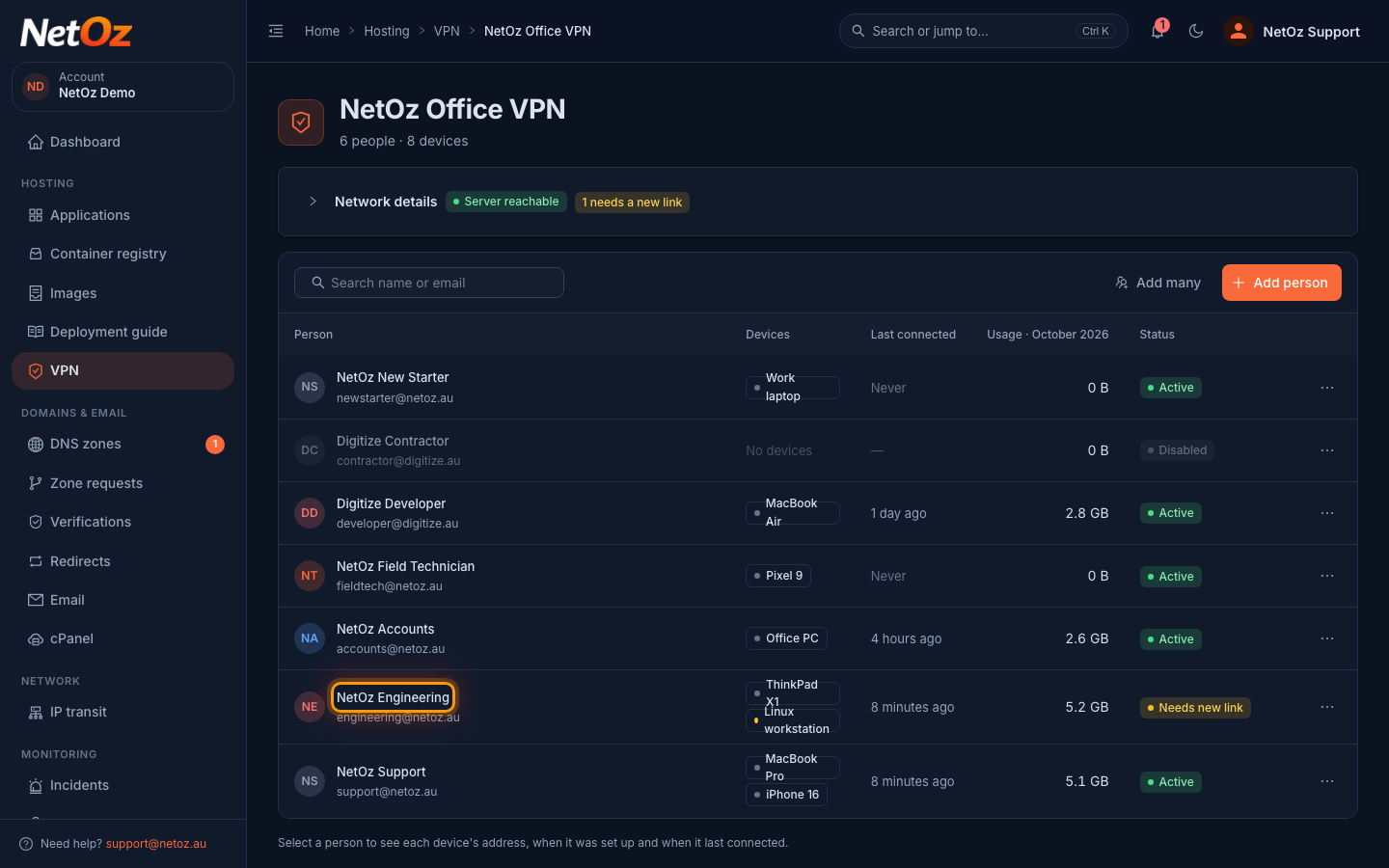
Step 1 Select the person
On the VPN page, select the person’s name to open their details.
Step 2 Remove a single device
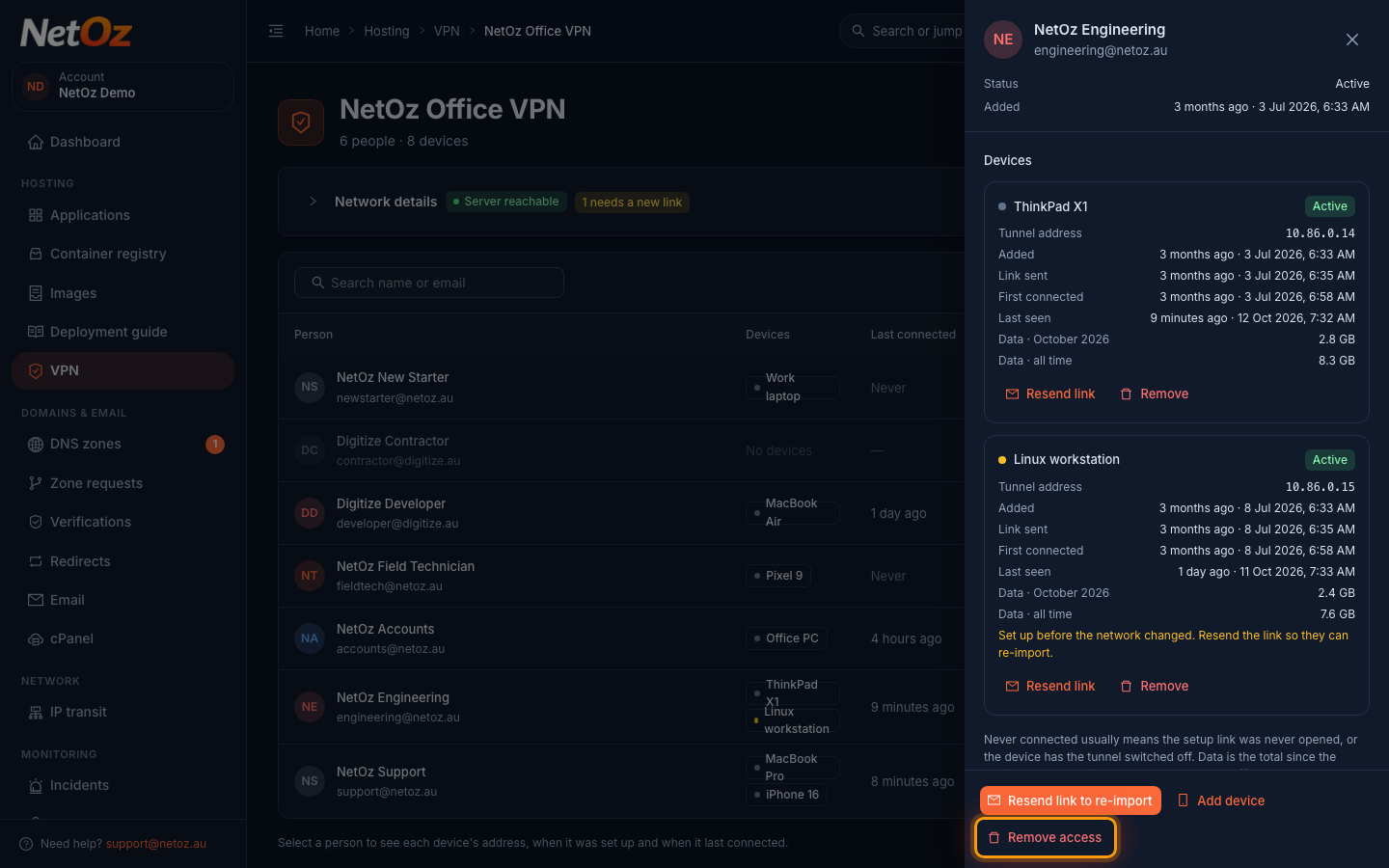
Each device shows its tunnel address, when it was added and last seen, and how much data it has used. Select Remove on the device you want to revoke. Their other devices keep working.
Step 3 Or remove all of their access
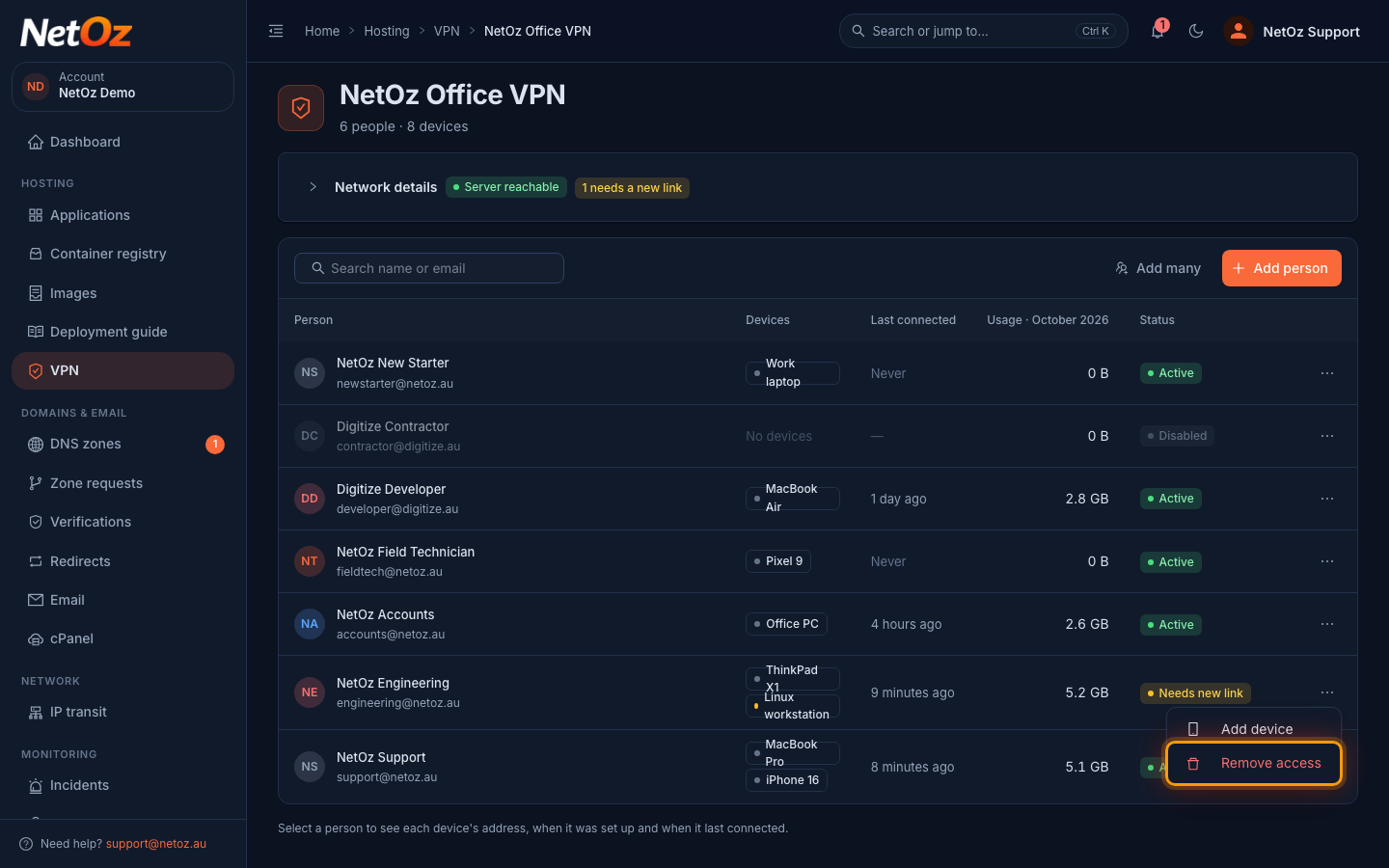
To offboard someone completely, open the ⋯ menu on their row and choose Remove access. Confirm, and every device they have is revoked.
Was this guide helpful?
Your answer helps us keep these guides accurate.