Add a person to your NetOz VPN and send their setup link
Give a staff member or contractor WireGuard VPN access in under a minute. NetOz creates their device and emails them a secure setup link.
On this page
Adding someone to a NetOz VPN creates a WireGuard device for them and emails a personal setup link. They open the link on the device they want to connect, import the configuration into the WireGuard app and they are on the network.
Before you start
- The VPN must show as Ready. If it says Awaiting setup, see Request a VPN.
- You need to be an account admin, or have VPN set to Manage.
- Each device needs its own setup, so add a laptop and a phone as two devices.
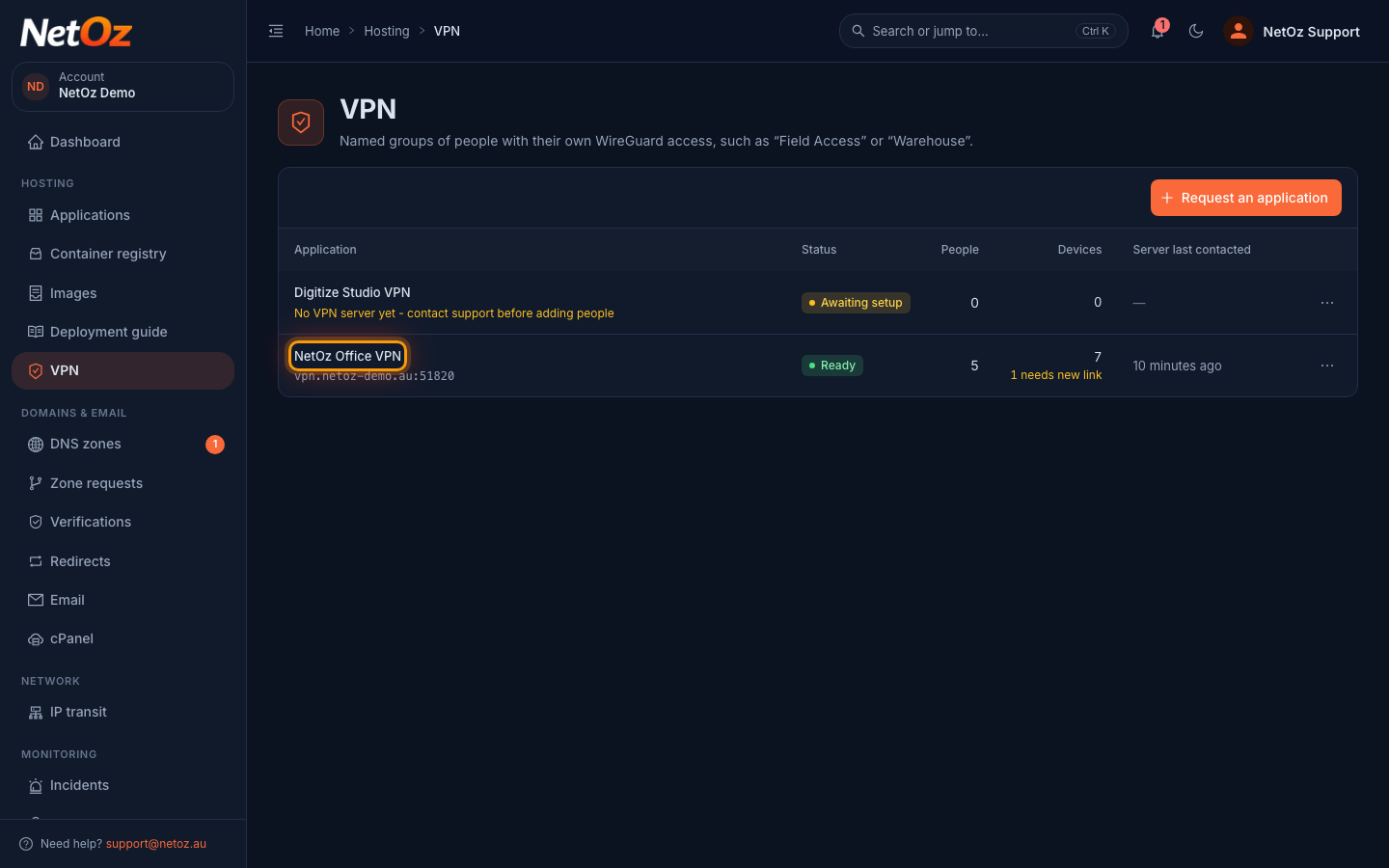
Step 1 Open the VPN
Go to VPN in the sidebar and select the VPN you want to give access to.
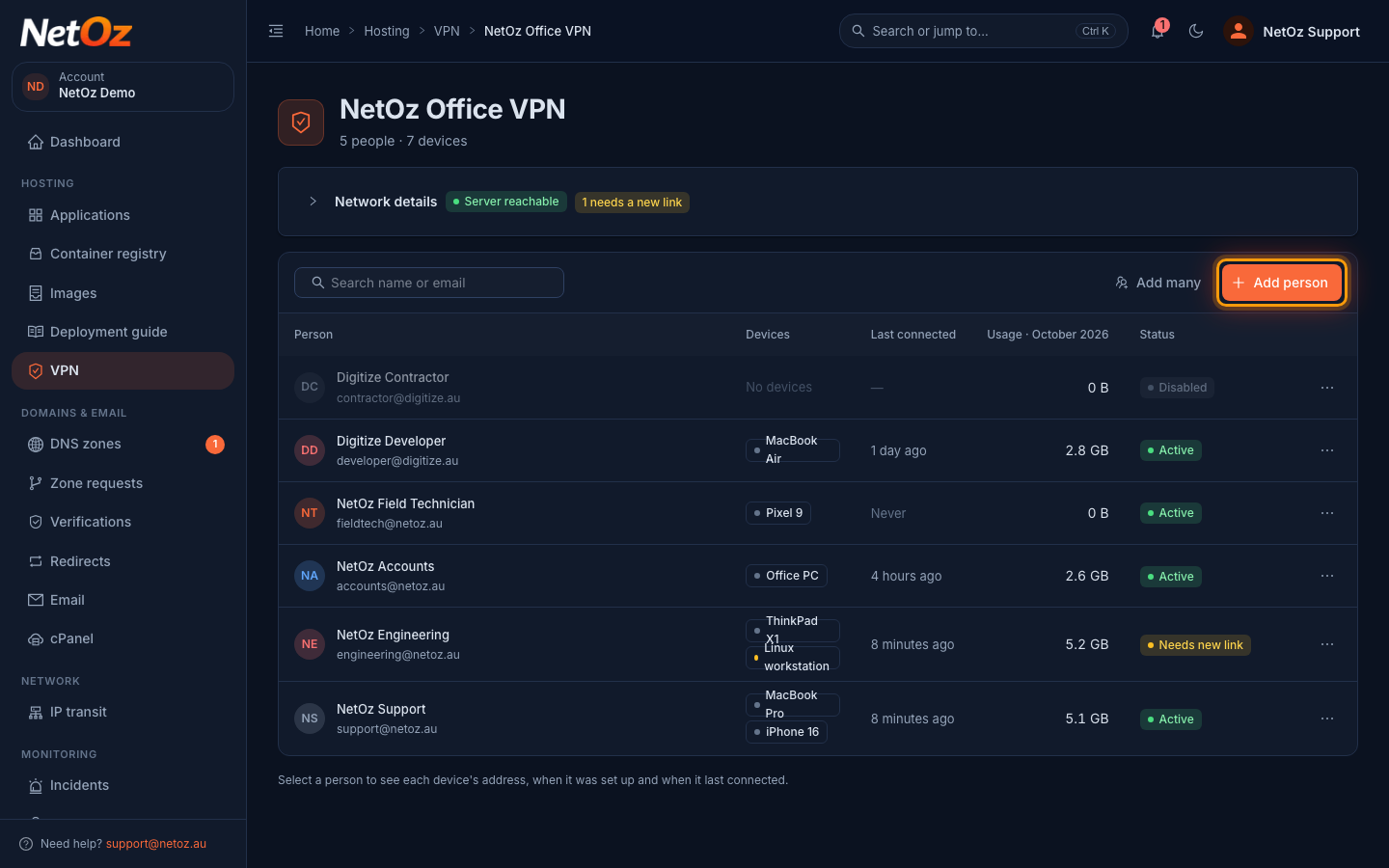
Step 2 Select Add person
The VPN page lists everyone with access, their devices, when each last connected and how much data they have used this month. Select Add person.
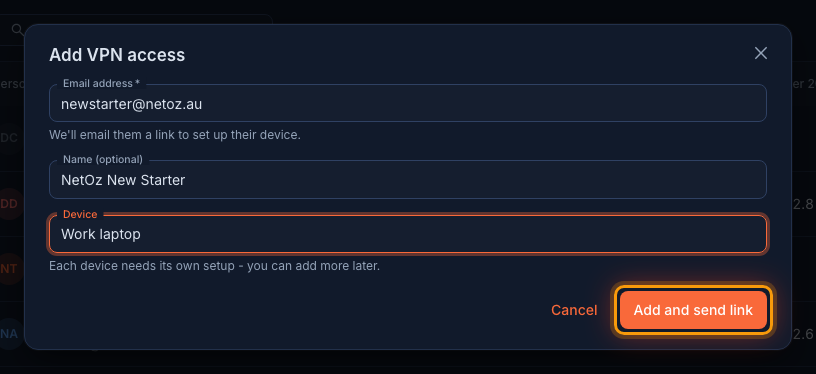
Step 3 Enter their details
Enter their email address, an optional name, and a device name that will help you recognise it later, such as "Work laptop". Then select Add and send link.
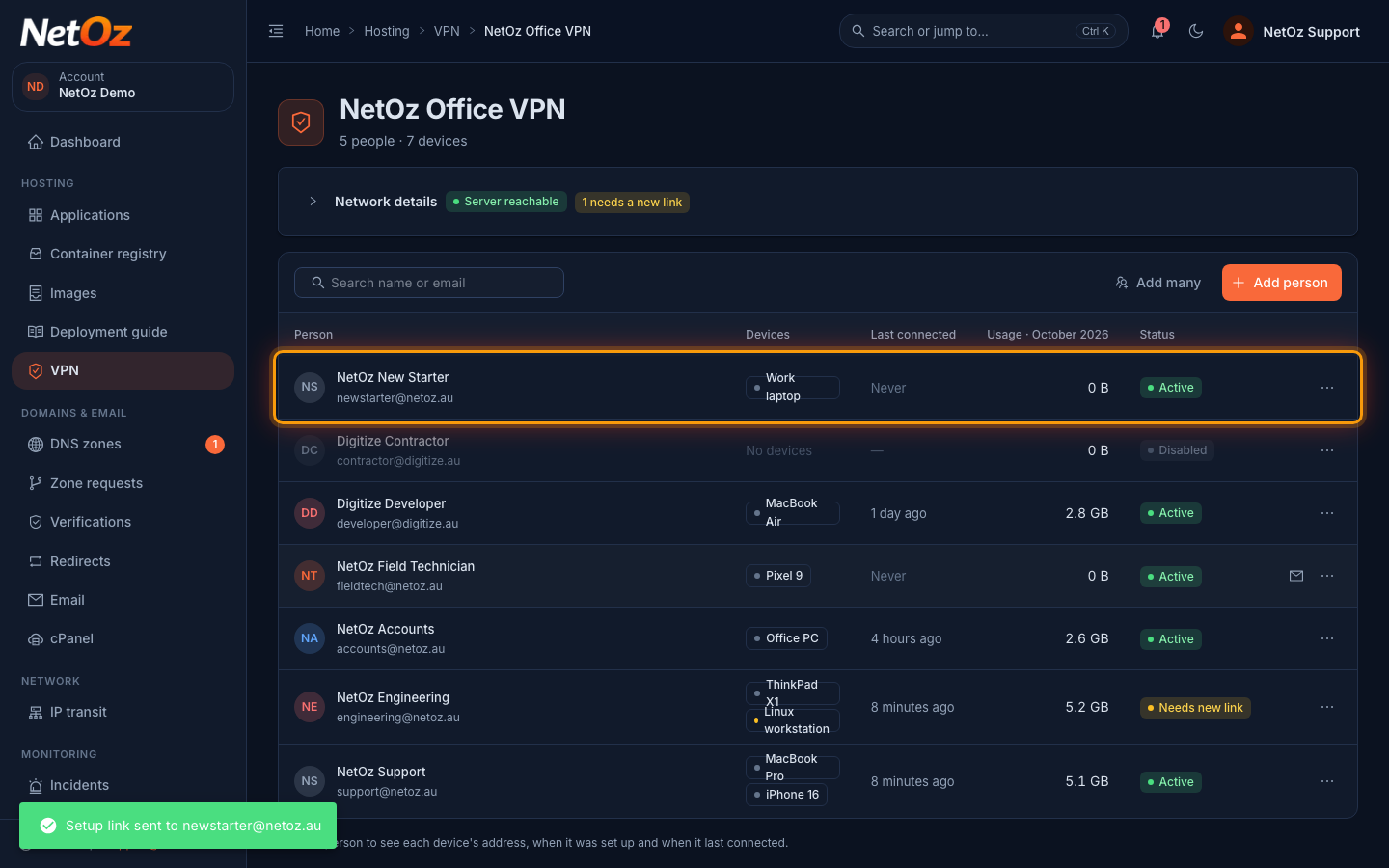
Step 4 Check the link was sent
NetOz creates the WireGuard device straight away and emails the setup link. The person appears in the list, and their device shows Never until they import the configuration and connect for the first time.
Step 5 What they receive
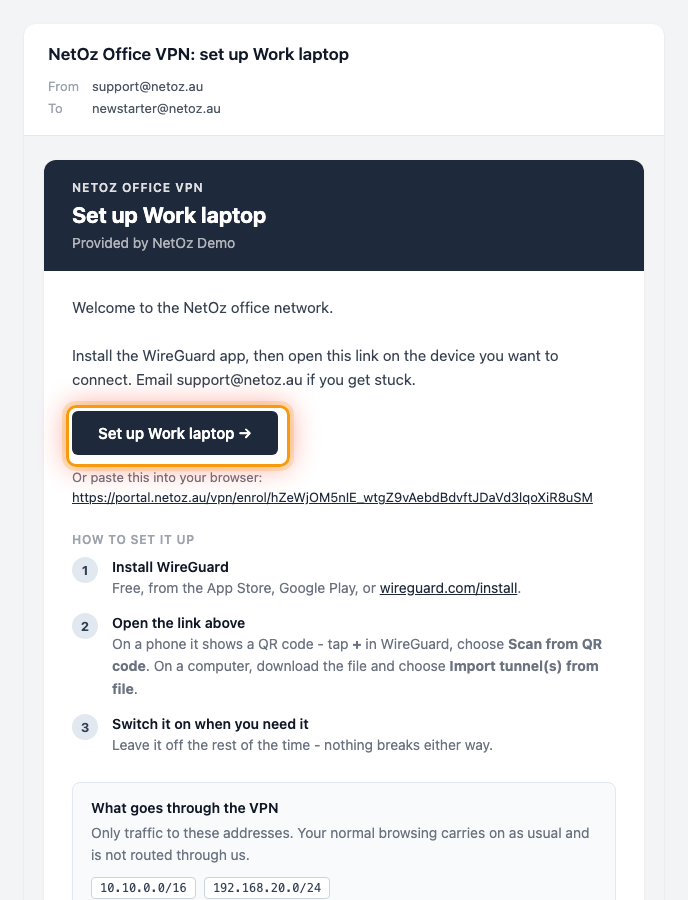
They get an email from NetOz titled with the VPN and device name. It includes your welcome message, a Set up button and the same link written out in full, followed by short instructions for installing WireGuard. The link is personal to that device, so ask them not to forward it.
Next steps
- Send the person the guide for their device: Windows, macOS, iPhone and iPad, Android or Linux.
- Adding a whole team? Use Add many to paste a list of email addresses.
- Add another device for someone
Was this guide helpful?
Your answer helps us keep these guides accurate.