Add another device or resend a VPN setup link
Give an existing VPN user a second device, such as a phone, or resend their WireGuard setup link if they lost the email or the network has changed.
On this page
Every device someone connects from needs its own WireGuard configuration. You can add more devices at any time, and resend a setup link when someone loses the email or when their configuration is out of date.
Before you start
- You need to be an account admin, or have VPN set to Manage.
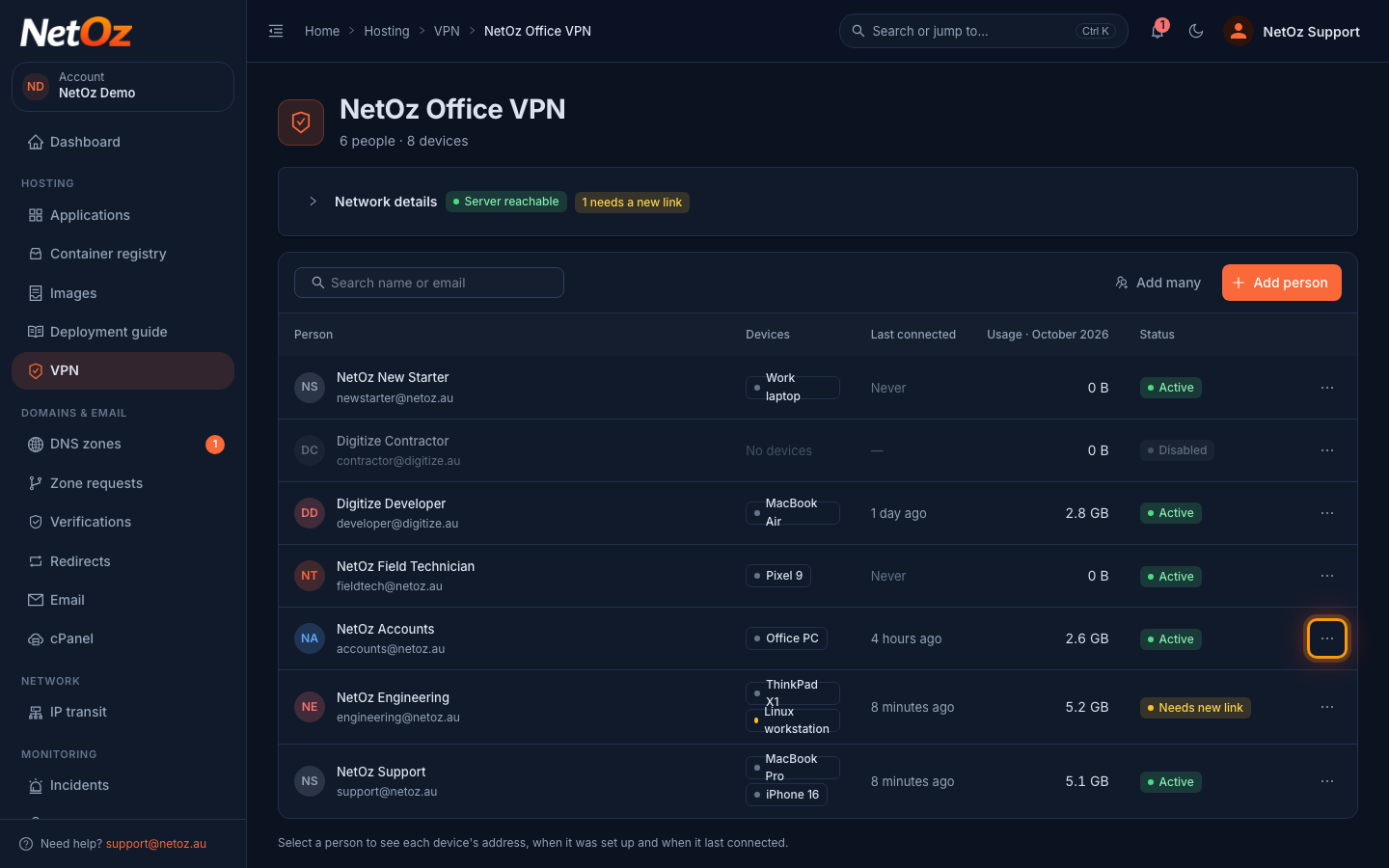
Step 1 Open the person’s actions
On the VPN page, find the person and select the ⋯ button at the end of their row.
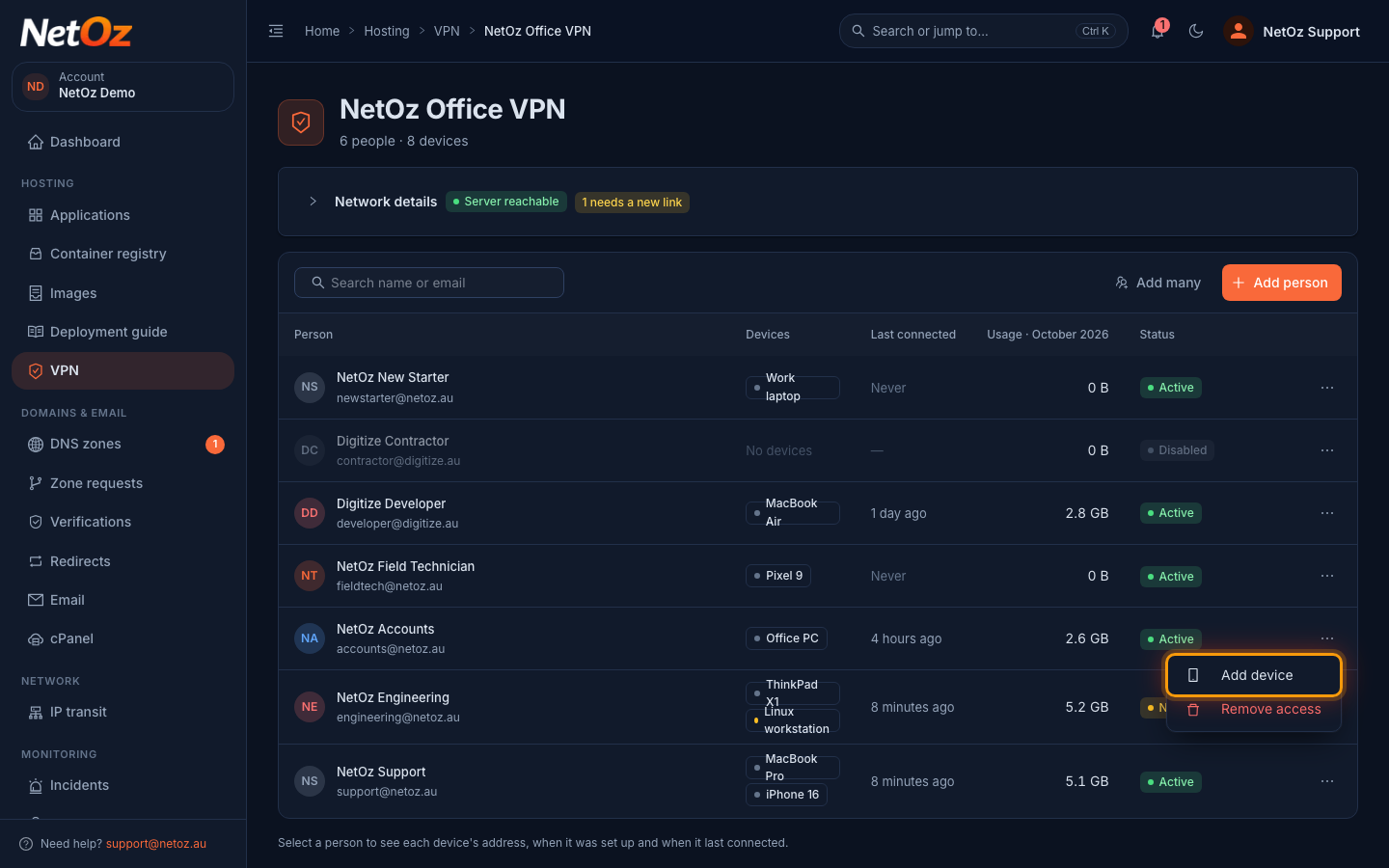
Step 2 Choose Add device
Select Add device. The same menu has Resend setup link, which emails a fresh copy of the link for their existing devices.
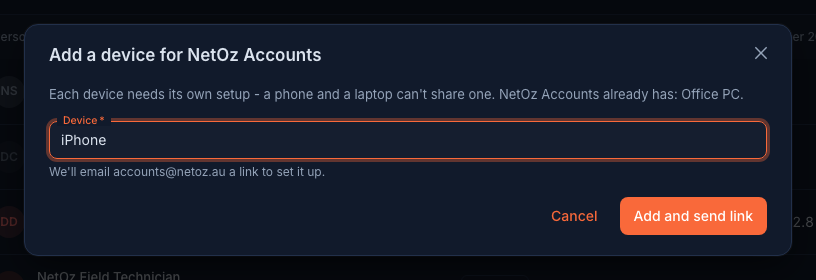
Step 3 Name the device and send the link
Give the device a name, such as "iPhone", and confirm. NetOz emails a separate setup link for the new device.
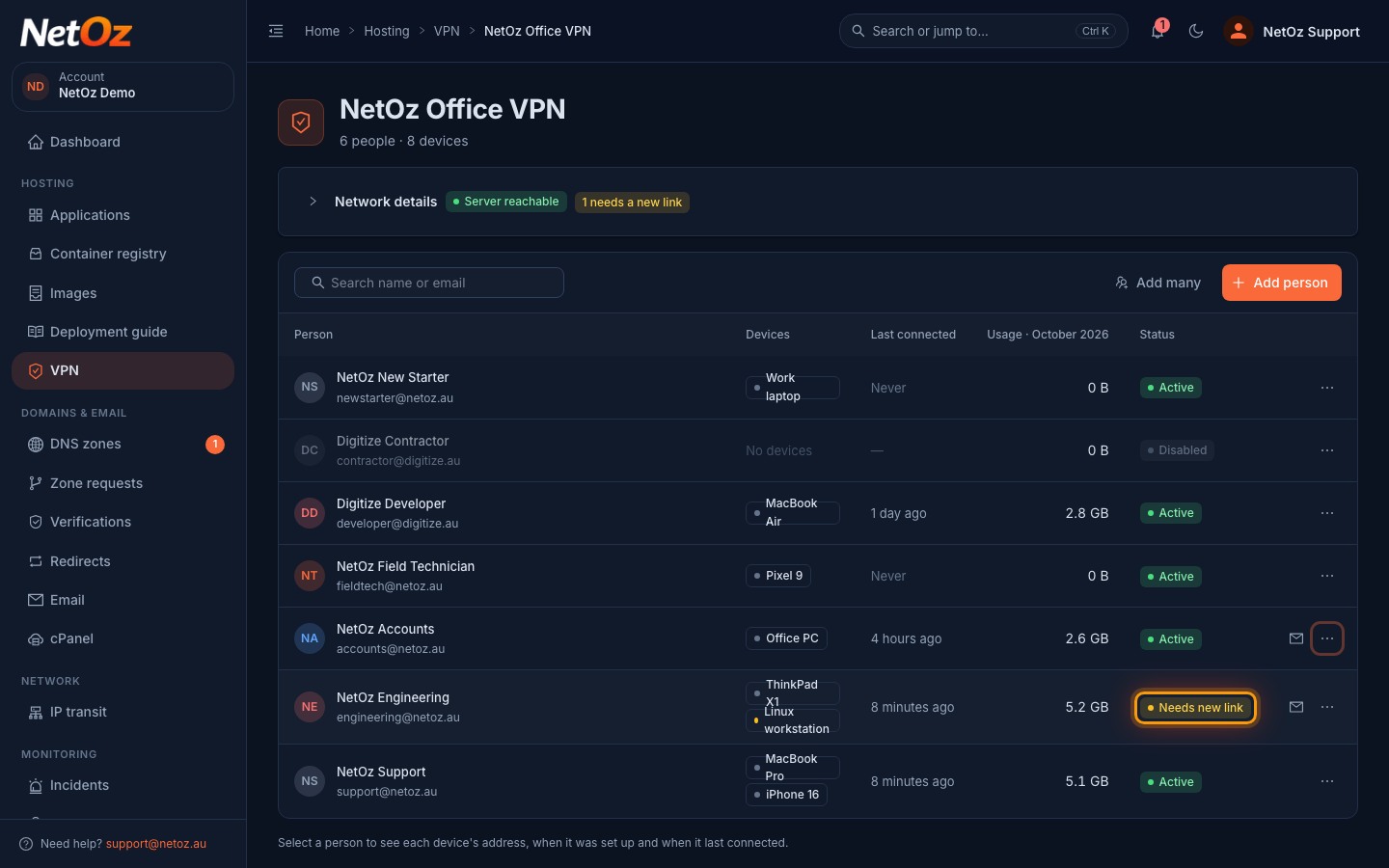
Step 4 Resend links for out-of-date devices
If a person shows Needs new link, the networks your VPN reaches have changed since their device was set up. Open their actions and choose Resend link to re-import so they can import the updated configuration.
Was this guide helpful?
Your answer helps us keep these guides accurate.