Review who can access what with the access audit report
Use the NetOz Portal access audit report to see every person’s role, permissions and two-factor status, by person, application or domain, and export it to CSV.
On this page
The access audit report shows who can access what on your account in one place. Use it for regular access reviews, to check that everyone uses two-factor authentication, and to keep a record for your auditors.
Before you start
- You need to be an account admin.
Step 1 Open the report
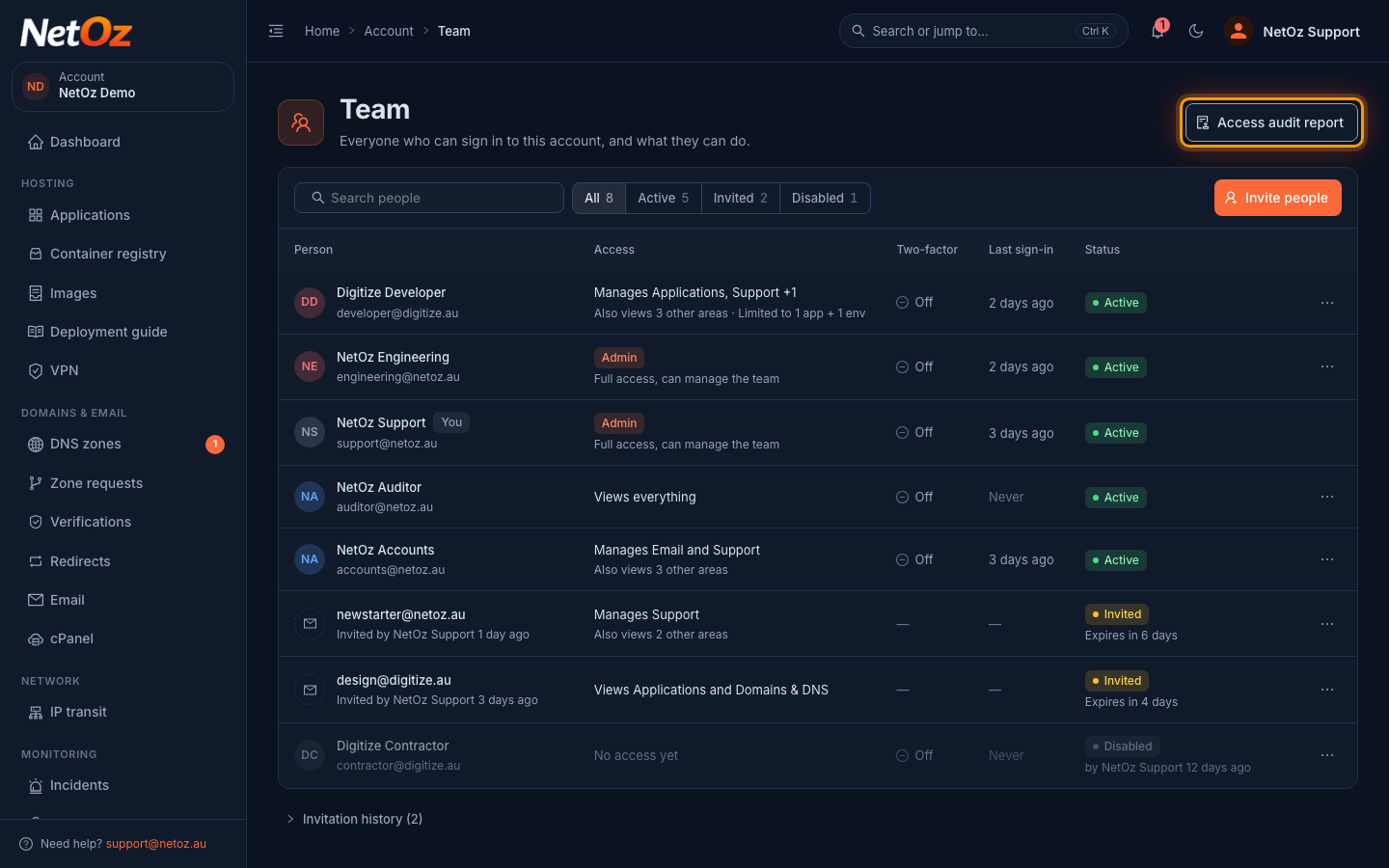
On the Team page, select Access audit report. You can also search for it with Ctrl K.
Step 2 Check the summary
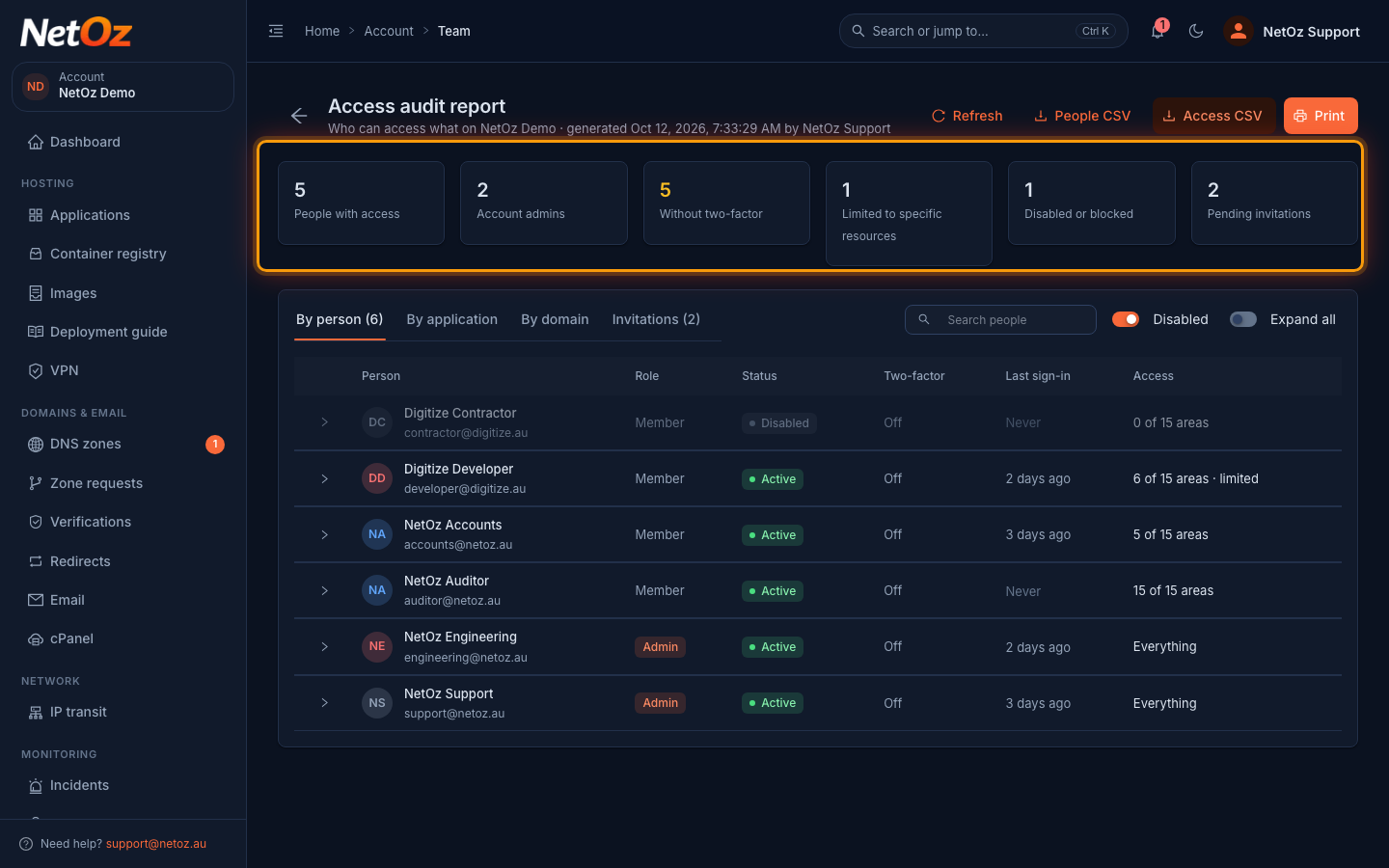
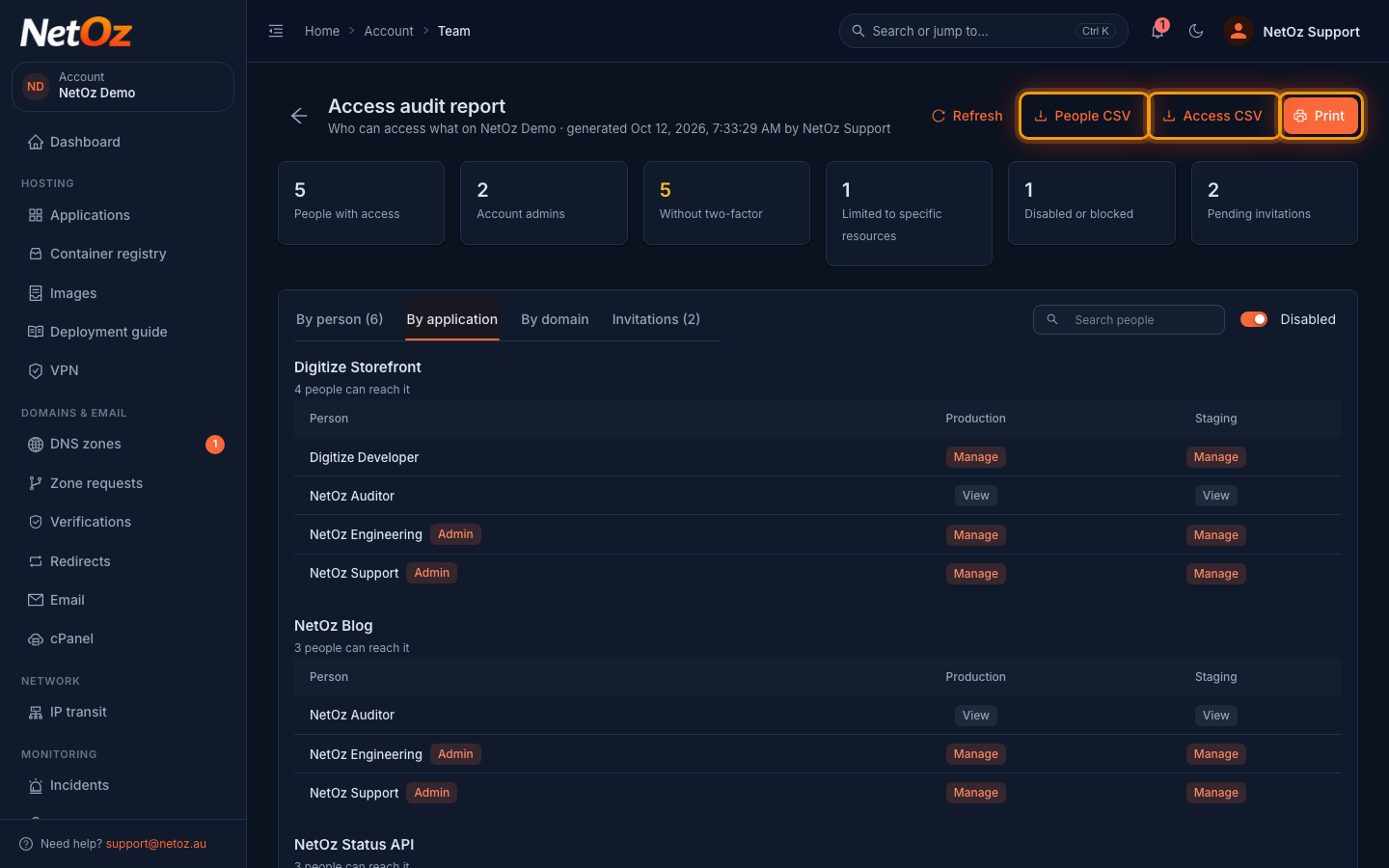
The figures across the top show how many people have access, how many are account admins, who does not use two-factor authentication, who is limited to specific resources, who is disabled and how many invitations are pending.
Step 3 Expand a person
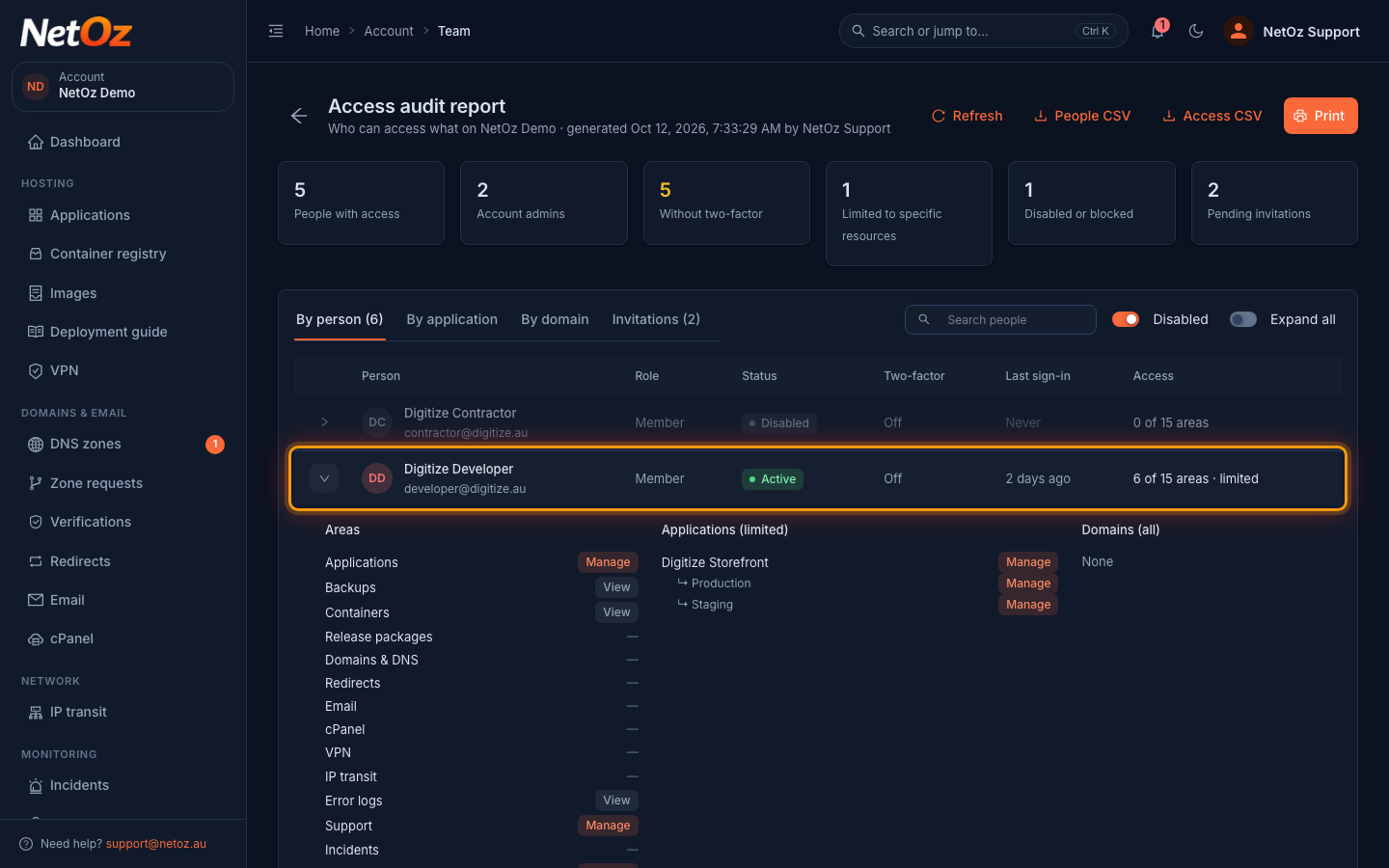
The By person tab lists everyone with their role, status, two-factor setting, last sign-in and how many areas they can access. Select the arrow next to a person to see their access to each area, and which applications or domains they are limited to. Tick Expand all to open everyone at once.
Step 4 Look at it by application or domain
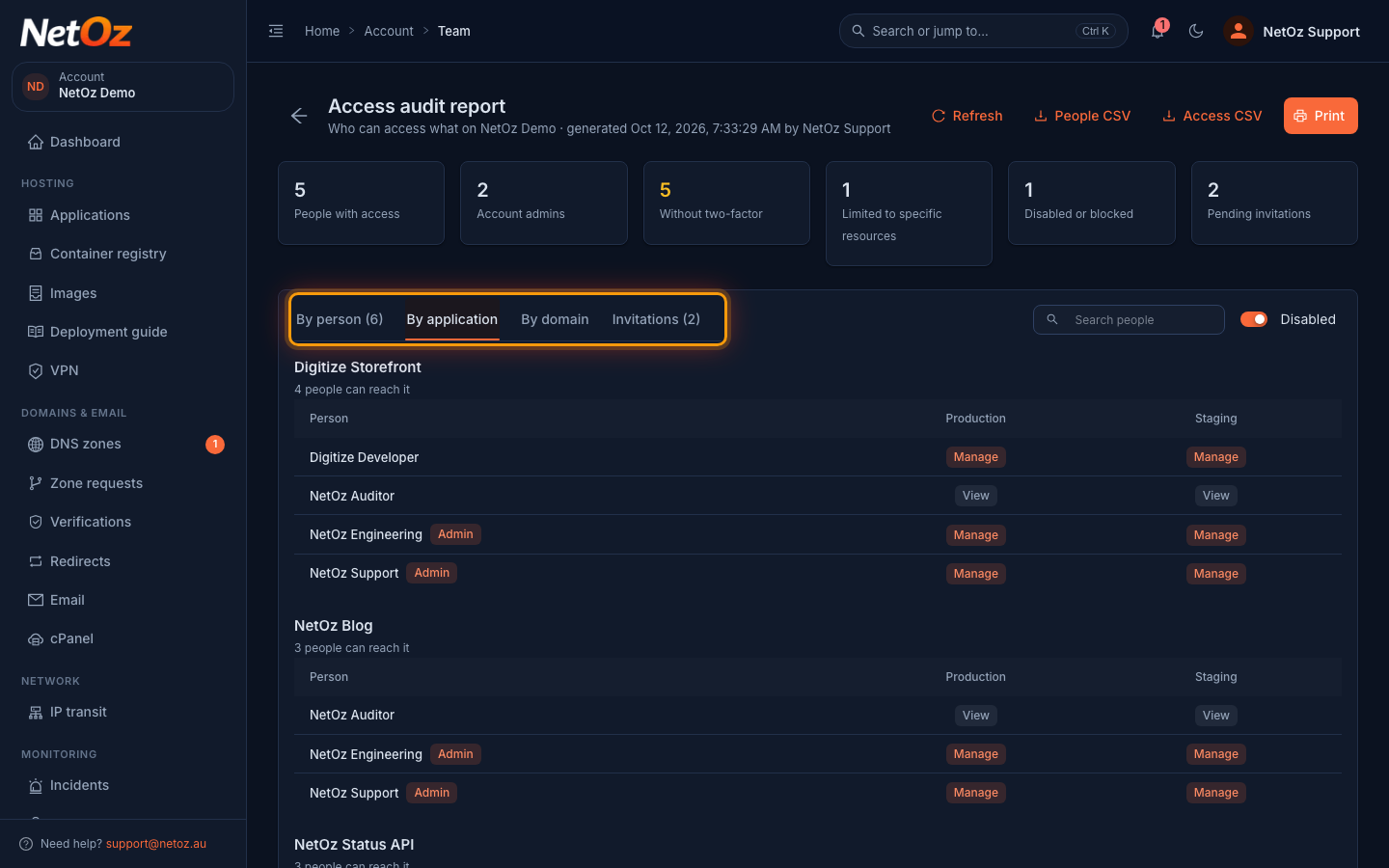
Select By application or By domain to turn the report around and see everyone who can reach a particular site or DNS zone. Invitations lists invitations that have not been accepted yet.
Step 5 Export or print the report
Select People CSV for one row per person, or Access CSV for one row per person and area, to open in Excel or keep with your audit records. Print gives you a printable copy, and Refresh regenerates the report.
Next steps
- Remove access people no longer need from their access page.
- Ask anyone without two-factor authentication to turn it on.
Was this guide helpful?
Your answer helps us keep these guides accurate.