Set up two-factor authentication on your NetOz Portal login
Protect your NetOz Portal login with a one-time code from an authenticator app such as Google Authenticator, Microsoft Authenticator or Authy, and keep your backup codes safe.
On this page
Two-factor authentication (2FA) means that signing in needs your password and a six-digit code from an app on your phone. Even if someone learns your password, they cannot sign in without your phone.
Before you start
- Install an authenticator app on your phone, such as Google Authenticator, Microsoft Authenticator or Authy.
- Have your current portal password handy.
- Have somewhere safe to keep your backup codes, such as a password manager.
Step 1 Open your profile
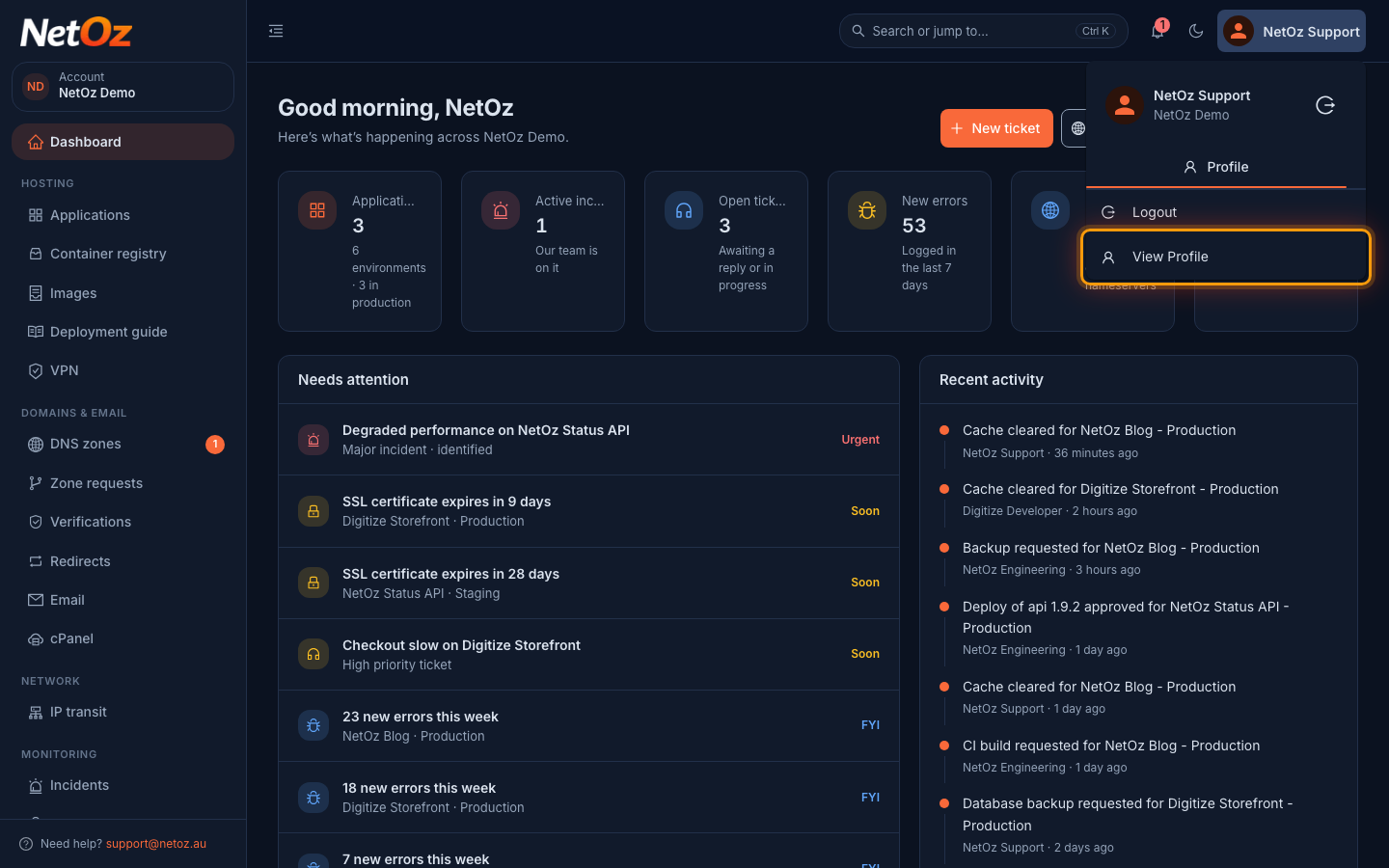
Select your name at the top right of the portal, then choose View Profile.
Step 2 Scan the QR code
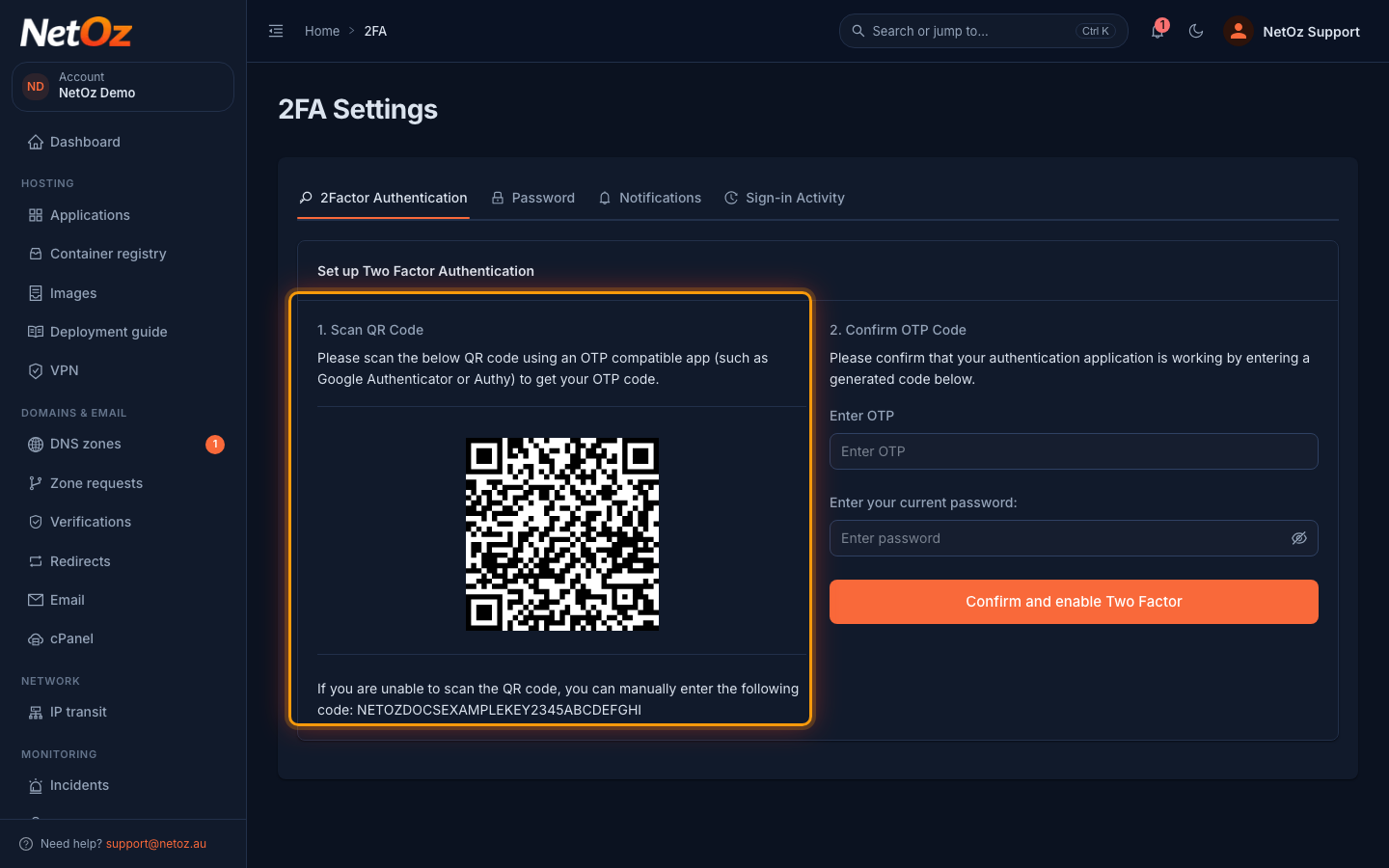
The 2Factor Authentication tab opens. In your authenticator app, add a new account and scan the QR code. If you cannot scan it, type in the code shown below the QR code instead.
Step 3 Confirm with a code
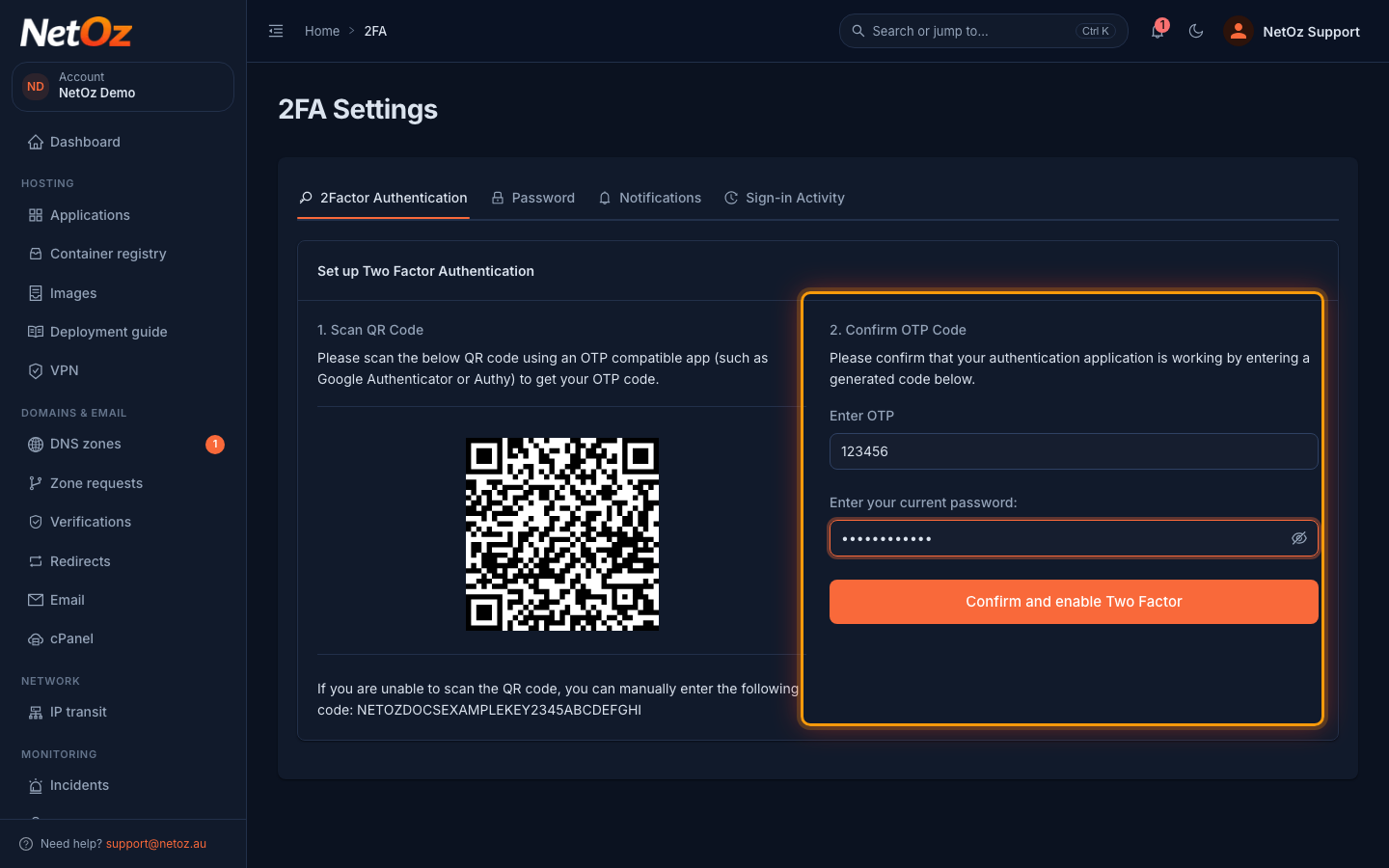
Enter the six-digit code your app shows under Enter OTP and your current password, then select Confirm and enable Two Factor.
Step 4 Save your backup codes
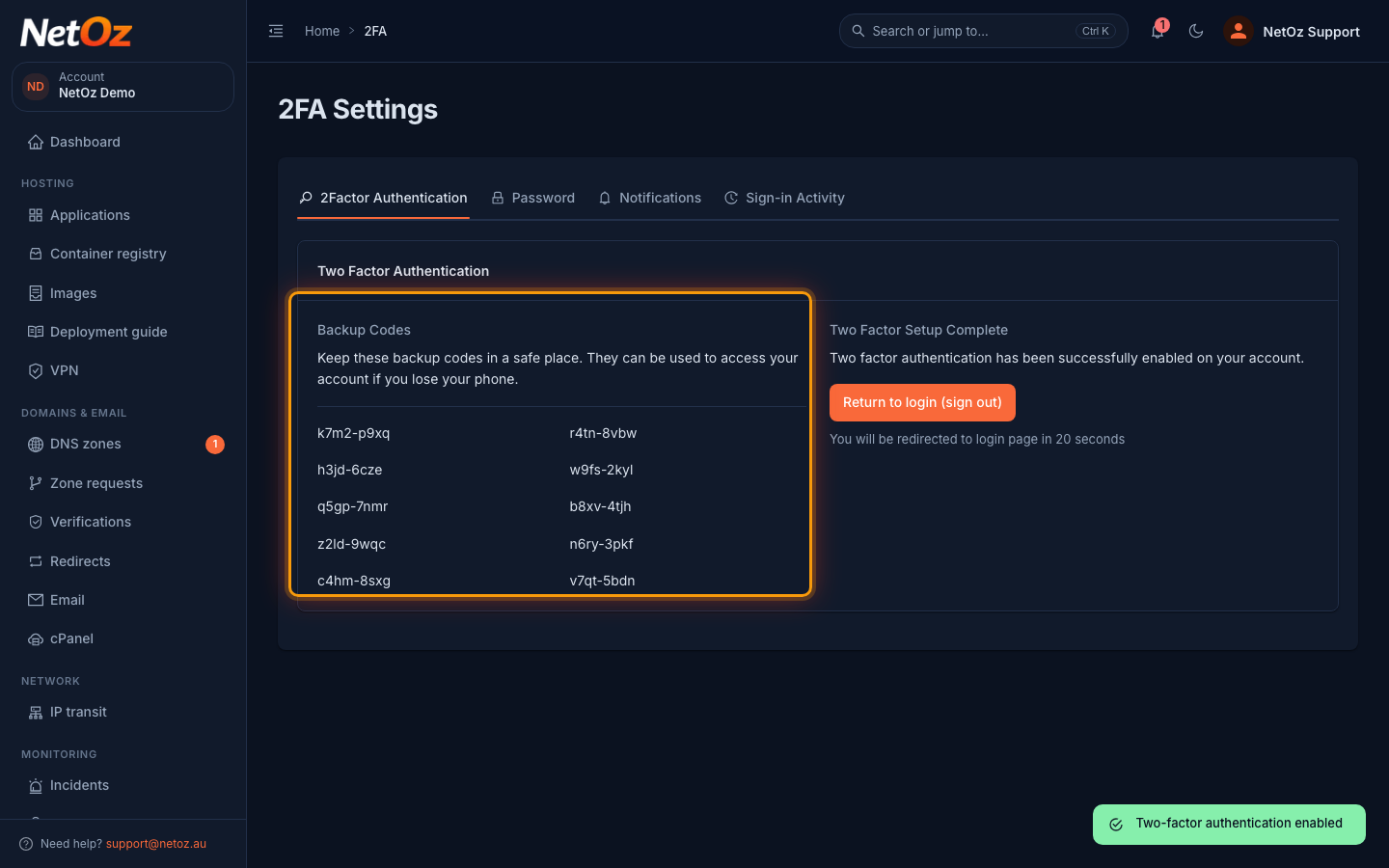
Two-factor authentication is now on and the portal shows 10 Backup Codes. Copy them into your password manager or print them now, because they are not shown again. Each code lets you sign in once without your phone. For security, the portal then signs you out everywhere, including this browser after 20 seconds, and NetOz emails you to confirm. Sign in again with your password and a code from your app.
Signing in with 2FA
Next time you sign in, enter your email and password as usual, then the six-digit code your app shows under Enter OTP. No phone? Enter one of your backup codes instead. Each one works once.
After 5 wrong codes you need to enter your password again, and after 10 wrong codes in an hour two-factor sign-in is paused for an hour and NetOz emails you. If that was not you, someone knows your password, so change it.
Turning 2FA off
Open the 2Factor Authentication tab again, enter your current password and a code from your app, or a backup code, then select Confirm and disable Two Factor. NetOz emails you whenever 2FA is turned on or off. If you are locked out with no backup codes, email support@netoz.au.
Was this guide helpful?
Your answer helps us keep these guides accurate.