Change your NetOz Portal password
Change your NetOz Portal password from your profile. Enter your current password, choose a new one and every other session is signed out straight away.
On this page
If you know your current password, you can change it at any time from your profile. Do this straight away if you think someone else may know it, for example after an email from NetOz about sign-in attempts you did not make.
Before you start
- You need your current password. If you have forgotten it, reset your password from the sign-in page instead.
- Choose a new password of at least 8 characters that you do not use anywhere else. A password manager can make one for you.
Step 1 Open your profile
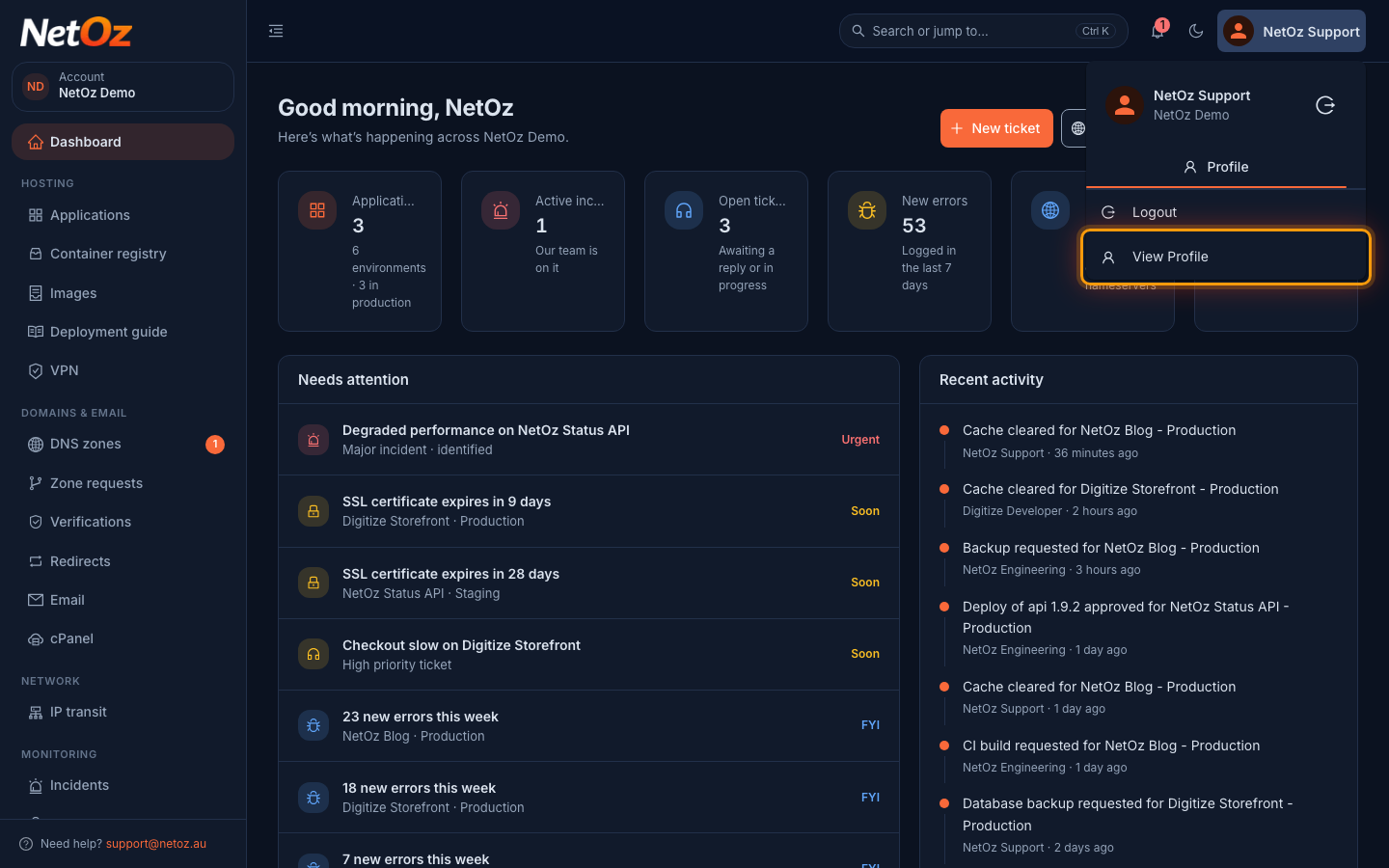
Select your name at the top right of the portal, then choose View Profile.
Step 2 Select the Password tab
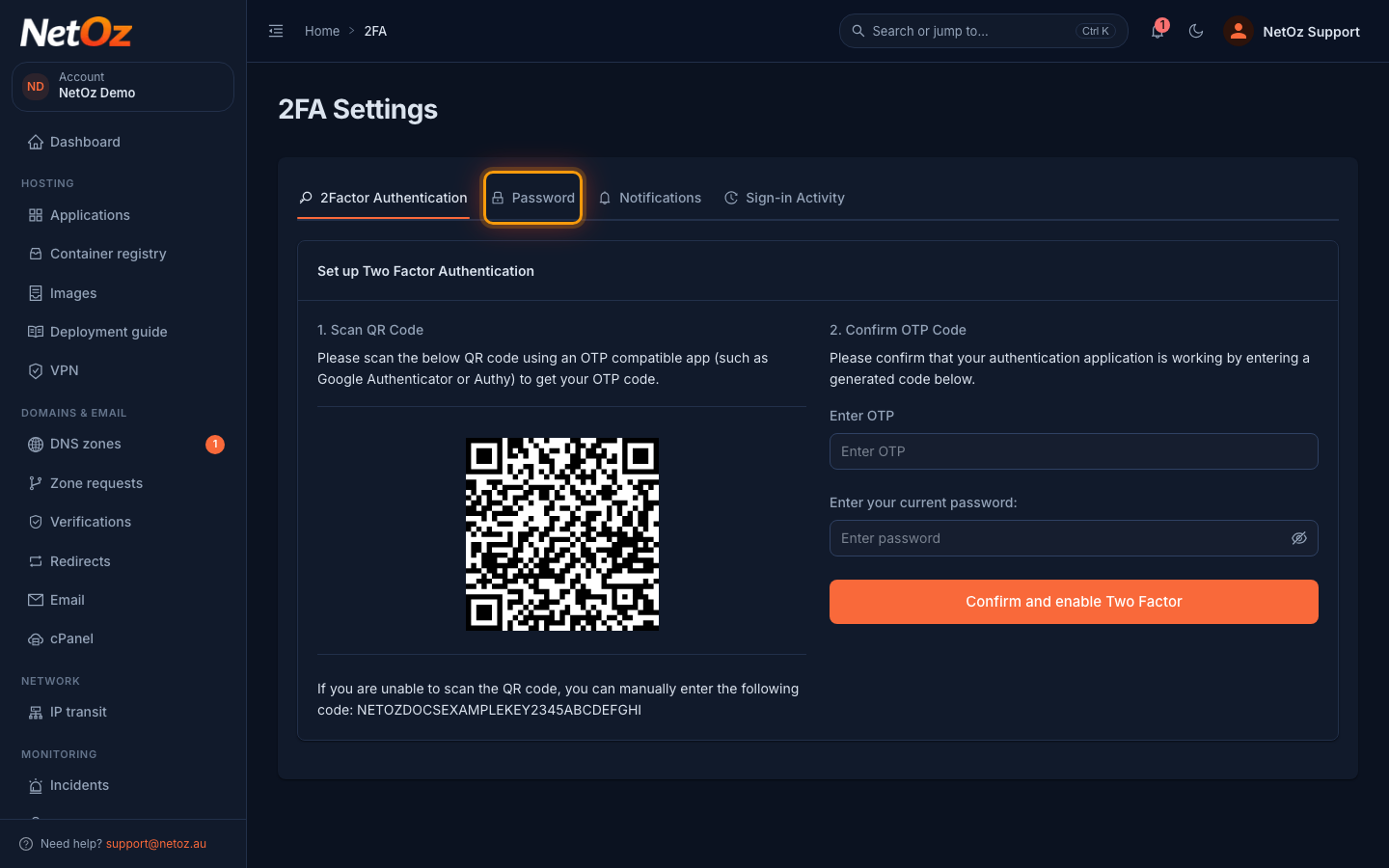
Your profile opens on 2Factor Authentication. Select the Password tab.
Step 3 Enter your current and new password
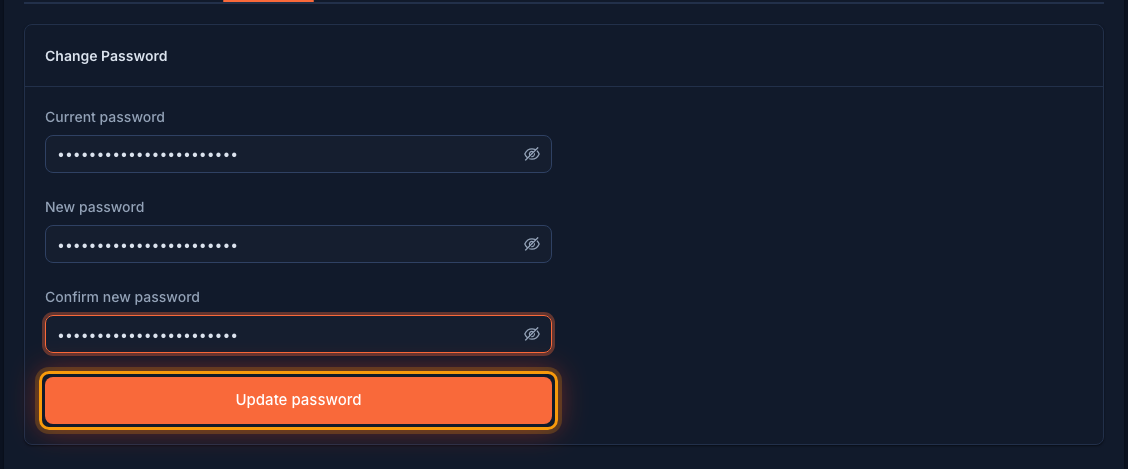
Enter your Current password, then your new password in New password and again in Confirm new password. Use the eye icons to check what you typed. Select Update password.
Step 4 Check it was changed
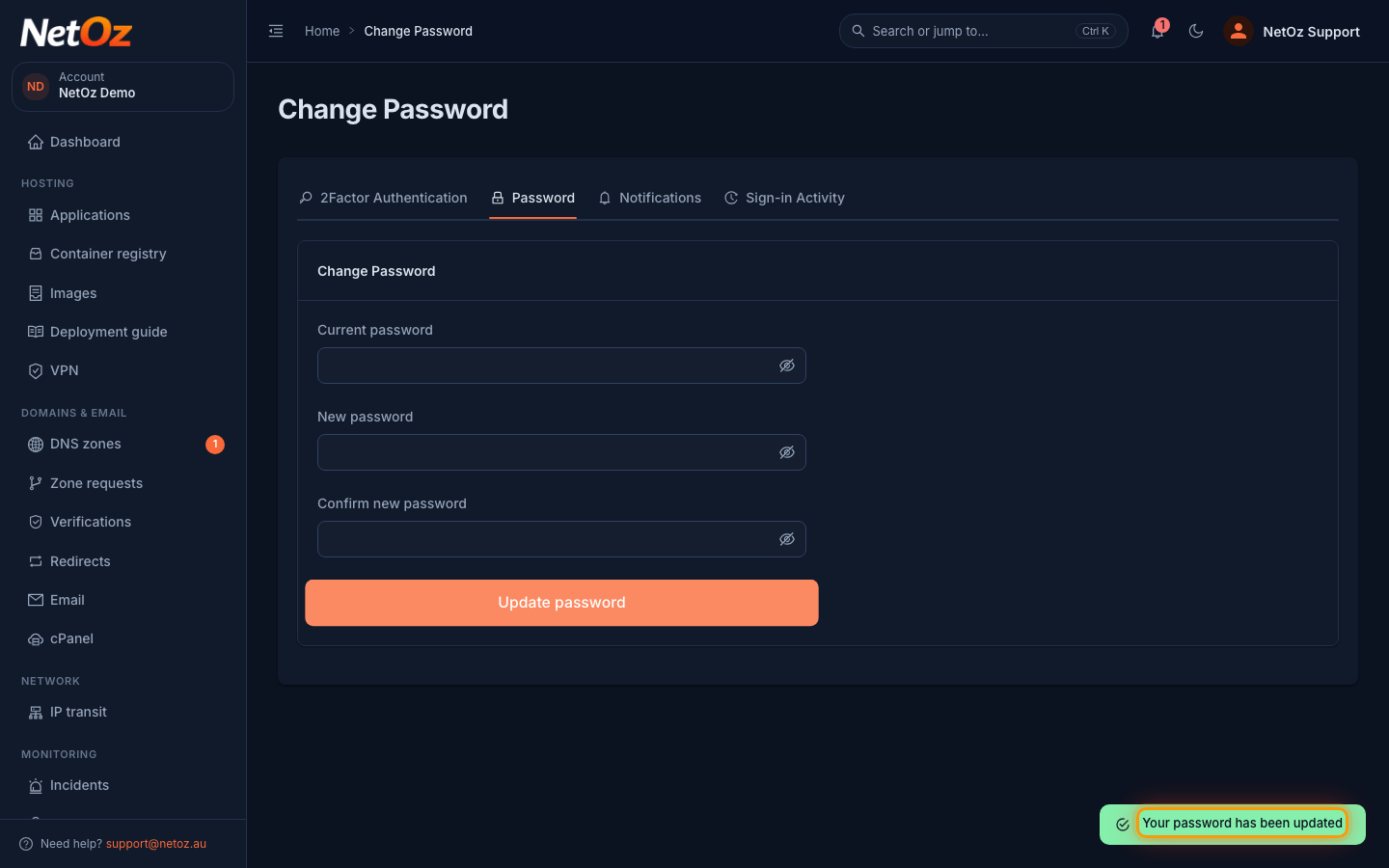
A message confirms your password was updated and the form clears. If something is wrong, such as an incorrect current password or a new password that is too short, the message under that box explains what to fix.
What happens next
- Every other session on your login is signed out, such as another browser, computer or phone. This browser stays signed in.
- NetOz emails you to confirm Your password was changed. If you ever get that email and did not change your password, reset it straight away and contact support@netoz.au.
- For extra protection, turn on two-factor authentication and check your sign-in activity for anything you do not recognise.
Was this guide helpful?
Your answer helps us keep these guides accurate.