Sign in to the NetOz Portal
How to sign in to the NetOz client portal at portal.netoz.au with your email address and password, enter your two-factor code, and what to do if you are locked out.
On this page
You manage everything NetOz hosts for your organisation from the NetOz Portal. This guide shows how to sign in, what to expect if two-factor authentication is turned on for your login, and what happens after too many wrong attempts.
Before you start
- You need a NetOz Portal login. If you do not have one, ask an account admin in your organisation to invite you, or email support@netoz.au.
- If you were invited, accept the invitation email first to choose your password.
Step 1 Go to portal.netoz.au
Open portal.netoz.au in your browser. Bookmark it so you can find it again quickly.
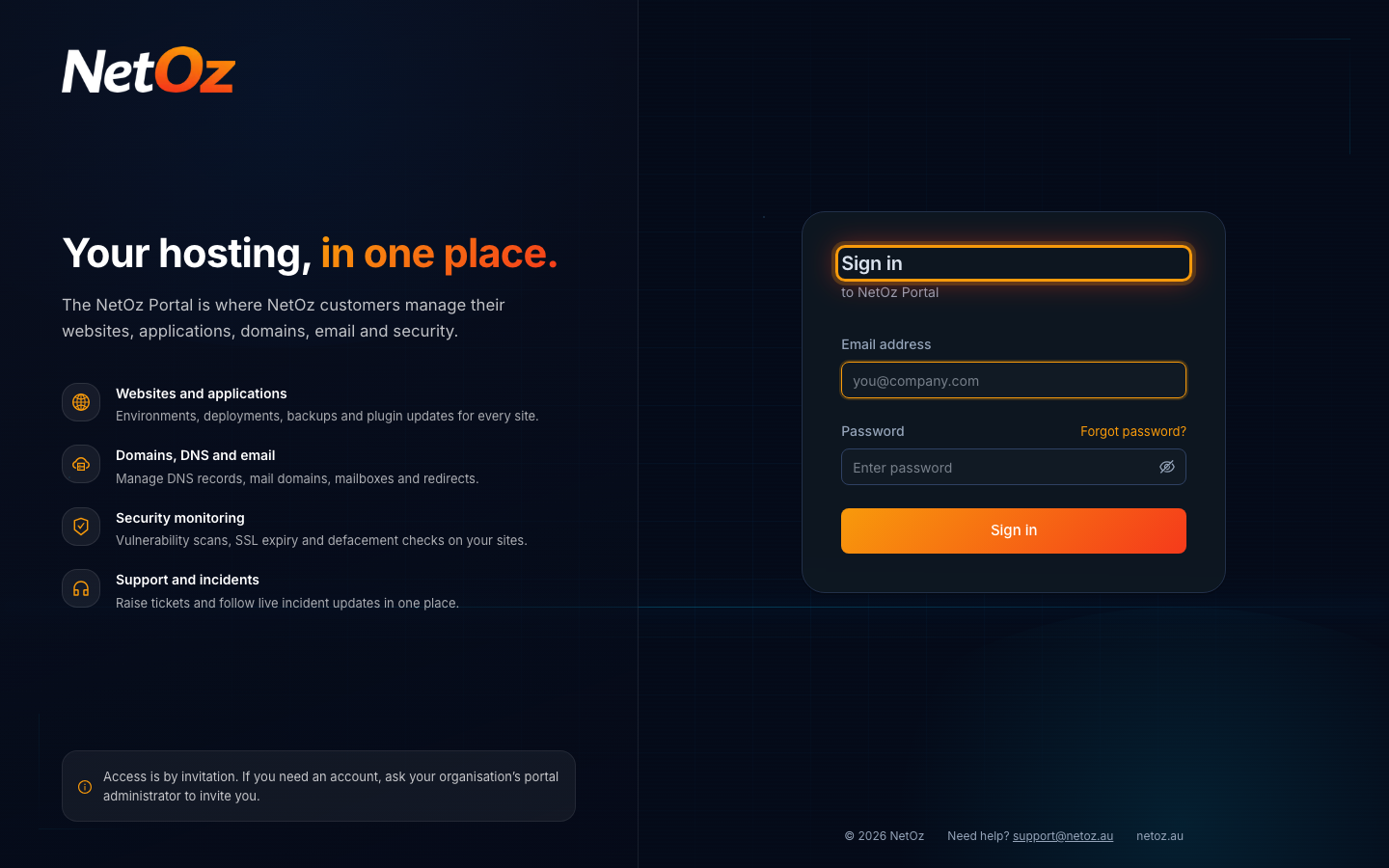
Step 2 Enter your email address and password
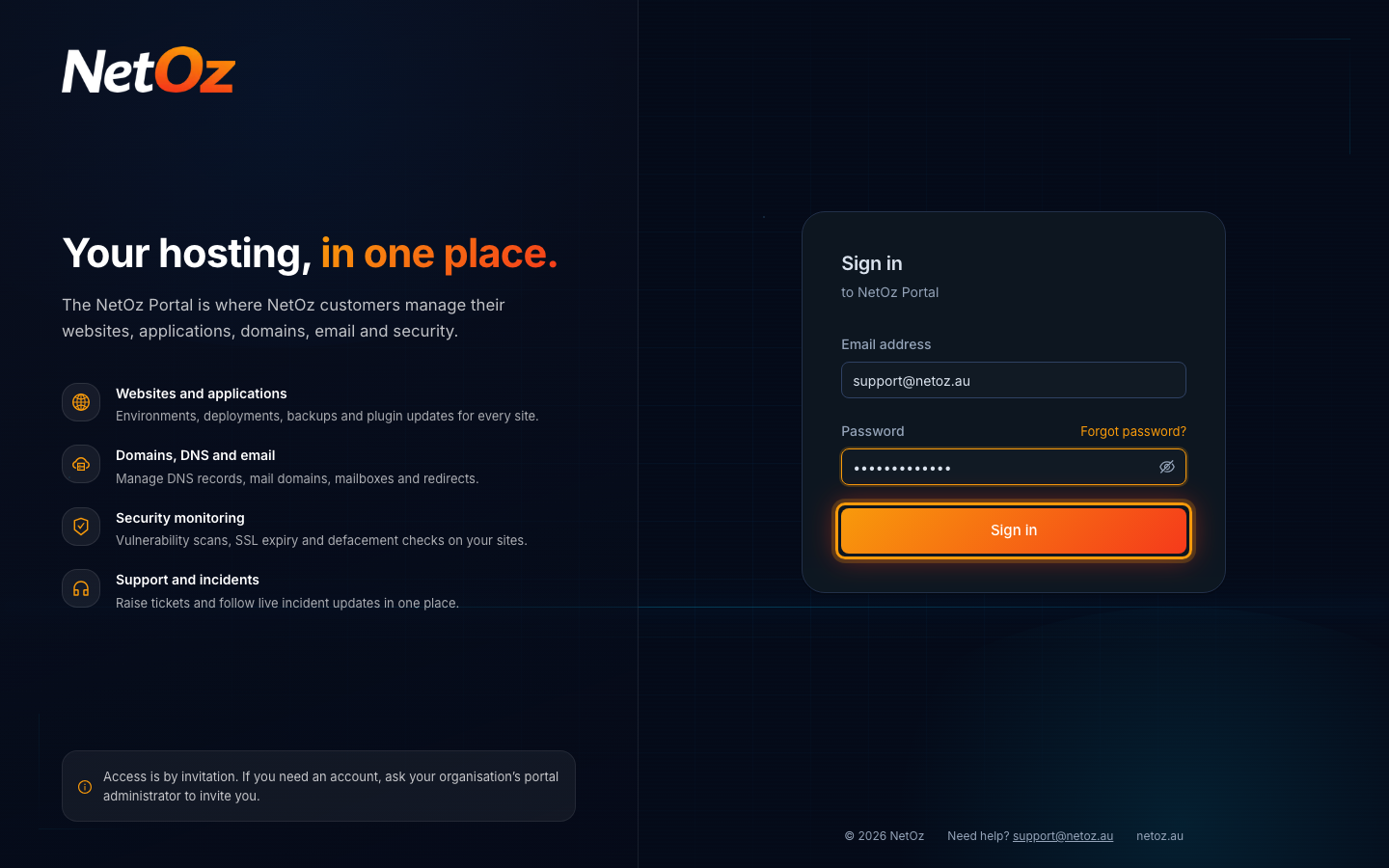
Enter the Email address you were invited with and your Password, then select Sign in. Use the eye icon to check what you typed.
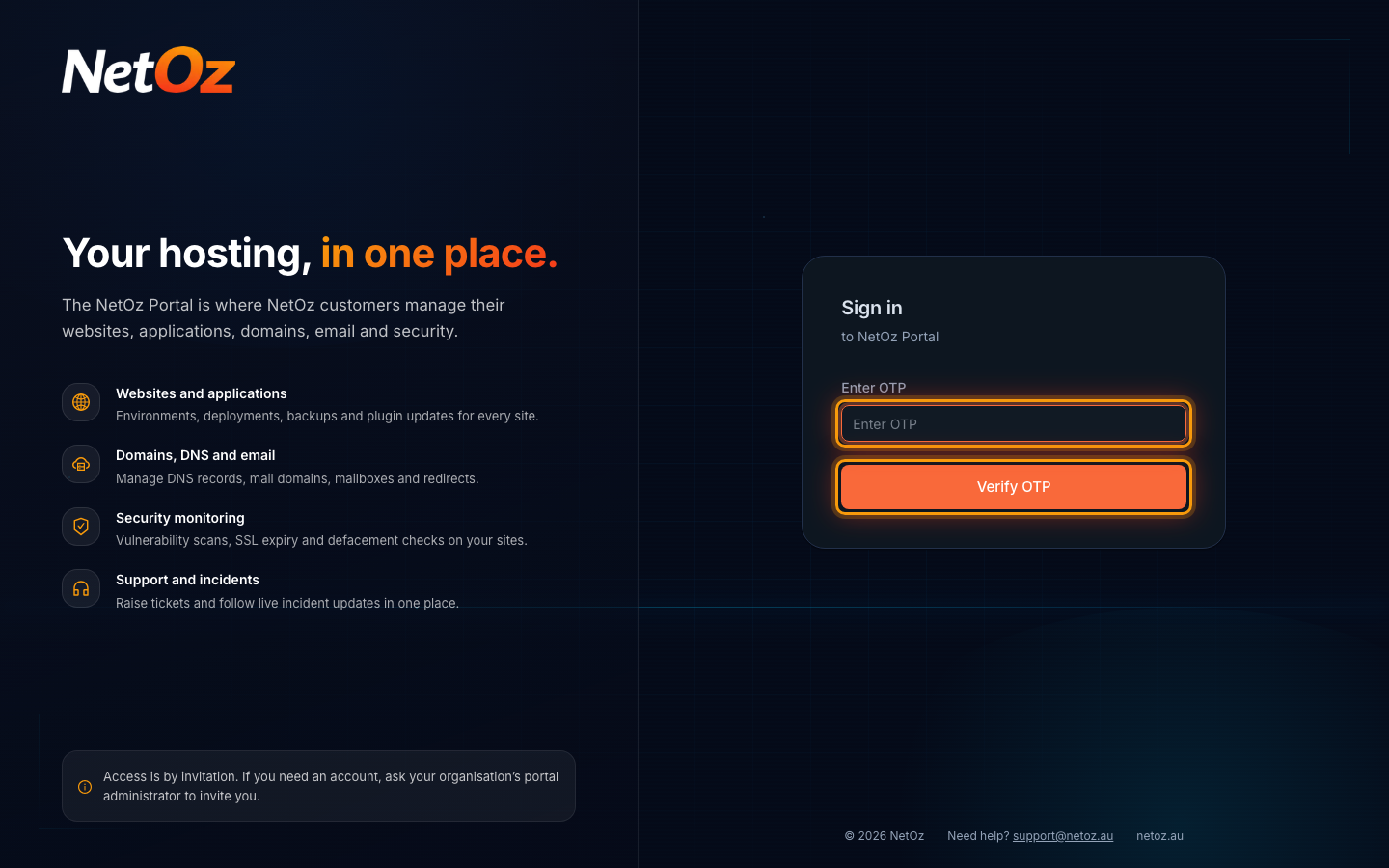
Step 3 Enter your two-factor code
If two-factor authentication is turned on for your login, the portal asks for a code next. Open your authenticator app, enter the six-digit code it shows for NetOz under Enter OTP and select Verify OTP. If you do not have your phone, enter one of your backup codes instead. Each backup code works once.
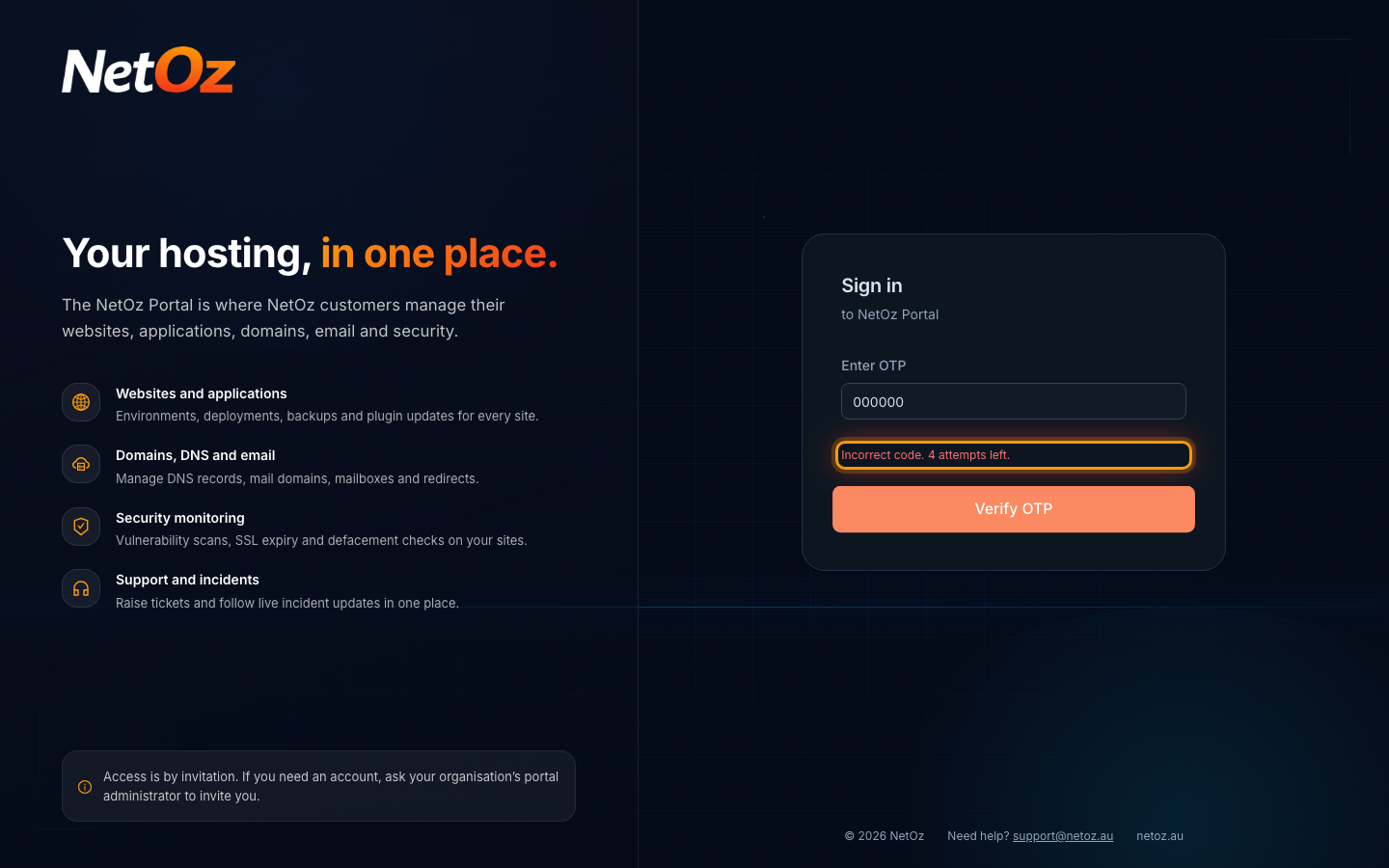
Step 4 If the code is not accepted
A wrong code shows how many attempts you have left. Codes change every 30 seconds, so wait for a fresh one and check the time on your phone is set automatically. After 5 wrong codes you go back to the sign-in page and need to enter your password again.
Step 5 You are signed in
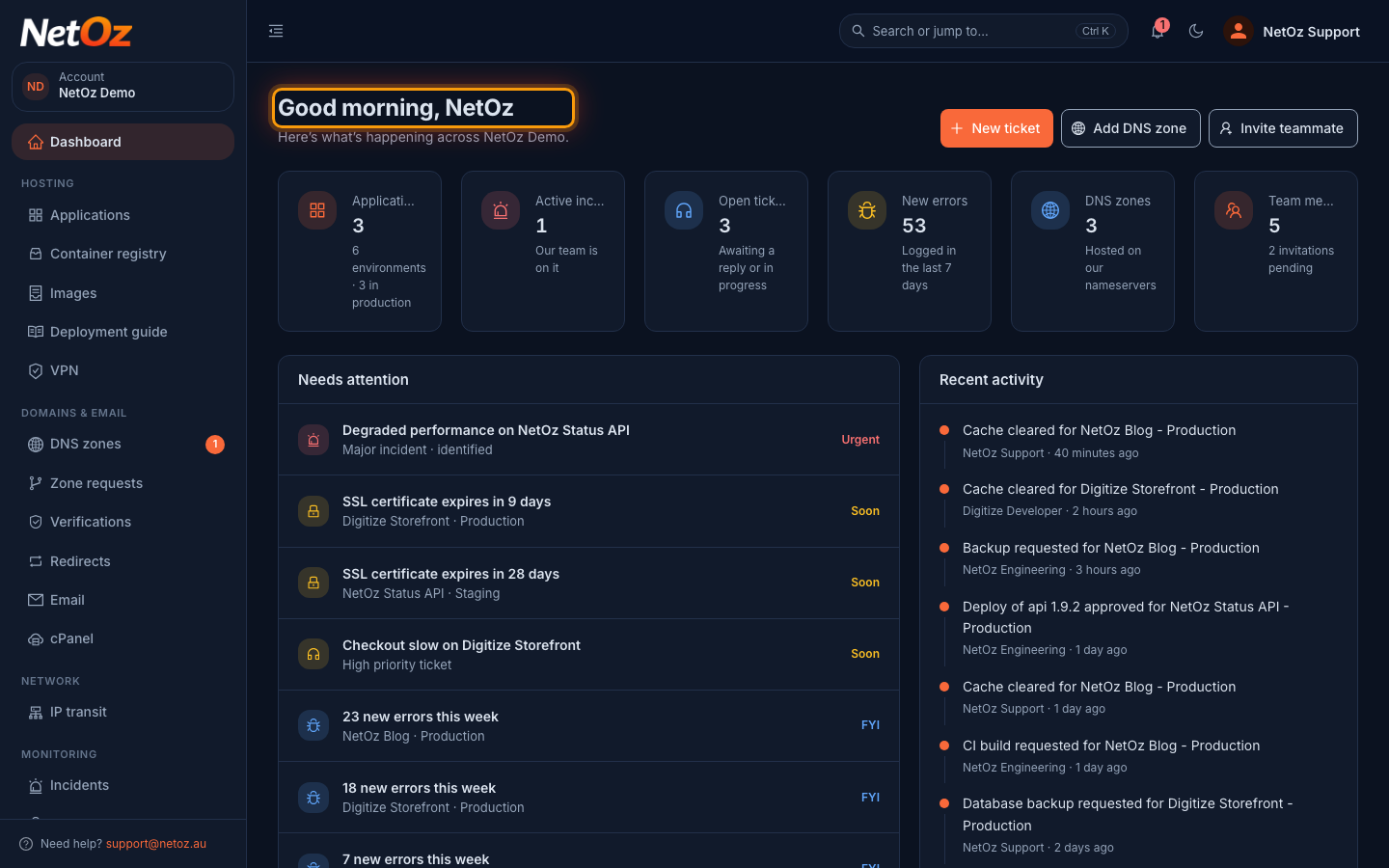
The portal opens on your dashboard. If you belong to more than one organisation, use Account at the top of the sidebar to switch between them.
Trouble signing in?
- If you see That email and password don’t match, check for typos and that Caps Lock is off, then try again.
- After 10 failed attempts in 15 minutes, sign-in is paused for that email address and you see Too many failed sign-in attempts. Try again in 15 minutes. Wait, then try again, or reset your password.
- If you enter 10 wrong two-factor codes within an hour, two-factor sign-in is paused for an hour and NetOz emails you. Those attempts used your correct password, so change your password if it was not you.
- Lost your phone? Enter one of your backup codes instead of the six-digit code. If you have no backup codes left, email support@netoz.au.
- If your access has been disabled, ask an account admin in your organisation to re-enable it.
Next, take the tour of the portal.
Was this guide helpful?
Your answer helps us keep these guides accurate.