Invite a team member to your NetOz Portal account
Give a colleague or contractor their own NetOz Portal login. Send an invitation by email and choose exactly which areas, applications and domains they can use.
On this page
Everyone who works on your account should have their own login, so you can control what each person can do and see who did what. You invite people from the Team page, and they choose their own password when they accept.
Before you start
- You need to be an account admin. Members with Team set to View can see the team but cannot invite people.
- Have the person’s work email address ready. Invitations expire after 7 days.
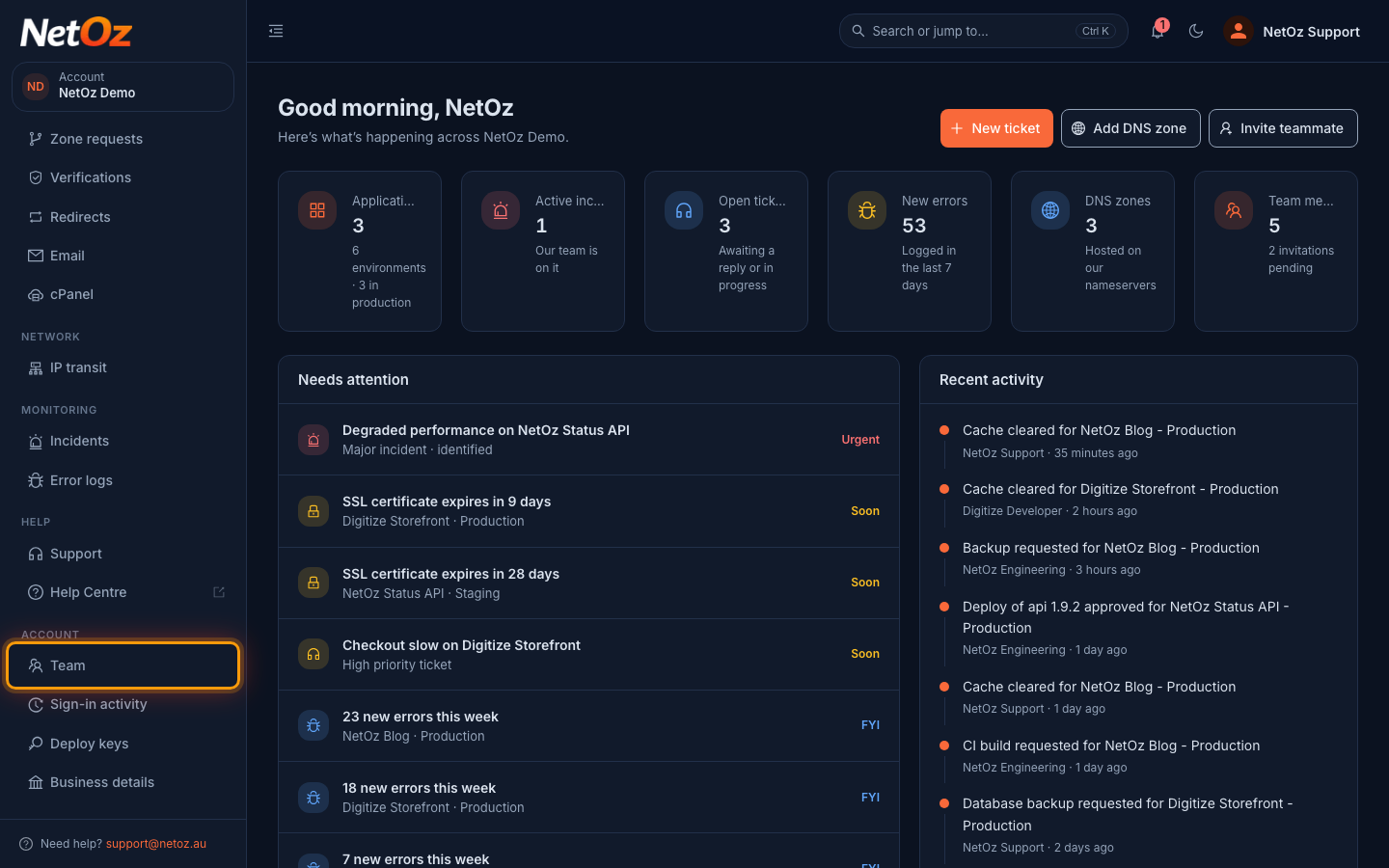
Step 1 Open Team from the sidebar
Sign in to the NetOz Portal and choose Team under Account in the sidebar. You can also use Invite teammate on the dashboard.
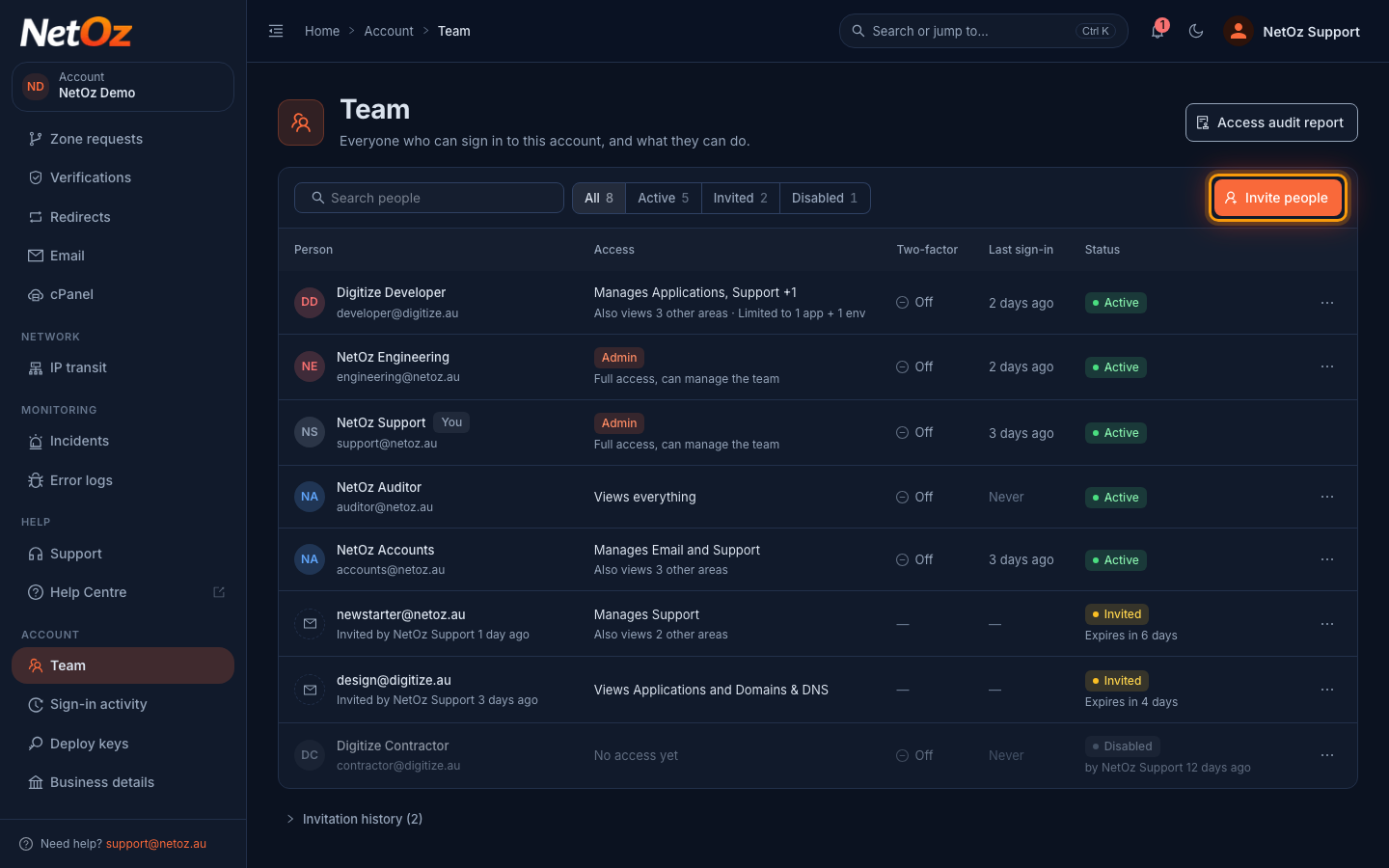
Step 2 Select Invite people
The Team page lists everyone who can sign in to your account, what they can access, whether they use two-factor authentication and when they last signed in. Select Invite people.
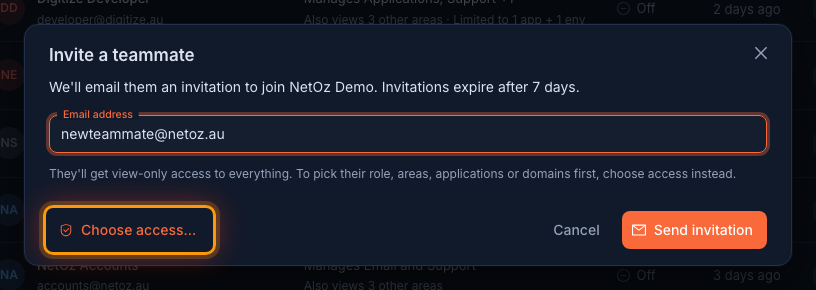
Step 3 Enter their email address
Enter their Email address. Selecting Send invitation now gives them view-only access to everything. To pick exactly what they can do, select Choose access… instead.
Step 4 Choose their role
Choose Account admin for someone who should have full access and be able to manage the team, or Member to give access only to the areas you choose. Most people should be members.
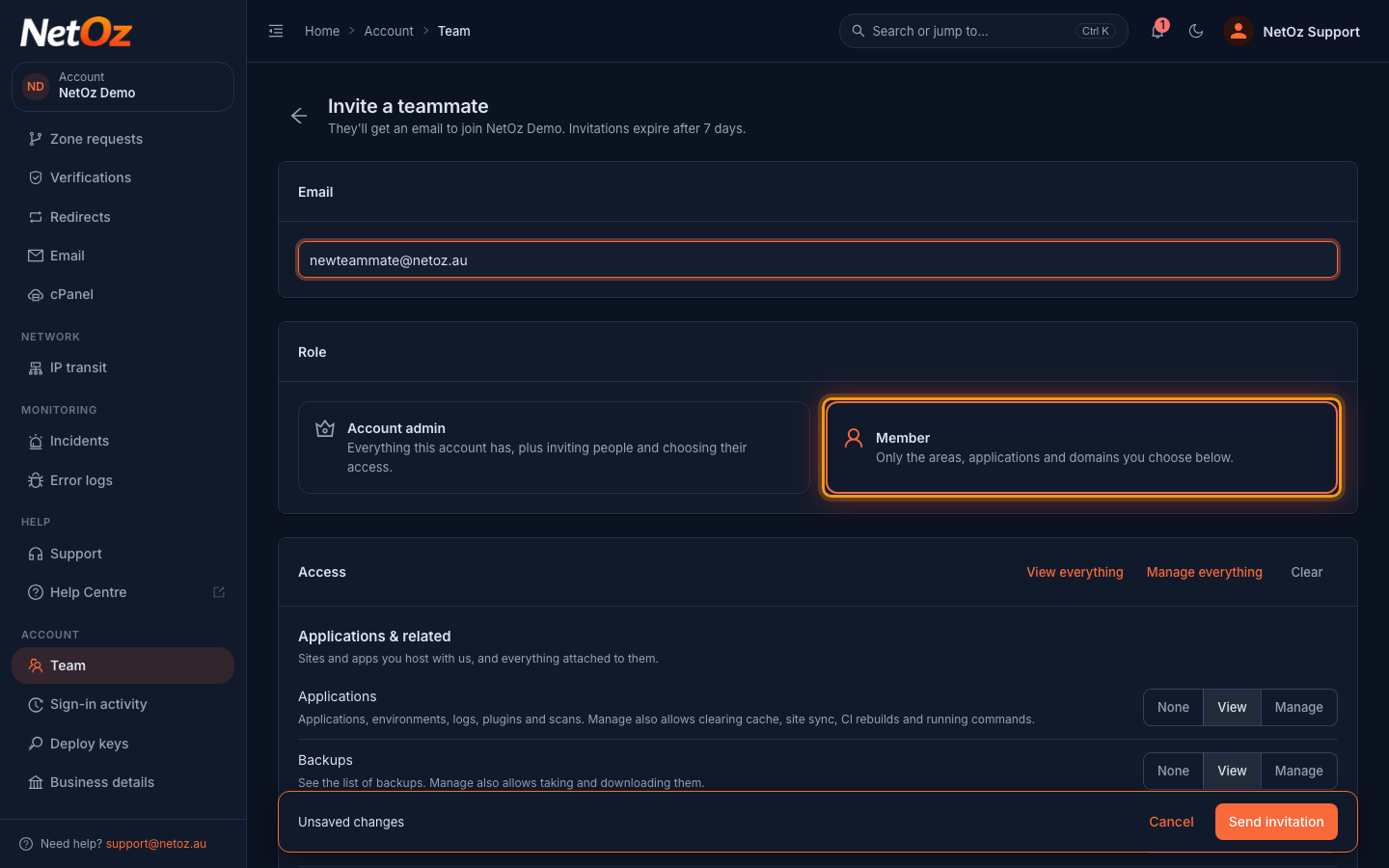
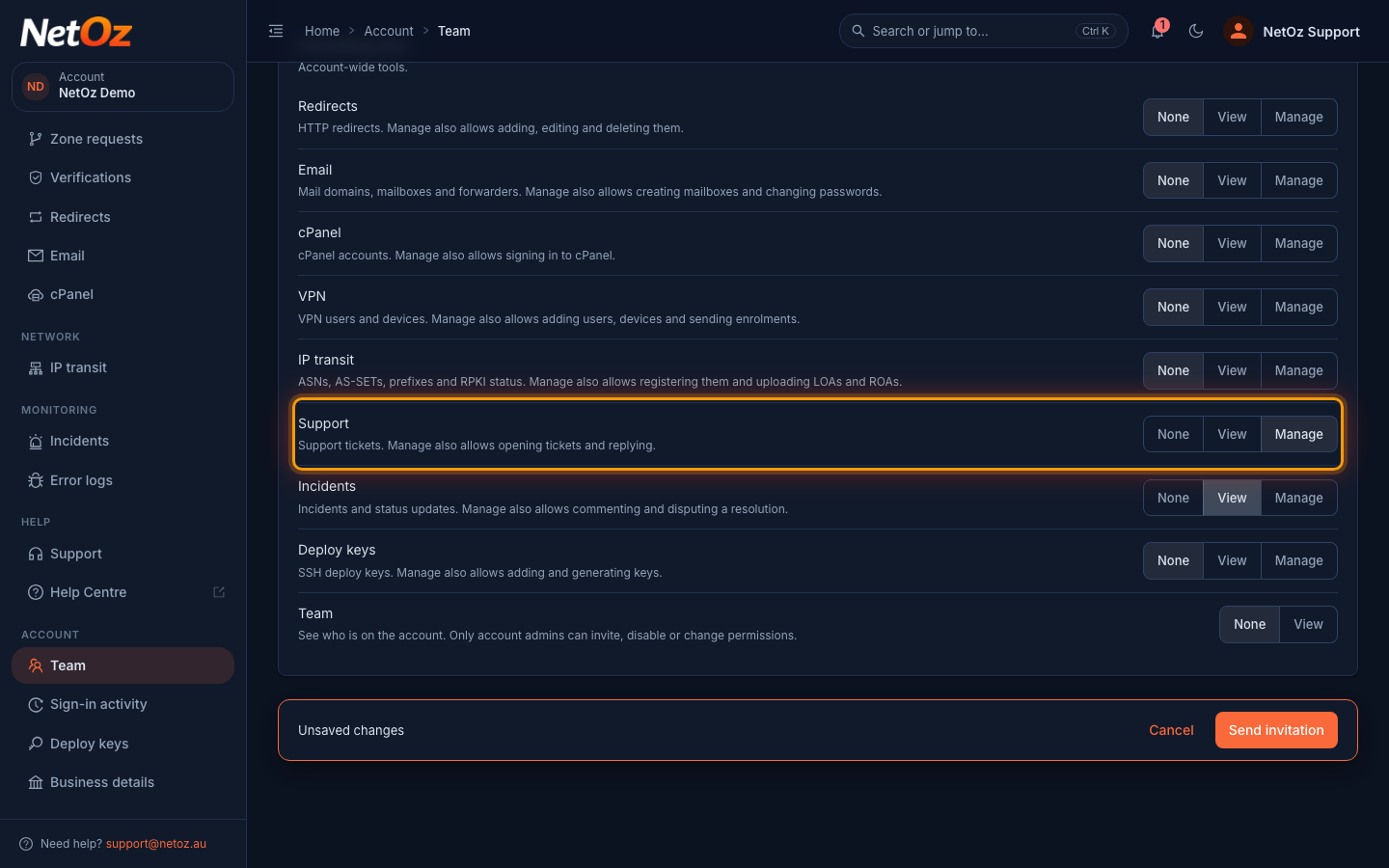
Step 5 Choose what they can access
For each area, choose None, View or Manage. Each row explains what Manage adds. Use View everything, Manage everything or Clear to start from a preset. In this example the person can view applications and incidents, and open and reply to support tickets.
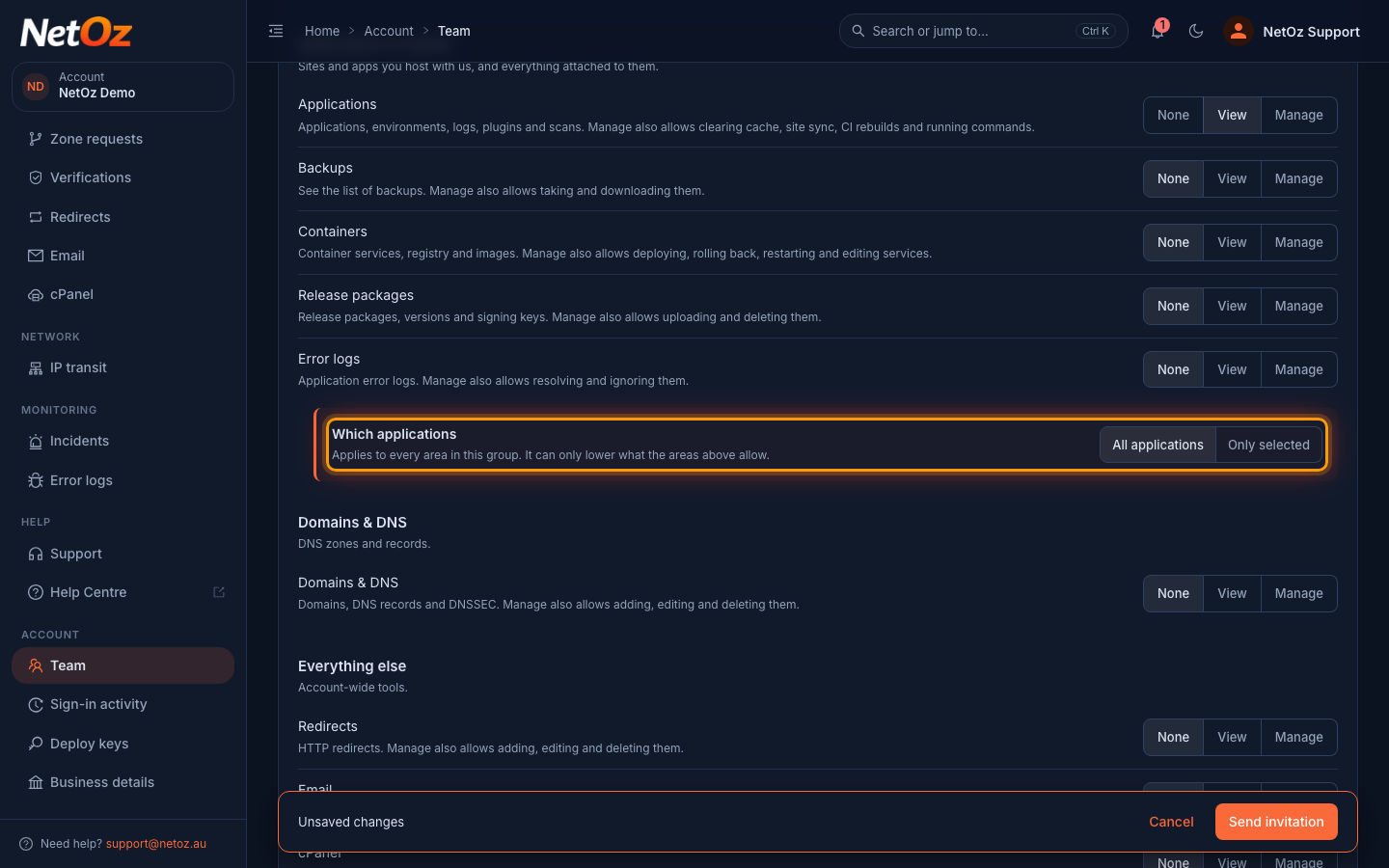
Step 6 Limit them to certain applications or domains
Under Which applications and Which domains, leave All applications selected or choose Only selected to pick individual applications, environments or DNS zones. This can only lower the access you chose above.
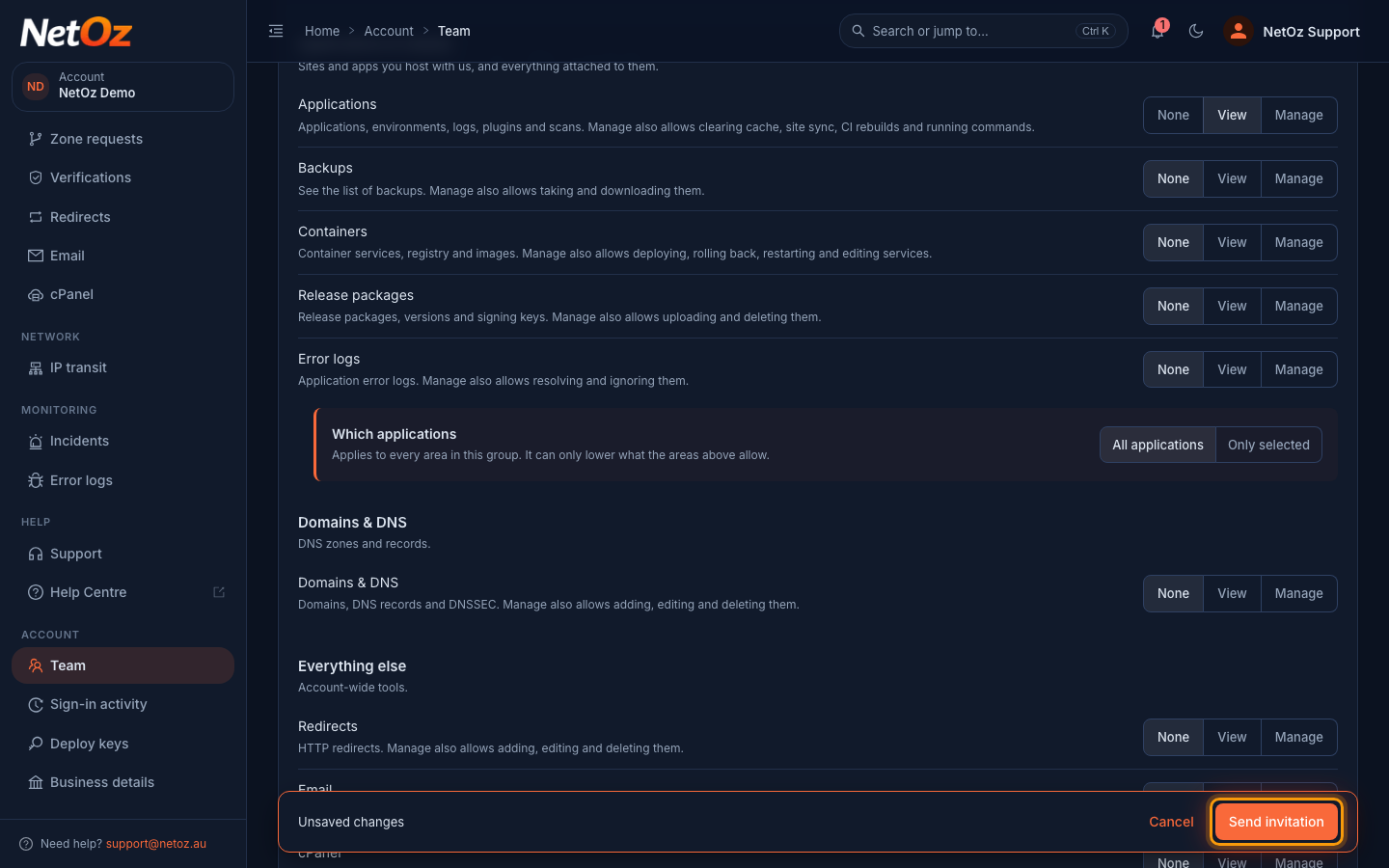
Step 7 Send the invitation
When everything looks right, select Send invitation in the bar at the bottom of the page.
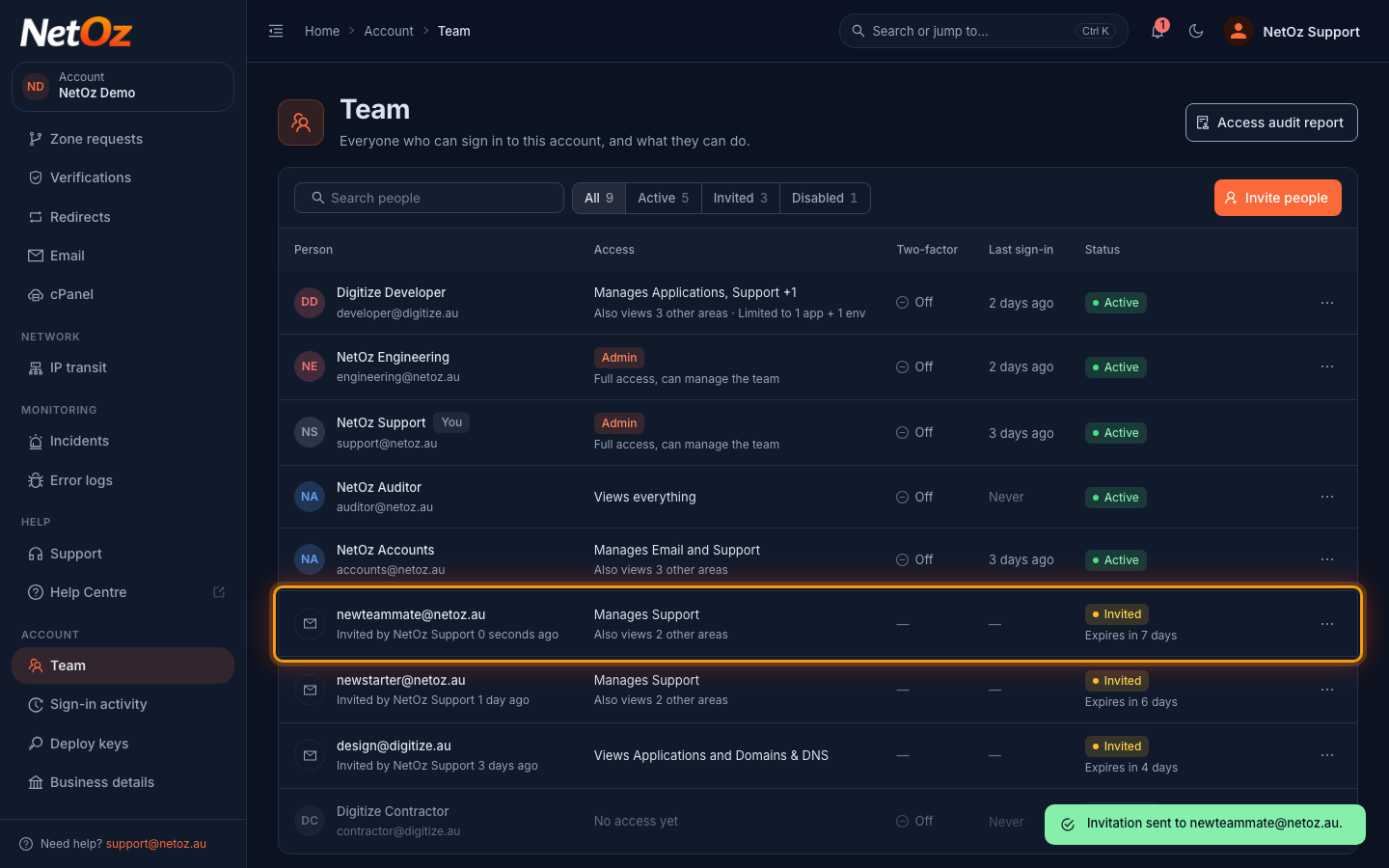
Step 8 Check the invitation was sent
A message confirms the invitation was sent. The person appears on the Team page as Invited, with a summary of their access and when the invitation expires.
What happens next
The person receives an email with a link to join your account. Until they accept, they show as Invited on the Team page with the date the invitation expires. If they cannot find the email, resend the invitation. Once they join, you can change their access at any time.
Was this guide helpful?
Your answer helps us keep these guides accurate.