Find your way around the NetOz Portal dashboard
A quick tour of the NetOz Portal: the dashboard, sidebar, quick search with Ctrl K, recent shortcuts, light and dark mode, and your profile menu.
On this page
Once you have signed in, the dashboard shows what needs your attention across your account and gives you shortcuts to common jobs. This guide walks through the dashboard and the tools at the top of every page.
Before you start
- Sign in to the NetOz Portal.
- What you see depends on your access. Areas you cannot use are hidden from the sidebar.
Step 1 Start on your dashboard
The dashboard greets you and sums up your account: applications, active incidents, open support tickets, new errors, DNS zones and team members. Select any card to go straight to that area.
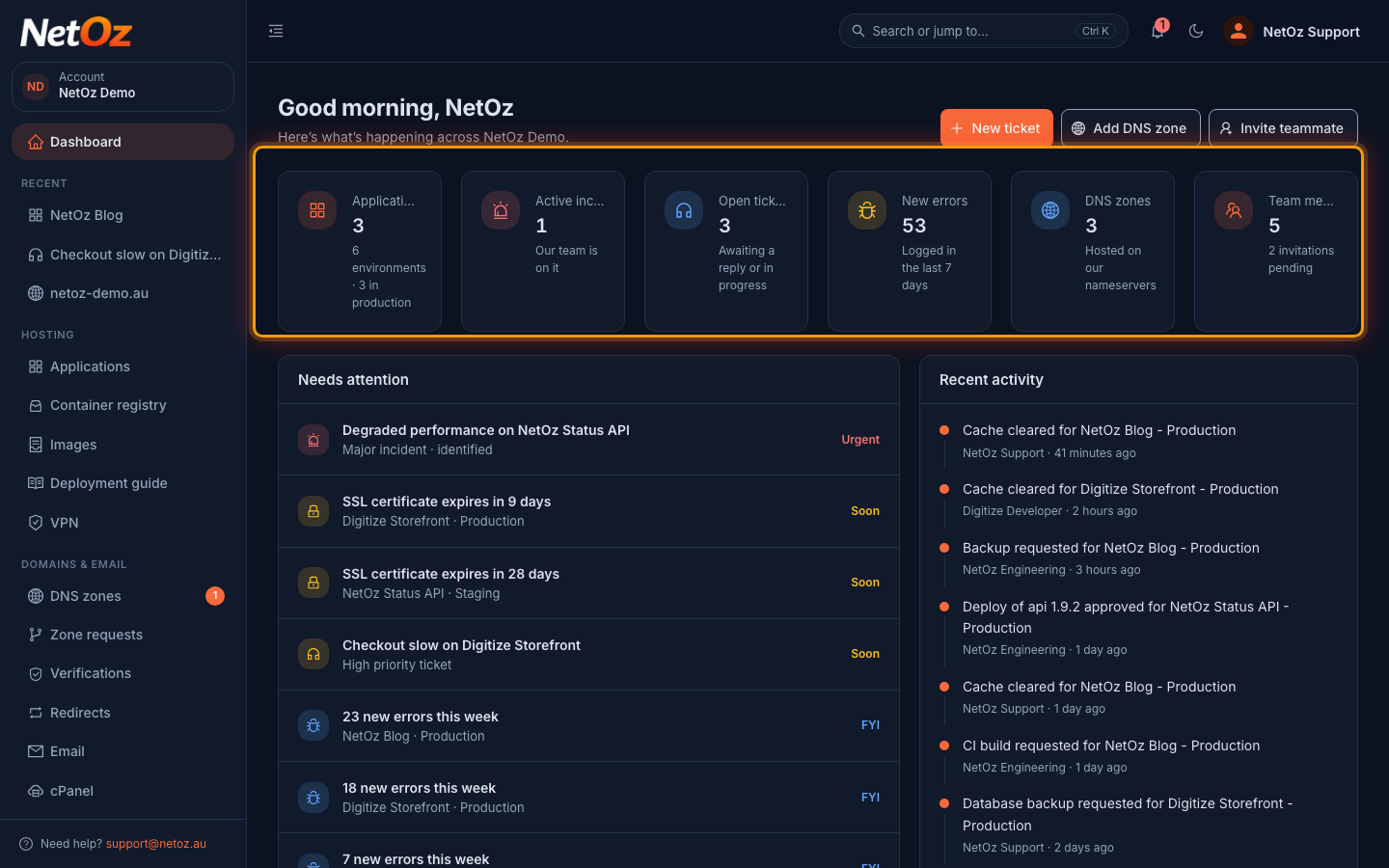
Step 2 Use the quick actions
The buttons at the top right of the dashboard start the most common jobs: New ticket, Add DNS zone and Invite teammate. You only see the actions your access allows.
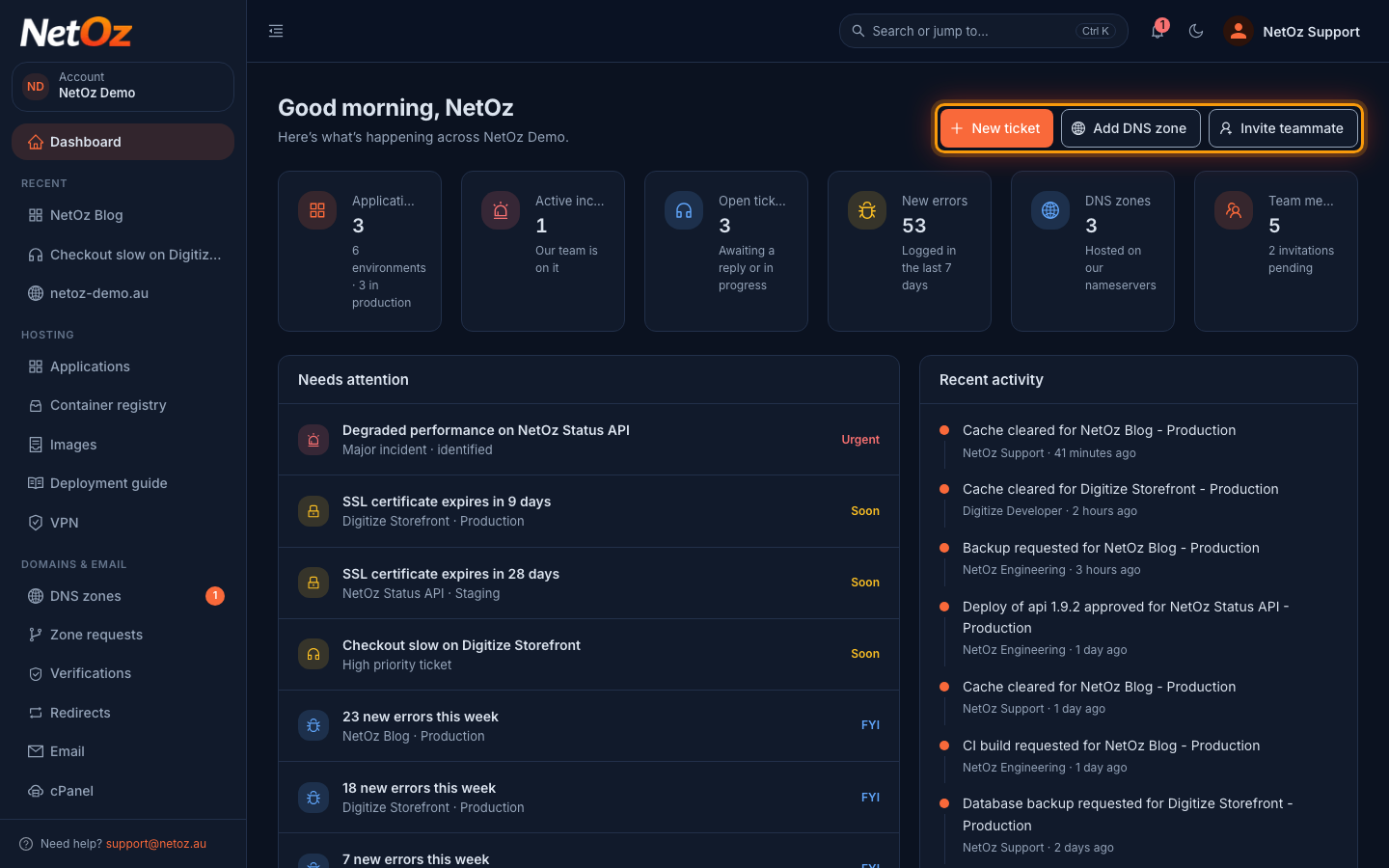
Step 3 Check what needs attention
Needs attention lists anything you should look at, such as an active incident, an SSL certificate that expires soon, a high-priority ticket or pending invitations. Items marked Urgent come first.
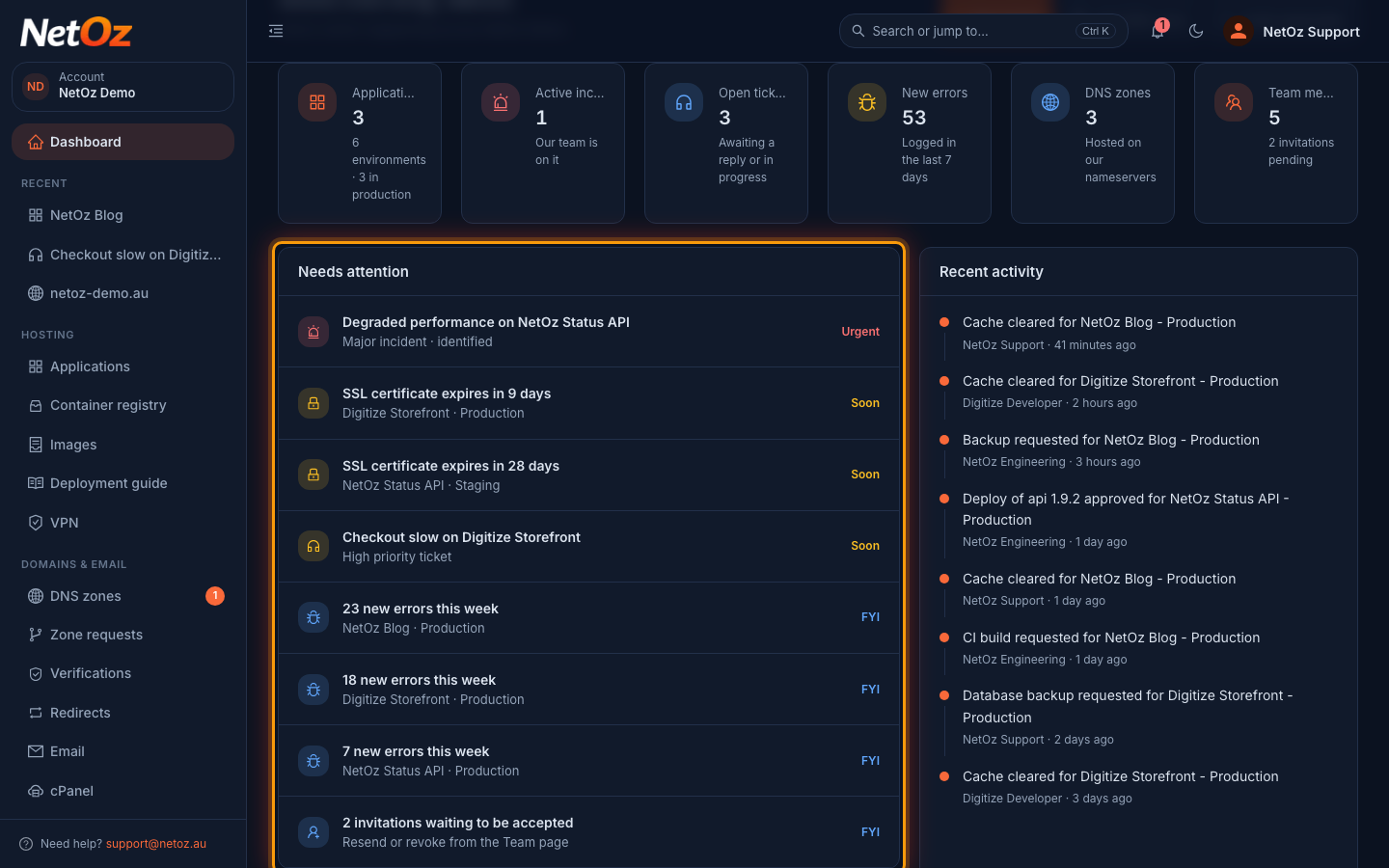
Step 4 Move around with the sidebar
The sidebar groups every area of the portal under Hosting, Domains & email, Monitoring, Help and Account. Recent at the top lists the applications, tickets and DNS zones you opened last. Use the button at the top left of the page to collapse the sidebar.
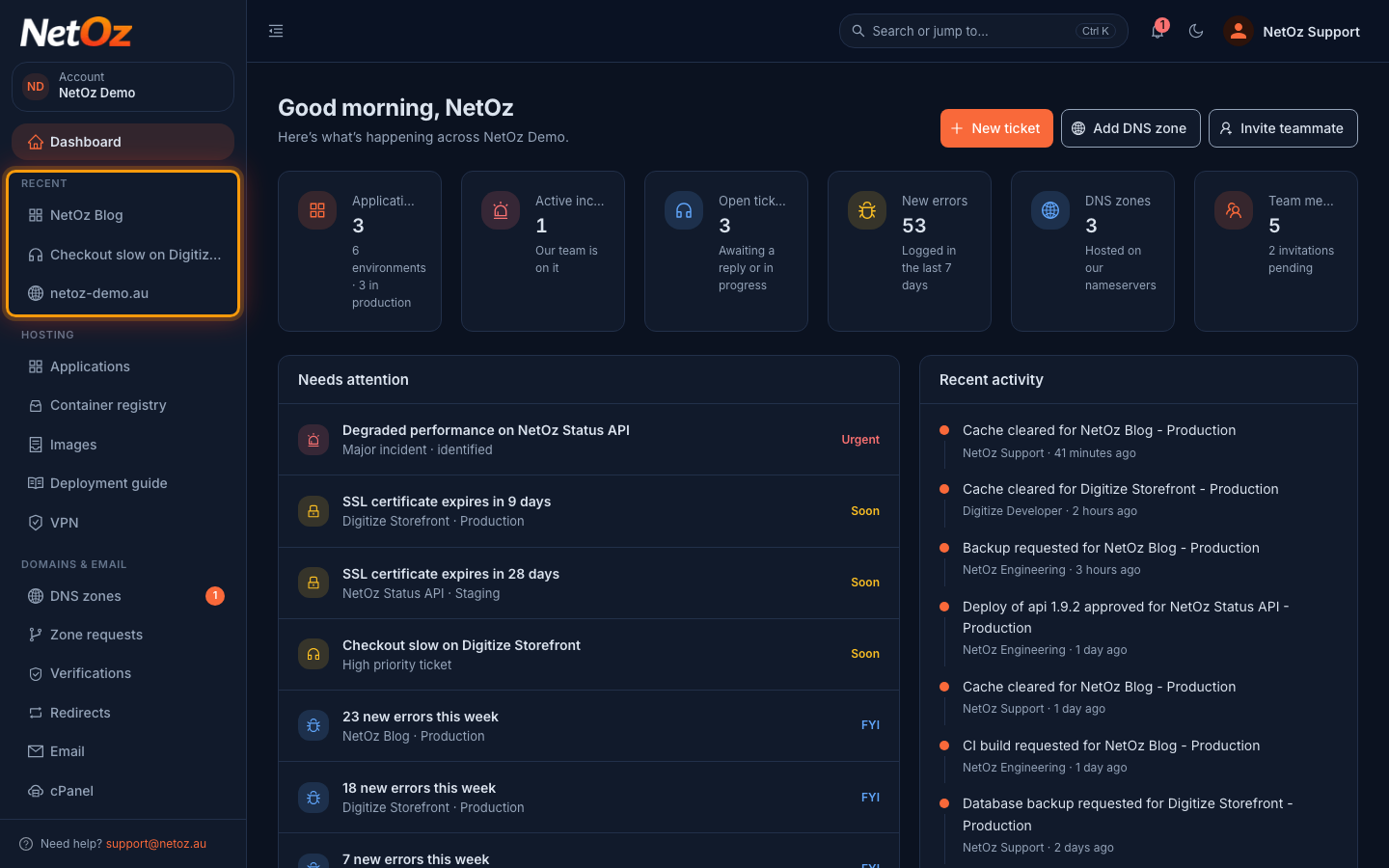
Step 5 Jump anywhere with search
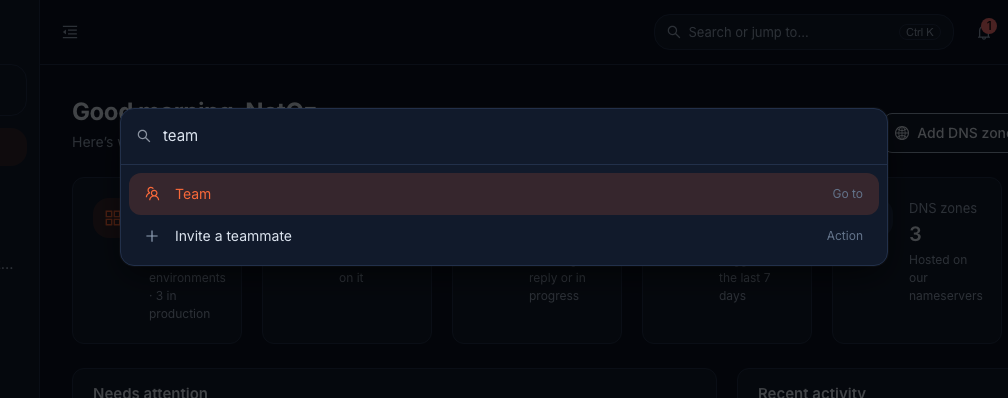
Select Search or jump to… at the top of any page, or press Ctrl K (⌘K on a Mac). Start typing the name of a page, an action such as Open a support ticket, or something you visited recently, then press Enter to go there.
Step 6 Switch between light and dark mode
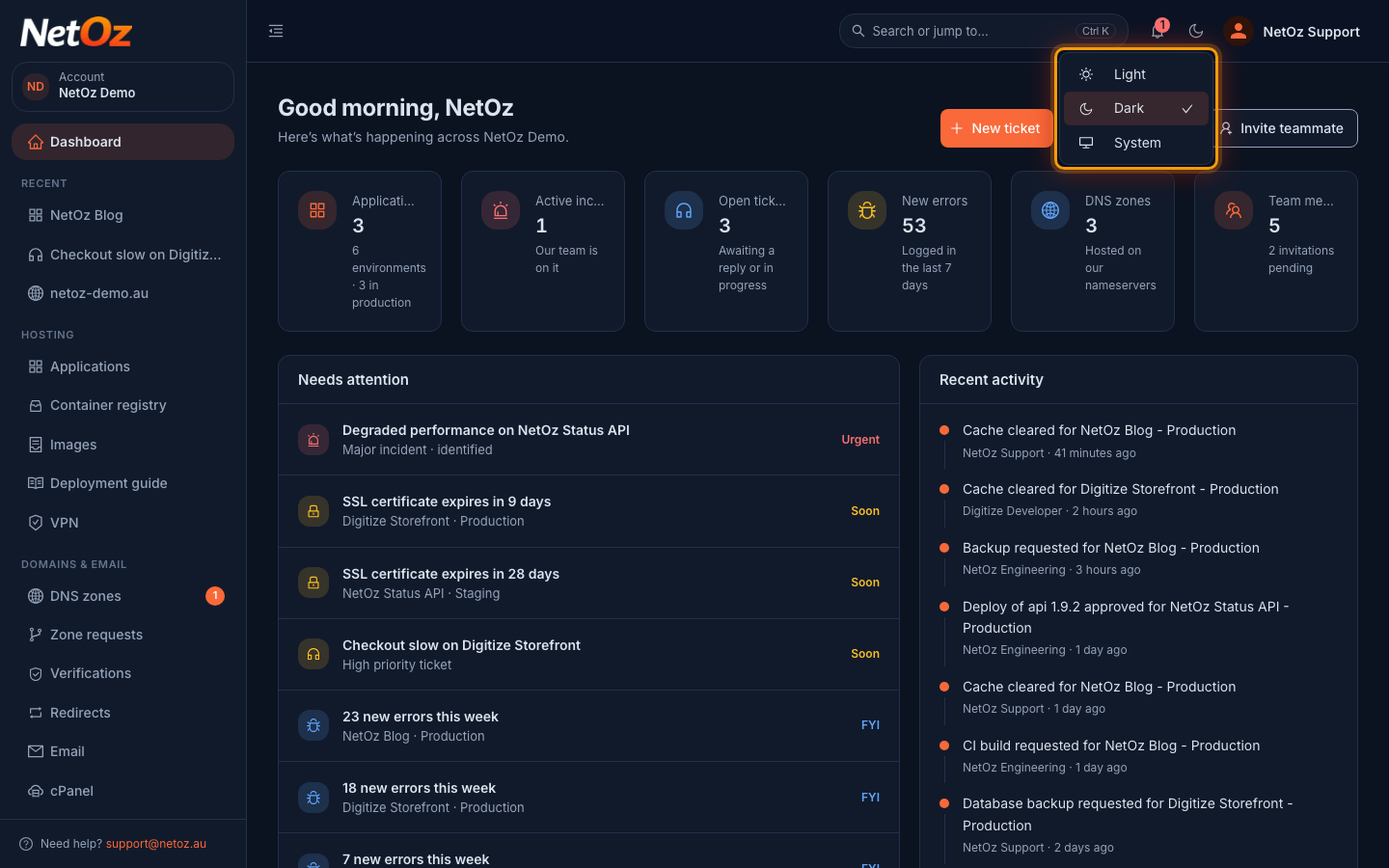
Select the Appearance button and choose Light, Dark or System to follow your device setting. Your choice is remembered in this browser.
Step 7 See the portal in light mode
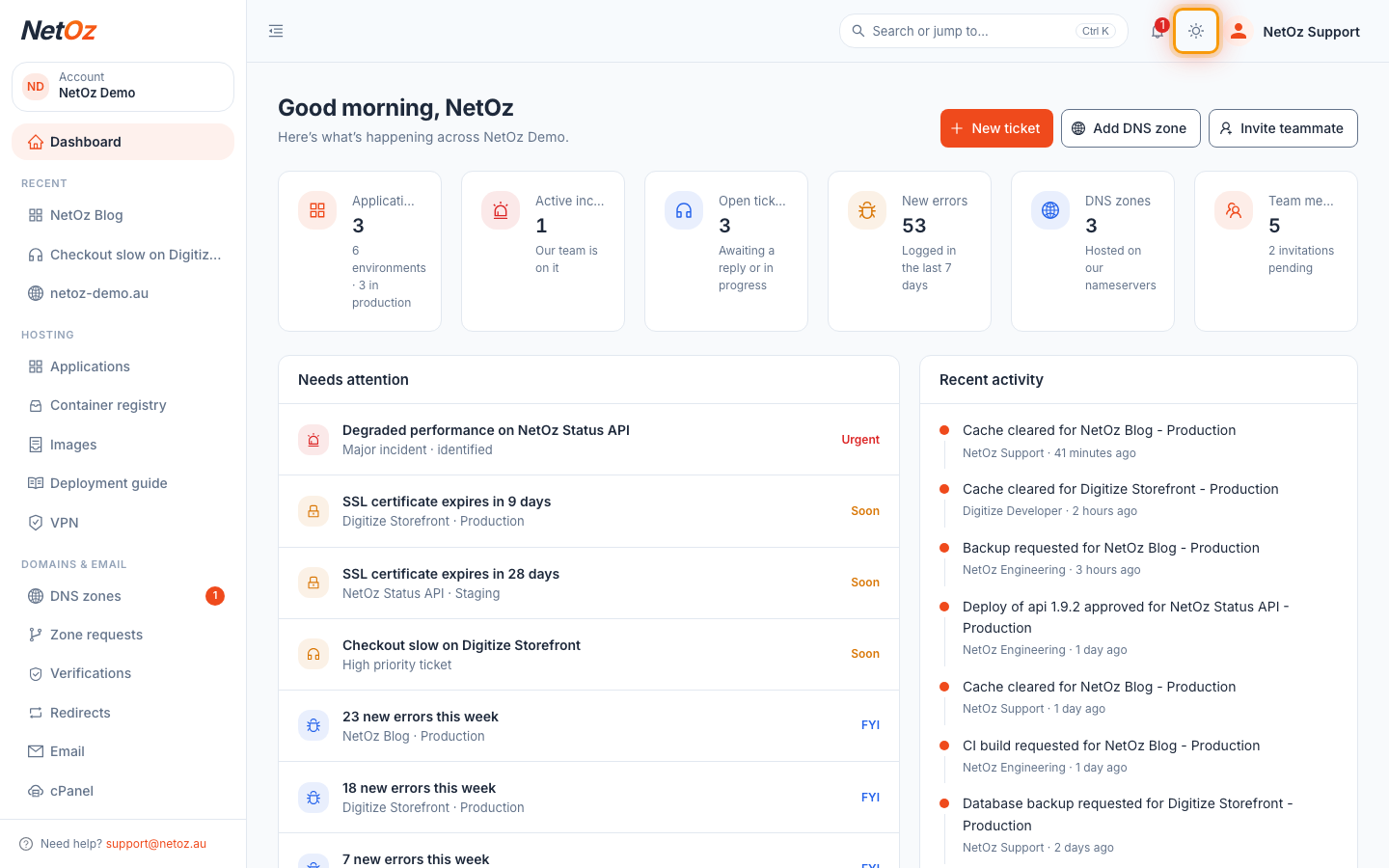
Light mode is easier to read in bright rooms. Switch back at any time from the same menu.
Step 8 Open your profile menu
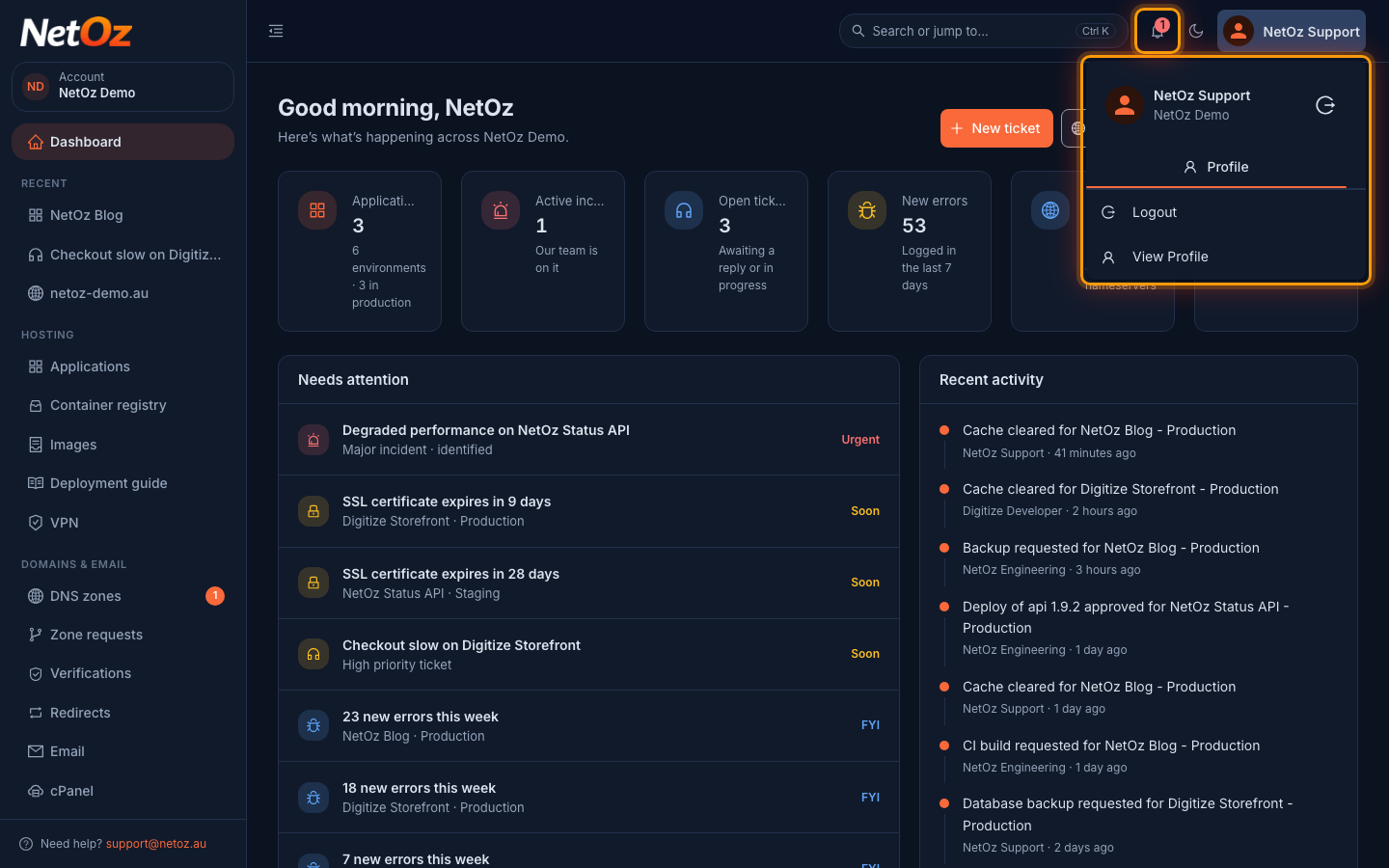
Select your name at the top right to open View Profile, where you set up two-factor authentication, change your password and choose notification preferences, or to Logout. The bell next to it shows how many incidents are active and links to Incidents.
Where to next
Was this guide helpful?
Your answer helps us keep these guides accurate.