Open a support ticket with the NetOz team
Raise a support case with NetOz from the portal. Pick the affected site and environment, set a priority, describe the problem and attach screenshots.
On this page
The quickest way to get help from NetOz is a support ticket in the portal. Tickets keep the whole conversation in one place, tell our team exactly which site is affected, and let everyone on your team follow progress.
Before you start
- You need to be an account admin, or have Support set to Manage. With View you can read tickets but not open them.
- For an outage affecting your live site, set the priority to Critical so it reaches our on-call engineer straight away.
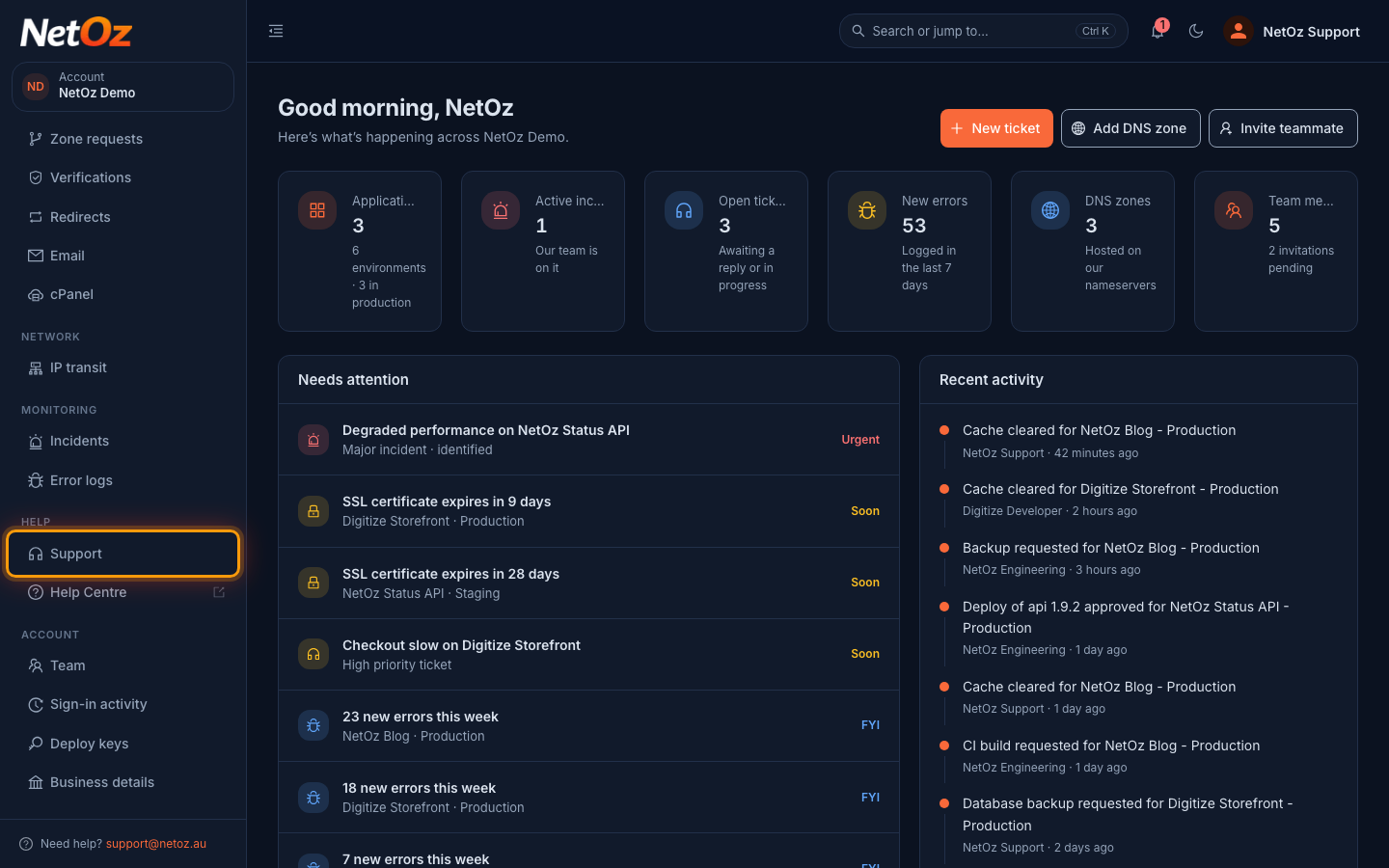
Step 1 Open Support from the sidebar
Sign in to the NetOz Portal and choose Support under Help in the sidebar. You can also select New ticket on the dashboard, or press Ctrl K and choose Open a support ticket.
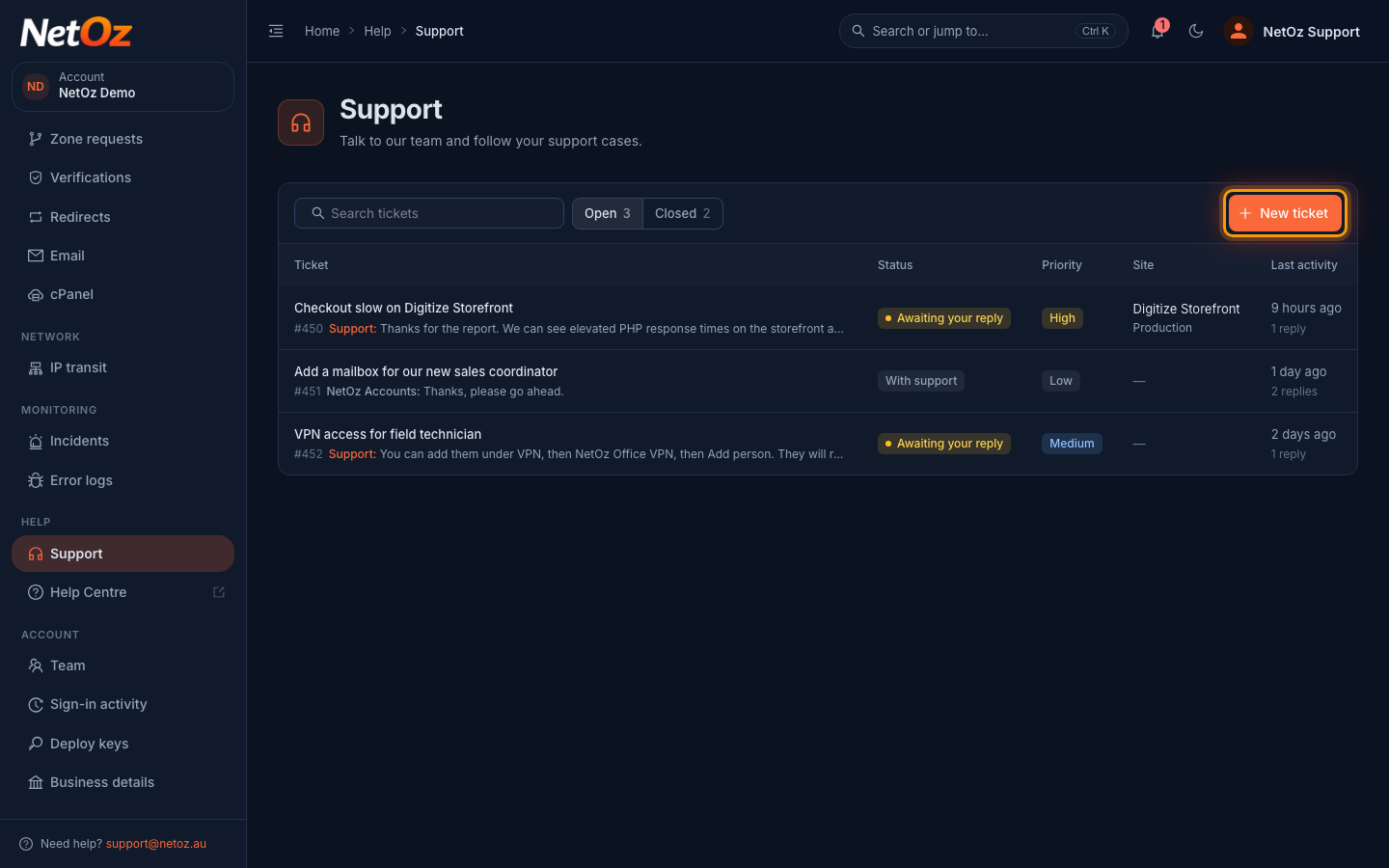
Step 2 Select New ticket
The Support page lists your open tickets, with their status, priority, the site they are about and the latest reply. Before opening a new one, check whether someone on your team has already raised the same problem. Then select New ticket.
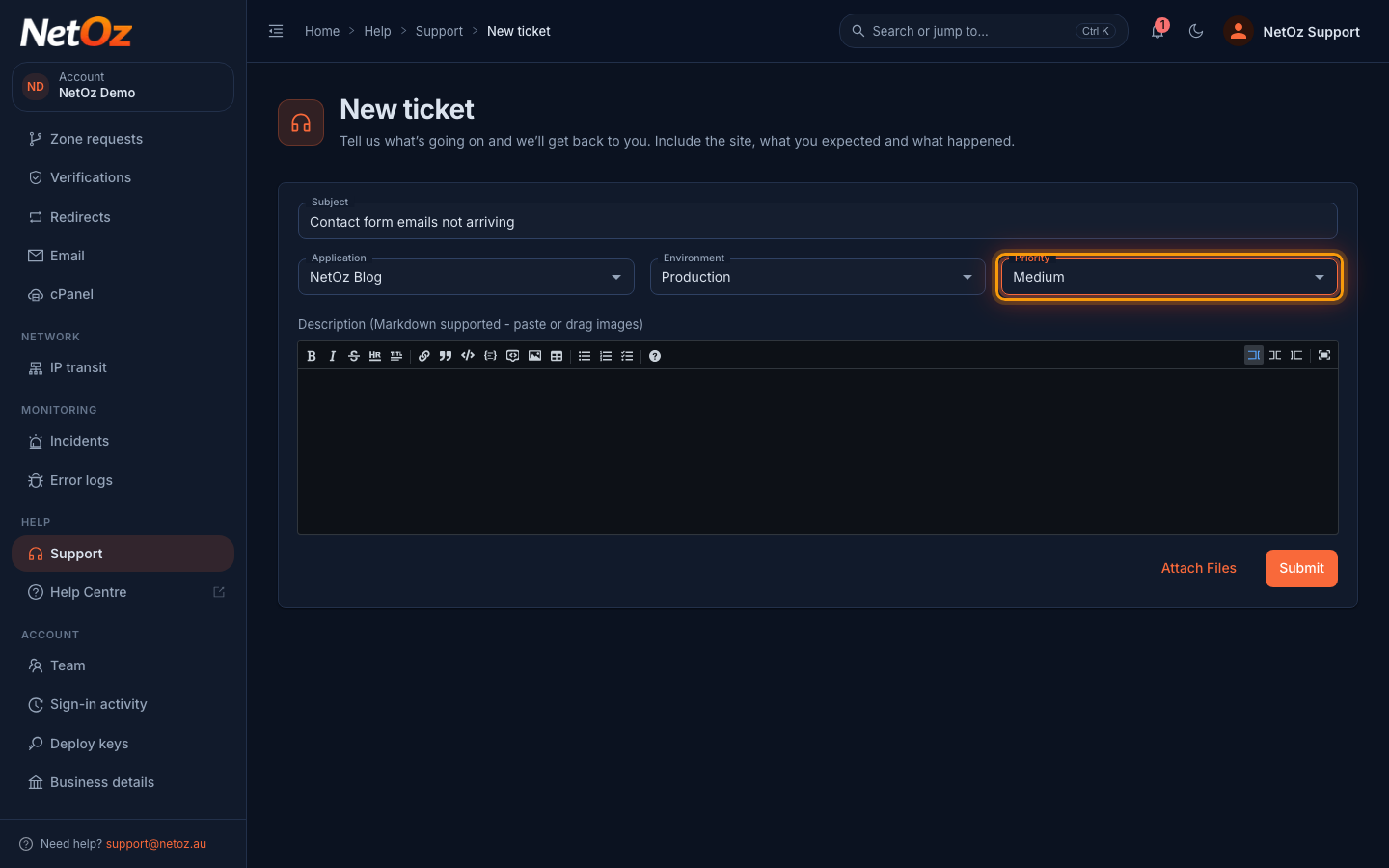
Step 3 Choose the site and priority
Give the ticket a short Subject that sums up the problem. If it is about one of your sites, choose the Application and Environment, such as Production. Set the Priority: Low for questions, Medium for problems with a workaround, High when something important is broken and Critical for an outage.
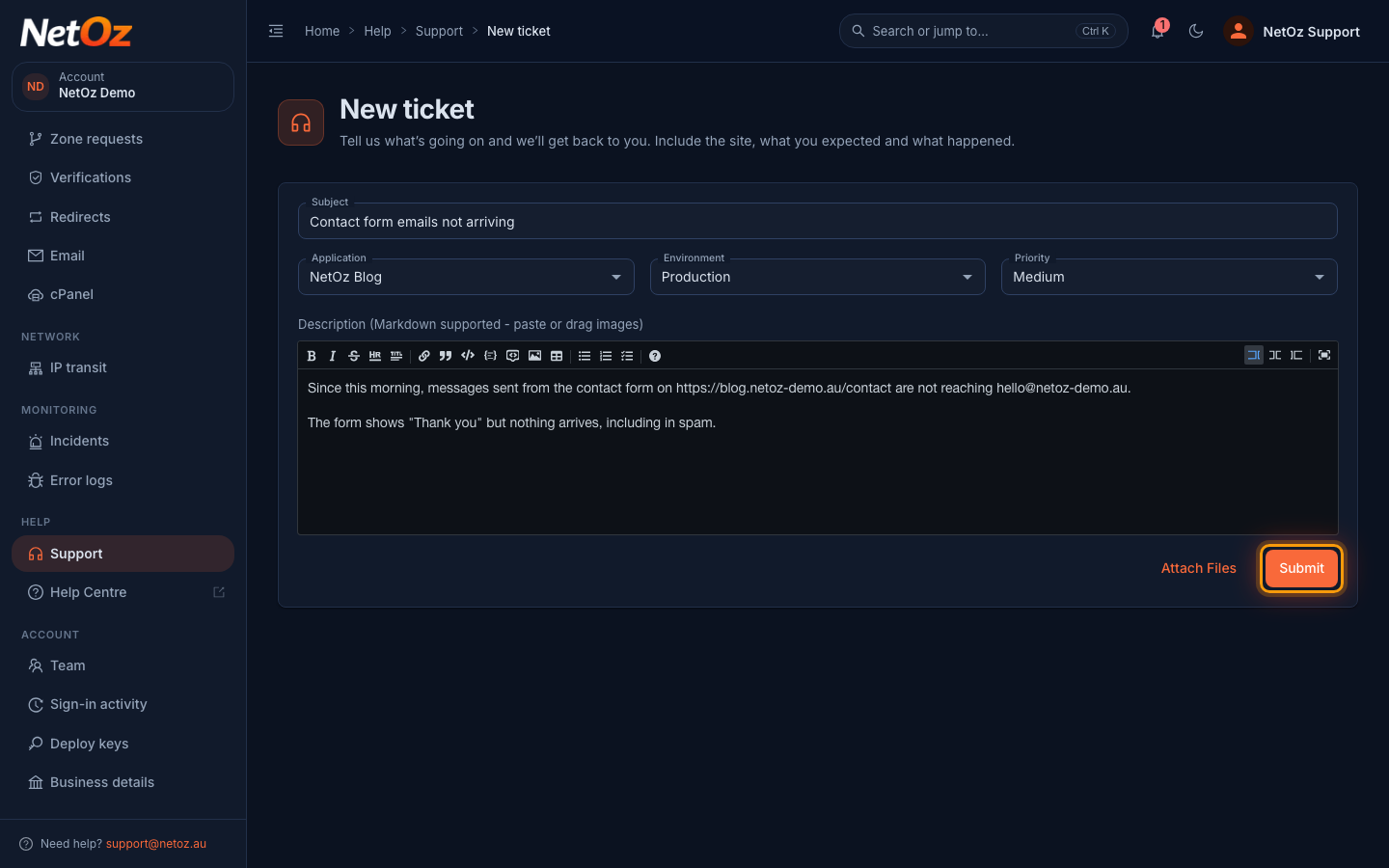
Step 4 Describe the problem
In Description, explain what is happening, where, and since when. The box supports Markdown, and you can paste or drag in screenshots, or select Attach Files. When you are ready, select Submit.
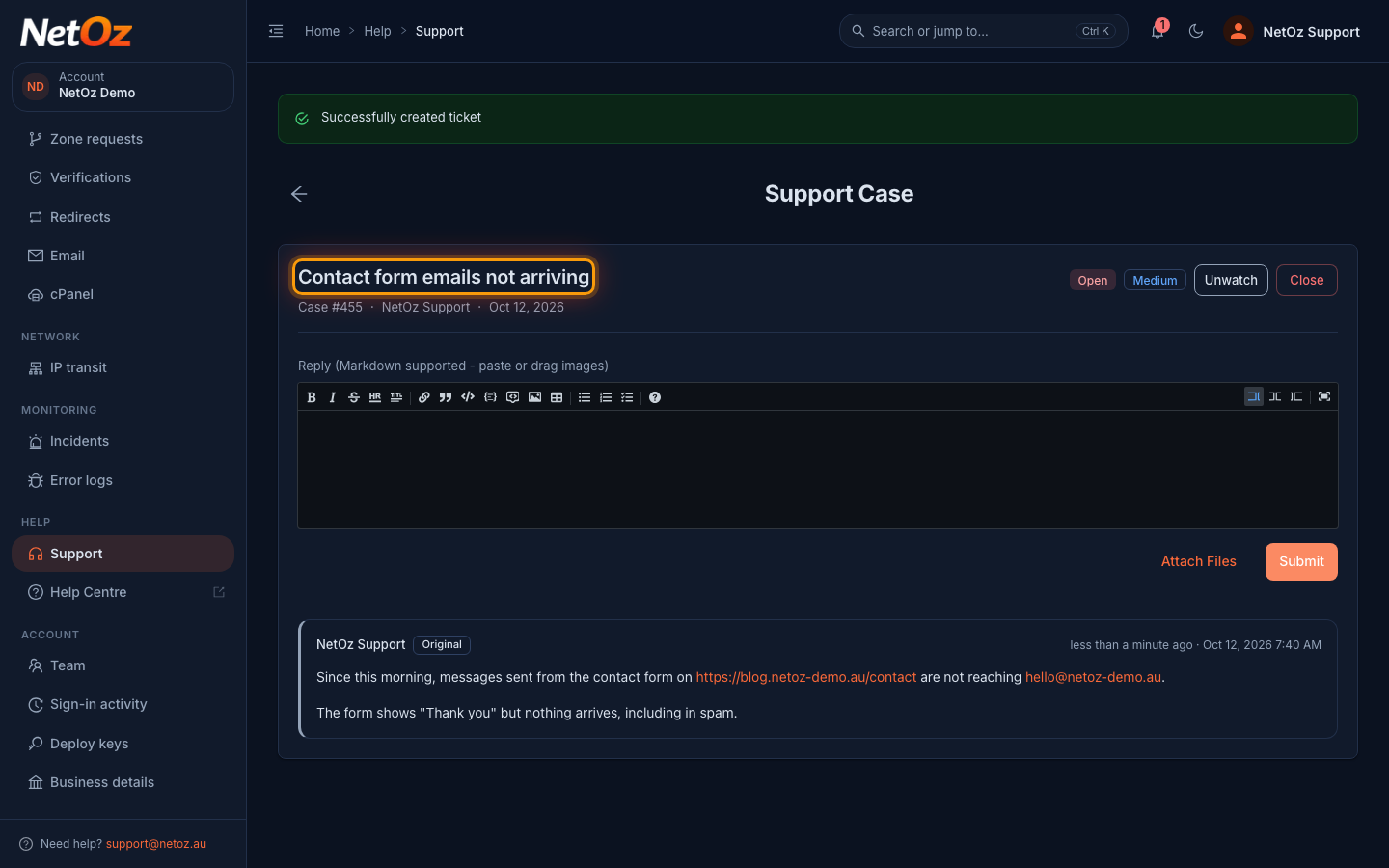
Step 5 Your ticket is open
The ticket opens with its case number. You are automatically watching it, so you get an email whenever NetOz replies.
What happens next
Our team replies in the ticket and you get an email when they do. The ticket shows Awaiting your reply when we need something from you, and With support while we are working on it. See Reply to a support ticket.
Tips for a fast answer
- Include the address of the page, what you expected and what happened instead.
- Paste error messages as text, and drag in screenshots.
- One problem per ticket makes it easier to track.
Was this guide helpful?
Your answer helps us keep these guides accurate.