Reply to, watch or close a NetOz support ticket
Read the latest update from NetOz on your support case, reply with more details or screenshots, and close the ticket when the problem is fixed.
On this page
Every support ticket keeps the full conversation between your team and NetOz. This guide shows how to find tickets that need your reply, respond, and close the ticket once everything is working.
Before you start
- To reply or close a ticket you need to be an account admin, or have Support set to Manage. With View you can read tickets and watch them.
Step 1 Find tickets waiting on you
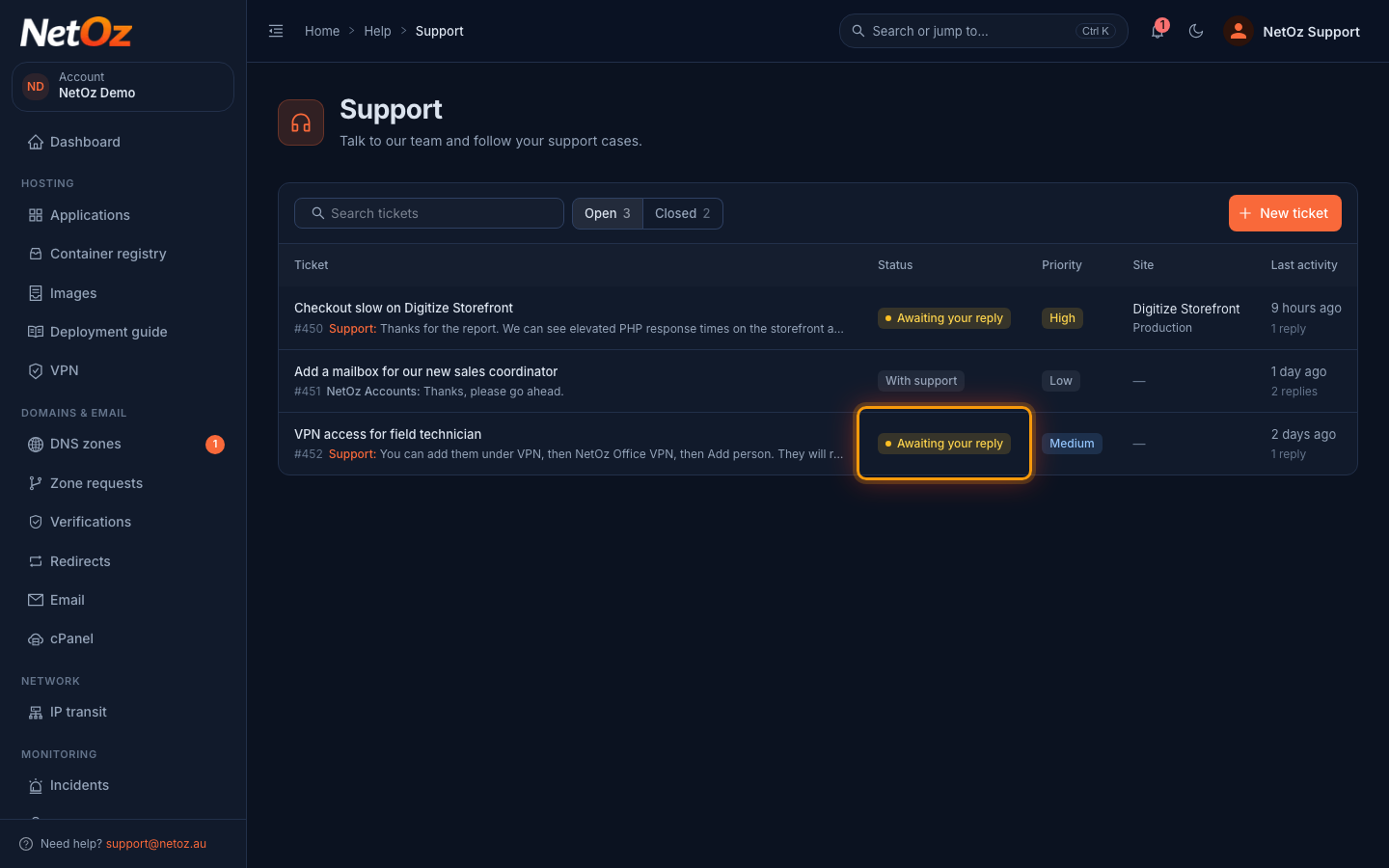
Go to Support in the sidebar. Tickets marked Awaiting your reply have a new message from NetOz. Use Open and Closed above the list to switch between current and finished tickets, and the search box to find an older one.
Step 2 Read the latest reply
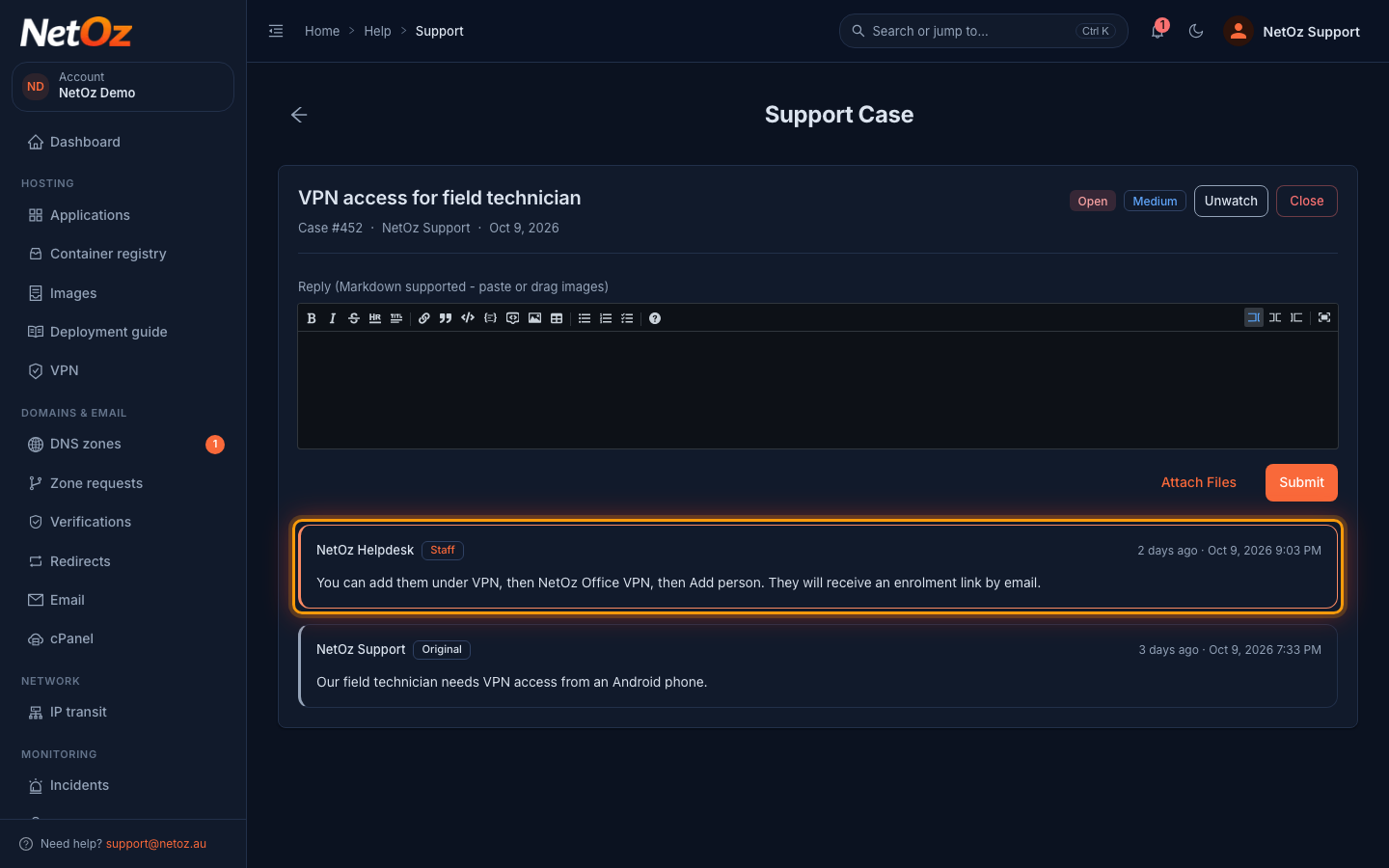
The ticket shows its case number, who opened it, its status and priority. Replies are listed newest first, and replies from NetOz are marked Staff.
Step 3 Write your reply
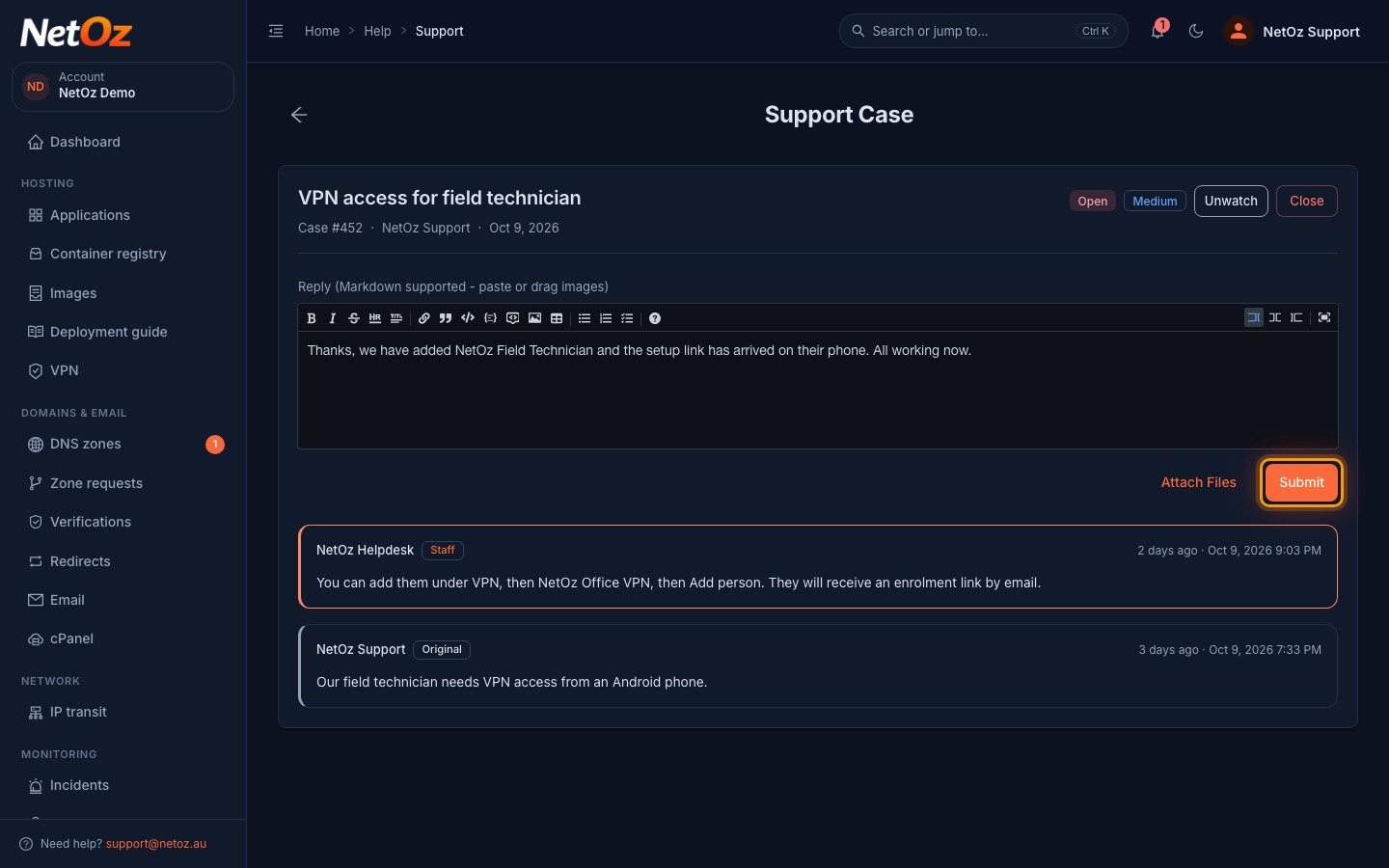
Type your reply in the Reply box. Markdown is supported, and you can paste or drag in images or select Attach Files. Select Submit to send it. Our team is notified straight away.
Step 4 Watch or close the ticket
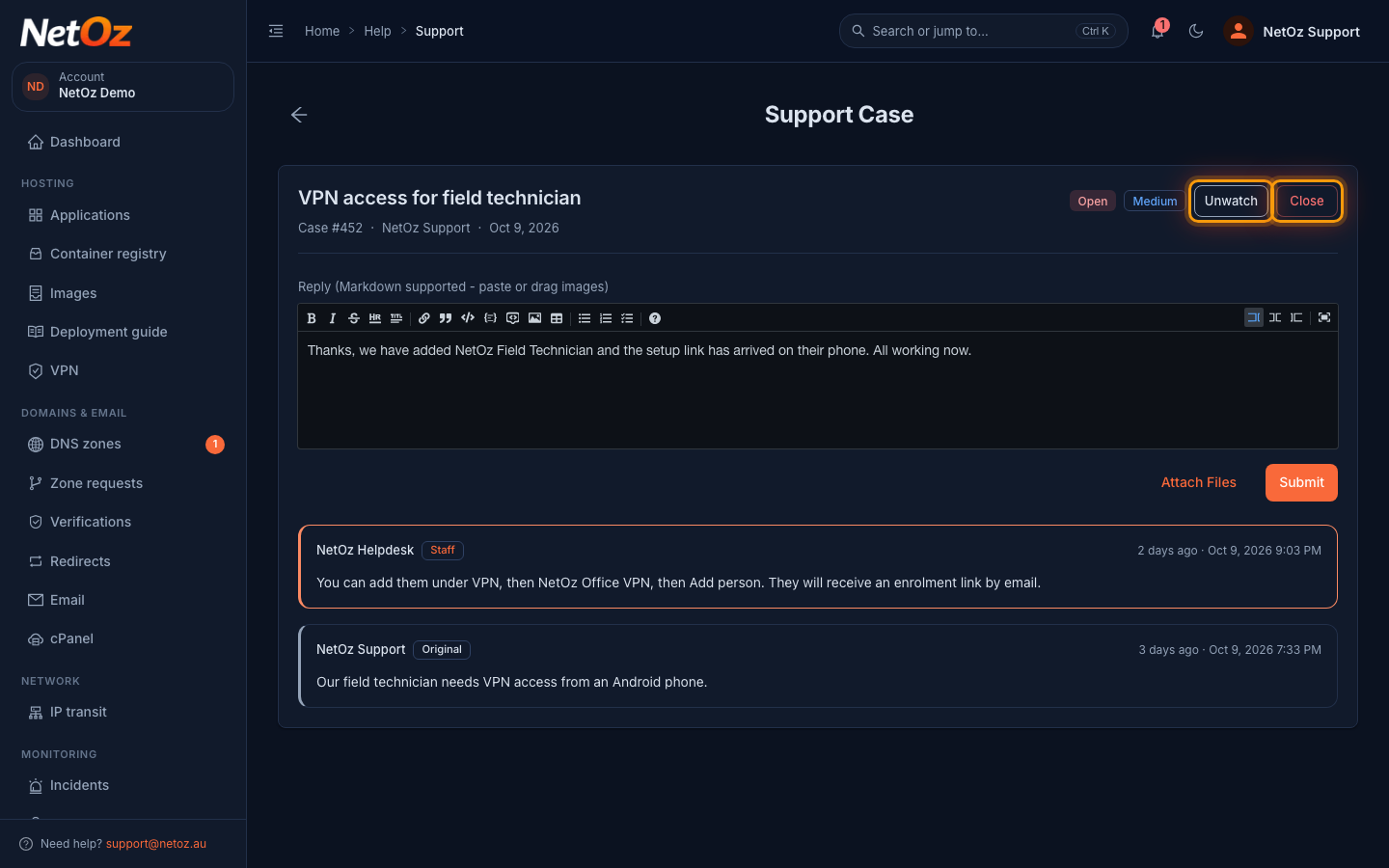
Select Unwatch to stop getting emails about this ticket, or Watch to start. When the problem is fixed, select Close. A closed ticket can be reopened with Reopen if the problem comes back.
Was this guide helpful?
Your answer helps us keep these guides accurate.