Follow an outage or incident affecting your services
See active NetOz incidents that affect your sites, read the timeline of updates, subscribe to email notifications and send details privately to our team.
On this page
When something goes wrong with a service you rely on, NetOz posts an incident in the portal and keeps it updated until it is resolved. The Incidents page shows what is happening now and what happened before.
Before you start
- Everyone with Incidents access can follow incidents. Commenting needs Incidents set to Manage.
Step 1 Spot an active incident
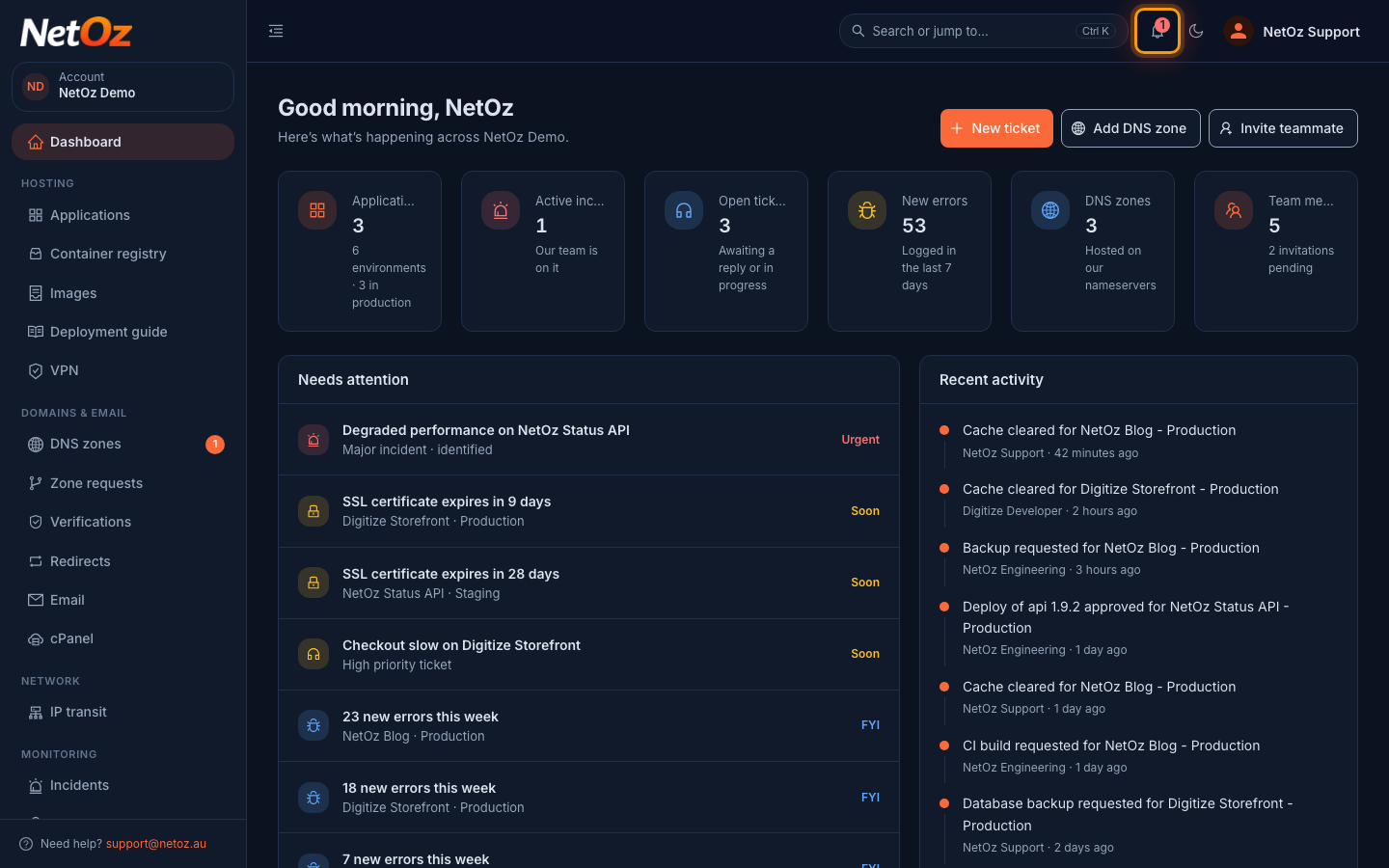
The bell at the top of every page shows how many incidents are active, and active incidents also appear at the top of Needs attention on your dashboard. Select the bell, or Incidents under Monitoring in the sidebar.
Step 2 Check what is happening now
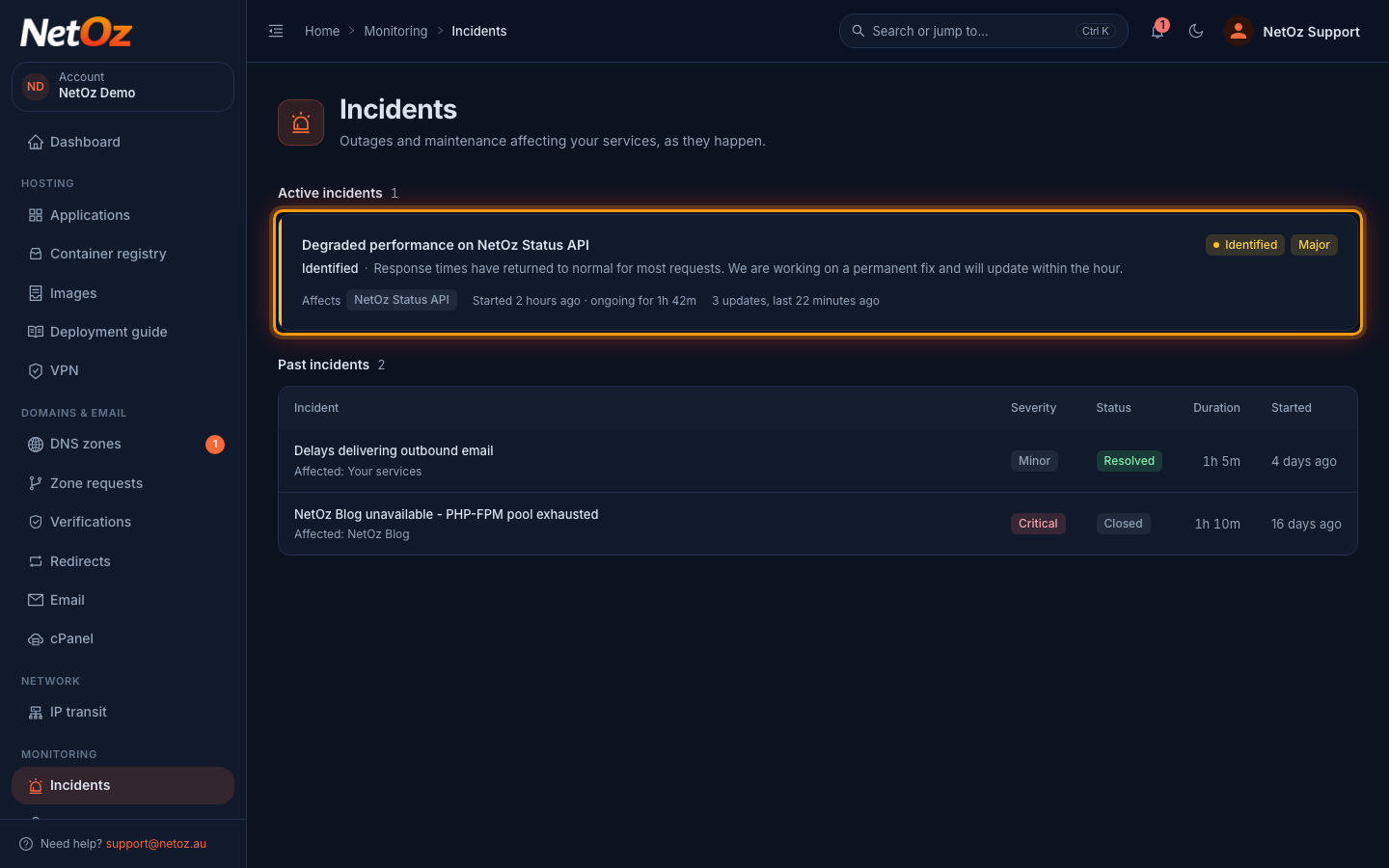
Active incidents shows each incident’s status, severity, the services it affects, how long it has been going and the latest update. Past incidents lists earlier incidents with how long they lasted.
Step 3 Read the timeline
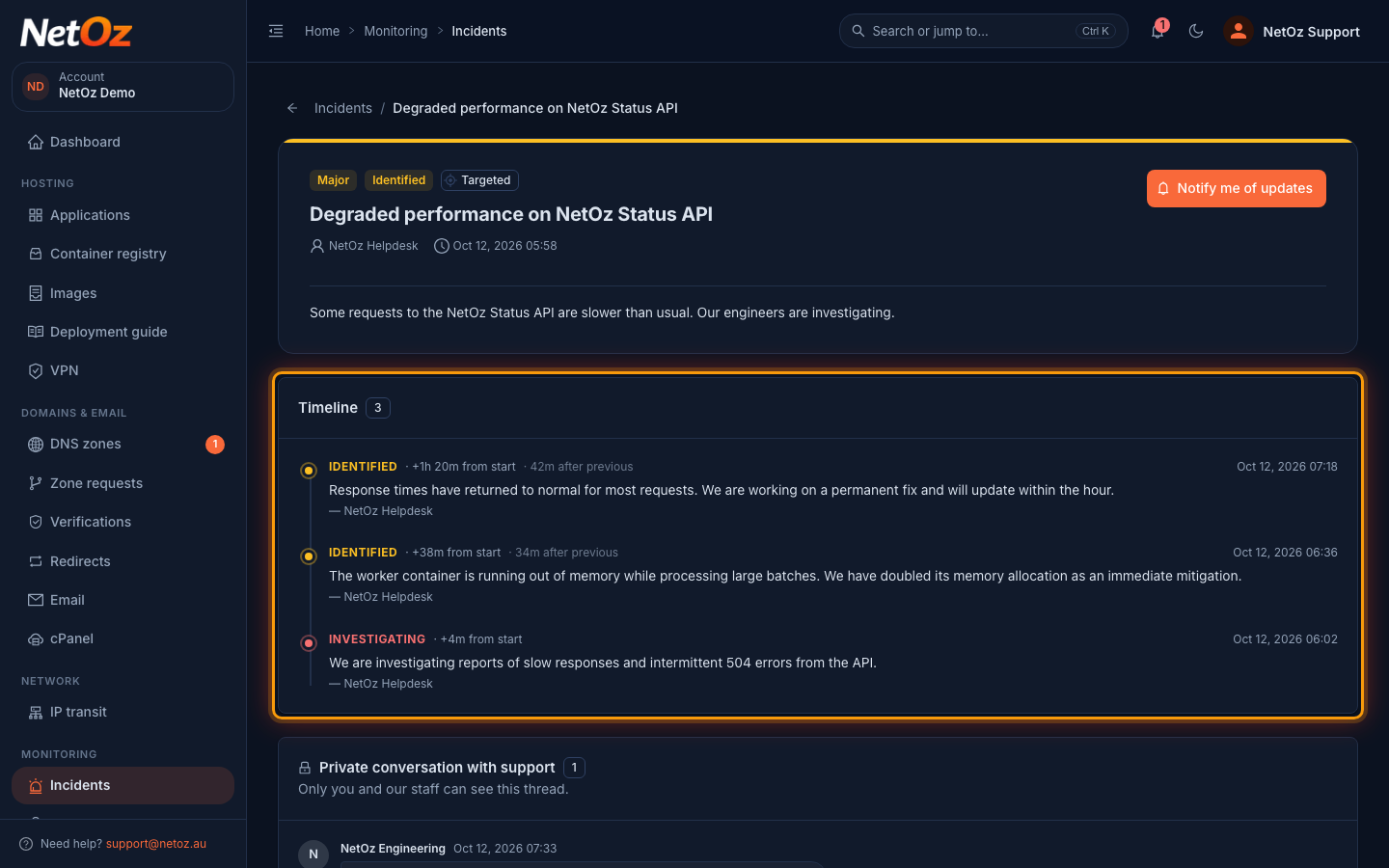
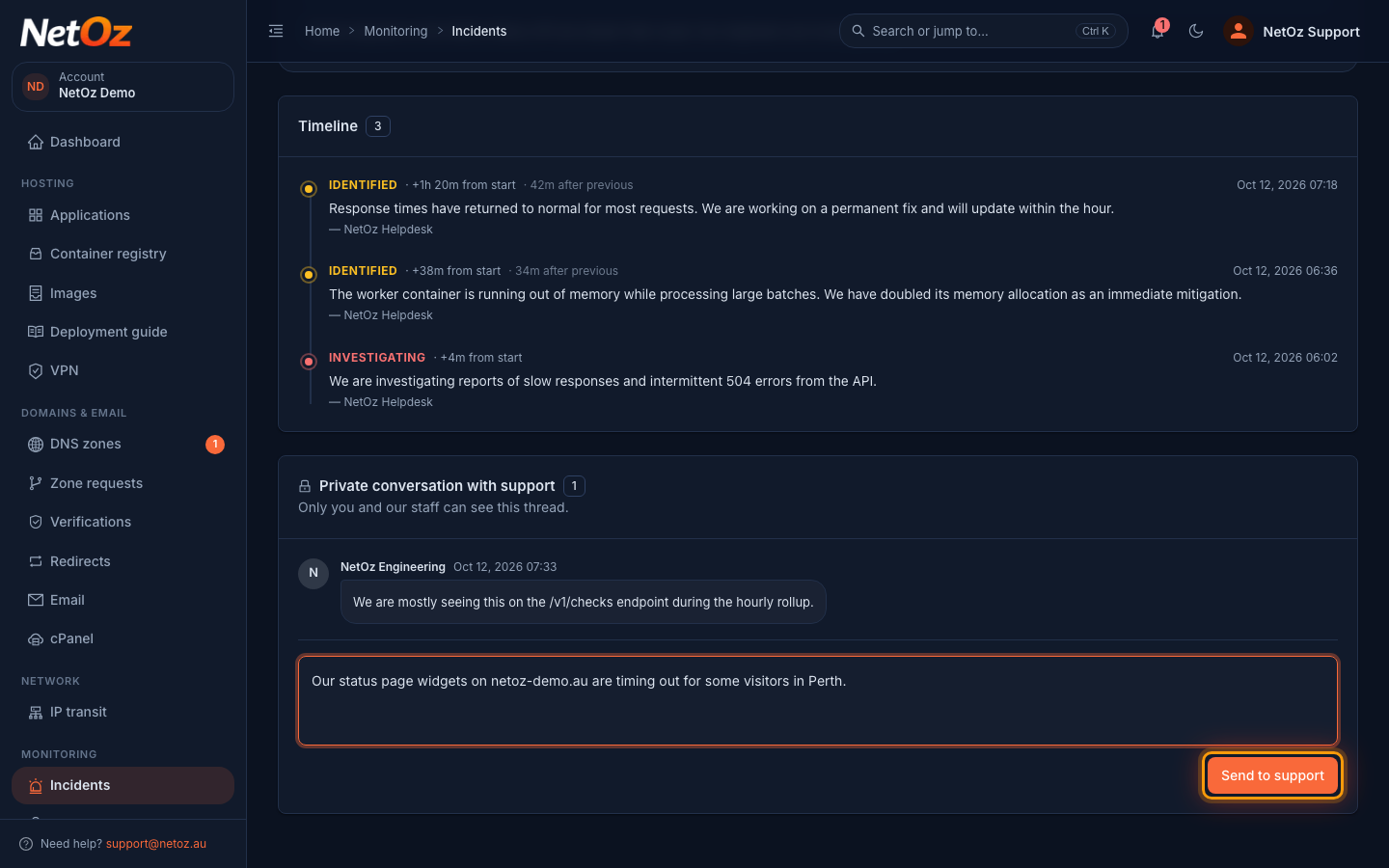
Updates from NetOz appear newest first, each with its status: Investigating, Identified, Monitoring, Resolved or Closed. You can see how long after the start each update was posted.
Step 4 Get updates by email
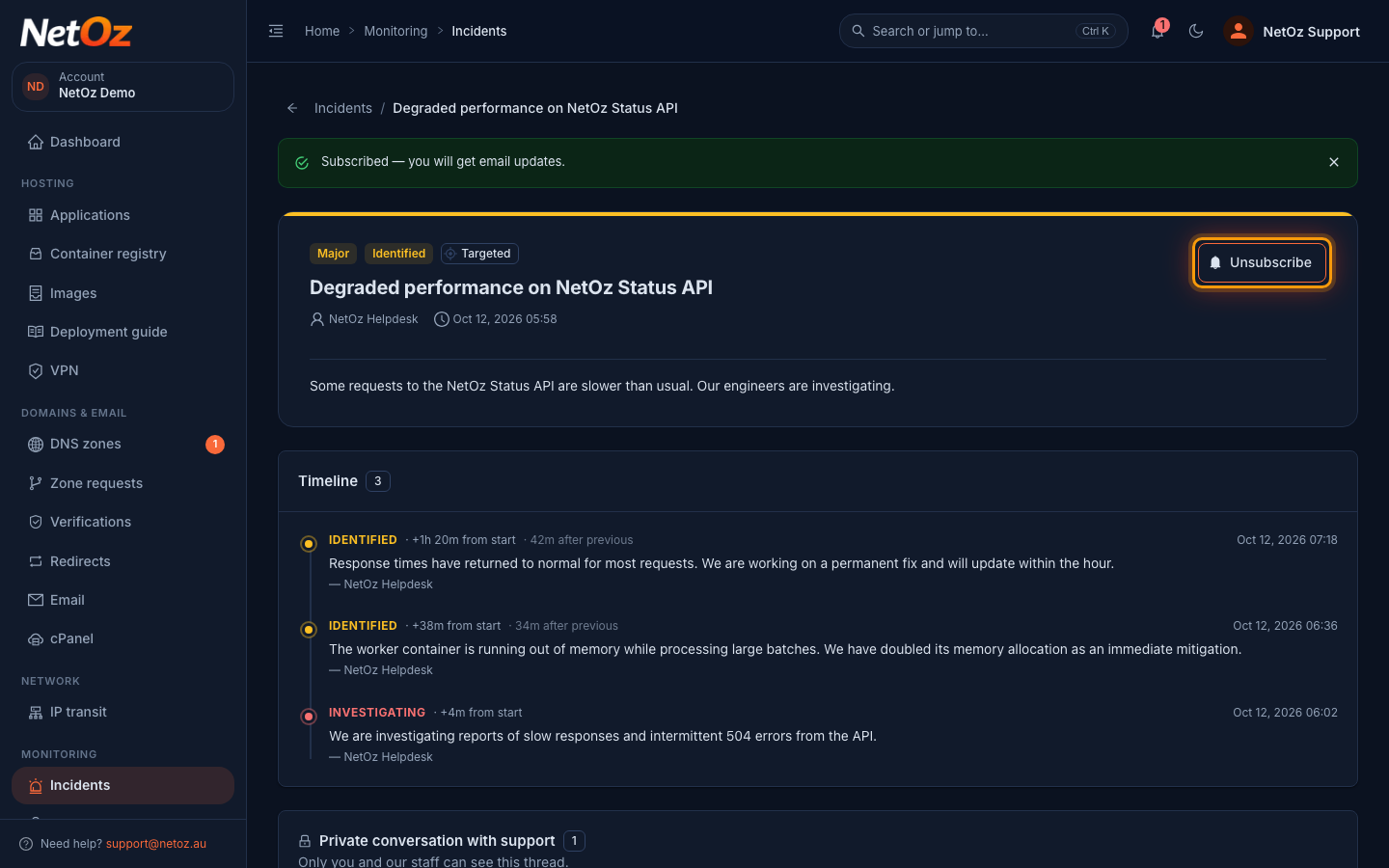
Select Notify me of updates to get an email every time NetOz posts an update. The button changes to Unsubscribe, which you can select to stop.
Step 5 Tell us how it affects you
Under Private conversation with support, share anything that helps, such as which pages or customers are affected, and select Send to support. Only your team and NetOz staff can see this thread.
Is my problem part of an incident?
If an active incident matches what you are seeing, there is no need to open a ticket. Subscribe to it instead and add any extra details in the private conversation. If nothing matches, open a support ticket.
Was this guide helpful?
Your answer helps us keep these guides accurate.