Copy your live WordPress site to staging
Refresh a staging or development environment with an exact copy of your production WordPress files and database from the NetOz Portal, with automatic backups and URL replacement.
On this page
Before testing a plugin update, a new theme or a big content change, it helps to have staging match your live site. Sync Environments copies the files and database from one environment of a WordPress site to another, then updates the site address so the copy runs on its own domain.
Before you start
- You need Applications set to Manage for the destination environment, and at least Read for the source.
- Syncing replaces what is on the destination. Anything that only exists there, such as test content or a half-finished change, is overwritten.
- Production can never be the destination, so you cannot overwrite your live site by mistake.
Step 1 Open the Manage menu
Go to Applications and open your WordPress site. Select Manage on any of its environments.
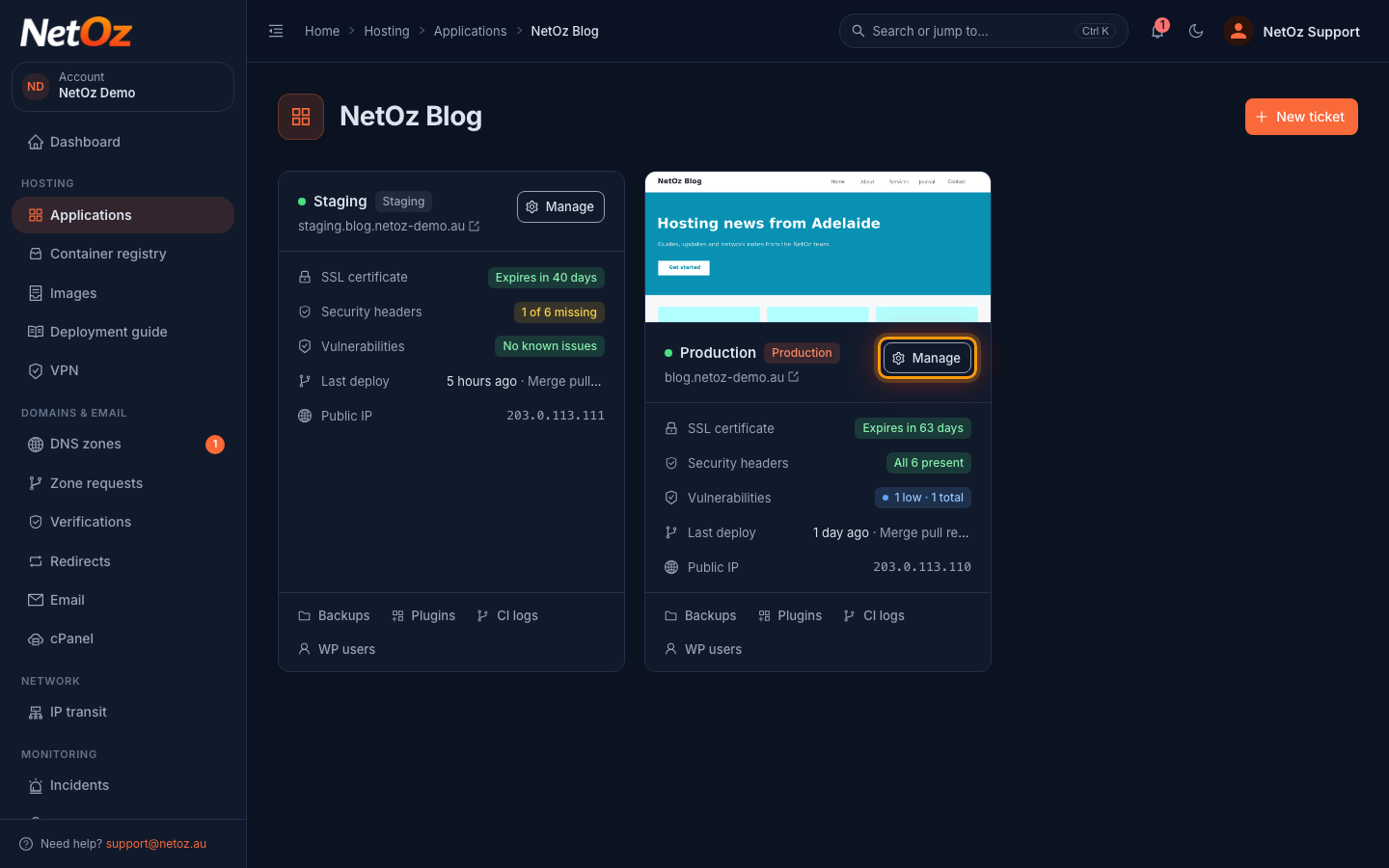
Step 2 Select Sync Environments
Under Action, select Sync Environments.
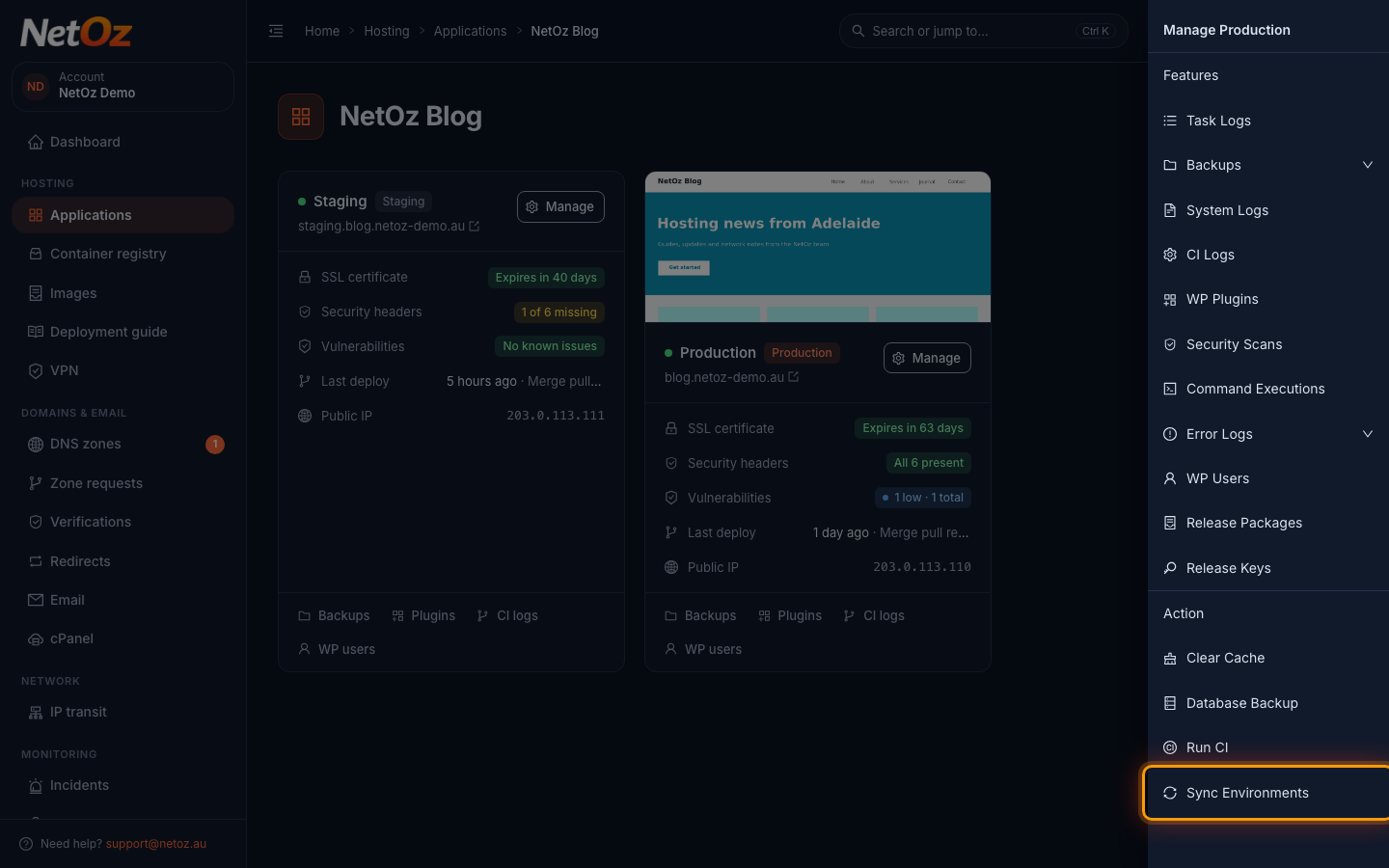
Step 3 Choose where to copy from and to
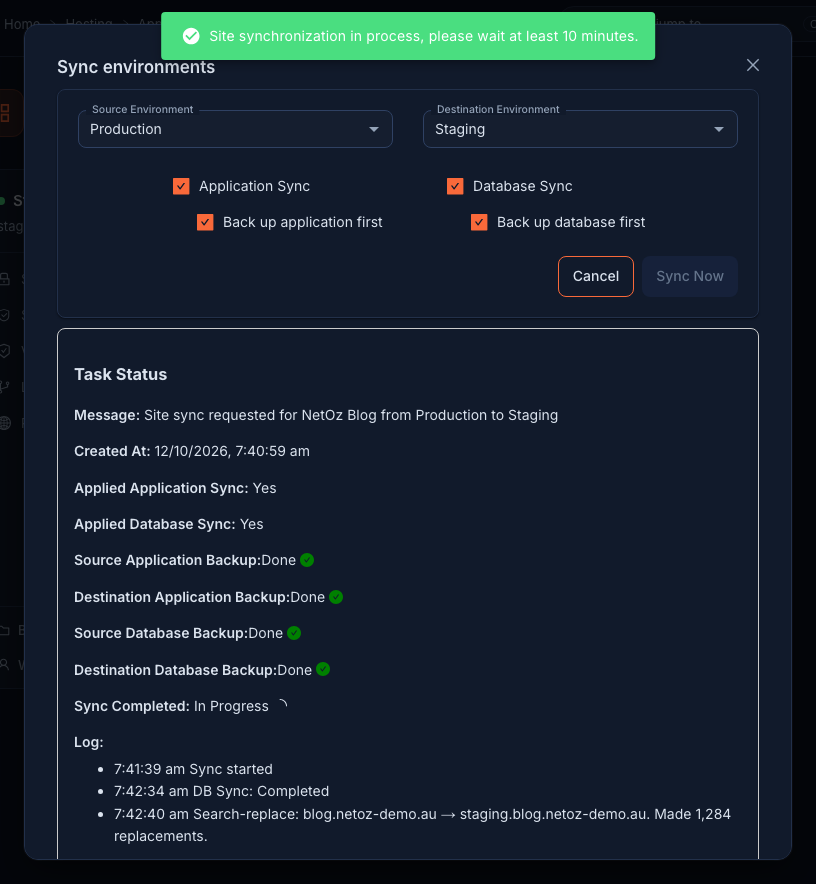
Set Source Environment to the site you want to copy, usually Production, and Destination Environment to the one you want to refresh, such as Staging. Only environments you are allowed to overwrite appear as destinations.
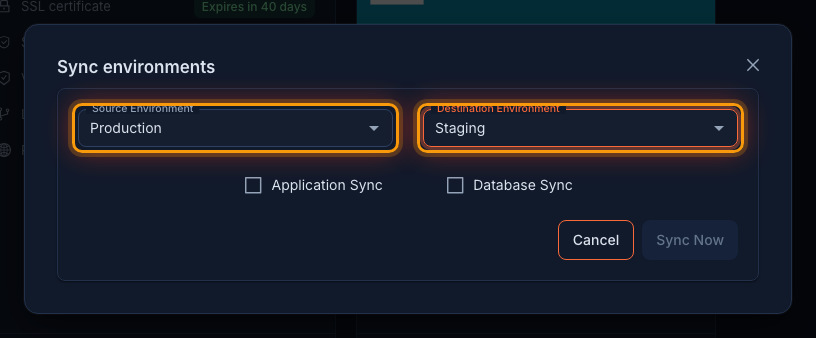
Step 4 Pick what to copy
Tick Application Sync to copy the website files and Database Sync to copy the content and settings. Back up application first and Back up database first are ticked for you, so both environments are backed up before anything changes. Leave them on unless you have a recent backup. Then select Sync Now.
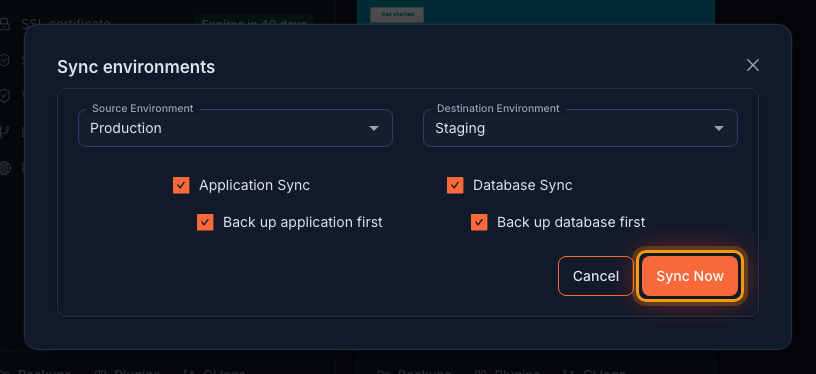
Step 5 Follow the progress
A status panel shows each backup, the copy and a running log. A full sync usually takes at least 10 minutes, depending on the size of the site. You can close the window; the sync carries on, and it also appears in the environment’s Task Logs.
What gets copied
- Application Sync makes the destination’s website files an exact copy of the source. Files that exist only on the destination are removed.
- Database Sync replaces the destination database with a copy of the source database.
- After a database sync, the source domain is replaced with the destination domain throughout the database, so links and settings on staging point at staging rather than your live site.
Each pair of environments can only run one sync at a time. If you need to move changes the other way, from staging to production, deploy them through your normal workflow or raise a support ticket.
Was this guide helpful?
Your answer helps us keep these guides accurate.