Clear your WordPress website cache in the NetOz Portal
Seeing old content after an update? Clear the page and object cache for any NetOz-hosted website environment in a couple of clicks, then confirm it in the task log.
On this page
NetOz caches your website so pages load quickly. If you have just changed content, a theme or a plugin and visitors still see the old version, clear the cache for that environment from the NetOz Portal.
Before you start
- You need Applications set to Manage for the application or environment.
Step 1 Open the environment’s Manage menu
Go to Applications, open your website and select Manage on the environment you want to clear, usually Production.
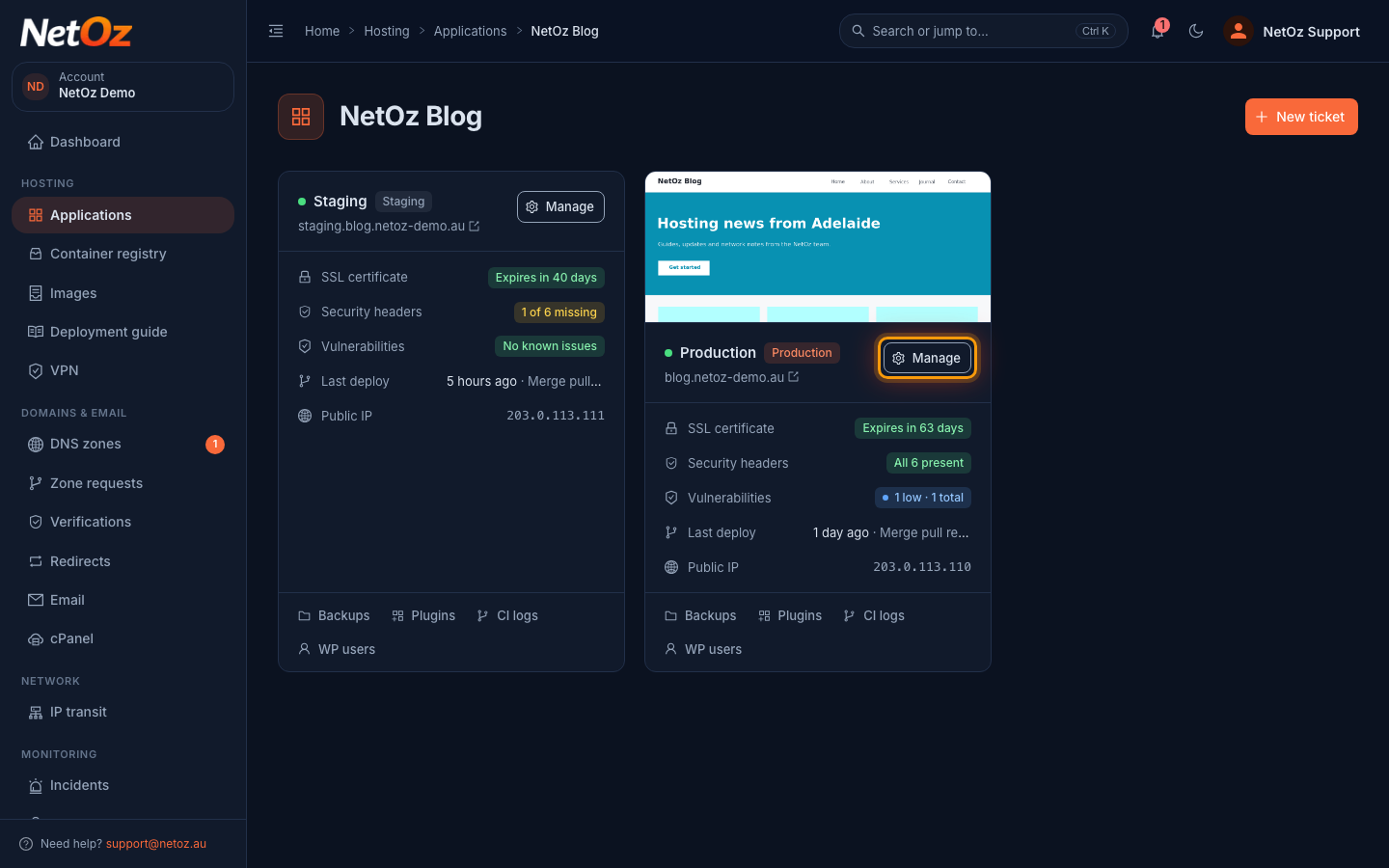
Step 2 Select Clear Cache
Under Action, select Clear Cache. There is no confirmation step, and clearing the cache does not change any of your content.
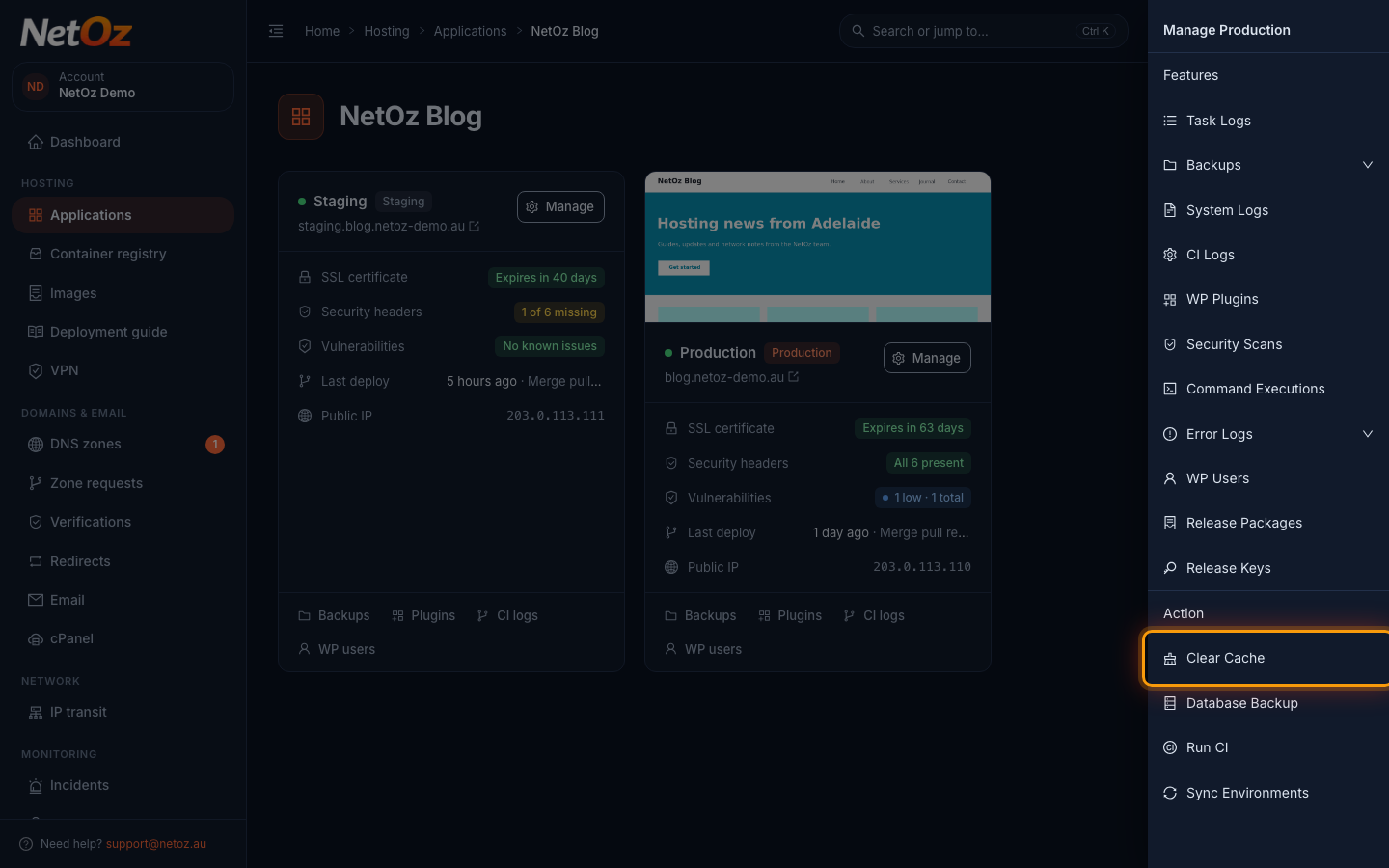
Step 3 Wait for the confirmation
A message confirms the request. The cache clears within about 30 seconds, and the next visitor to each page gets a freshly built copy.
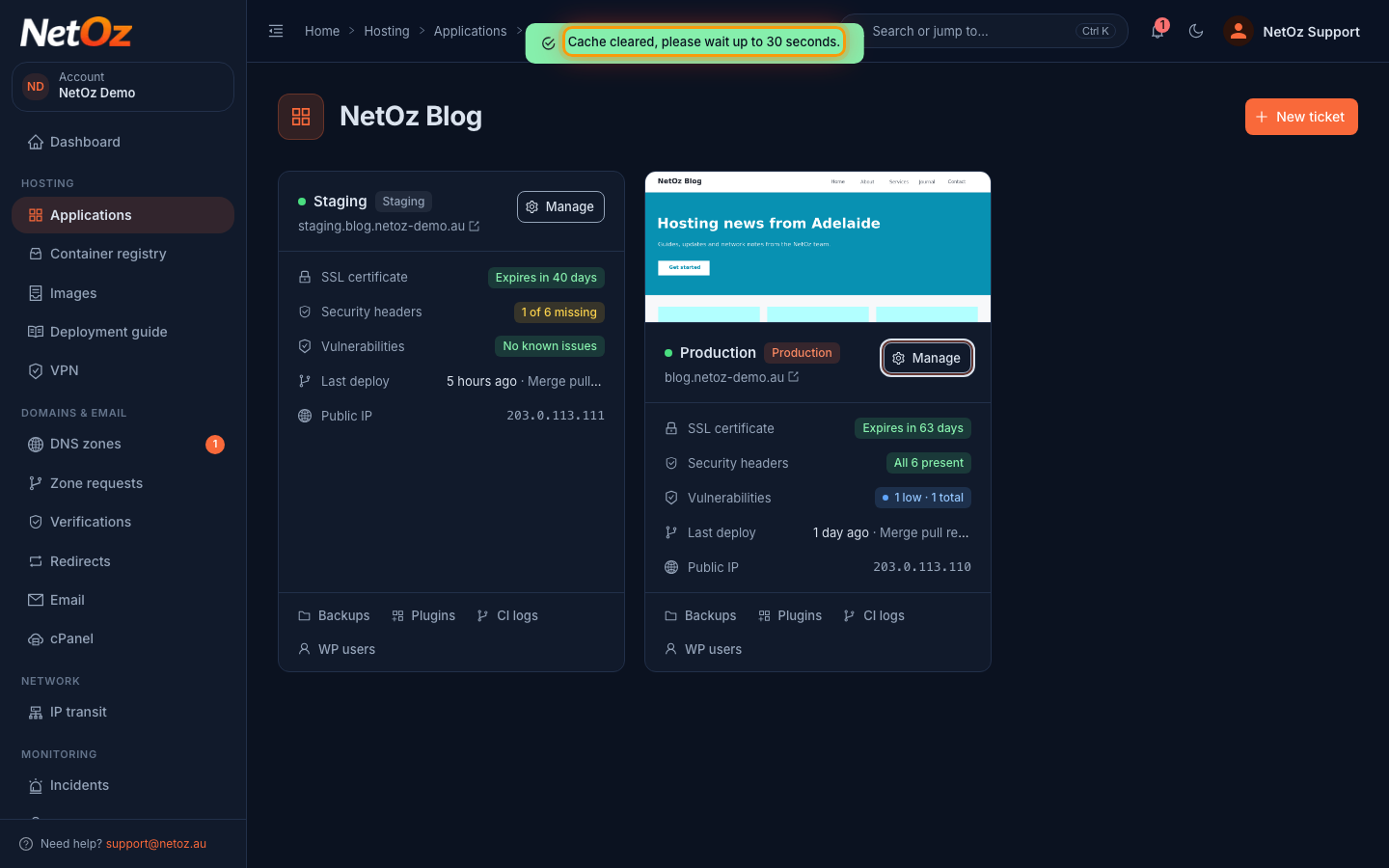
Still seeing old content?
It can take up to 30 seconds for the cache to clear. After that, try a private browser window to rule out your own browser cache. If the page is still out of date, run a WP-CLI command such as wp cache flush, or raise a support ticket from the application page.
Was this guide helpful?
Your answer helps us keep these guides accurate.