View your websites, environments and their health in the NetOz Portal
See every website and application NetOz hosts for you, check SSL certificate expiry, security headers and vulnerabilities for each environment, and open the tools for managing it.
On this page
Every website or application NetOz hosts for you appears under Applications in the NetOz Portal. Each one has one or more environments, such as Production and Staging, and each environment has its own address, certificate, health checks and tools. This guide shows where to find them.
Before you start
- You need Applications set to at least Read on your team access. Some tools and actions also need Manage.
Step 1 Open Applications from the sidebar
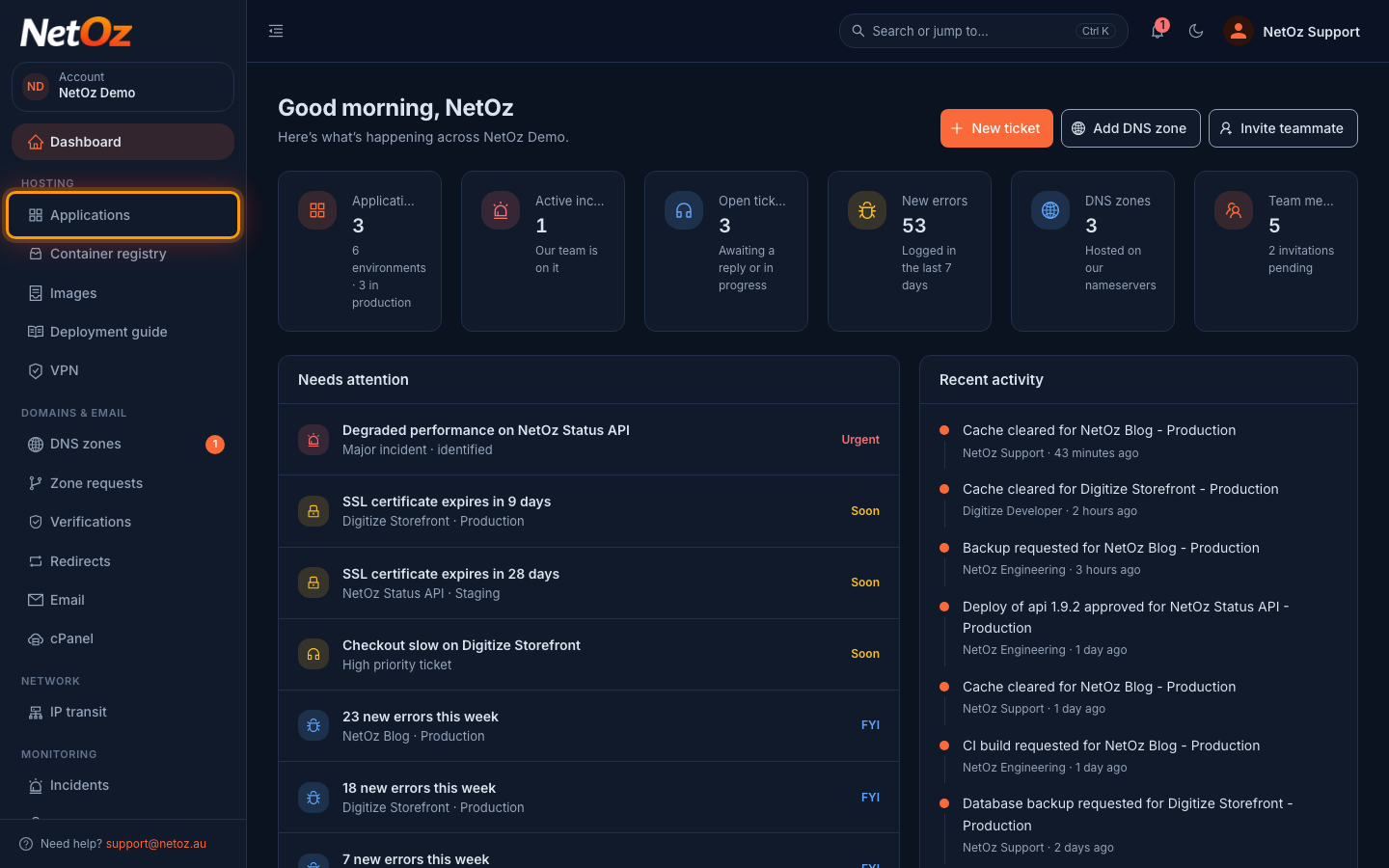
Sign in to the NetOz Portal and choose Applications under Hosting in the sidebar.
Step 2 Check the overview
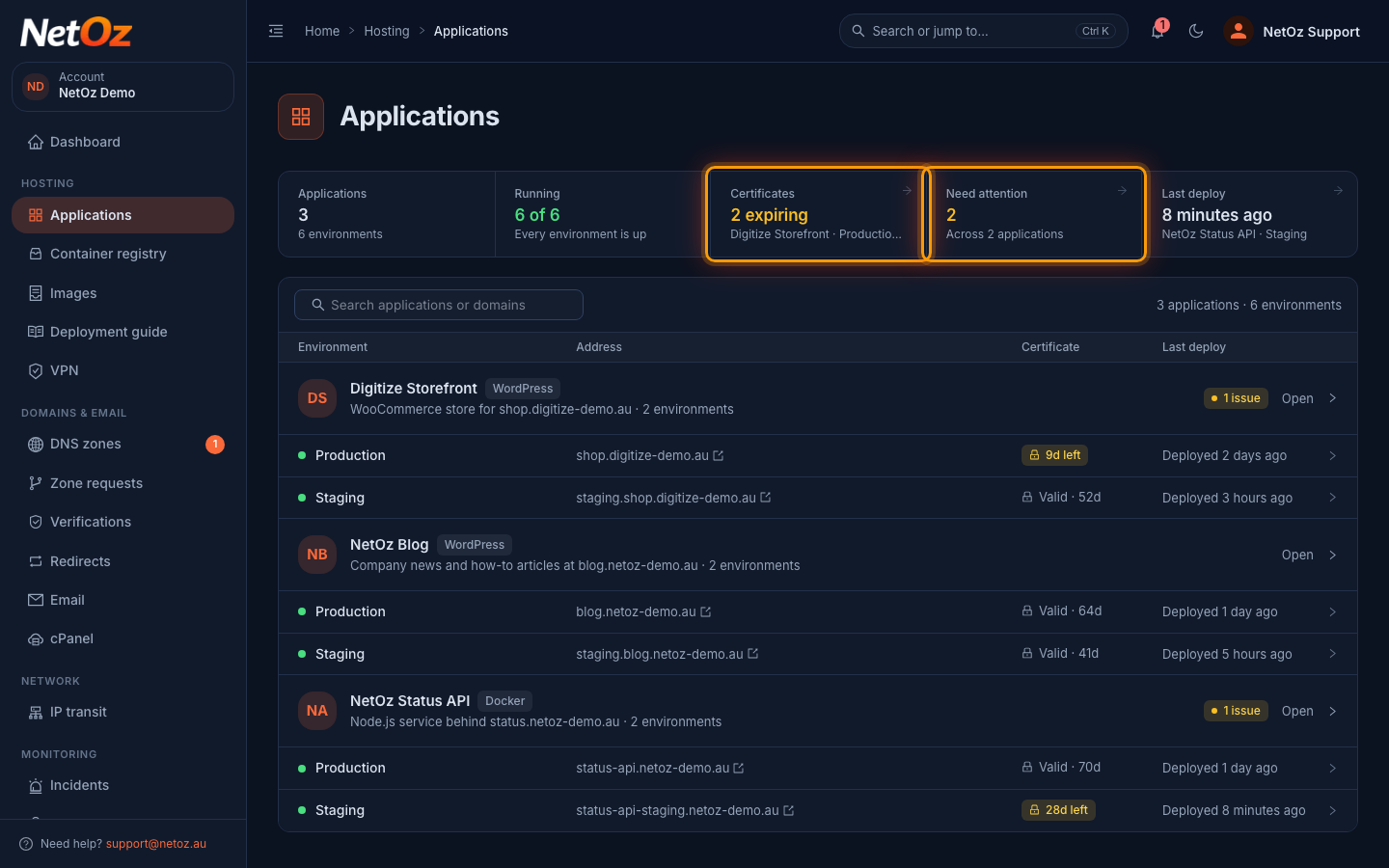
The tiles across the top summarise every environment on your account: how many are running, which certificates expire soon, which environments need attention and when the last deploy happened. Select a tile to jump to the environments it mentions.
Step 3 Find your website
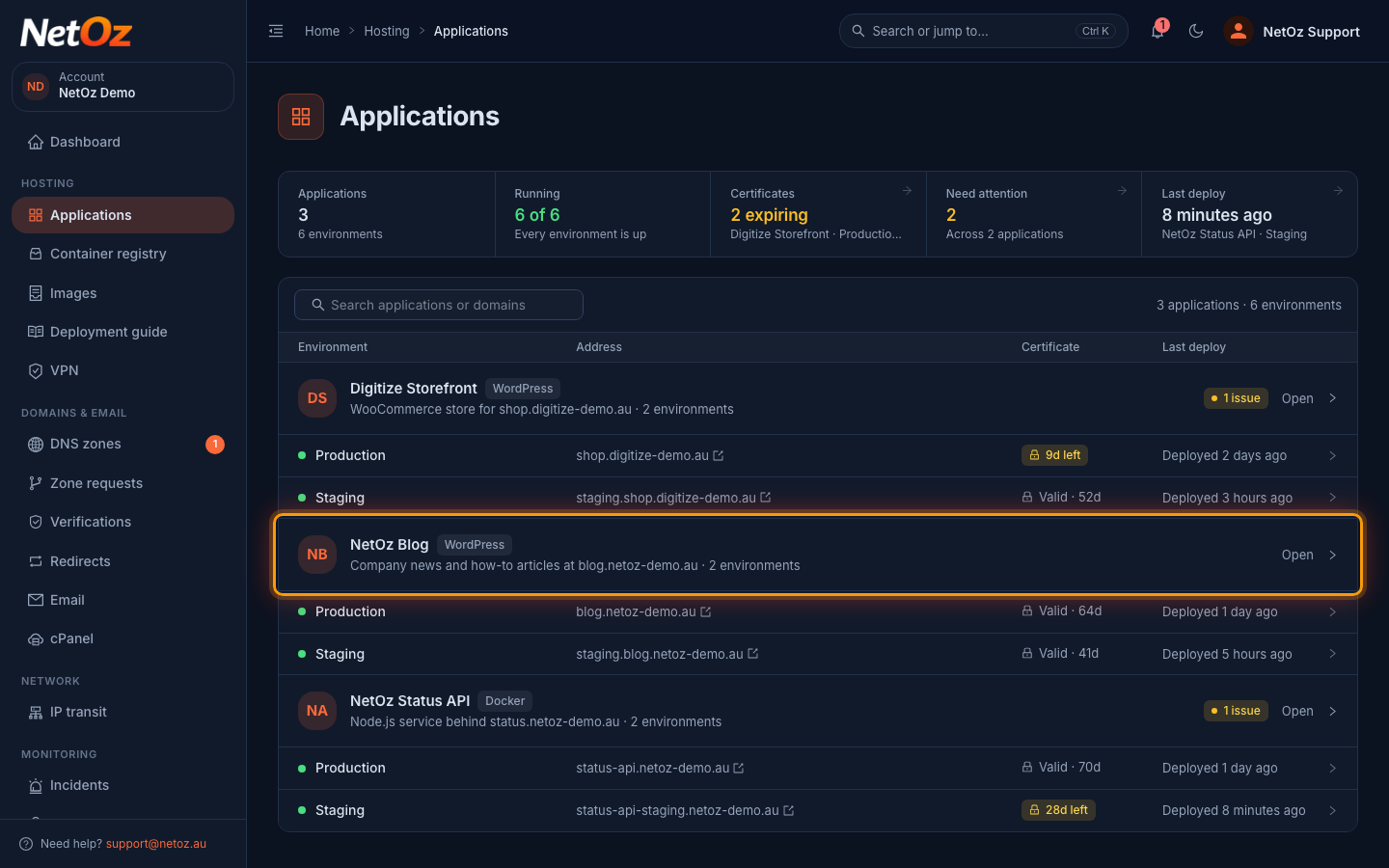
Each application lists its environments with their web address, how many days are left on the SSL certificate and when it was last deployed. Use the search box to filter by name or domain, then select the application to open it.
Step 4 Review each environment’s health
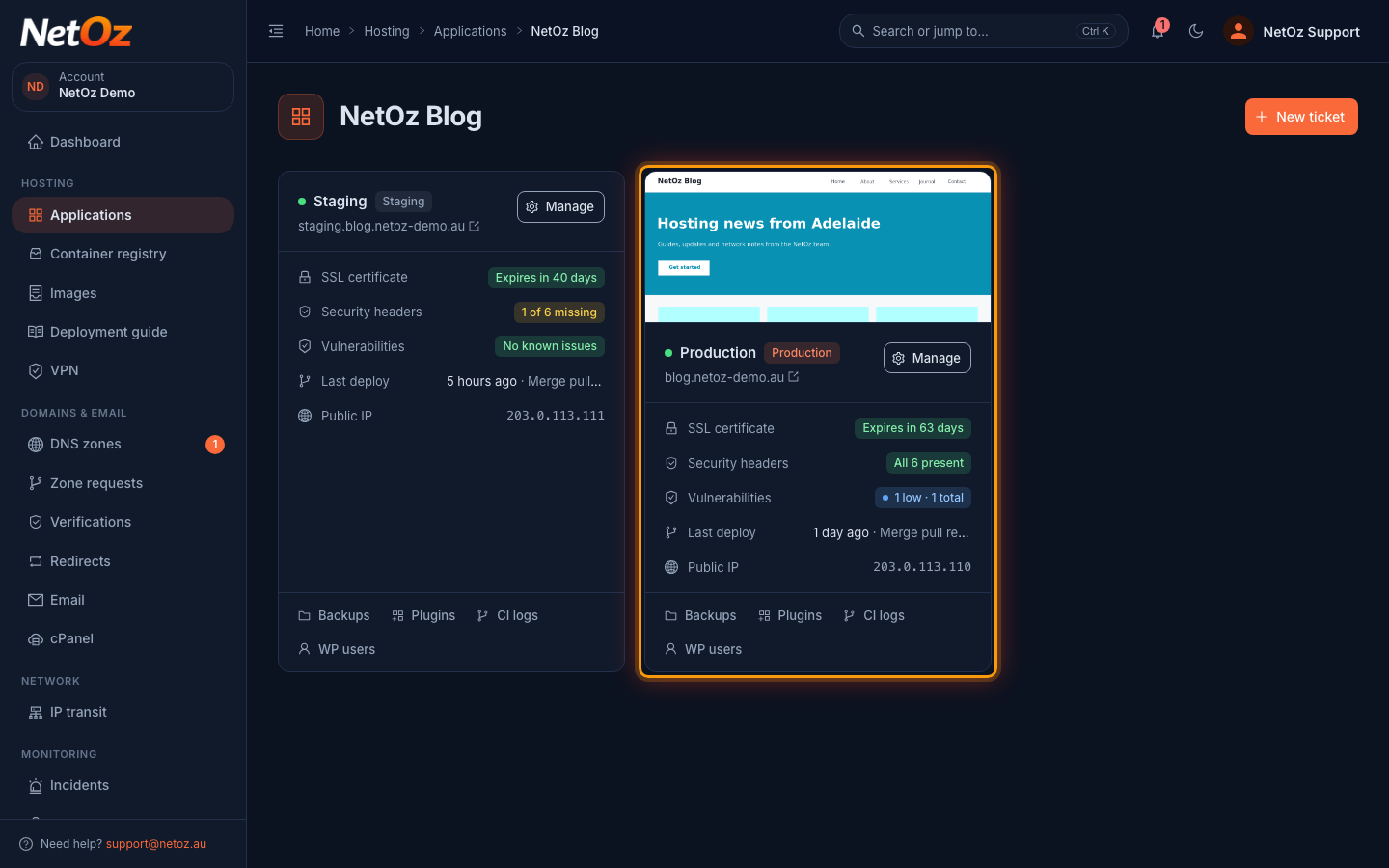
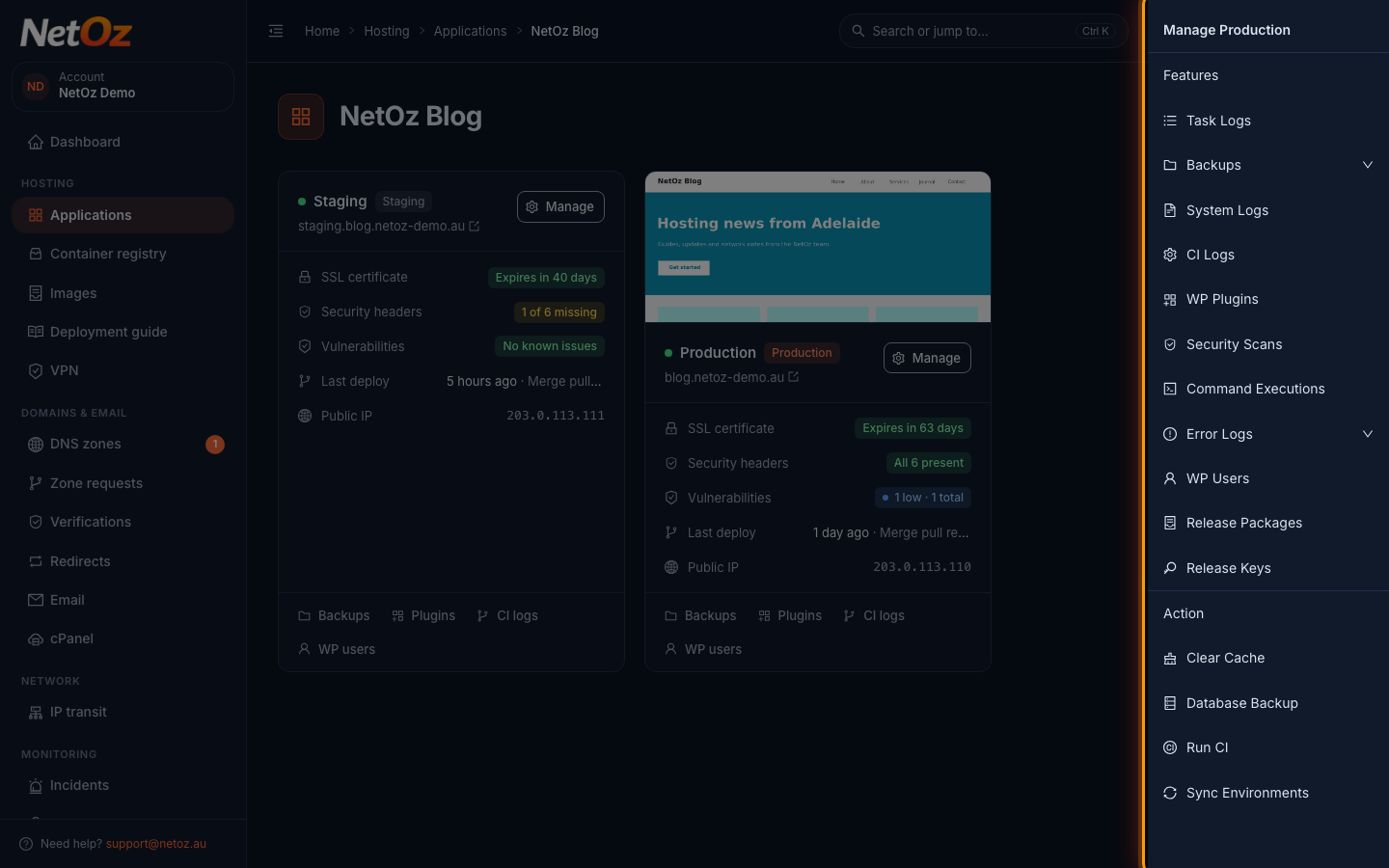
Each environment card shows its SSL certificate expiry, whether the recommended security headers are present, the latest vulnerability scan result, the last deploy and its public IP address. Shortcuts along the bottom open backups, plugins, CI logs and WordPress users.
Step 5 Open Manage for more tools
Select Manage on an environment to open its menu. Features lists everything you can view, such as backups, logs, security scans and error logs. Action holds one-click tasks like Clear Cache and Database Backup. You only see the items your environment and access level support.
Step 6 See what has been done recently
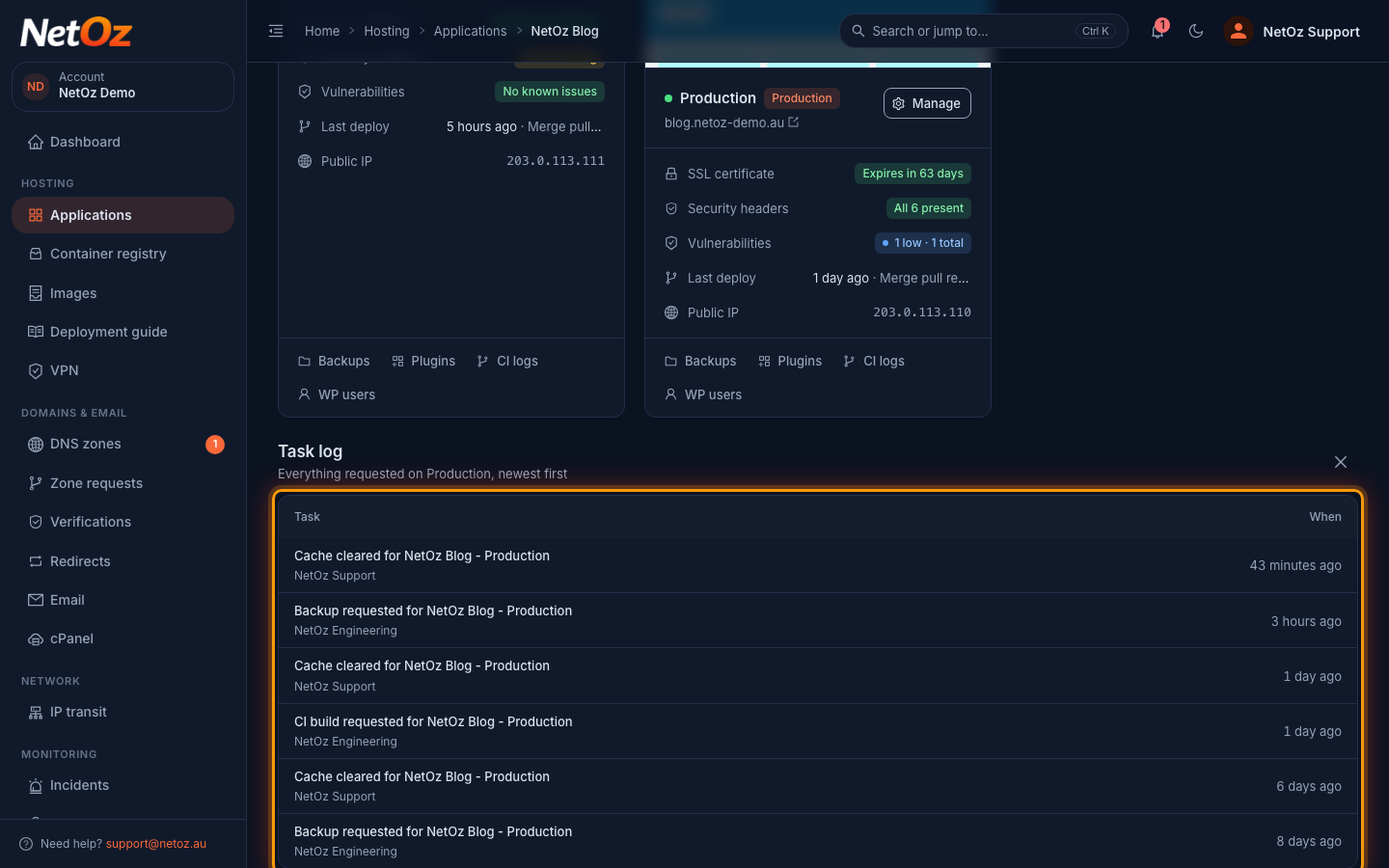
Choose Task Logs to see a history of actions on the environment, such as cache clears, backups and CI builds, who started them and when.
Next steps
Was this guide helpful?
Your answer helps us keep these guides accurate.