Check WordPress plugins and users without logging in to WordPress
See every plugin installed on your NetOz-hosted WordPress site, which ones need updating for security, and who has a WordPress account, all from the NetOz Portal.
On this page
The NetOz Portal keeps an up-to-date inventory of the plugins and user accounts on each WordPress environment. It is a quick way to audit a site without signing in to WordPress itself.
Before you start
- You need Applications set to at least Read. Signing in to WordPress as a user needs Manage.
Step 1 Open Plugins
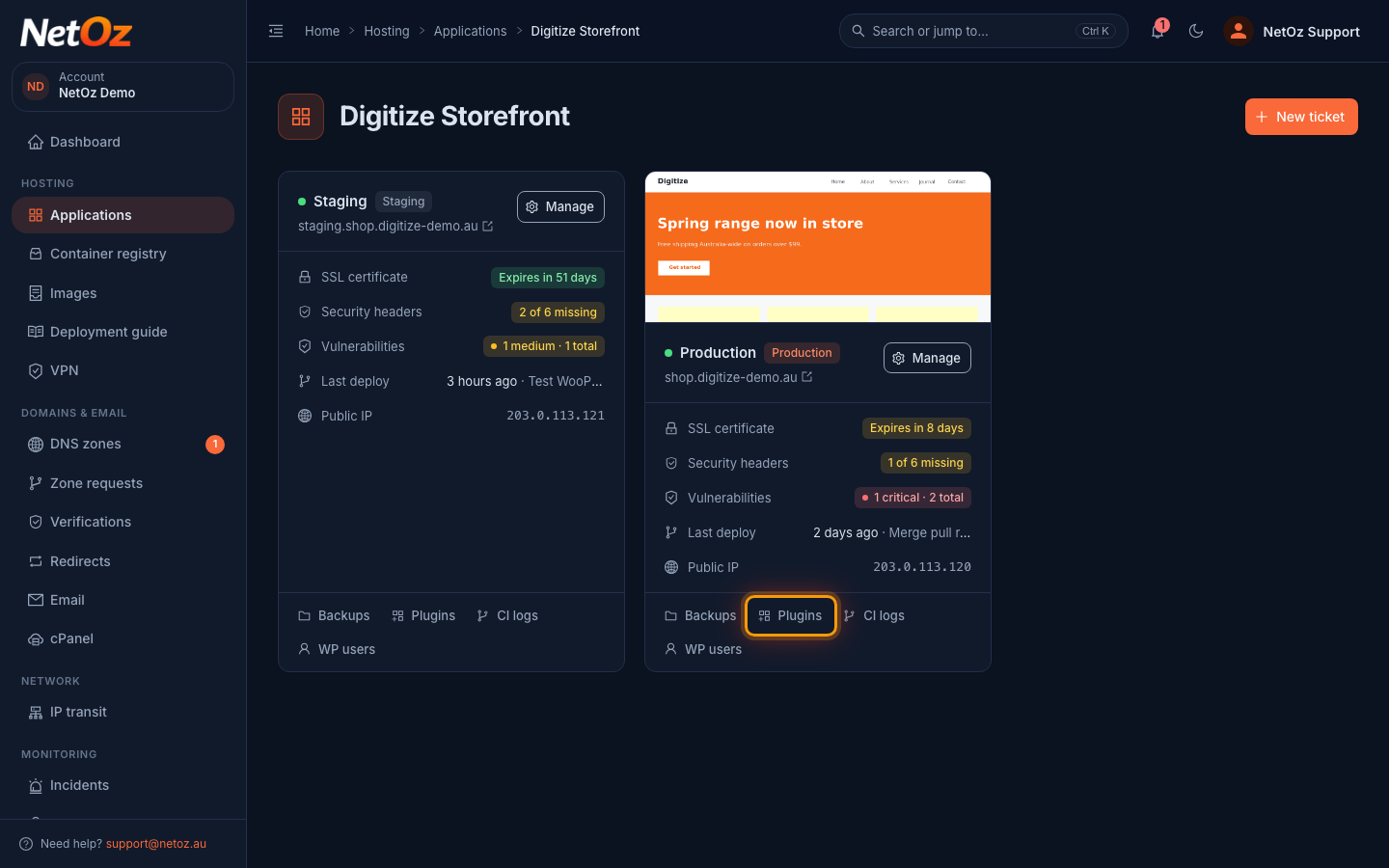
Go to Applications, open your website and select Plugins on the environment card.
Step 2 Find plugins that need updating
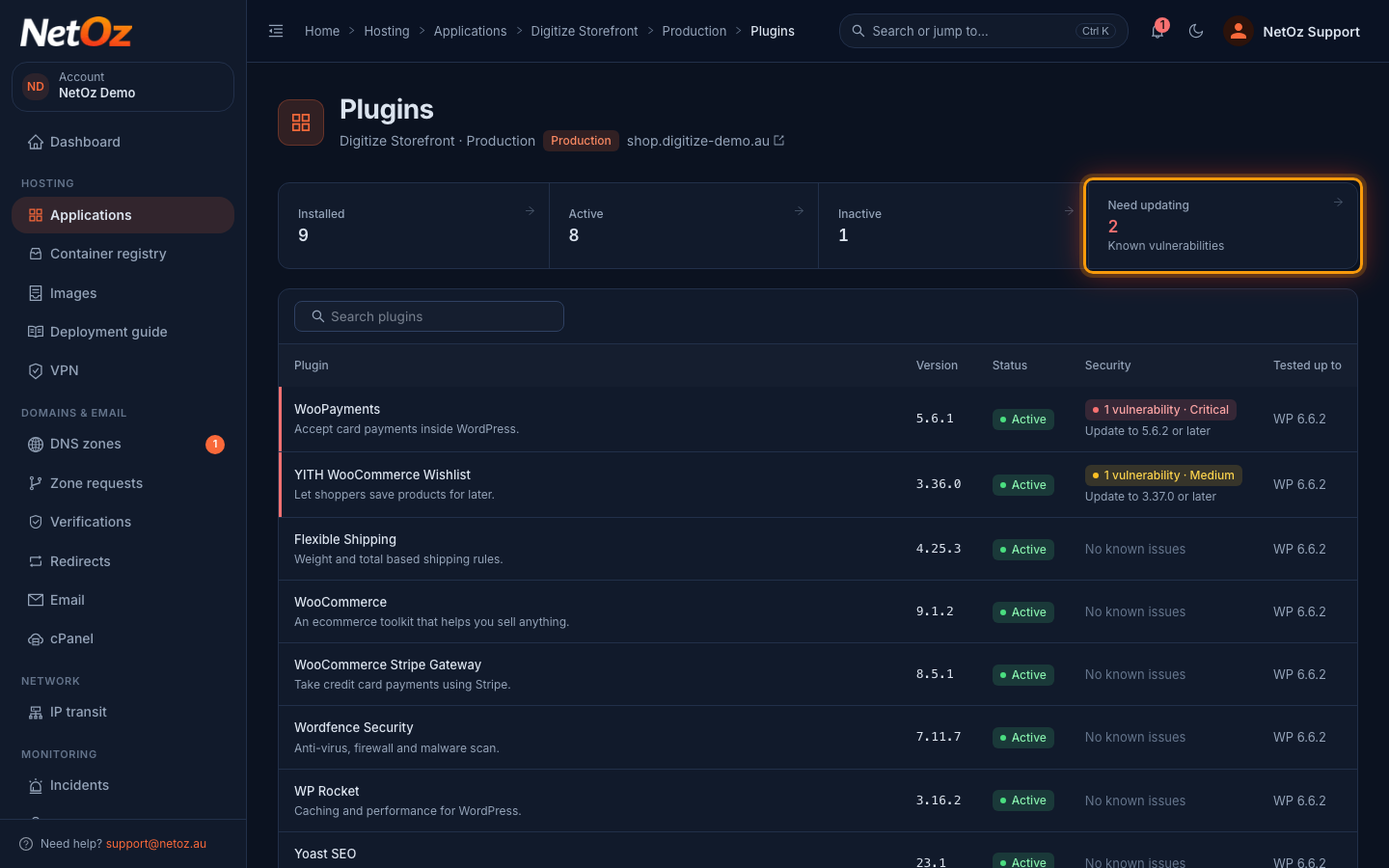
The tiles count installed, active and inactive plugins. Need updating counts plugins with a known vulnerability. Select it to list only those. Each plugin shows its version, whether it is active, any security issue with the version that fixes it, and the WordPress version it has been tested up to.
Step 3 Check the affected plugin
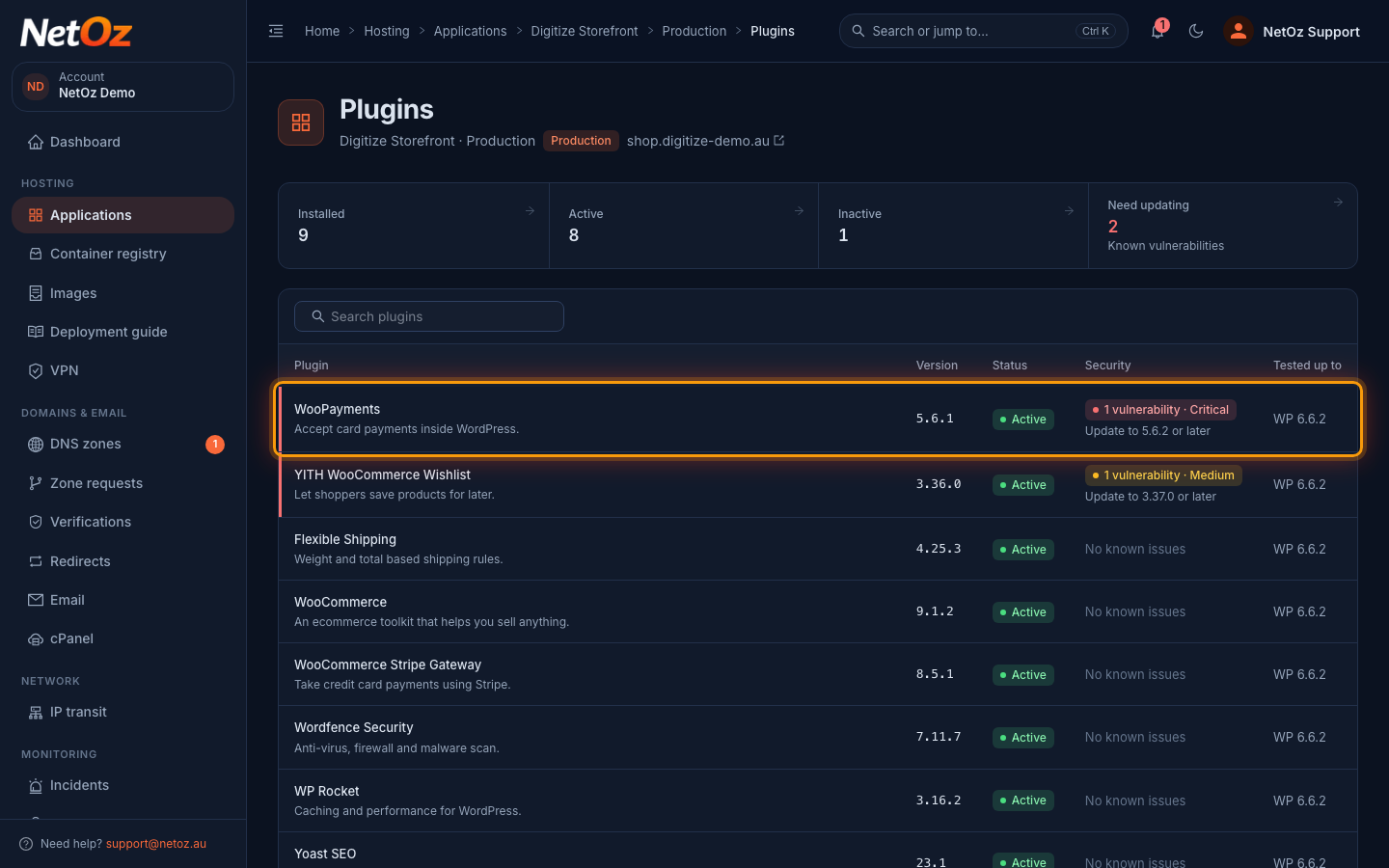
Plugins with a vulnerability are flagged with a coloured edge and a badge describing the risk, along with the version to update to.
Step 4 Review WordPress users
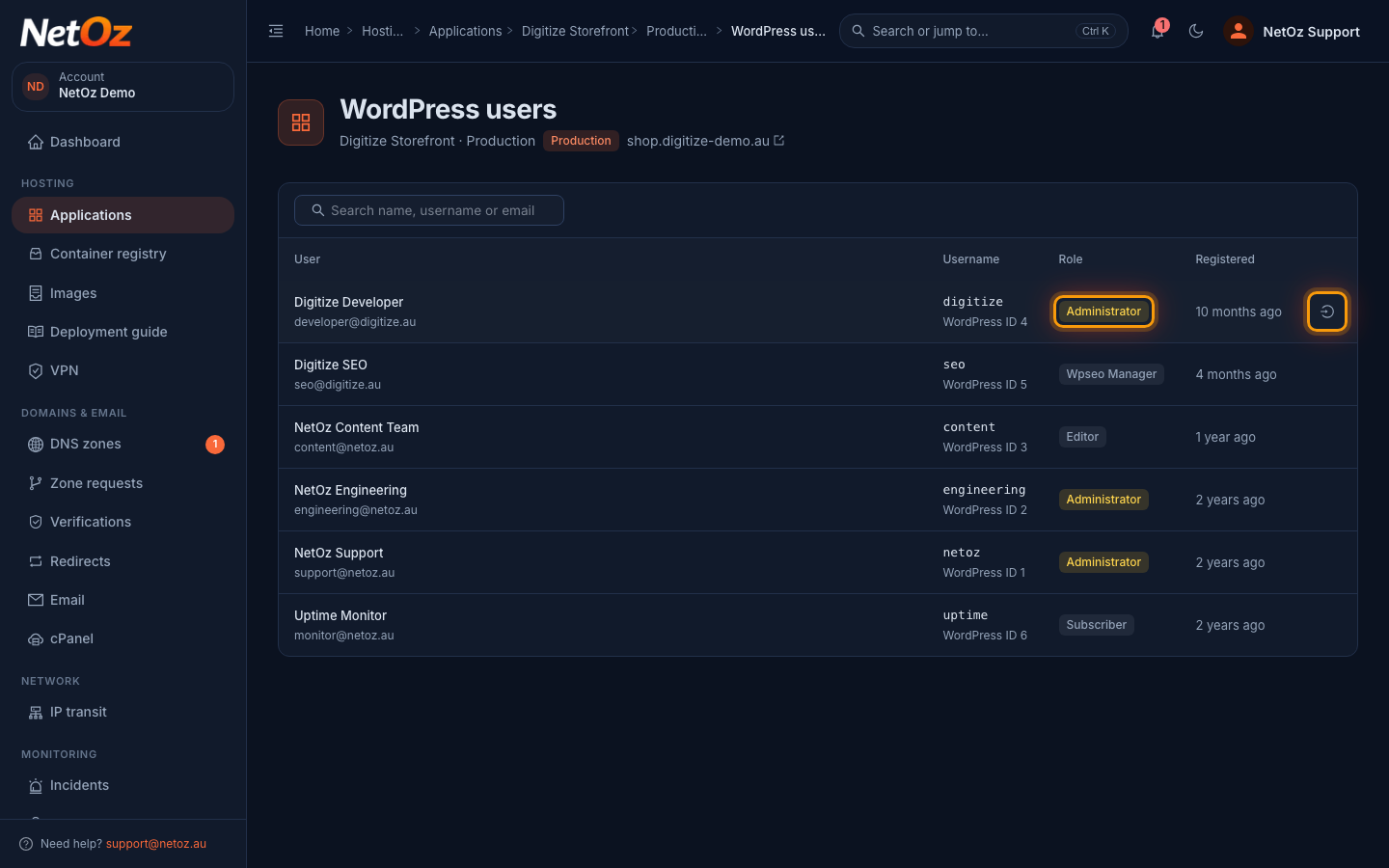
Select WP users on the environment card to list every WordPress account with its username, email, role and when it was registered. Administrators are highlighted. To sign in to WordPress as that person without knowing their password, hover over the row and select the sign in icon. This needs the NetOz WordPress plugin installed on the site.
Keep it tidy
- Remove plugins you no longer use rather than leaving them inactive.
- Remove WordPress administrators who have left your organisation.
- Review vulnerability scans after updating to confirm the fix.
Was this guide helpful?
Your answer helps us keep these guides accurate.