View and resolve application error logs
See PHP and application errors from all your NetOz-hosted websites in one place, grouped so patterns stand out, then mark them resolved with a note for your team.
On this page
NetOz collects the errors, warnings and notices your applications report and groups identical ones together. You can look across your whole account or a single environment, open any error for the full details, and mark it resolved once it is fixed.
Before you start
- You need Error logs set to Read to view errors, and Manage to change their status.
Step 1 Open Error logs
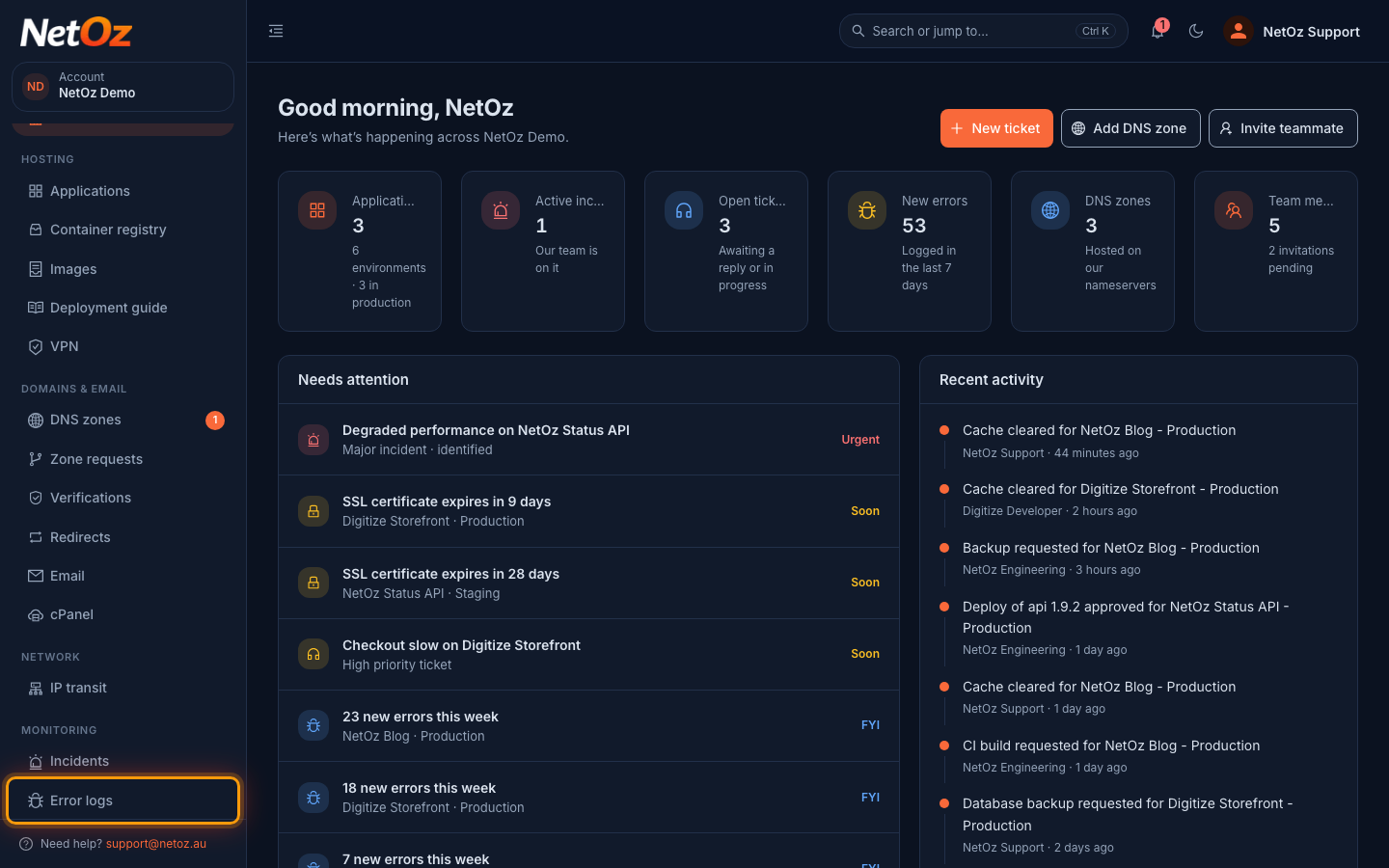
Choose Error logs under Monitoring in the sidebar to see errors from every application on your account.
Step 2 Scan the grouped errors
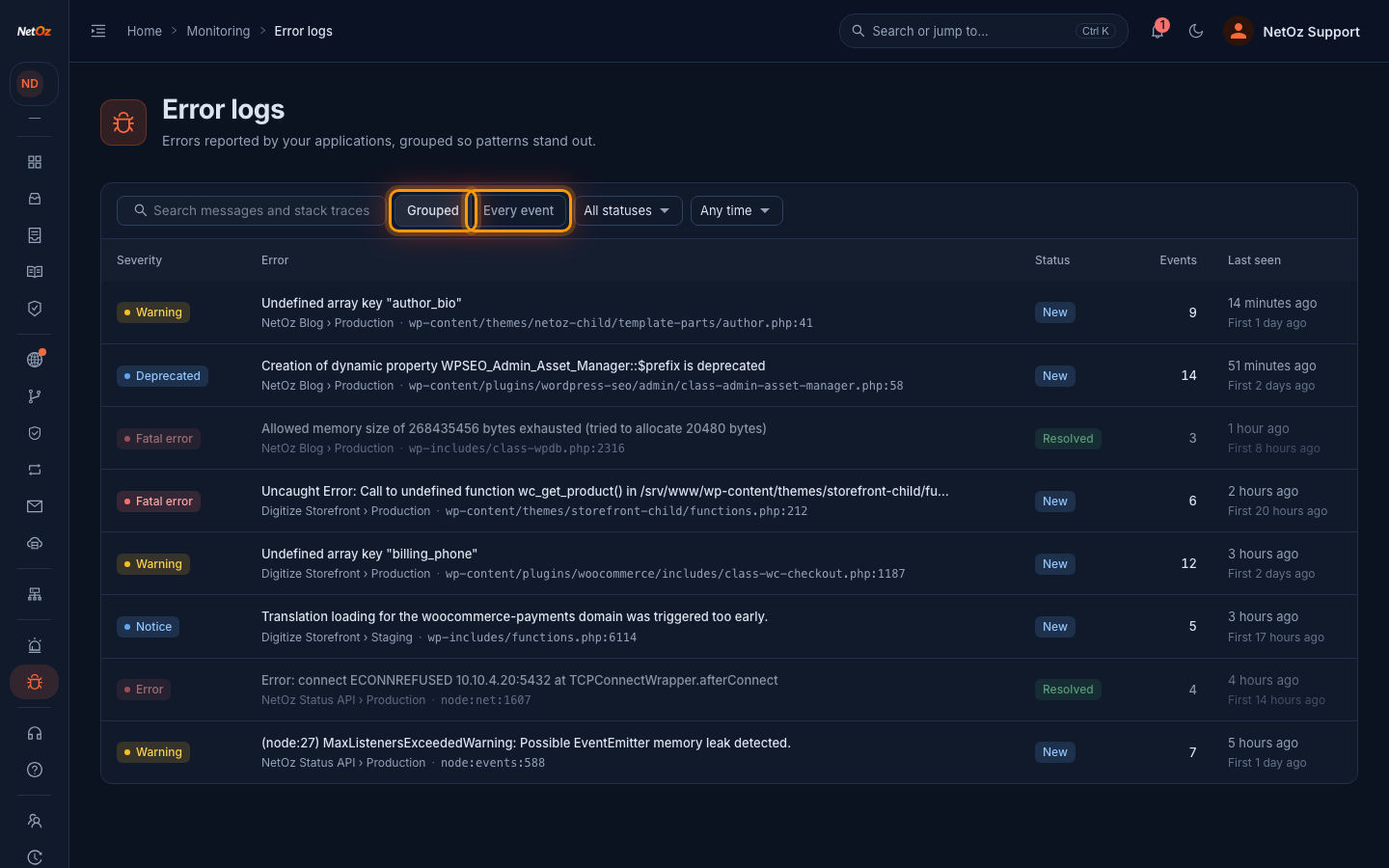
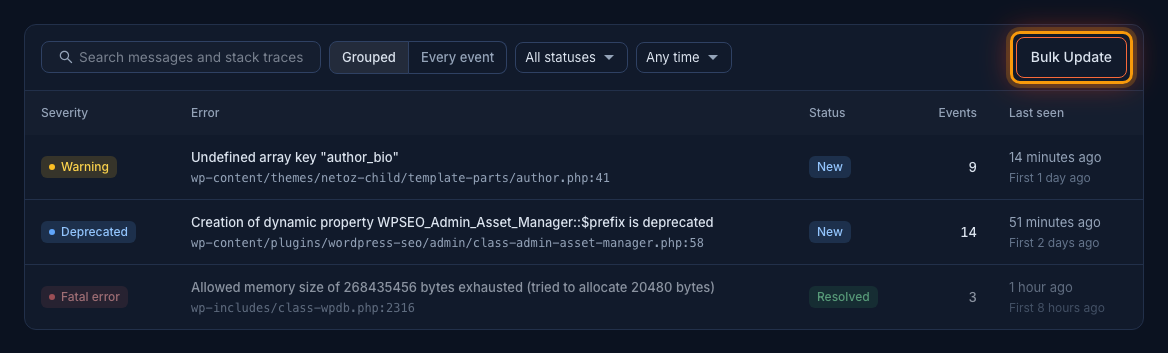
In Grouped view, identical errors are combined into one row showing the severity, message, application, file and line, status, how many times it happened and when it was first and last seen. Switch to Every event to see each occurrence, and use the status and time filters to narrow the list.
Step 3 Open an error
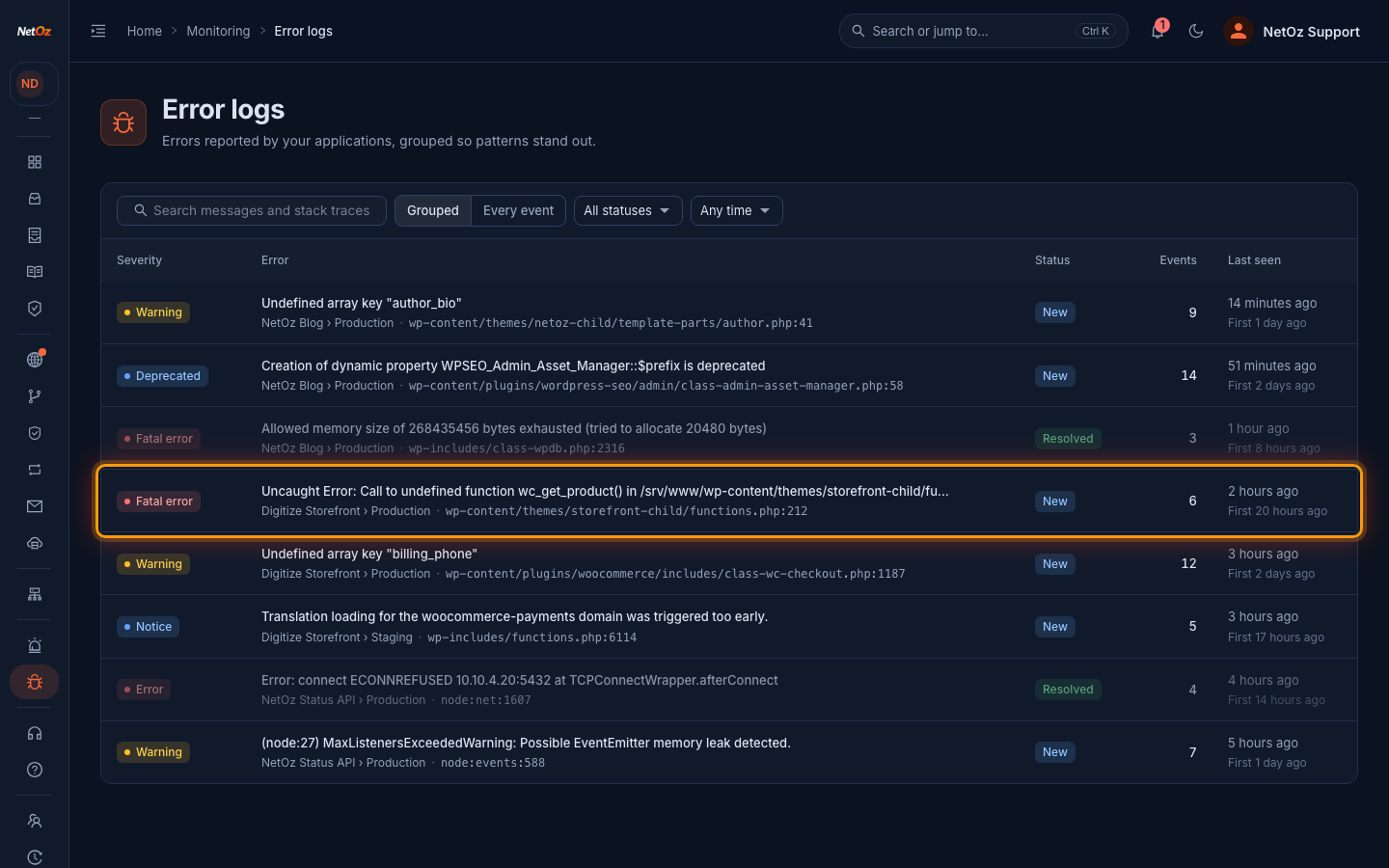
Select an error to open its details.
Step 4 Add a note and mark it resolved
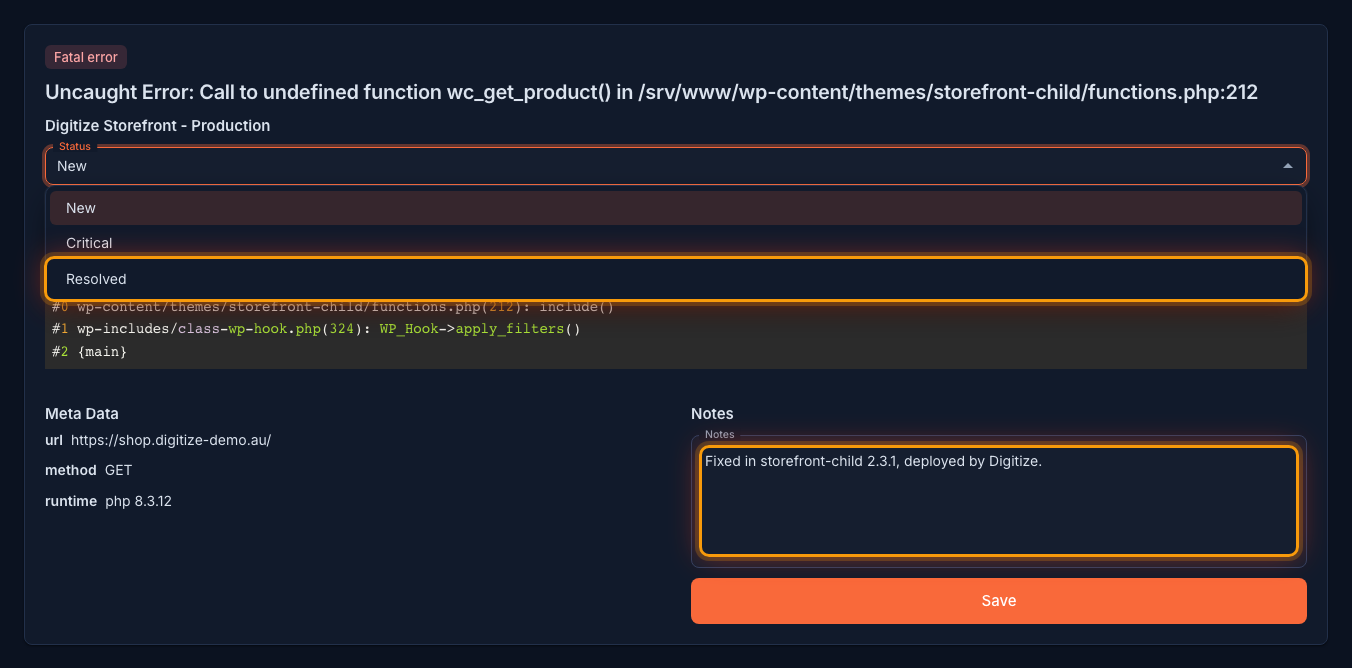
The details include the full message, file and line, the request it happened on and the stack trace. Once the problem is fixed, type what was done in Notes, then change Status to Resolved. Changing the status saves it, and your notes, straight away. To update only the notes, select Save.
Step 5 Update many errors at once
To see errors for one environment, choose Manage > Error Logs > Environment Level on the application page. Filter the list, then select Bulk Update to set every matching error to a new status with a shared note, or delete them.
Tips
- Fatal error entries usually mean a page failed to load for a visitor, so look at those first.
- Deprecated and Notice entries are rarely urgent but often point to a plugin or theme that needs updating.
- For the raw web server and PHP output, see View your website’s server logs.
Was this guide helpful?
Your answer helps us keep these guides accurate.