View your website’s server logs
Read the latest web server and PHP log lines for a NetOz-hosted website environment, choose how many lines to fetch and copy them to share with your developer.
On this page
System logs show the raw output from your environment’s web server and PHP, including requests, warnings and errors. They are useful for tracking down a problem as it happens, or for sharing with a developer.
Before you start
- You need Applications set to at least Read for the application or environment.
Step 1 Open System Logs
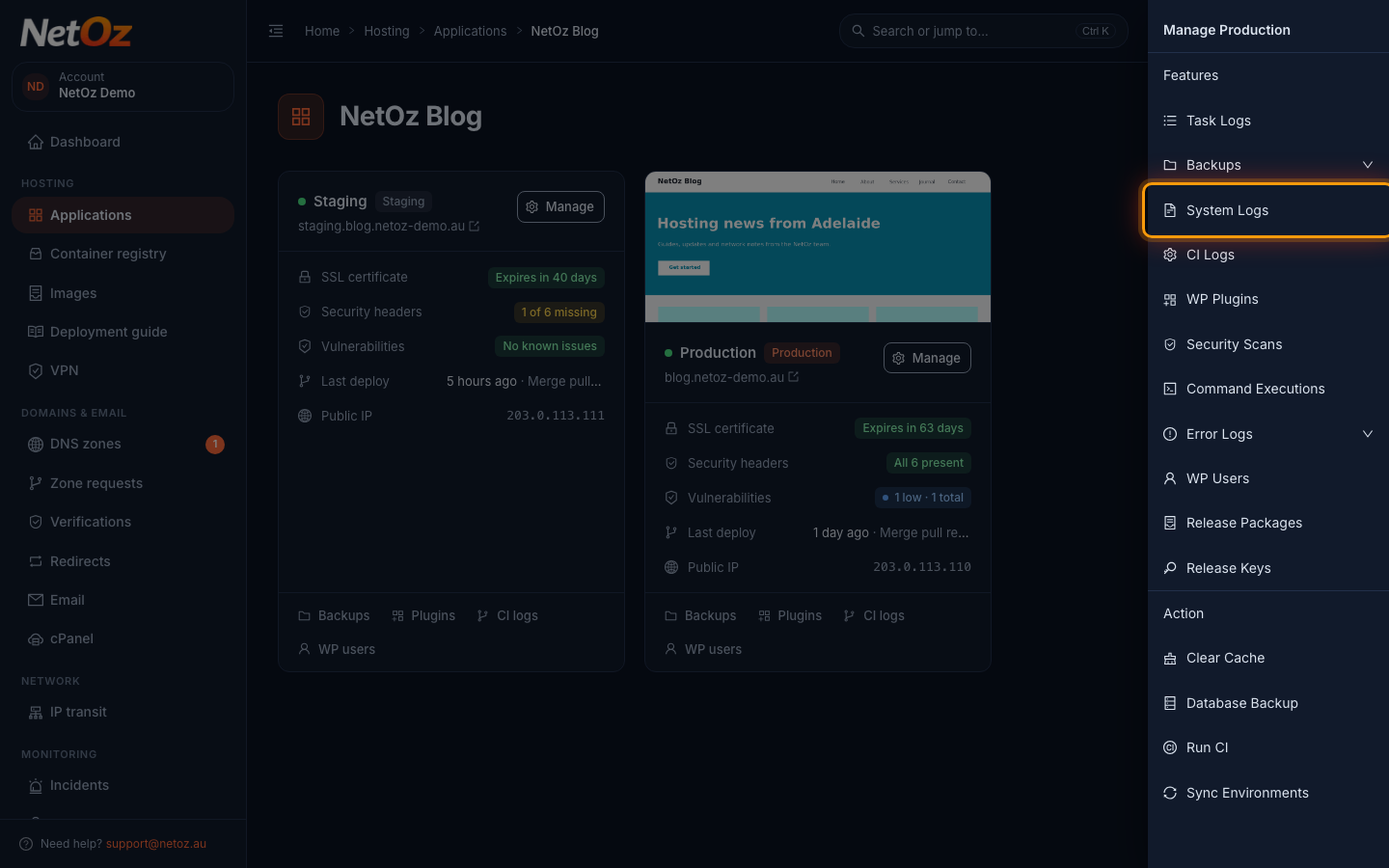
Go to Applications, open your website and select Manage on the environment. Choose System Logs.
Step 2 Read the latest log lines
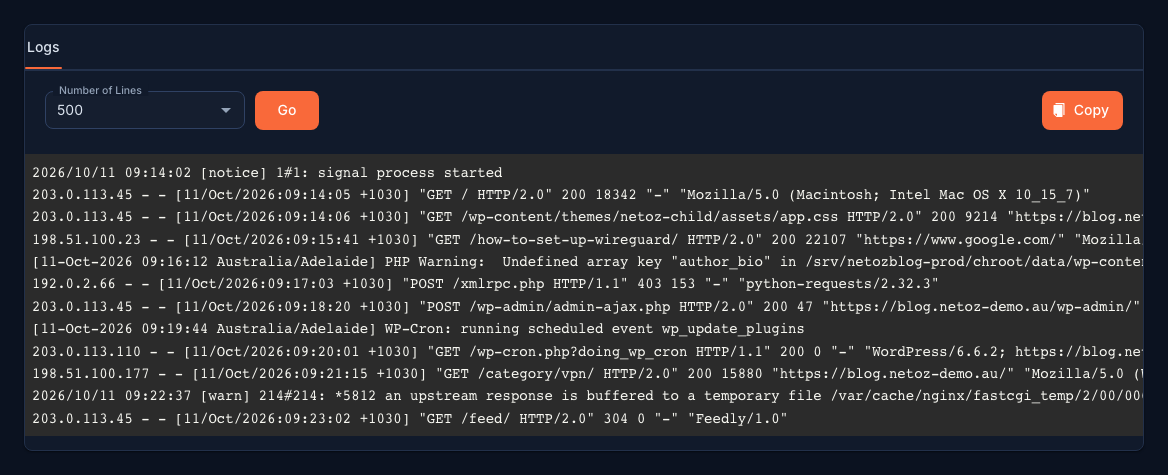
The most recent 500 lines are shown, newest at the bottom. You will see web requests with the visitor’s IP address, the page and the response code, alongside PHP warnings and server notices.
Step 3 Fetch more lines or copy them
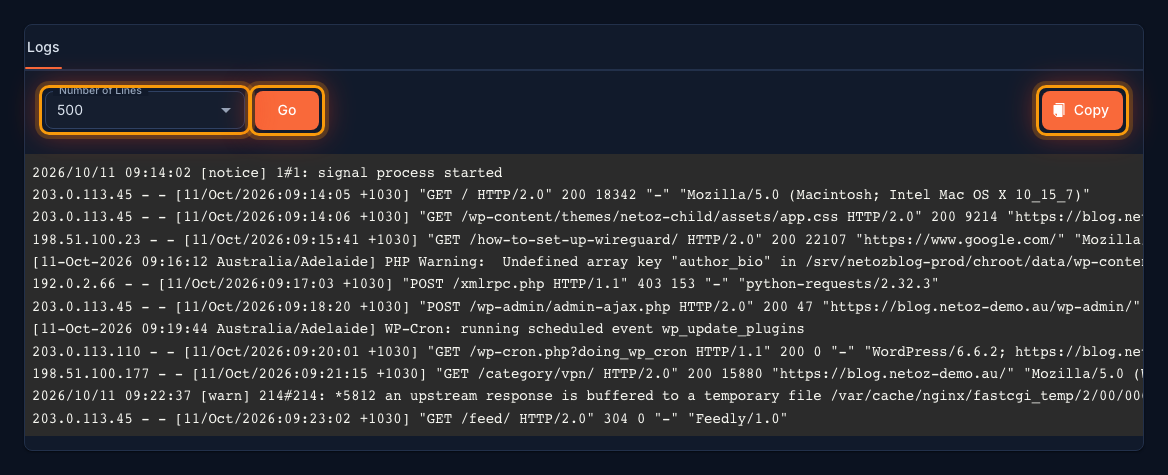
Choose up to 2000 lines from Number of Lines and select Go to fetch them. Select Copy to put the whole log on your clipboard, ready to paste into a support ticket or send to your developer.
Looking for something specific?
Server logs are a live tail, so older lines roll off as new requests arrive. For PHP errors grouped over time, use Error logs instead.
Was this guide helpful?
Your answer helps us keep these guides accurate.