Review WordPress vulnerability scans for your website
NetOz scans your WordPress core, plugins and themes for known vulnerabilities. See what was found, how severe it is and which version fixes it.
On this page
NetOz regularly scans every WordPress environment against a database of known vulnerabilities in WordPress core, plugins and themes. The results show exactly what is affected, how serious it is and how to fix it.
Before you start
- You need Applications set to at least Read for the application.
Step 1 Check the Vulnerabilities row
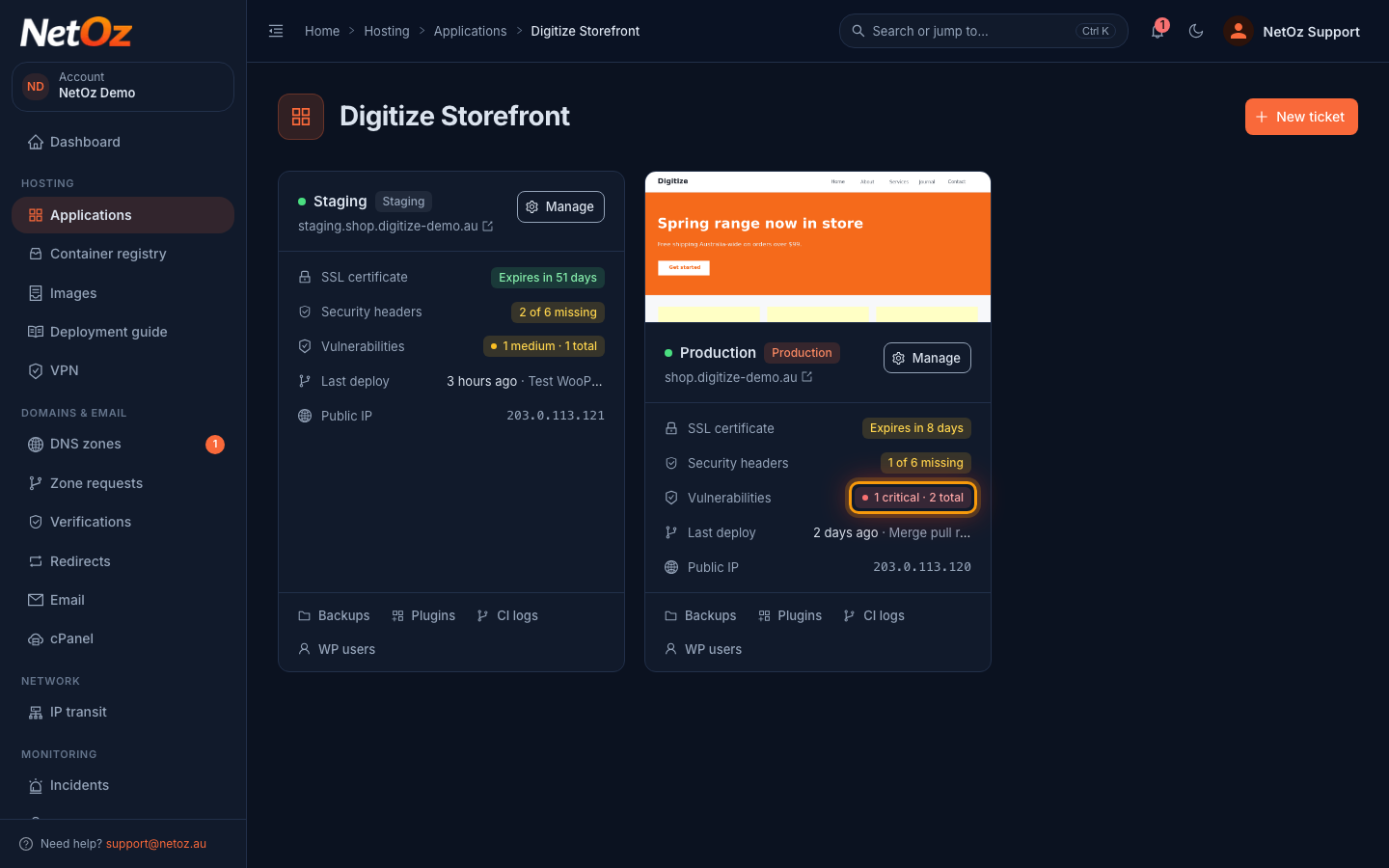
Open your website under Applications. Each WordPress environment shows a summary of its latest scan next to Vulnerabilities, coloured by the most serious finding. Select it to see the details. You can also choose Manage > Security Scans.
Step 2 See findings by severity
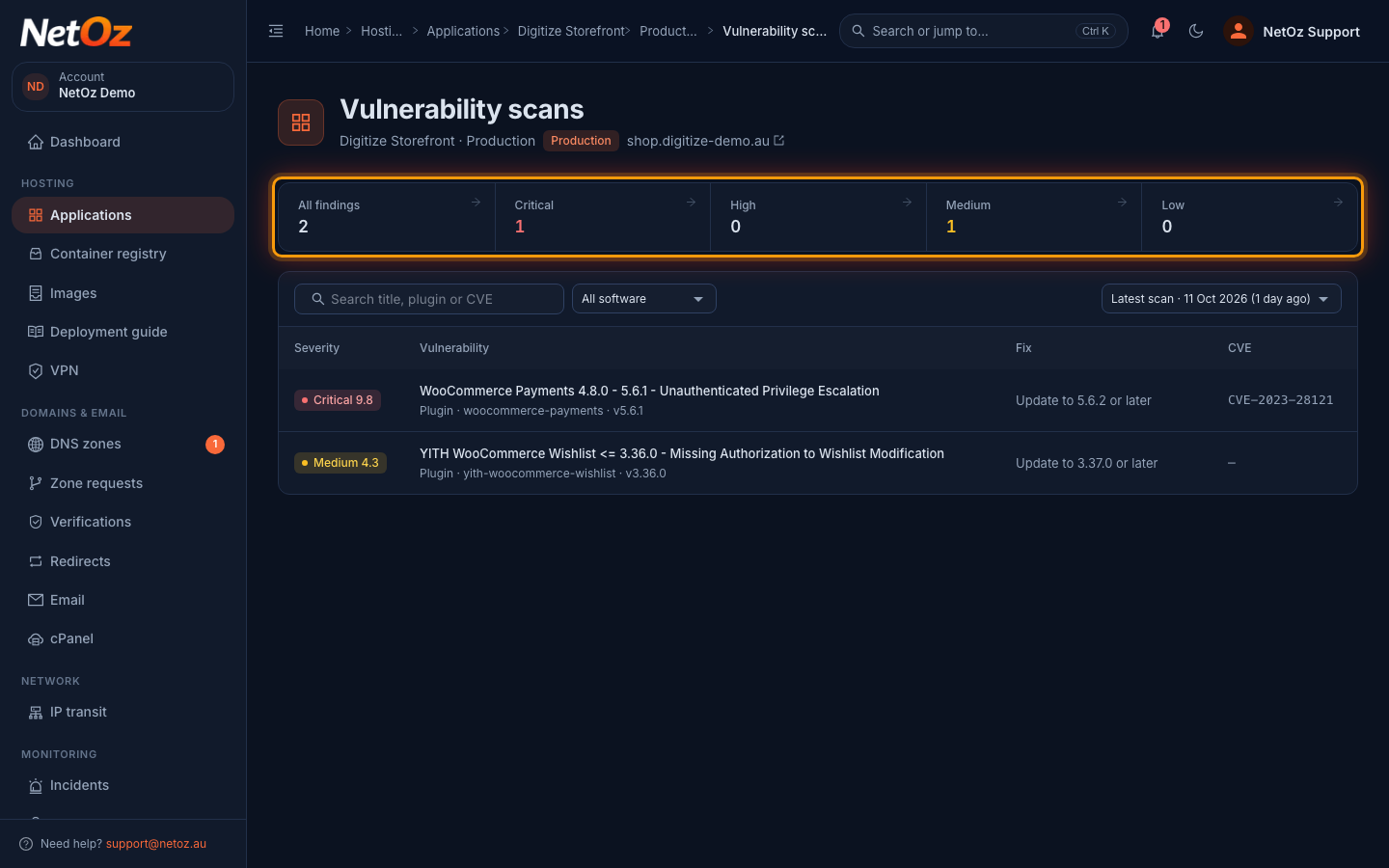
The tiles count findings from the latest scan by severity: Critical, High, Medium and Low. Select a tile to show only those findings. Each row shows the vulnerability, the affected plugin or theme and version, the fix and the CVE reference where there is one.
Step 3 Open a finding for the details
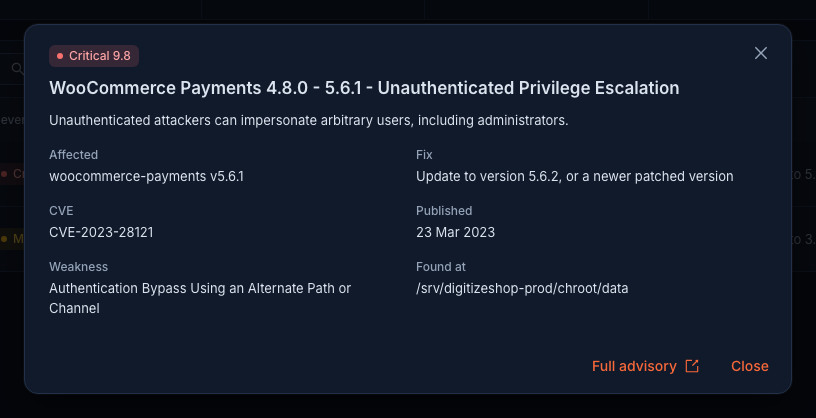
Select a finding to see a plain description, its CVSS score, the weakness type, when it was published and exactly which version fixes it, with a link to the full advisory.
Step 4 Compare with earlier scans
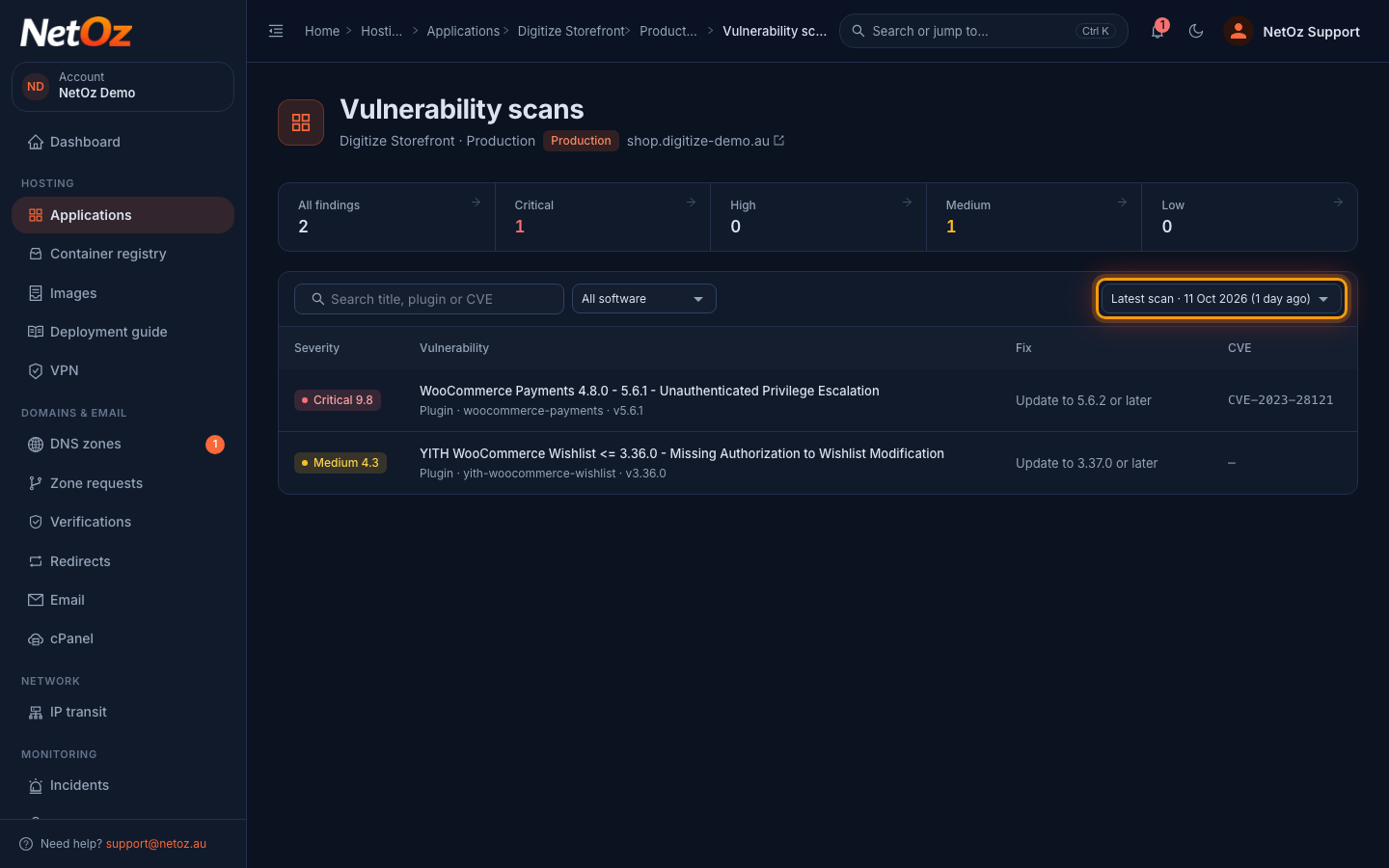
Use the scan picker on the right to look back at an earlier scan, for example to confirm when a vulnerability first appeared or that an update fixed it.
Fixing a vulnerability
Most findings are fixed by updating the affected plugin or theme to the version shown under Fix. Update it in WordPress, or run a WP-CLI command such as wp plugin update woocommerce-payments. The finding disappears after the next scan. If you are not sure, raise a support ticket and NetOz can help.
Was this guide helpful?
Your answer helps us keep these guides accurate.