Download or create a database backup for your website
Download a copy of your website’s MySQL database from the daily backups NetOz keeps, or take an on-demand database backup before making changes.
On this page
Alongside your website files, NetOz backs up each environment’s database every day. This guide shows how to download a database backup and how to take a new one when you need it.
Before you start
- You need Backups set to Read to see database backups, and Manage to download or create them.
Step 1 Open Database Backups
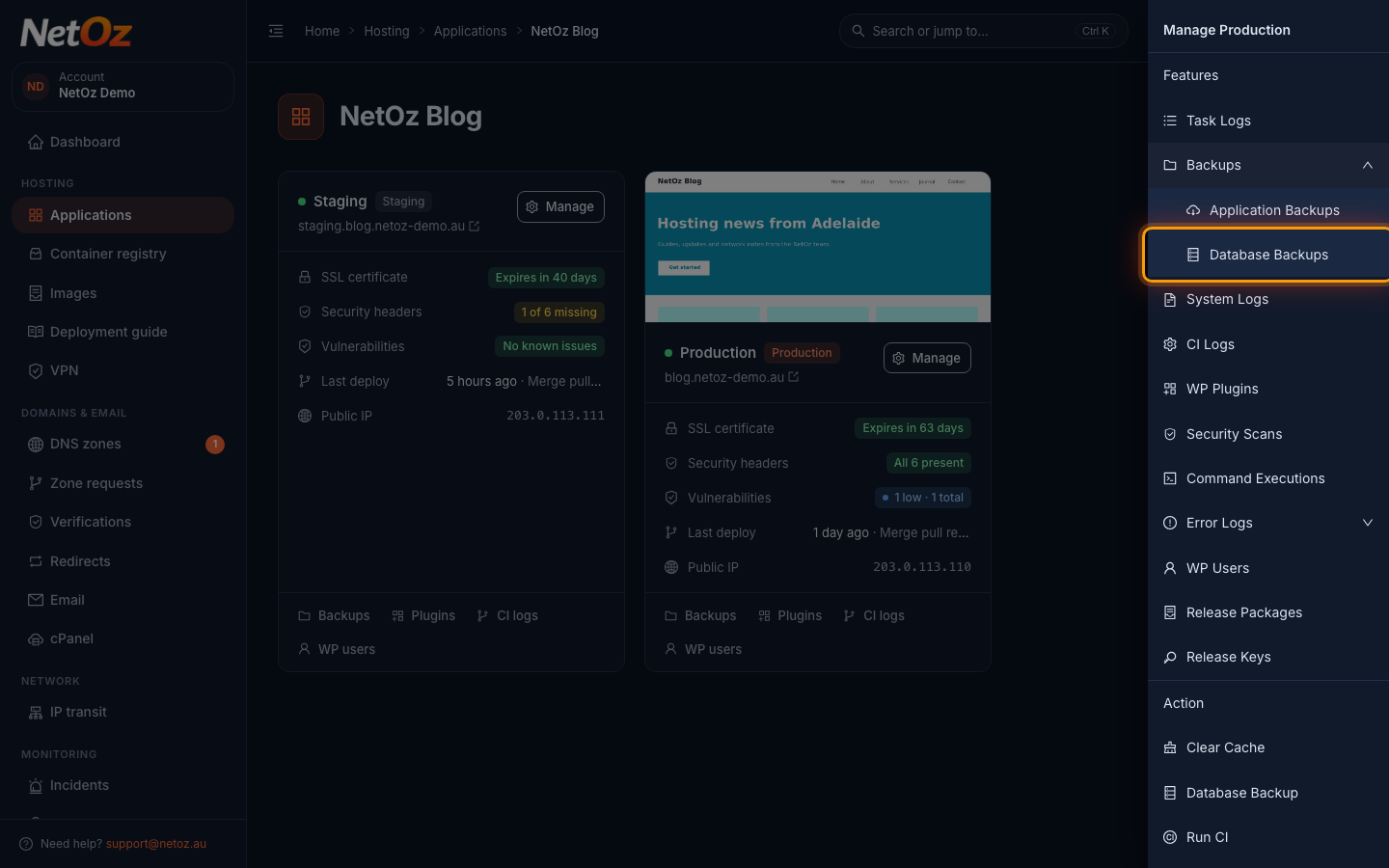
Go to Applications, open your website and select Manage on the environment. Expand Backups and choose Database Backups.
Step 2 Download the backup you need
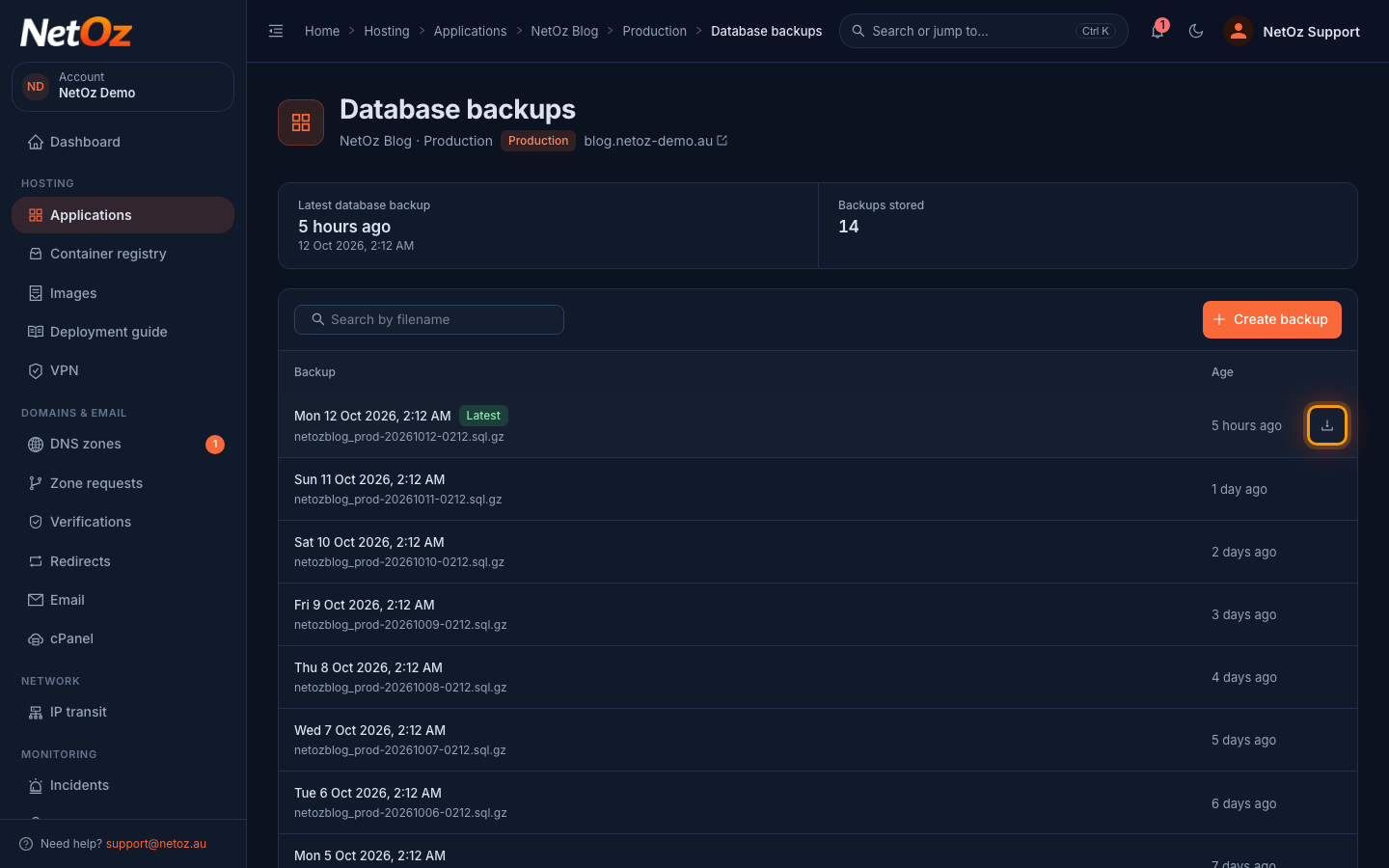
Backups are listed newest first, and the most recent is marked Latest. Hover over a backup and select the download icon to save the compressed SQL file. Use the search box to find a backup by its file name, which includes the date and time it was taken.
Step 3 Take a database backup before making changes
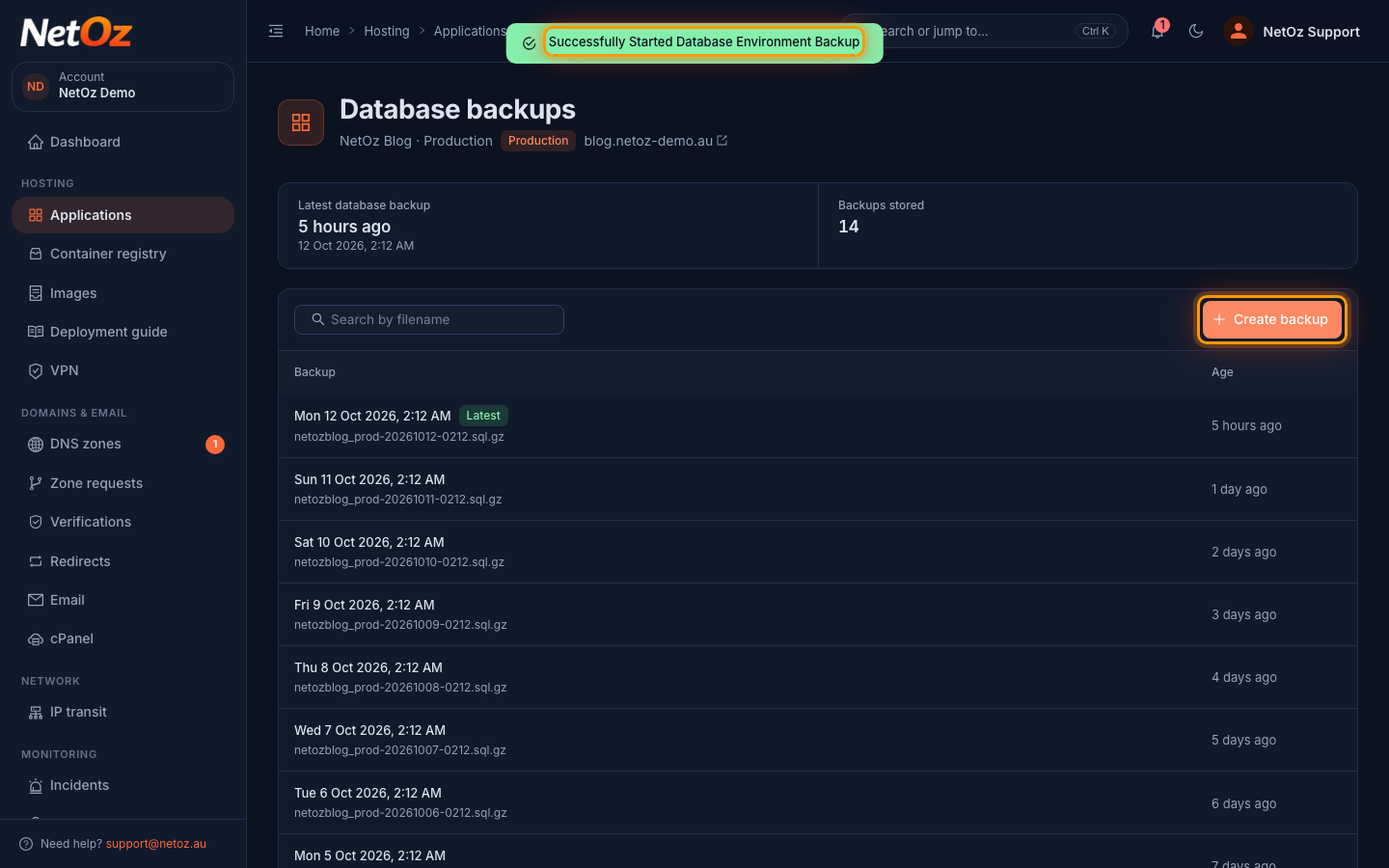
Select Create backup to take a database backup on demand, for example before a plugin update or a bulk content import. You can also start one from Manage > Database Backup on the application page.
Restoring a database
Database backups download as compressed .sql.gz files. If you need one restored to your site, raise a support ticket from the application page with the backup’s date and time, and NetOz will restore it for you.
Was this guide helpful?
Your answer helps us keep these guides accurate.