Let a mailbox send as other addresses, for a CRM or shared system
Allow one NetOz mailbox, such as crm@yourdomain.com.au, to send email from other addresses at your domains, for CRMs, booking systems and shared inboxes that send on behalf of your staff.
On this page
To stop forged email, a NetOz mailbox can only send from its own address and from any forwarder that delivers to it. Anything else is refused with Sender address rejected: not owned by user. If a system signs in with one mailbox but sends as other people, for example a CRM that signs in as crm@ and sends as each salesperson, give that mailbox permission to send as those addresses.
Before you start
- You need to be an account admin, or have Email set to Manage on your team access.
- The addresses must be at domains on the same NetOz account as the mailbox. You cannot allow sending as another organisation’s domain.
- Create the mailbox the system will sign in with first. See Create a new email mailbox.
Step 1 Open the mailbox
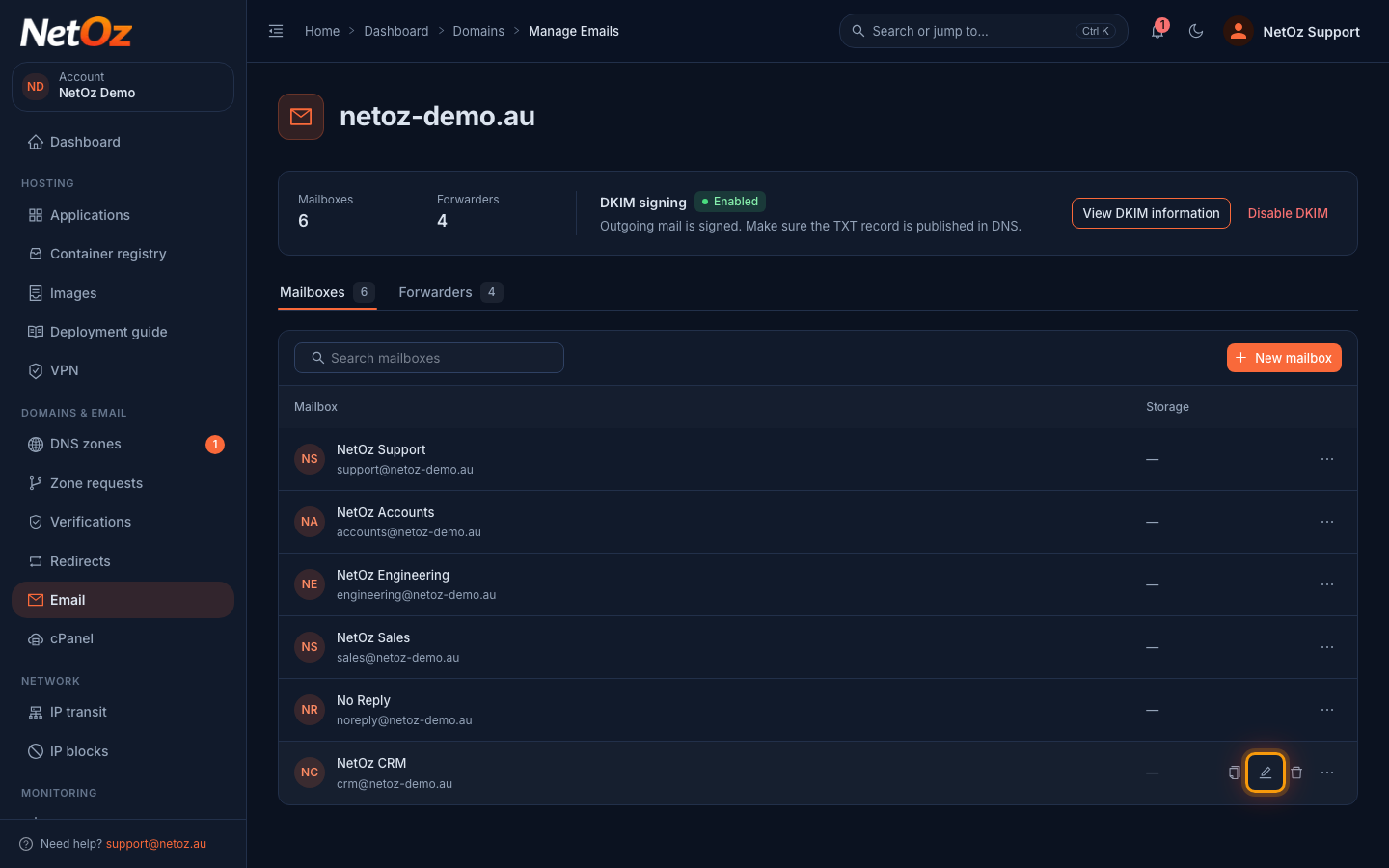
Go to Email and select the domain. On the Mailboxes tab, select the mailbox your system signs in with, or the pencil icon (Edit mailbox) at the end of its row.
Step 2 Add the addresses
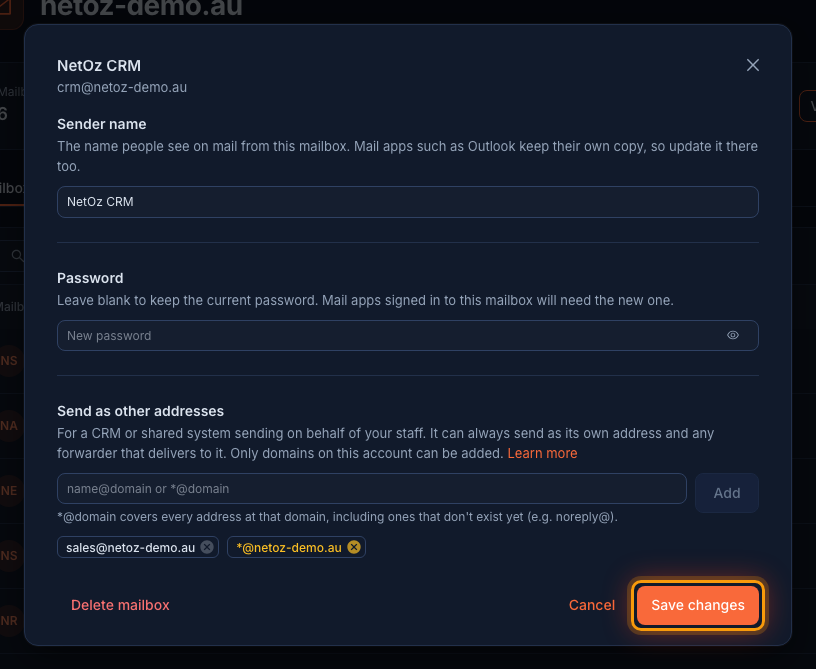
Under Send as other addresses, type an address and select Add. Repeat for each address the mailbox should send as. To allow every address at a domain, including ones that are not mailboxes such as noreply@, enter *@ followed by the domain. Whole-domain entries are shown in orange. When the list is right, select Save changes.
Step 3 Check it is saved
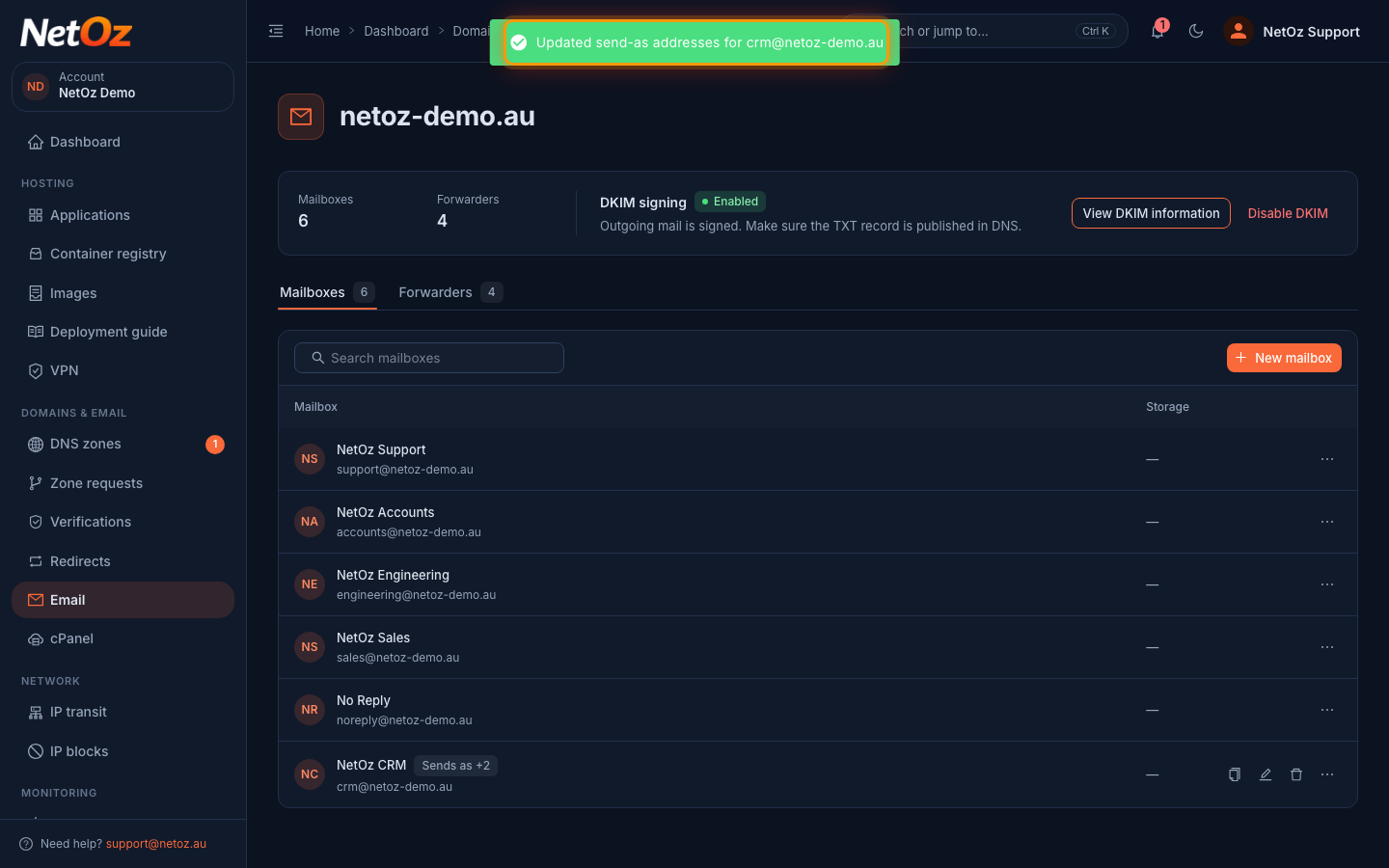
A message confirms the change. The mail server accepts the new addresses within a few seconds. Your system keeps signing in with the same mailbox address and password; only the address it sends from changes.
Which to choose
- A single address, such as
alice@yourdomain.com.au, when the system only sends as a few known people. - Every address at a domain, entered as
*@yourdomain.com.au, when it sends as any staff member, or from addresses that are not mailboxes, such asnoreply@. This is powerful: anyone with that mailbox's password can send as anyone at the domain, so give it a long, unique password and only use it in the system that needs it.
Removing access
Open the mailbox again, select the x on an address, then select Save changes. The mail server stops accepting it within a few seconds. Access is also removed automatically if a domain is taken off your account.
Still rejected?
Check that the system signs in with the mailbox you changed, using its full email address as the username, and that the address it sends from is spelled exactly as listed.
Was this guide helpful?
Your answer helps us keep these guides accurate.