Create a new email mailbox in the NetOz Portal
Add a mailbox such as projects@yourdomain.com.au for a new staff member or team in a few clicks, then connect it to Outlook, Apple Mail or a phone.
On this page
A mailbox is a full email account with its own password and inbox. Create one for each person or team that needs to send and receive email at your domain. If you only need mail to arrive in an existing inbox, a forwarder is simpler.
Before you start
- You need to be an account admin, or have Email set to Manage on your team access.
- Your domain must already be set up for NetOz email. If it is not listed under Email, open a support case and NetOz will add it.
Step 1 Open Email
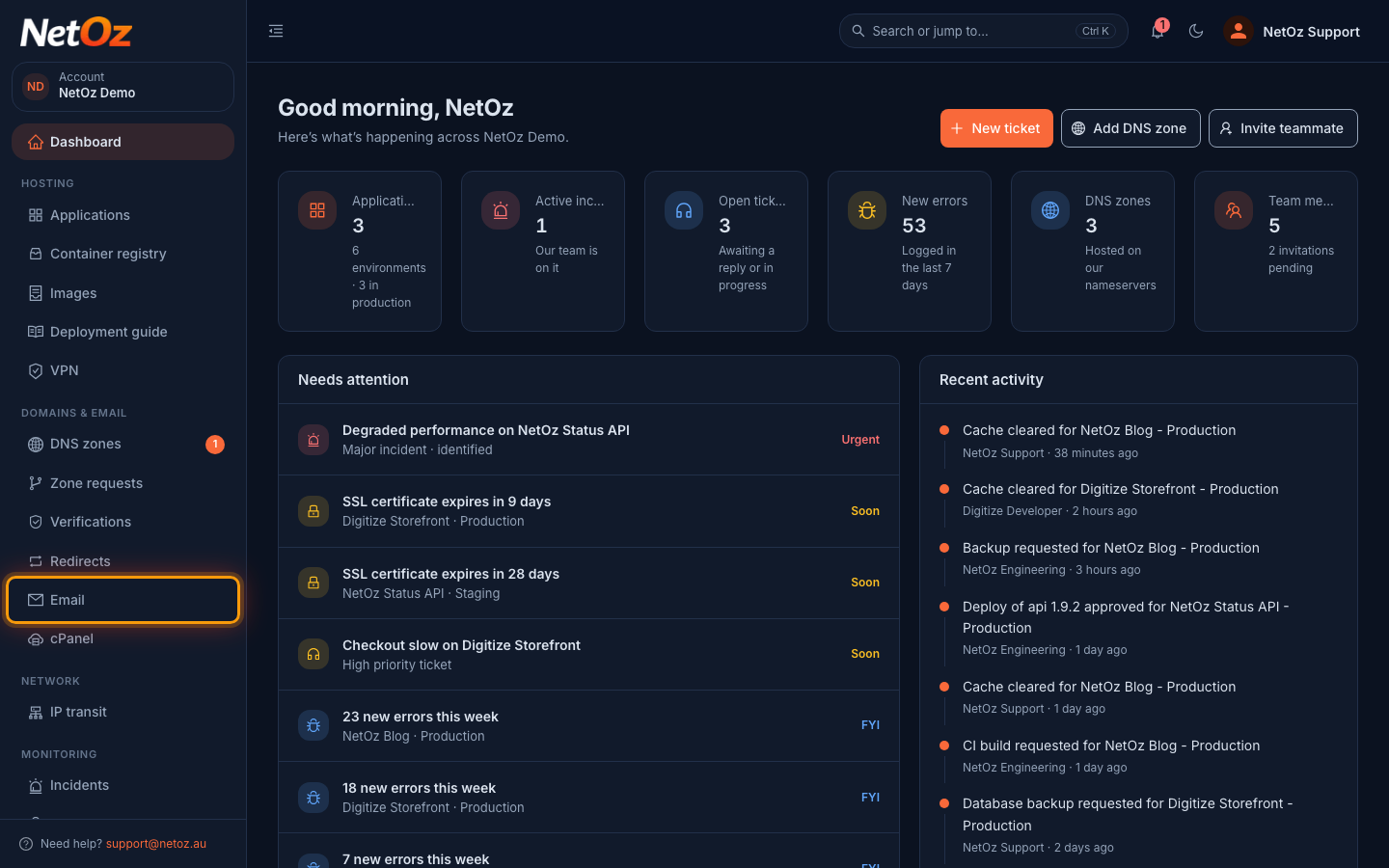
Sign in to the NetOz Portal and choose Email under Domains & email in the sidebar.
Step 2 Choose the domain
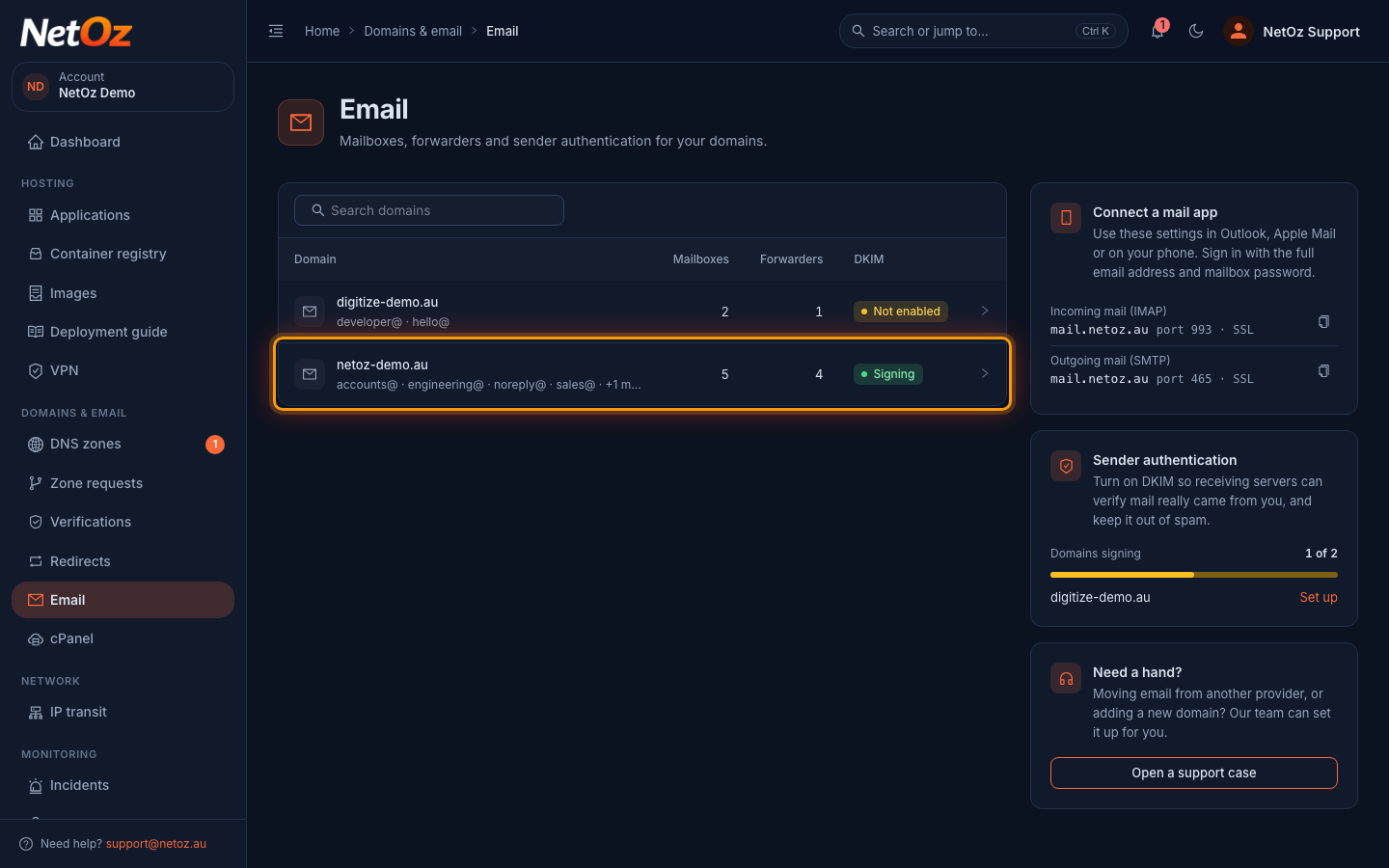
Each domain shows how many mailboxes and forwarders it has and whether DKIM signing is on. Select the domain the new address belongs to.
Step 3 Select New mailbox
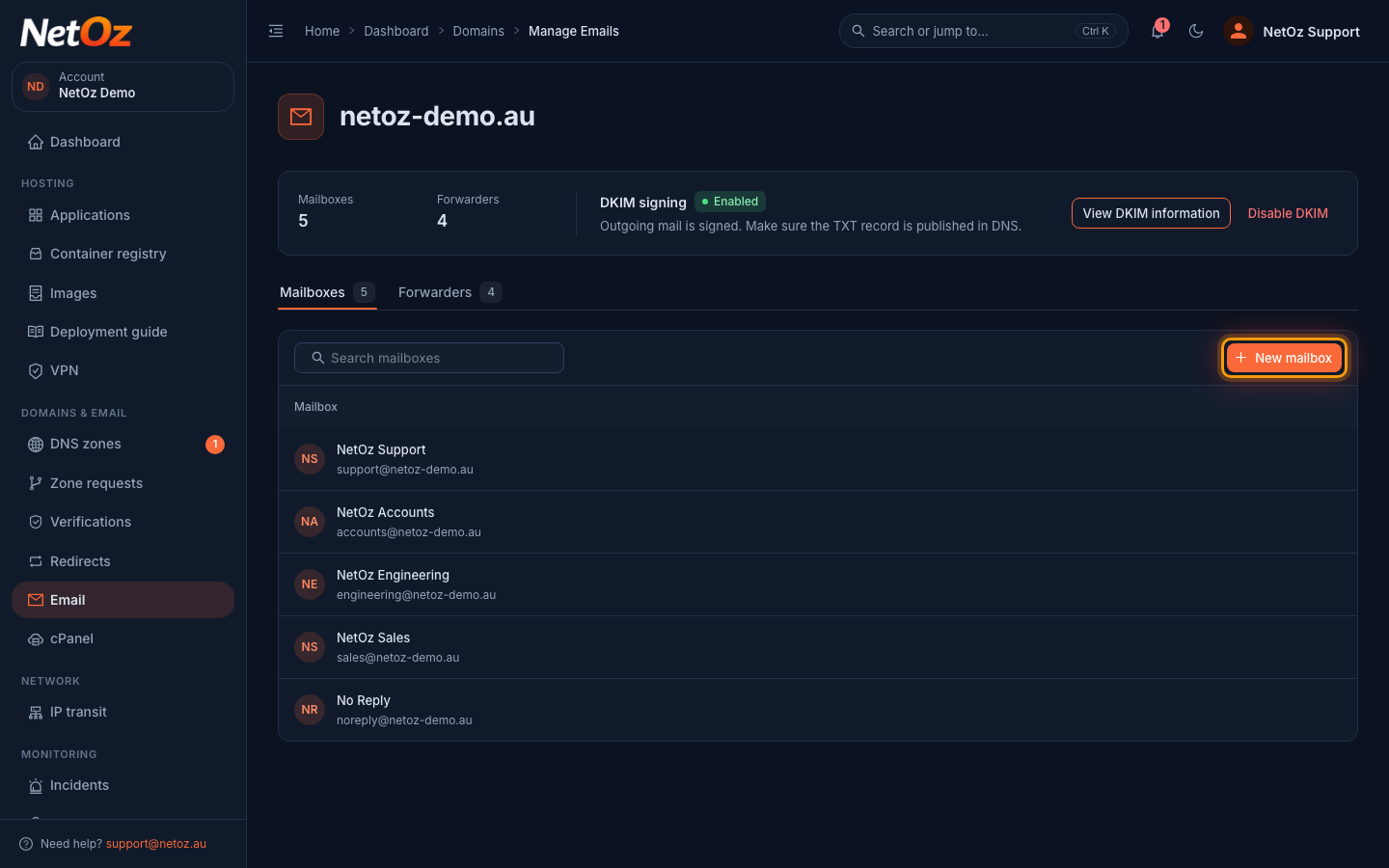
The Mailboxes tab lists every mailbox on the domain. Select New mailbox.
Step 4 Enter the mailbox details
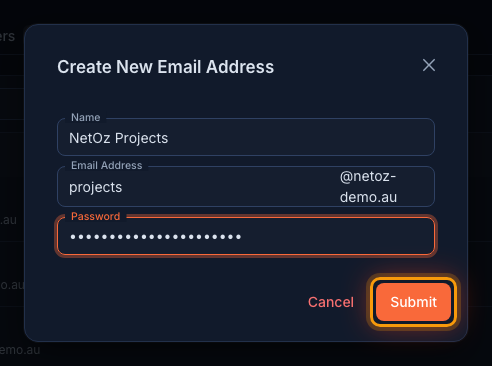
Enter a Name, which people see as the sender, and the part of the Email Address before the @. Choose a long, unique Password and keep it somewhere safe, because you will need to give it to the person who uses the mailbox. Then select Submit.
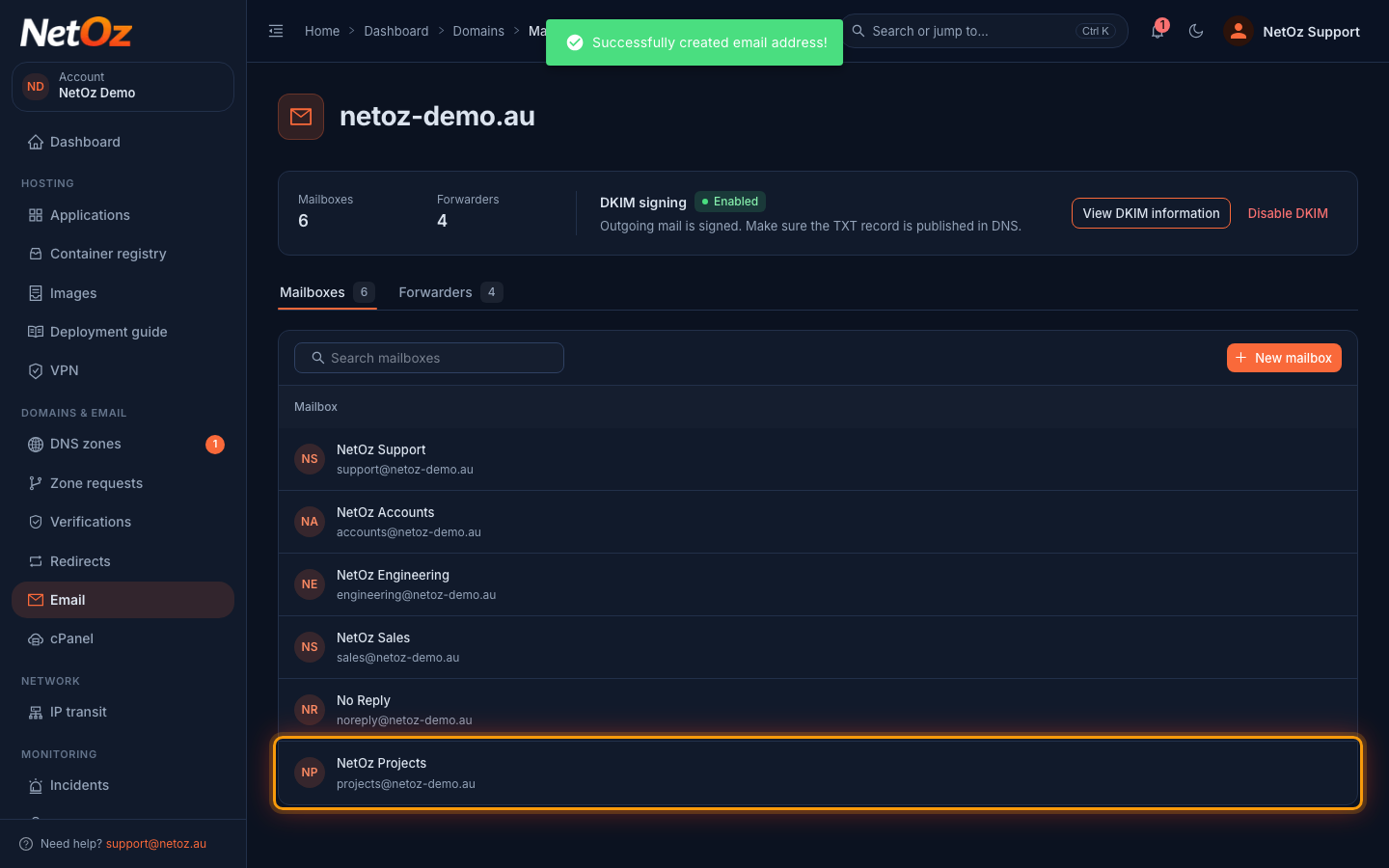
Step 5 Check the new mailbox
The mailbox appears in the list and is ready to use straight away.
Next steps
- Give the person their email address and password, and send them Connect a mail app to set up Outlook, Apple Mail or their phone.
- Forgot the password you set? Reset it.
- To remove a mailbox, select the bin icon (Delete mailbox) on its row. This deletes the mailbox and all of its email, and cannot be undone.
Was this guide helpful?
Your answer helps us keep these guides accurate.