Connect Outlook, Apple Mail or your phone to NetOz email
The IMAP and SMTP server settings for NetOz email hosting, and where to find them in the NetOz Portal, so you can add your mailbox to any email app.
On this page
NetOz mailboxes work with any app that supports IMAP, including Outlook, Apple Mail, Thunderbird and the built-in mail apps on iPhone and Android. You need the server settings below, the full email address and the mailbox password.
Before you start
- Get your mailbox password from your administrator. If you do not have it, ask them to reset it.
Step 1 Find the server settings
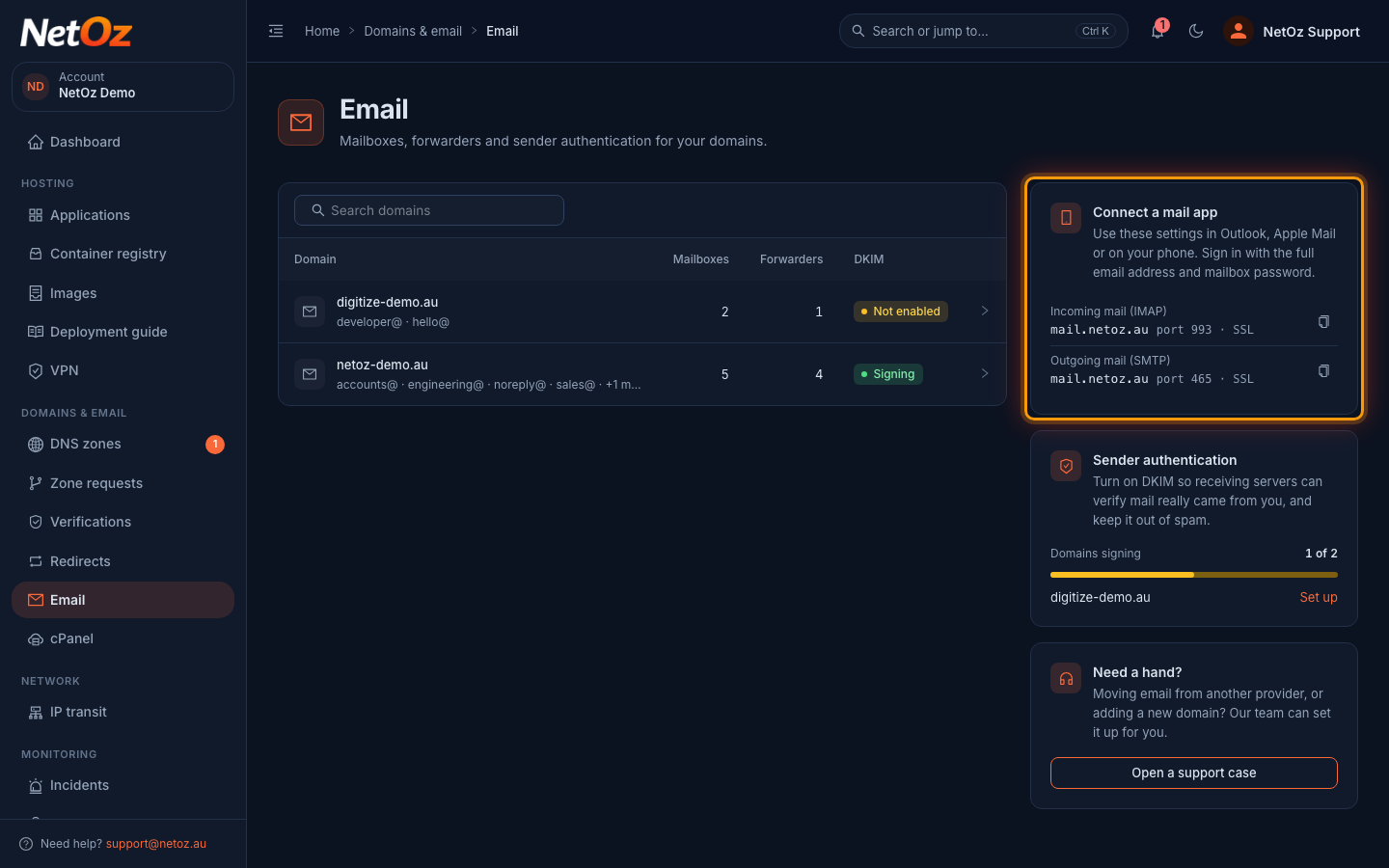
Admins can see the settings in the NetOz Portal under Email, in the Connect a mail app panel. Use the copy buttons to copy the server names exactly.
Step 2 Add the account in your mail app
In your mail app, choose to add an account manually or choose Other or IMAP as the account type. Enter your full email address and mailbox password, then use mail.netoz.au for both the incoming server (port 993, SSL) and the outgoing server (port 465, SSL).
Server settings
| Setting | Incoming mail (IMAP) | Outgoing mail (SMTP) |
|---|---|---|
| Server | mail.netoz.au | mail.netoz.au |
| Port | 993 | 465 |
| Security | SSL/TLS | SSL/TLS |
| Username | Your full email address | Your full email address |
| Password | Your mailbox password | Your mailbox password |
If your app asks whether the outgoing server needs authentication, choose Yes and use the same username and password as for incoming mail.
Still not working?
Check that the email address is typed in full, including the domain, and that your password is current. If someone recently reset it, every device needs the new one.
Was this guide helpful?
Your answer helps us keep these guides accurate.