Reset an email mailbox password
Set a new password for a NetOz mailbox when someone forgets it or leaves, or change the display name people see when they receive mail.
On this page
Admins can set a new password for any mailbox on their domains. Do this when someone forgets their password, when a staff member leaves and someone else takes over the mailbox, or if you think the password has been exposed.
Before you start
- You need to be an account admin, or have Email set to Manage on your team access.
Step 1 Find the mailbox
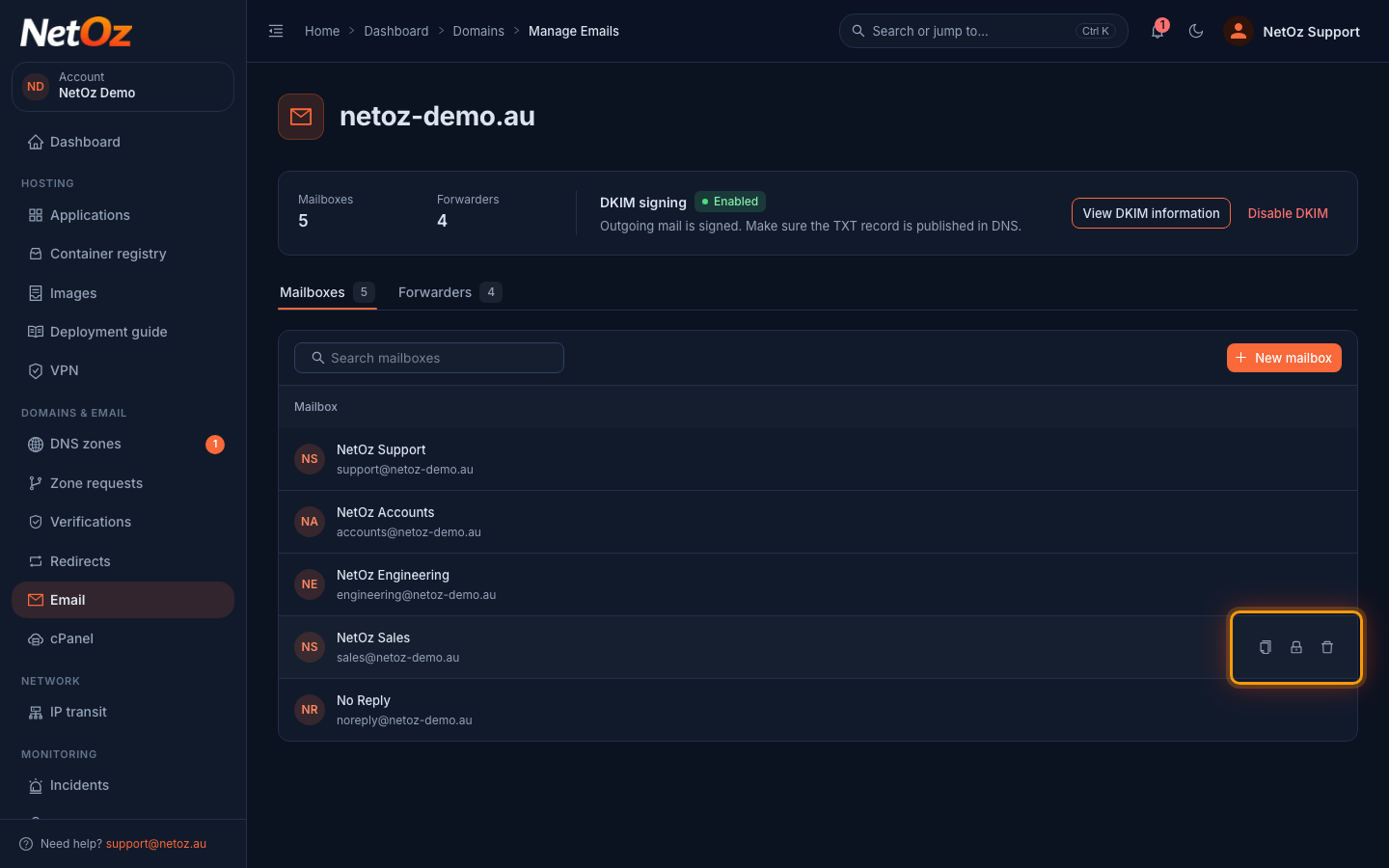
Go to Email and select the domain. On the Mailboxes tab, find the mailbox and select the padlock icon (Change password) at the end of its row.
Step 2 Enter the new password
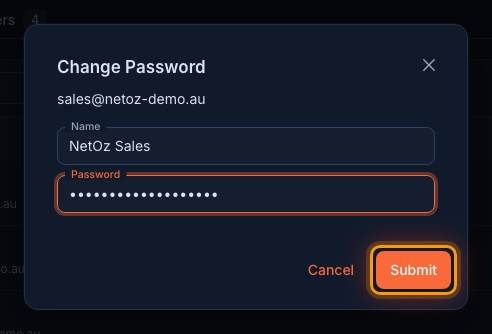
Check the address at the top of the dialog. You can also update the Name people see on messages. Enter the new Password and select Submit.
Step 3 Confirm the change
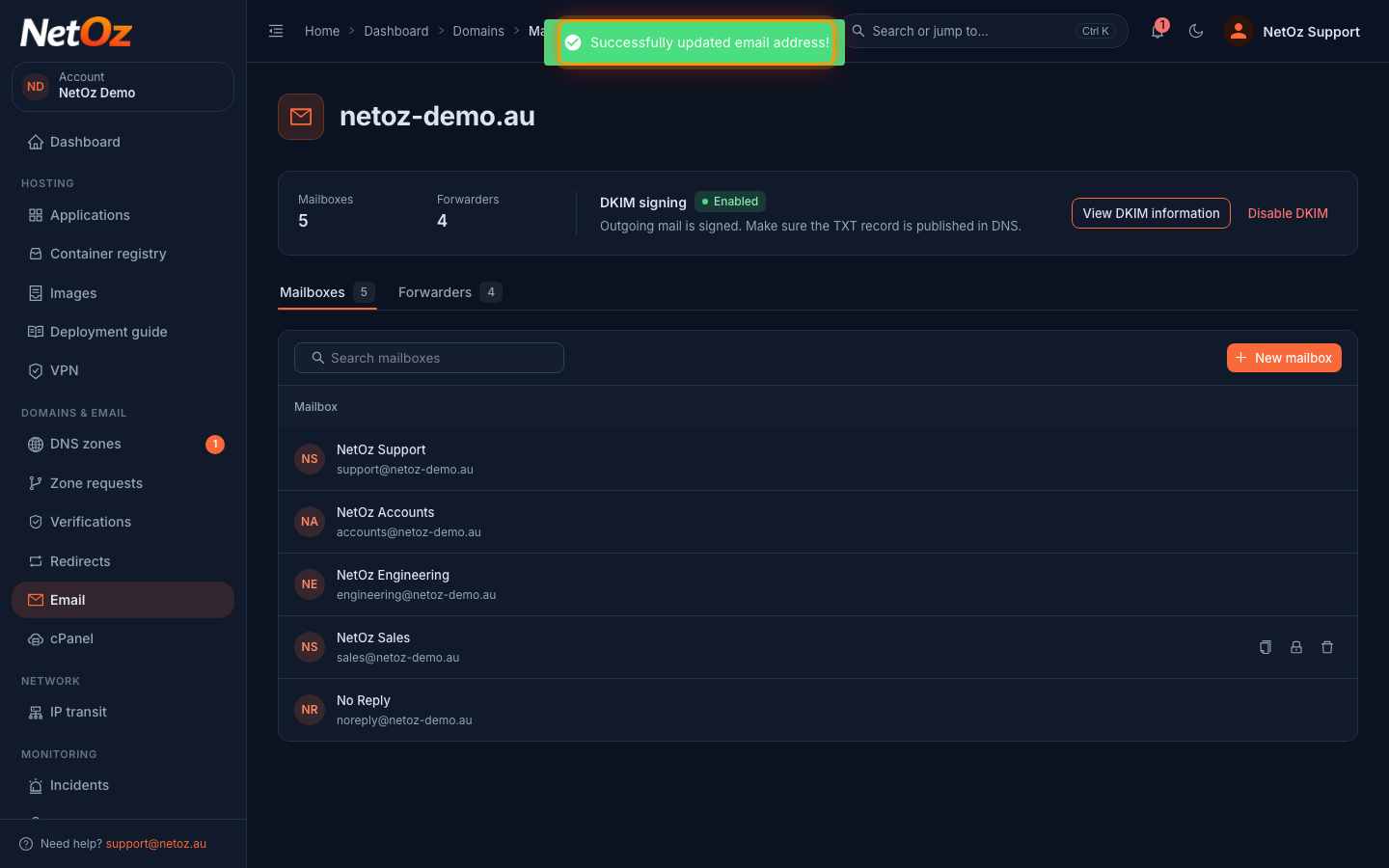
A message confirms the mailbox has been updated. The new password works straight away.
After the change
The old password stops working immediately, so every app and phone signed in to the mailbox will ask for the new one. Give it to the mailbox owner and point them to Connect a mail app if they need to set up again.
Was this guide helpful?
Your answer helps us keep these guides accurate.