Create an email forwarder to send mail to other inboxes
Set up an address such as careers@yourdomain.com.au that forwards to one or more existing inboxes, without creating a new mailbox or password.
On this page
A forwarder is an address that has no inbox of its own. Mail sent to it is passed on to one or more other addresses, which is ideal for shared addresses like careers@ or accounts@, or for sending a copy of mail to several people.
Before you start
- You need to be an account admin, or have Email set to Manage on your team access.
- The forwarder address must not already be used by a mailbox on the same domain.
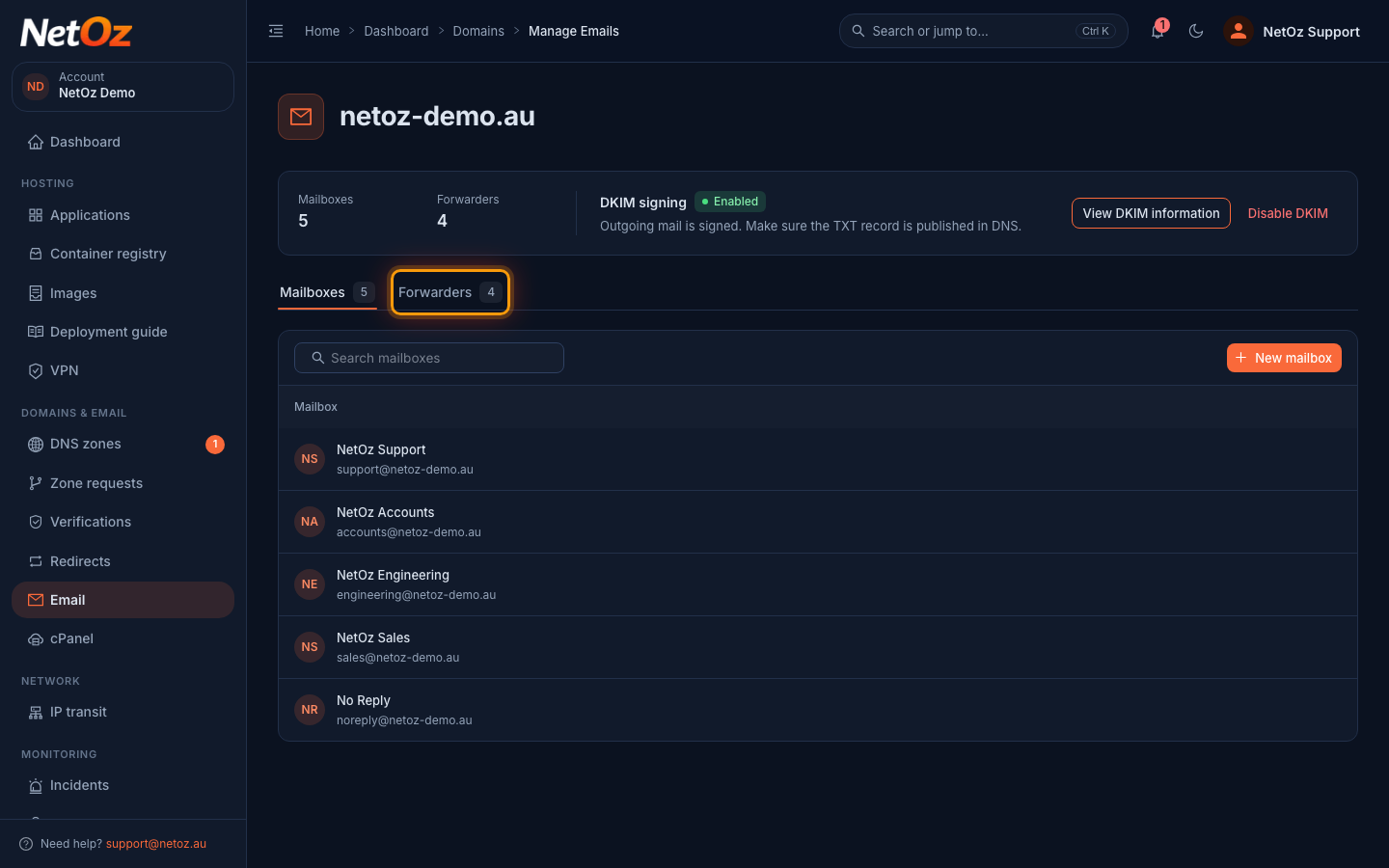
Step 1 Open the Forwarders tab
Go to Email, select your domain and open the Forwarders tab.
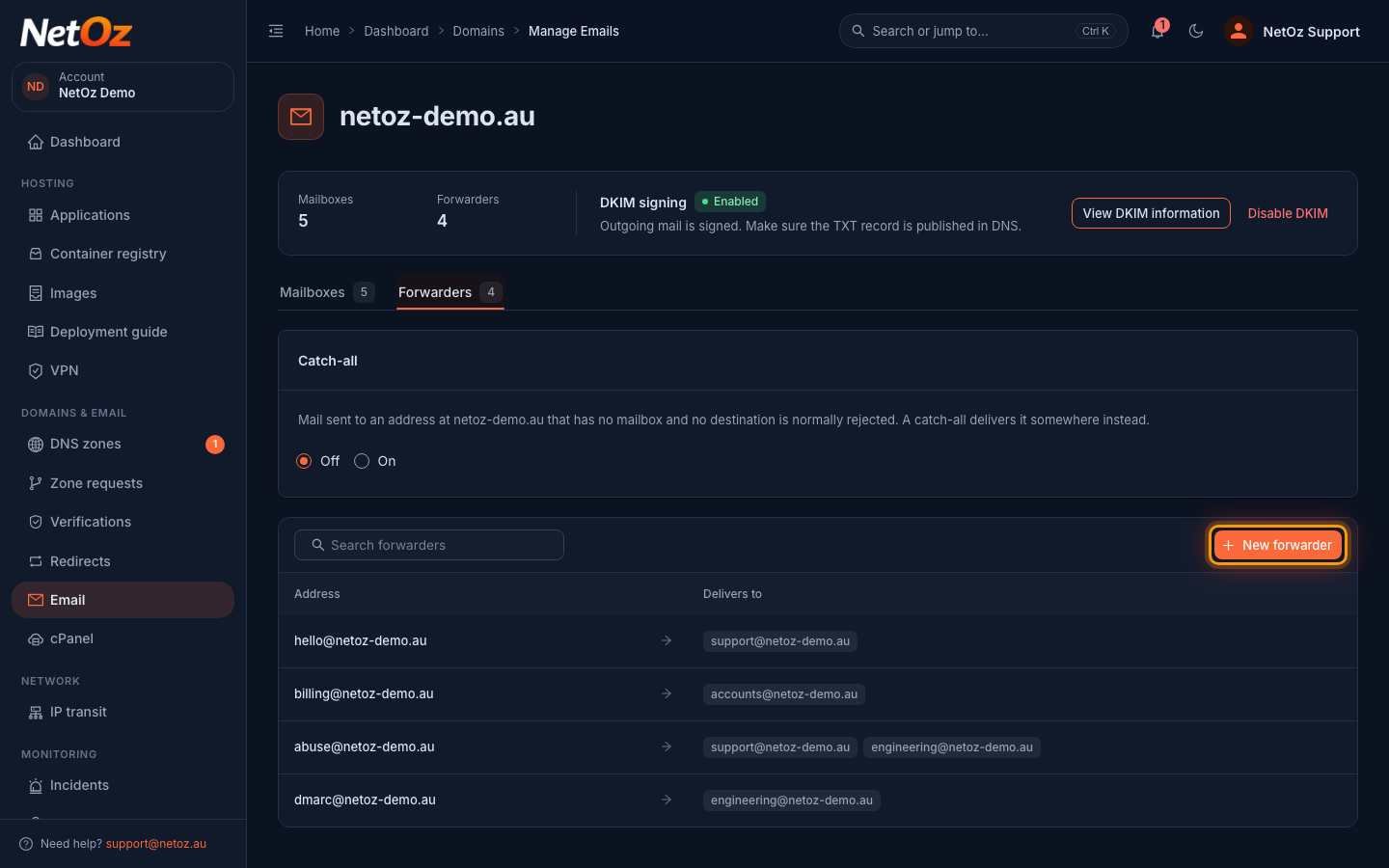
Step 2 Select New forwarder
The list shows each forwarding address and where its mail is delivered. Select New forwarder.
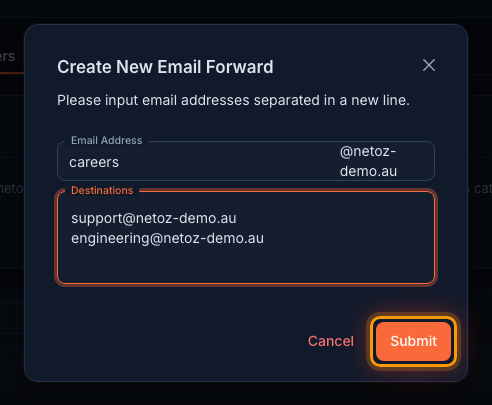
Step 3 Enter the address and destinations
Enter the part of the Email Address before the @, such as careers. Under Destinations, enter each address that should receive the mail on its own line. Destinations can be at any domain. Then select Submit.
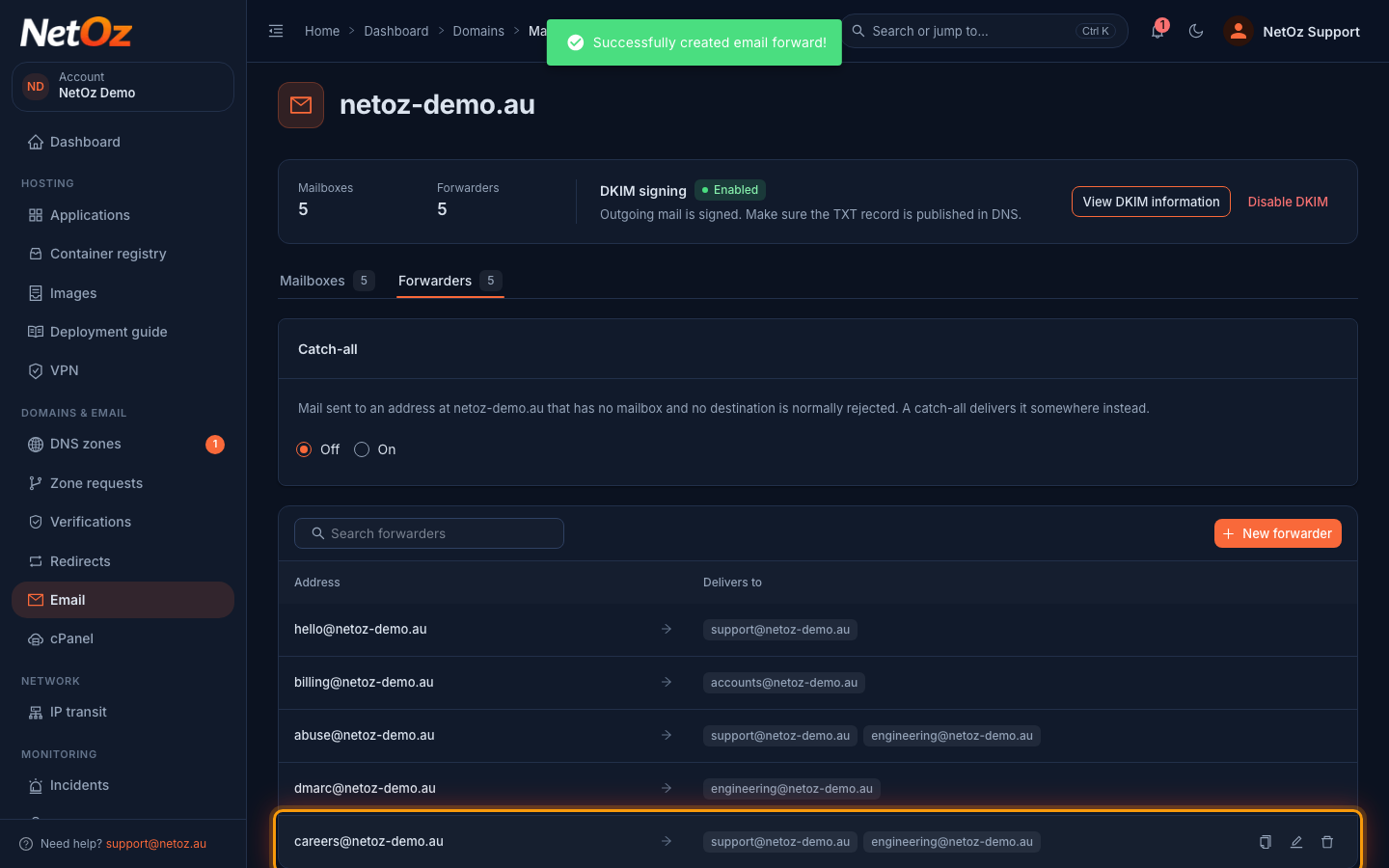
Step 4 Check or change the destinations
The forwarder appears in the list with its destinations. To change who receives the mail later, select the pencil icon (Edit destinations) on its row. The bin icon (Delete forwarder) removes it.
Related guides
Was this guide helpful?
Your answer helps us keep these guides accurate.