Sort incoming email automatically with mail filters
Create filters in the NetOz Portal that move, copy, forward, mark as read or delete incoming email by sender, subject, recipient or size. They run on the mail server, so they work in every mail app.
On this page
A filter checks each new email as it arrives and acts on the ones that match, for example moving invoices into an Invoices folder. Because filters run on the NetOz mail server rather than in Outlook or on your phone, they work even when no mail app is open, and every device sees the same result.
Before you start
- You need to be an account admin, or have Email set to Manage on your team access.
- Filters can forward to any address. Forwarding outside your own domains is shown on the mailbox as Forwards outside and recorded in your account activity, and forwarded mail may land in the recipient's spam, so prefer addresses at your own domains.
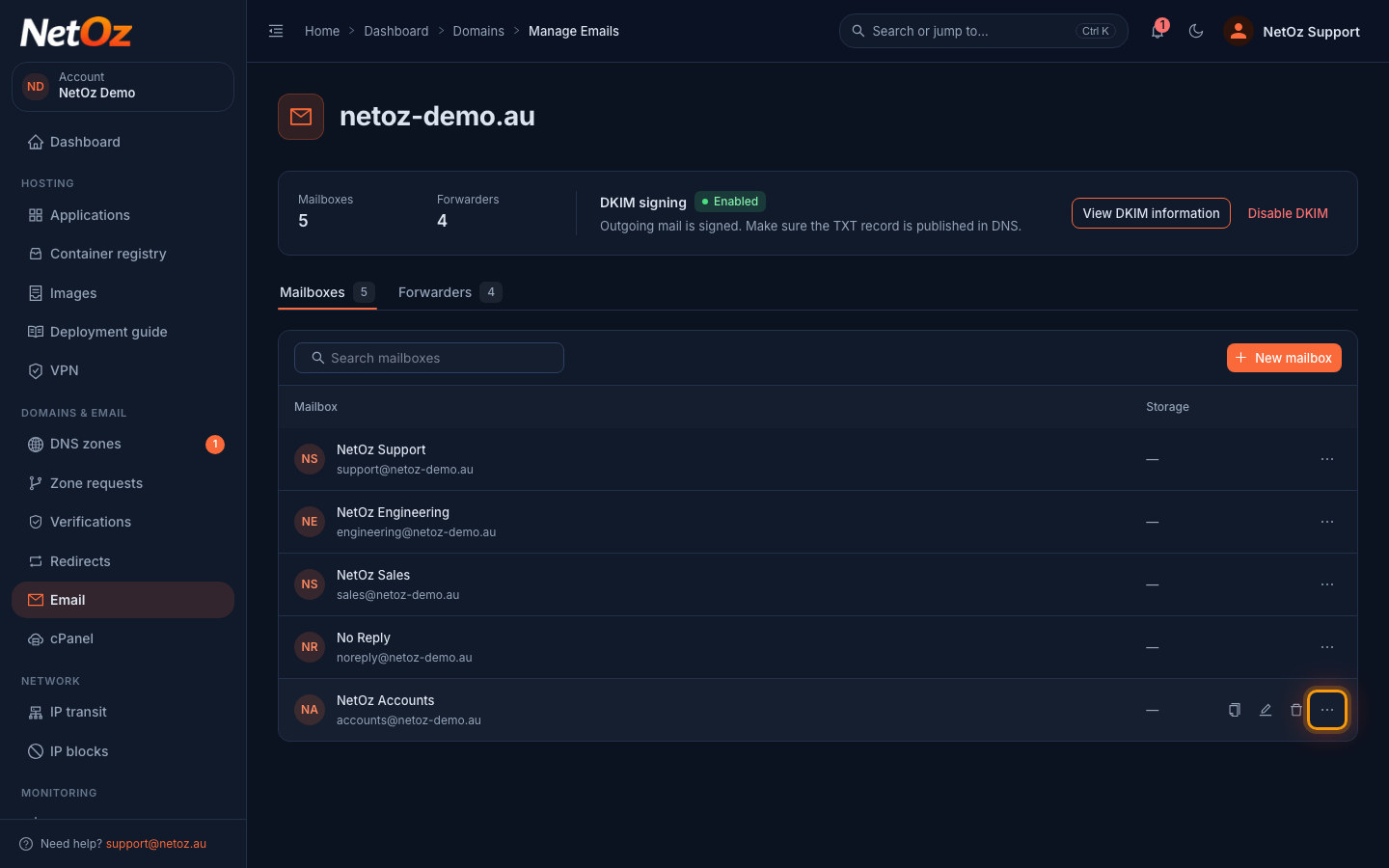
Step 1 Open the mailbox menu
Go to Email and select the domain. On the Mailboxes tab, find the mailbox and select the ⋮ menu at the end of its row.
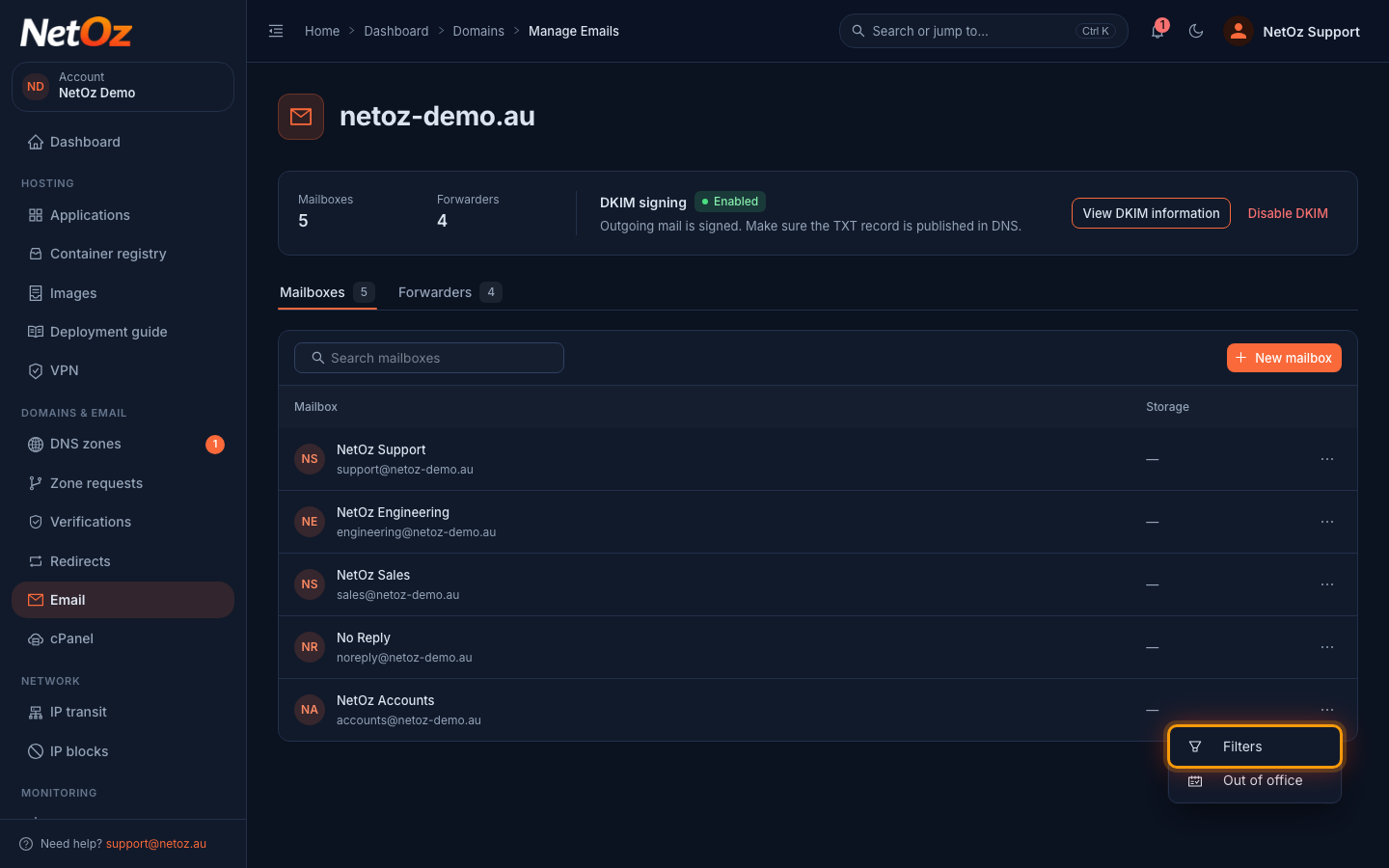
Step 2 Select Filters
Choose Filters.
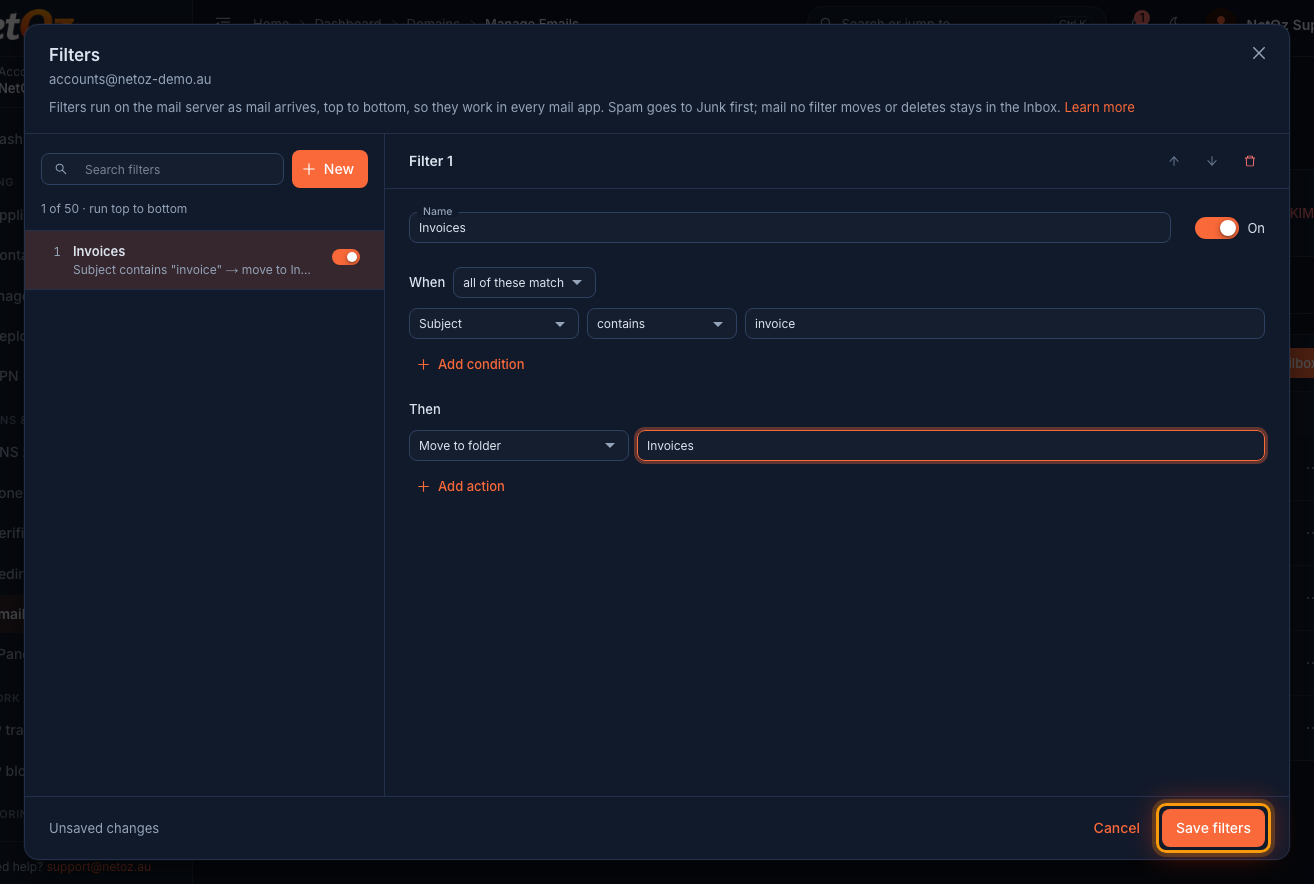
Step 3 Create a filter
Your filters are listed on the left in the order they run. Select New and give the filter a name. Under When, choose what to check, such as Subject contains invoice. Add more conditions if needed and choose whether all or any of them must match. Under Then, choose what happens, such as Move to folder Invoices. Select Save filters.
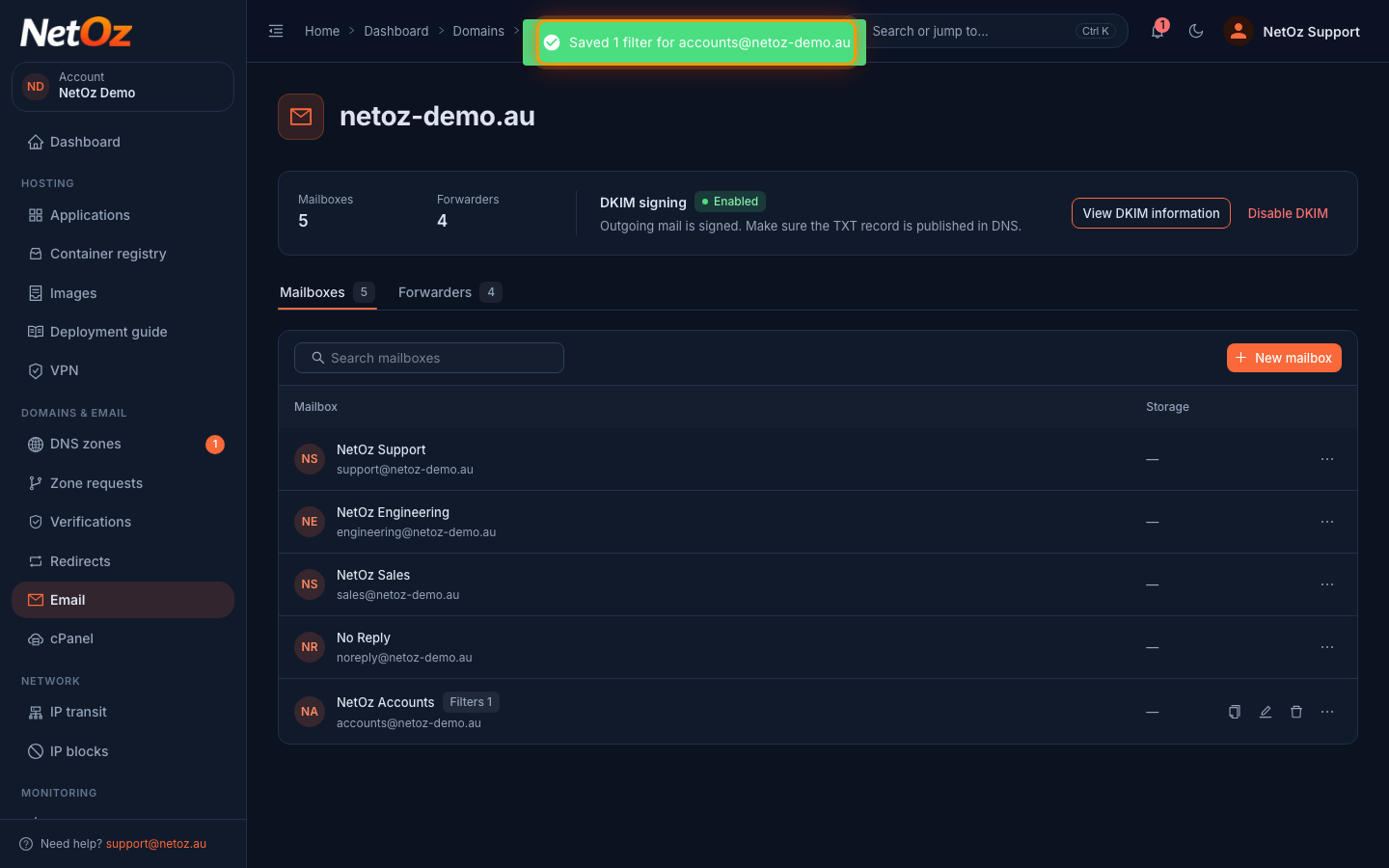
Step 4 Check it is saved
A message confirms the filters were saved, and the mailbox shows how many filters it has. They apply to the next email that arrives.
How filters run
- Spam is moved to Junk before your filters run.
- Filters run from top to bottom, in the order of the list. Select a filter and use the arrows at the top of it to change the order, and add Stop processing more filters to a filter so later filters don't act on the same email.
- Email that no filter moves, forwards or deletes stays in the Inbox.
- A folder that doesn't exist yet is created the first time a filter uses it. Use a dot for a subfolder, for example
Clients.Acme. - Size is in kilobytes: 5000 KB is about 5 MB.
Finding and turning off a filter
Use Search filters to find one by name or by what it does. Use the switch next to a filter in the list to pause it without losing it, or select it and use the bin icon to delete it, then select Save filters. Changes apply to the next email that arrives; email already delivered isn't moved.
Was this guide helpful?
Your answer helps us keep these guides accurate.