Respond to a domain ownership review
Your new DNS zone needs an ownership review because another NetOz account uses the name. See what is being checked, add the TXT record that proves you control the domain and reply to NetOz support.
On this page
When you add a DNS zone whose name another NetOz account already hosts, or recently deleted, NetOz does not create the zone straight away. Our team first checks who controls the domain. Nothing changes for your domain while this happens, and your current DNS keeps working. This guide shows where to follow the review and how to help it along.
Before you start
- You need to be an account admin, or have Domains & DNS set to Manage for the whole account, to reply or withdraw. People whose access is limited to specific domains cannot see reviews.
- Do not change your domain’s nameservers to NetOz while the review is open.
- You need to be able to add a TXT record wherever the domain’s DNS is hosted now.
Step 1 When a new zone needs a review
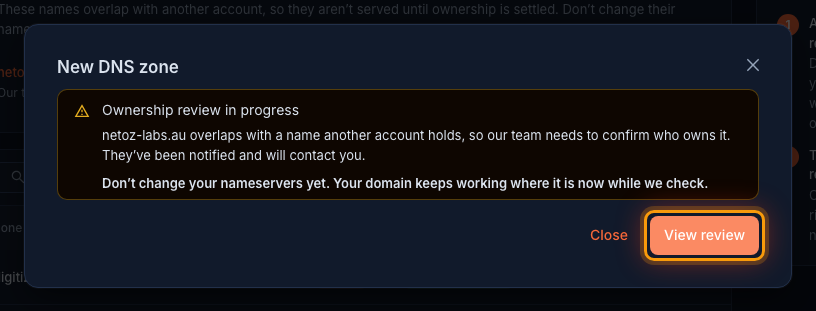
If the name you enter under DNS zones > New zone overlaps with another account, you see Ownership review in progress instead of a new zone. Our team has already been told. Leave your nameservers where they are, and select View review to follow it.
Step 2 Find the review later
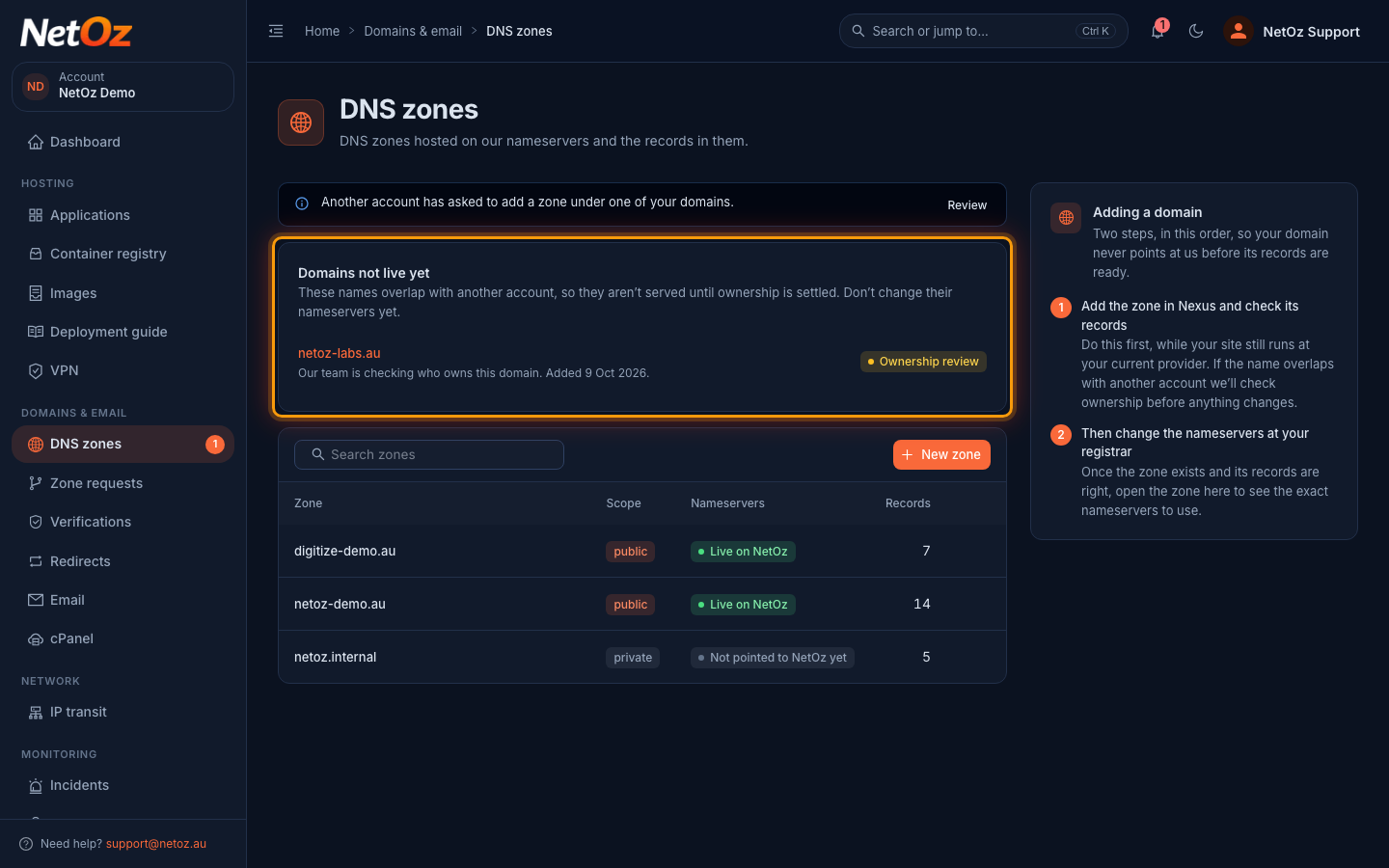
Until the review is settled, the name is listed under Domains not live yet at the top of the DNS zones page, with its current status. Select the name to open the review.
Step 3 See what is being checked
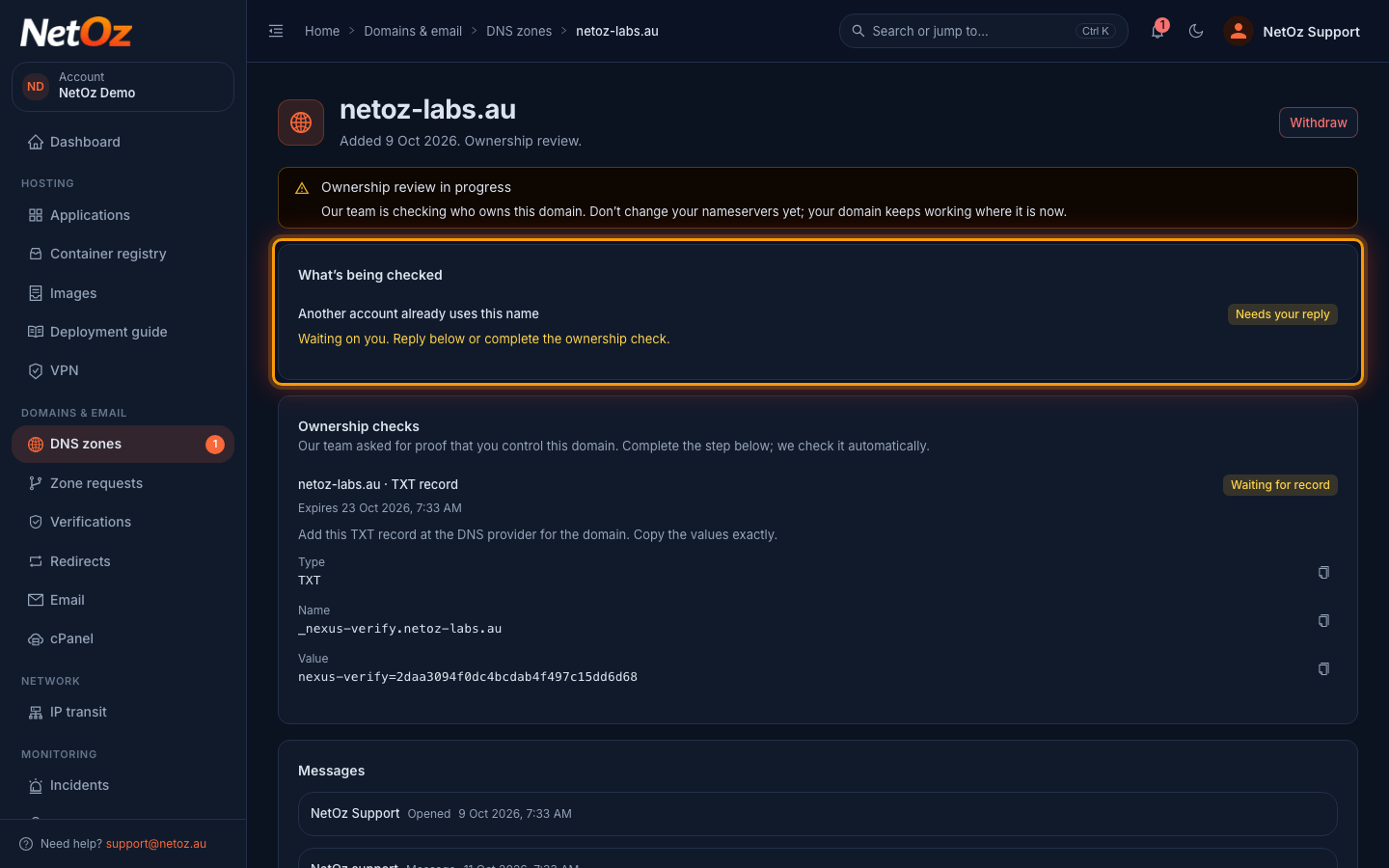
The banner confirms the review is in progress and that your domain keeps working where it is now. What’s being checked lists each reason for the review, such as Another account already uses this name, and who it is waiting on. Needs your reply means our team is waiting for you.
Step 4 Add the TXT record
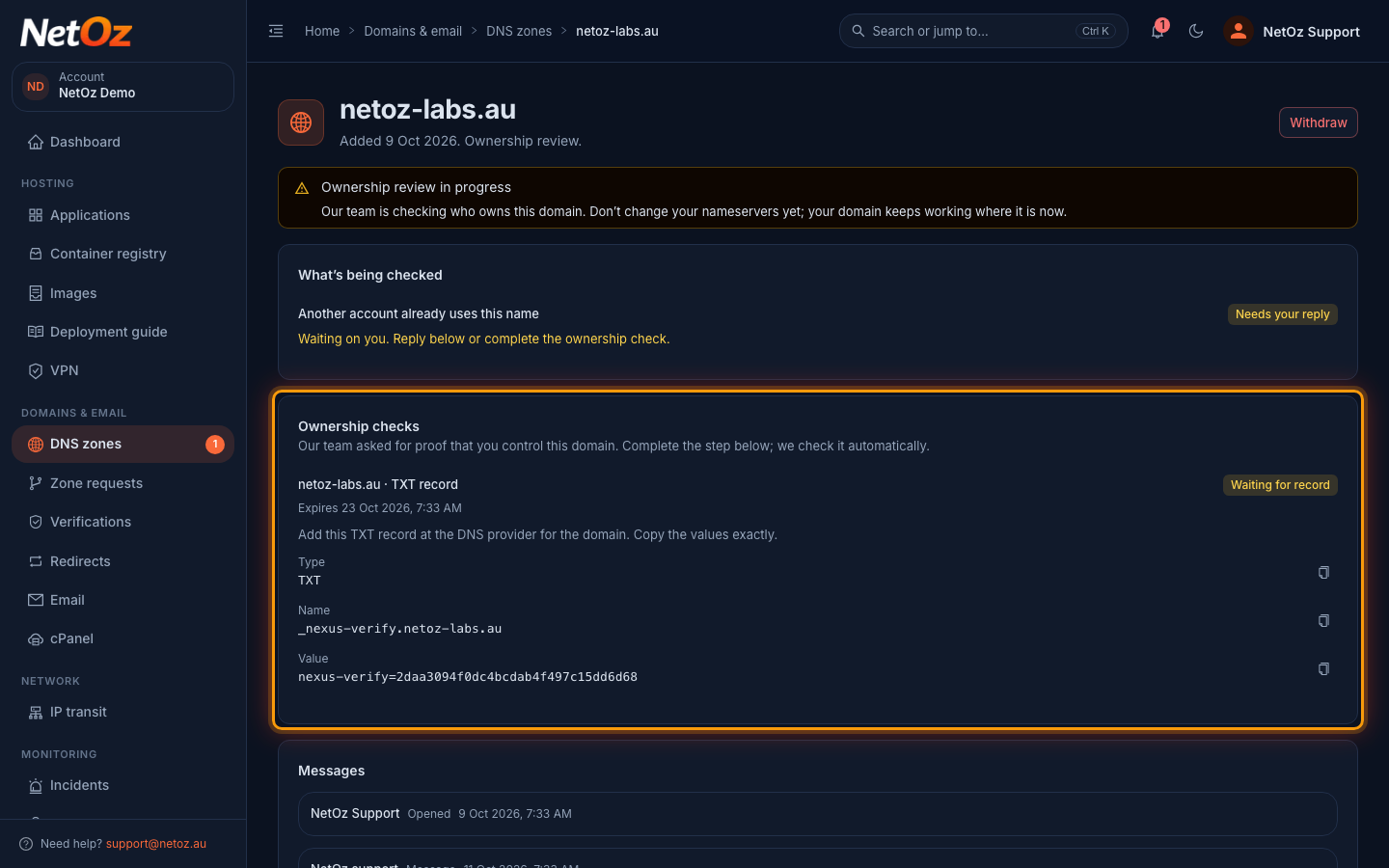
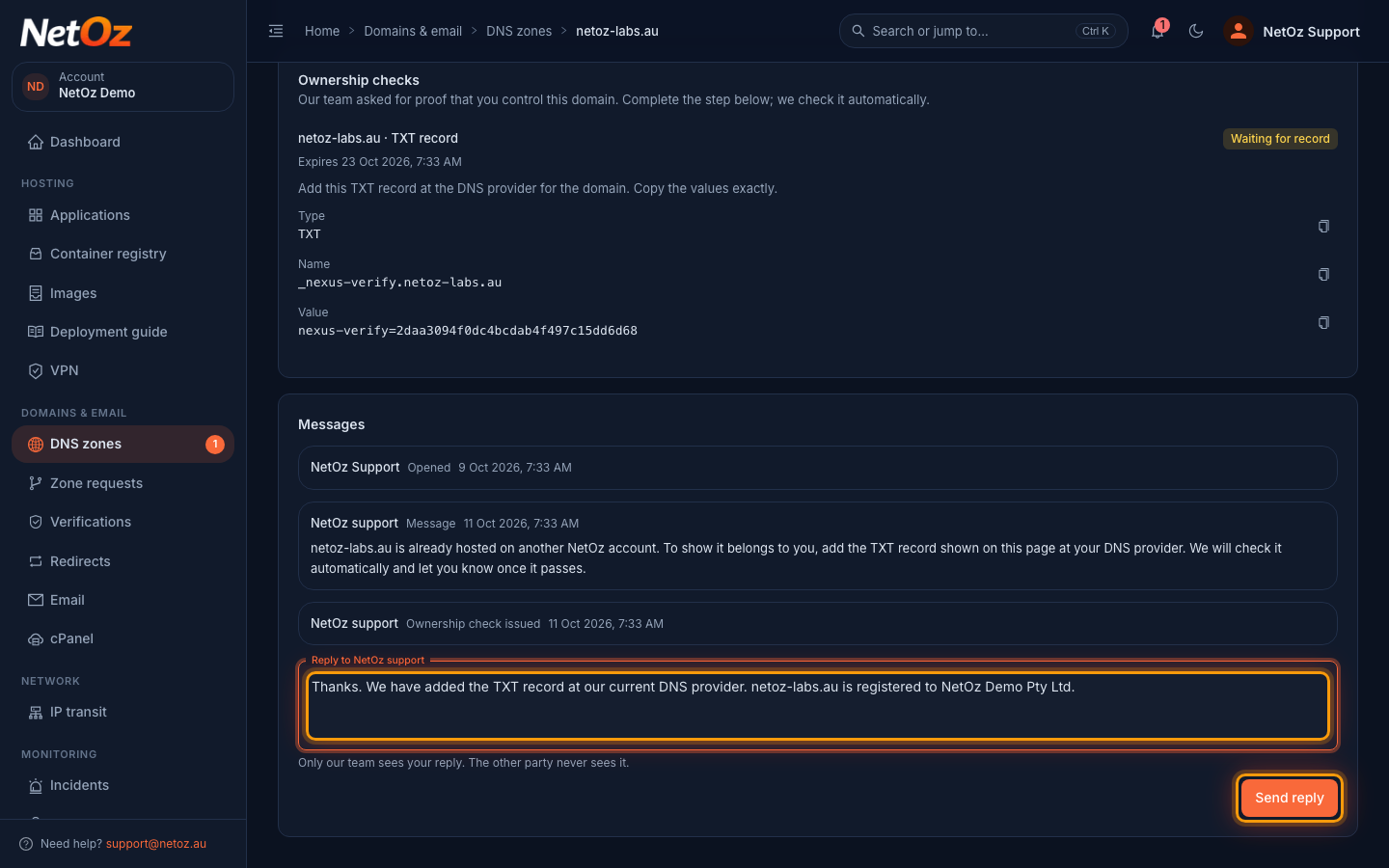
Under Ownership checks, our team has asked for a TXT record. Sign in to the provider that hosts the domain’s DNS today and add a TXT record with the Name and Value shown, such as _nexus-verify.netoz-labs.au and nexus-verify= followed by a code. Use the copy buttons so the value is exact. NetOz checks for the record automatically and the badge changes to Verified once it is found. The check expires on the date shown.
Step 5 Reply to NetOz support
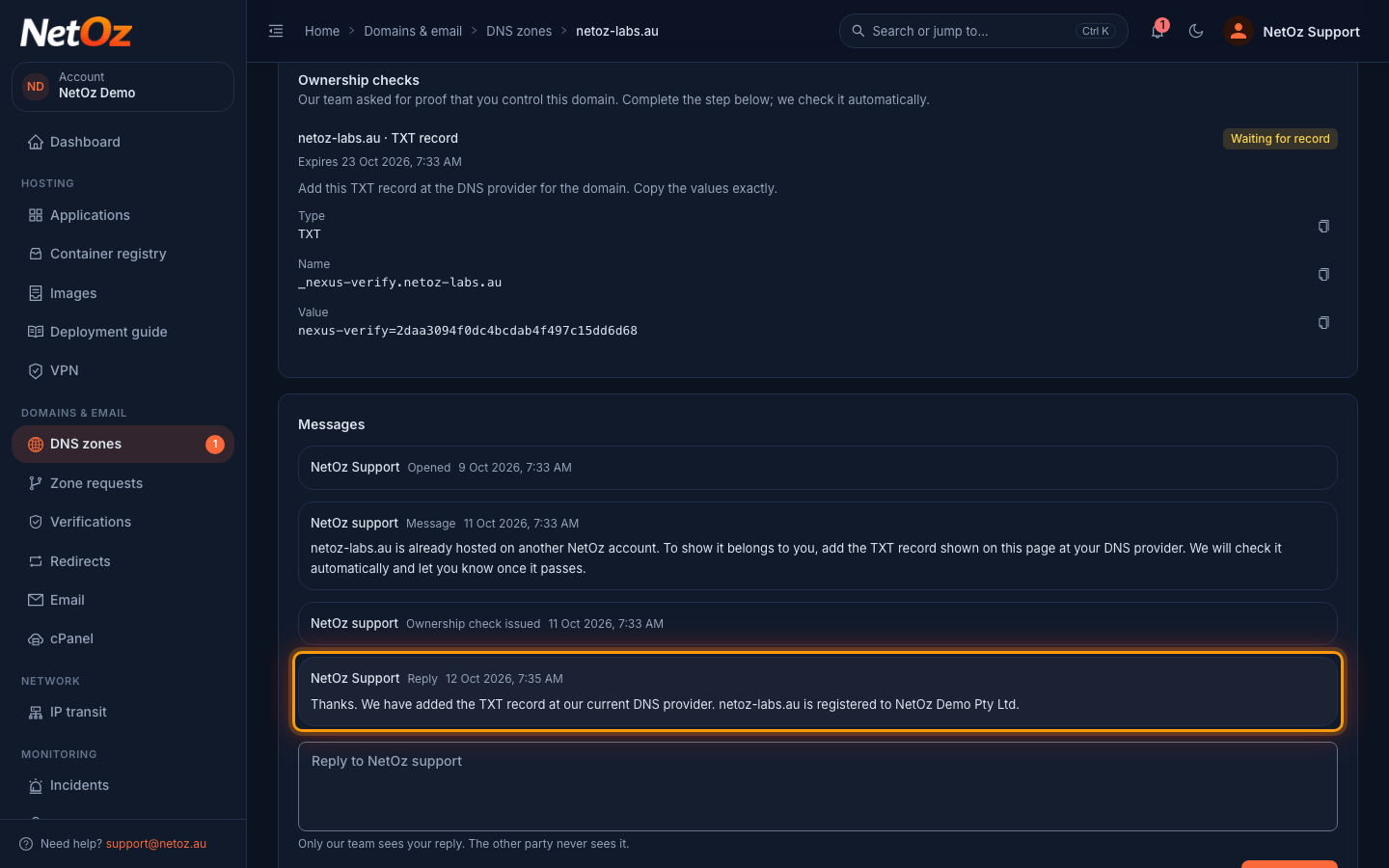
Messages from our team appear under Messages, along with updates such as Ownership check issued. To answer, type in Reply to NetOz support and select Send reply. Only our team sees your reply. The other account never does.
Step 6 Wait for the decision
Your reply is added to the thread, and under What’s being checked the review moves to In review with our team. NetOz emails you when something changes, and you can come back to this page at any time.
What happens next
When the ownership check passes, our team finishes the review and NetOz emails you. If the review finds in your favour, the zone is created in your account and you can carry on from Add a DNS zone. If not, the page shows Ownership not confirmed with any reason our team gave, and Request another review lets you ask again if something has changed, for example after you update the registrant details at your registrar.
Can’t add a TXT record?
Reply in the thread and say so. Our team can check ownership another way, such as a nameserver you add at your registrar, or by reviewing documents that show you hold the domain. Their instructions will appear on this page.
Changed your mind?
Select Withdraw at the top of the page. This removes the name from your account and closes the review. You can add it again later, which starts a new check.
Related guides
Was this guide helpful?
Your answer helps us keep these guides accurate.