Approve or decline a request to add a zone under your domain
Another NetOz account wants to host DNS for a subdomain of one of your zones, such as events.yourdomain.com.au. Review the request under Zone requests and approve or decline it.
On this page
Sometimes a web agency or another part of your organisation has its own NetOz account and wants to run DNS for a subdomain of yours, such as events.netoz-demo.au. When they add that zone, it is not created until you agree. The request waits under Zone requests for you to approve or decline.
Before you start
- Only account admins can approve or decline requests. People with other access can see the list.
- Requests are shown only to people whose access covers the whole account, not specific domains.
- If a request waits more than 7 days, NetOz support steps in.
Step 1 Open Zone requests
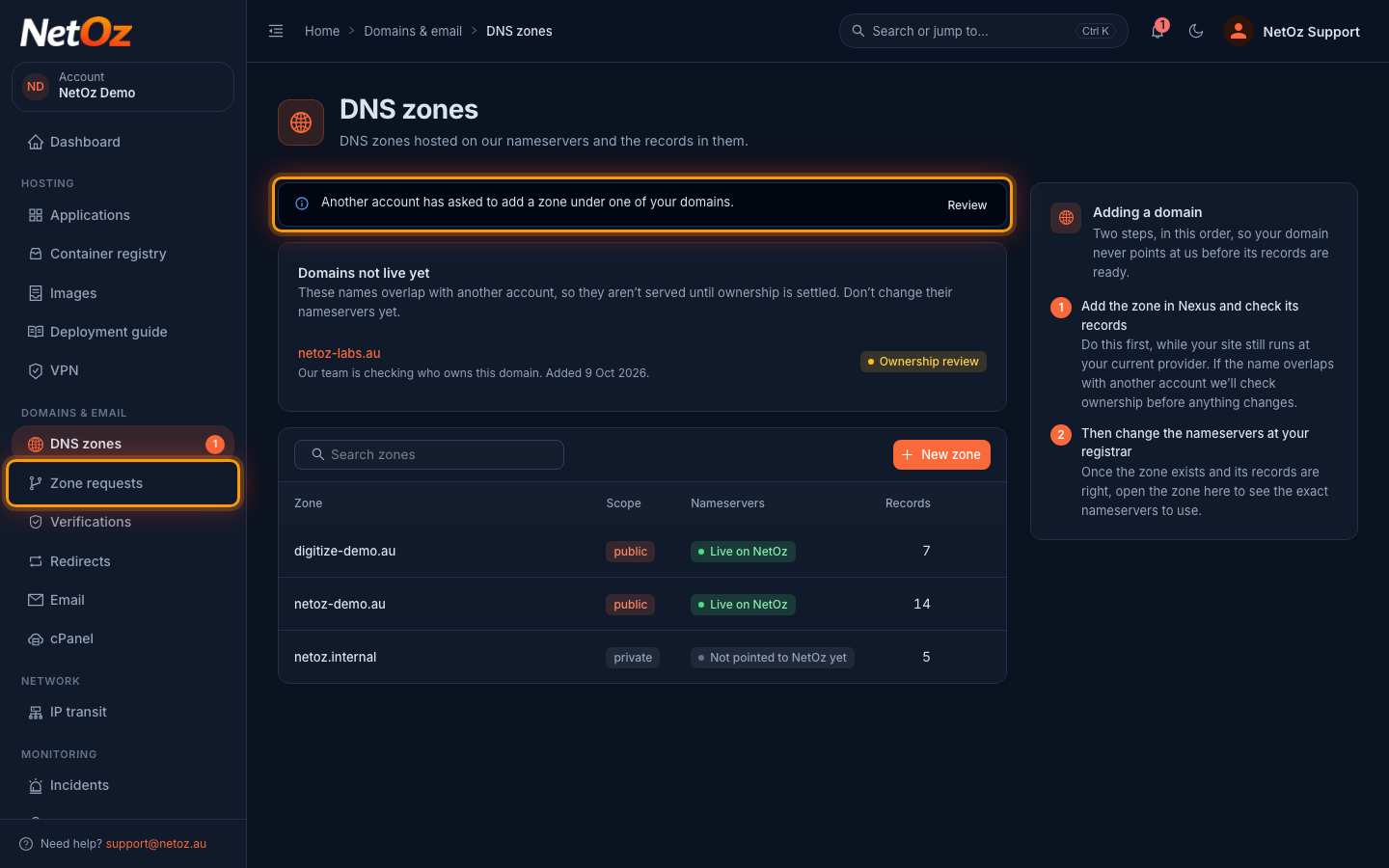
When a request arrives, NetOz emails your account admins and the DNS zones page shows a notice. Select Review on the notice, or choose Zone requests under Domains & email in the sidebar.
Step 2 Check who is asking
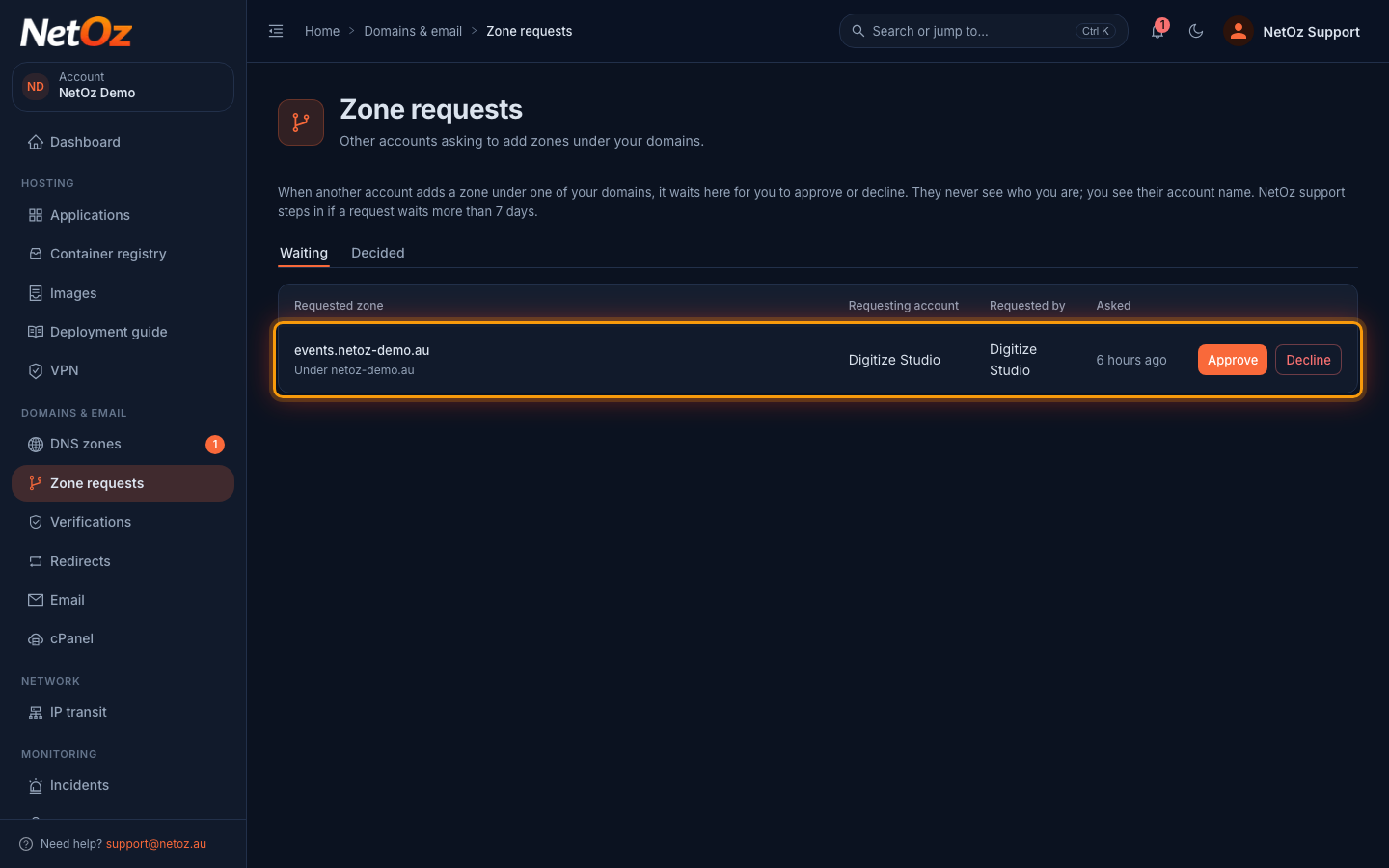
The Waiting tab lists each request with the Requested zone, the zone of yours it sits under, the Requesting account and when they asked. They see your decision but never who you are. Make sure you recognise the account before you approve.
Step 3 Decline a request you don’t expect
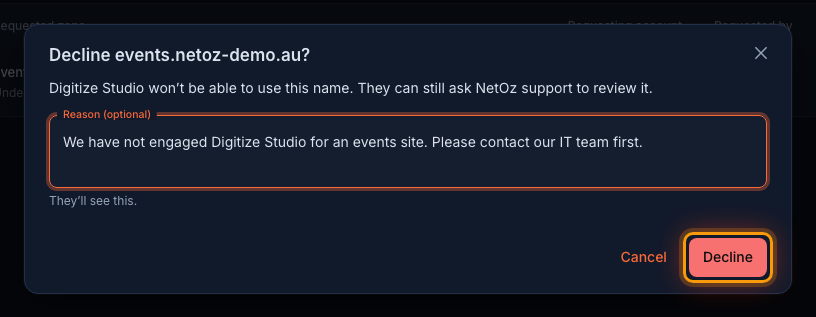
To refuse, select Decline. You can add a Reason (optional), which the other account will see, then select Decline in the dialog. They will not be able to use the name, but can still ask NetOz support to review it.
Step 4 Approve the request
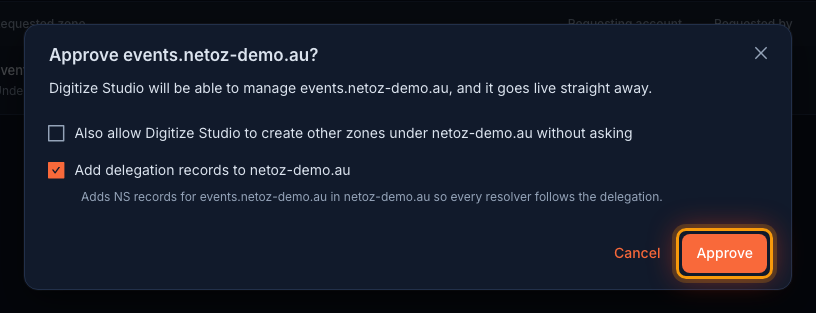
To agree, select Approve. The dialog confirms that the other account will manage the zone and that it goes live straight away. Two options are available:
- Also allow … to create other zones under … lets them add more zones under your domain later without asking. Leave it unticked unless you trust them with the whole domain.
- Add delegation records to … adds NS records for the new zone to your zone, so every resolver follows the delegation. Leave it ticked unless you manage those records yourself.
Select Approve to finish.
Step 5 Check the outcome
The request leaves the Waiting tab. The Decided tab keeps a record of every request with its Outcome, who decided and when.
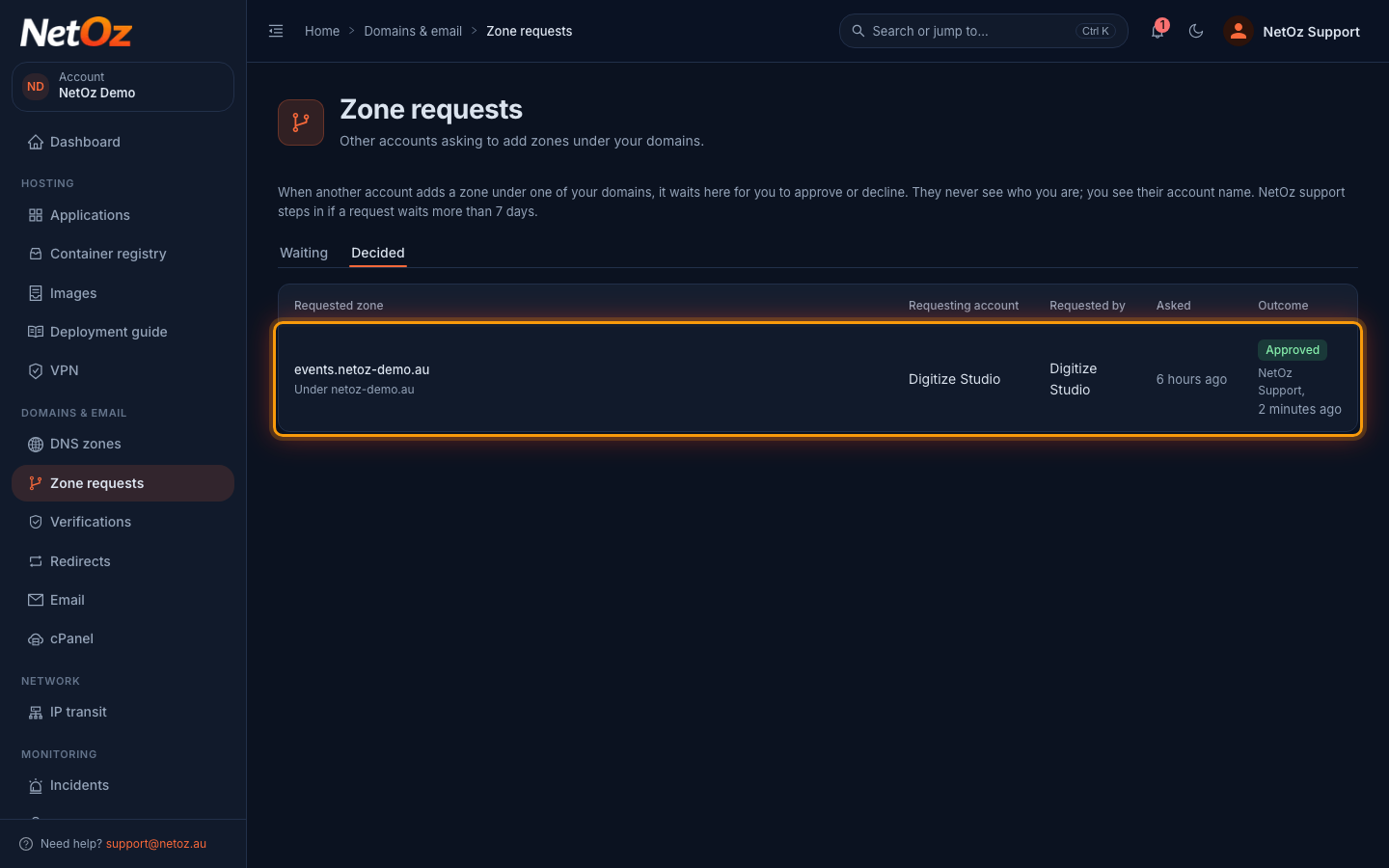
After you decide
Approved zones go live in the other account straight away, and they manage its records from then on. Declined requests move to the Decided tab with your reason. The other account can still ask NetOz support to review a declined request.
Related guides
Was this guide helpful?
Your answer helps us keep these guides accurate.