Add a DNS zone for your domain in the NetOz Portal
Create a DNS zone for your domain on the NetOz nameservers, check its records, then point the domain at ns1.netoz.au and ns2.netoz.au. Find out what happens if the name is already in use.
On this page
A DNS zone holds every DNS record for one domain. Before NetOz can answer DNS queries for your domain, the zone needs to exist in the NetOz Portal. Add the zone first, while your website and email still run at your current provider, check its records, and only then change the nameservers at your registrar.
Before you start
- You need to be an account admin, or have Domains & DNS set to Manage for the whole account. People whose access is limited to specific domains cannot add new zones.
- Enter the domain itself, such as
example.com.au. You can also add a zone for a subdomain, such asshop.example.com.au, if you want NetOz to host only that part. - Public suffixes such as
com.aucannot be added, and names undernetoz.auanddigitize.auare reserved for the platform.
Step 1 Open DNS zones
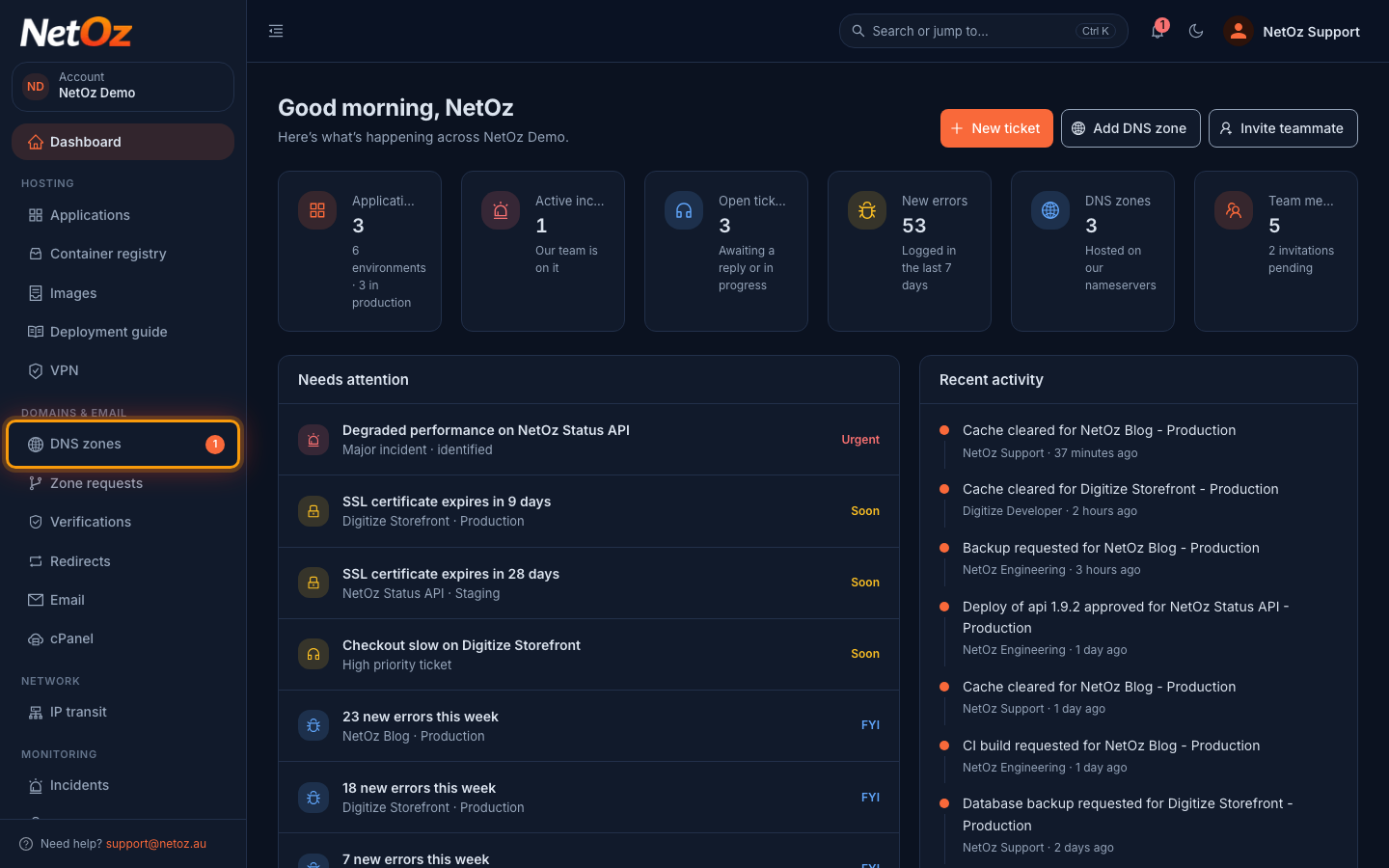
Sign in to the NetOz Portal and choose DNS zones under Domains & email in the sidebar.
Step 2 Select New zone
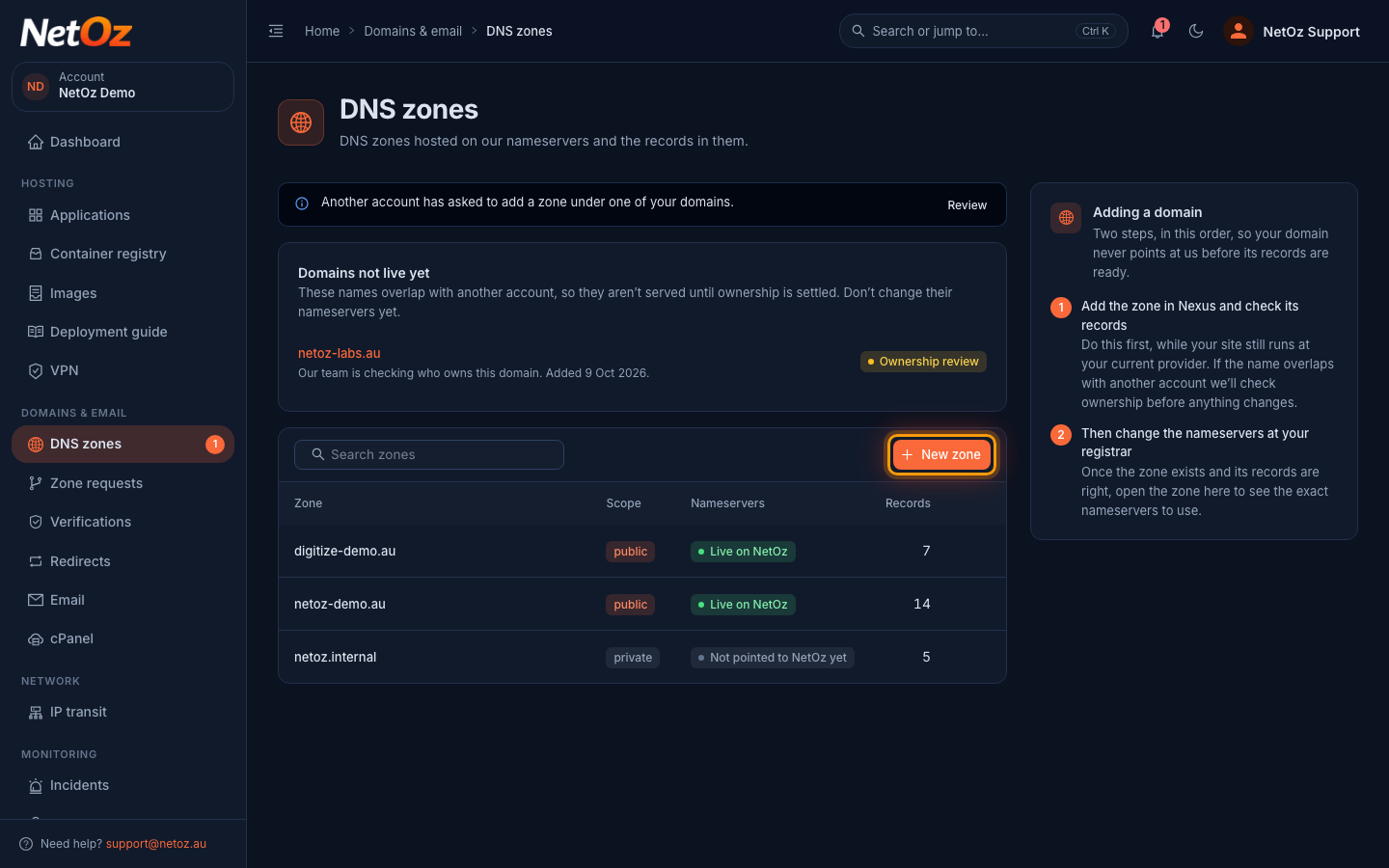
The list shows every zone on your account, whether it is public or private, whether the domain uses NetOz nameservers yet, and how many records it holds. The Adding a domain panel sums up the order to work in. Select New zone.
Step 3 Enter the domain name
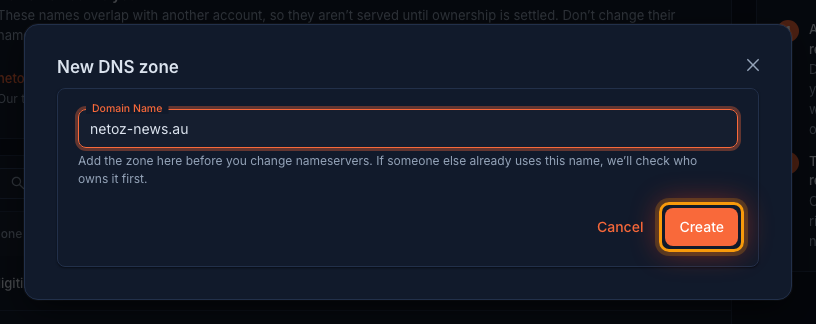
Type the domain name, for example netoz-news.au, and select Create. New zones are always public, which means they are published on the NetOz nameservers. If someone else already uses the name, NetOz checks who owns it before the zone goes live.
Step 4 Open the new zone
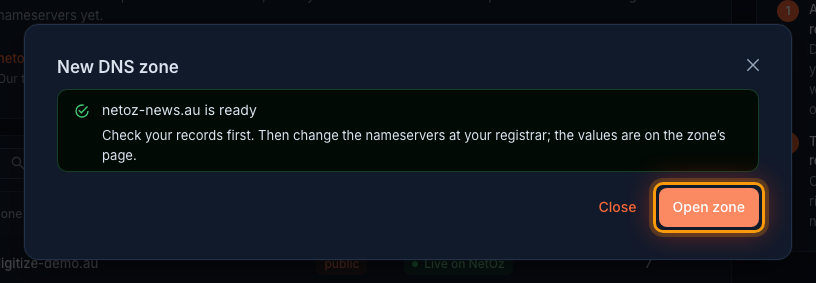
The portal confirms the zone is ready and reminds you of the order: check your records first, then change the nameservers at your registrar. Select Open zone.
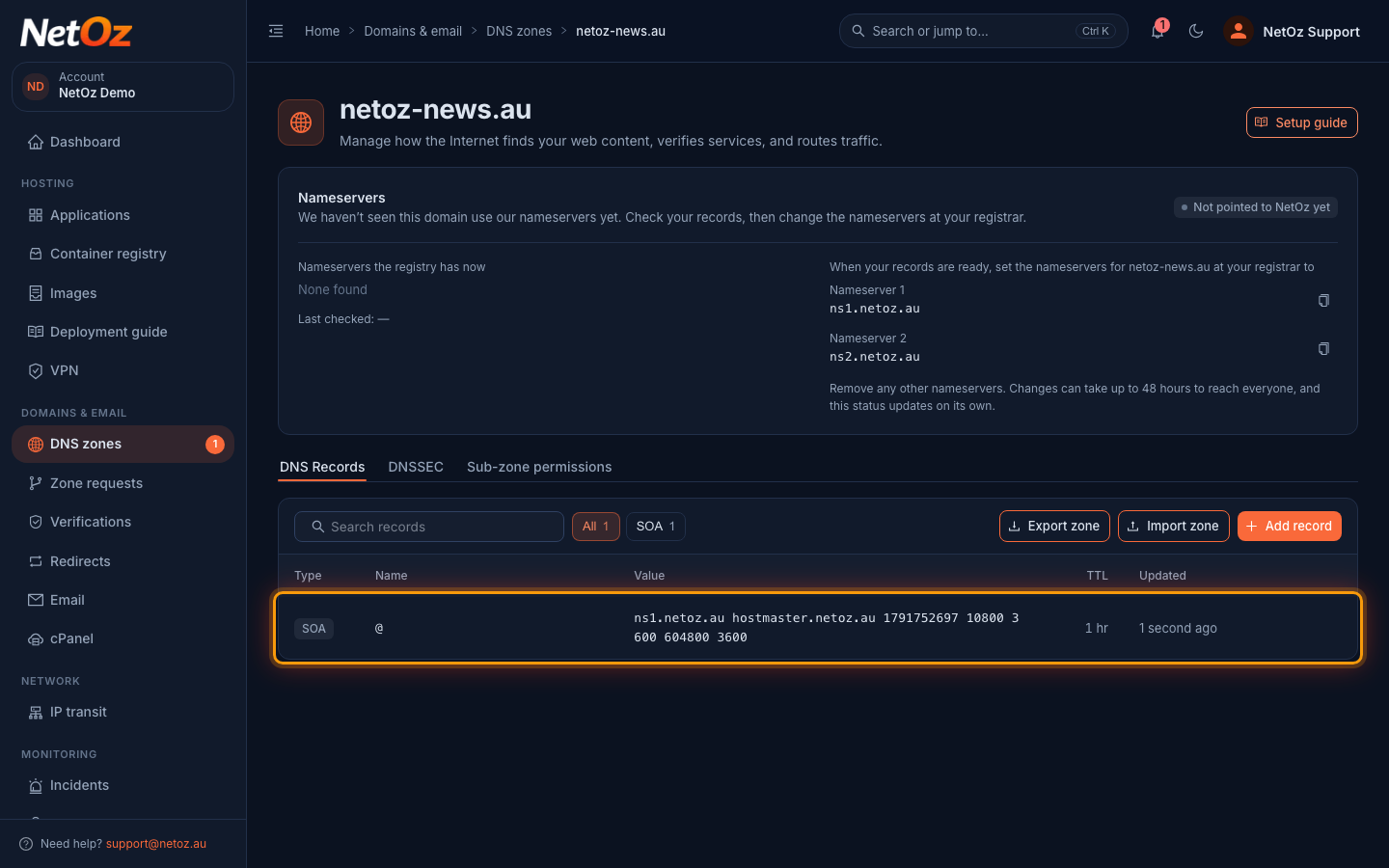
Step 5 Check the SOA record
NetOz creates the SOA record for you. It names ns1.netoz.au as the primary nameserver and hostmaster.netoz.au as the zone contact, and you do not need to change it. Add the rest of your records from here with Add record or Import zone.
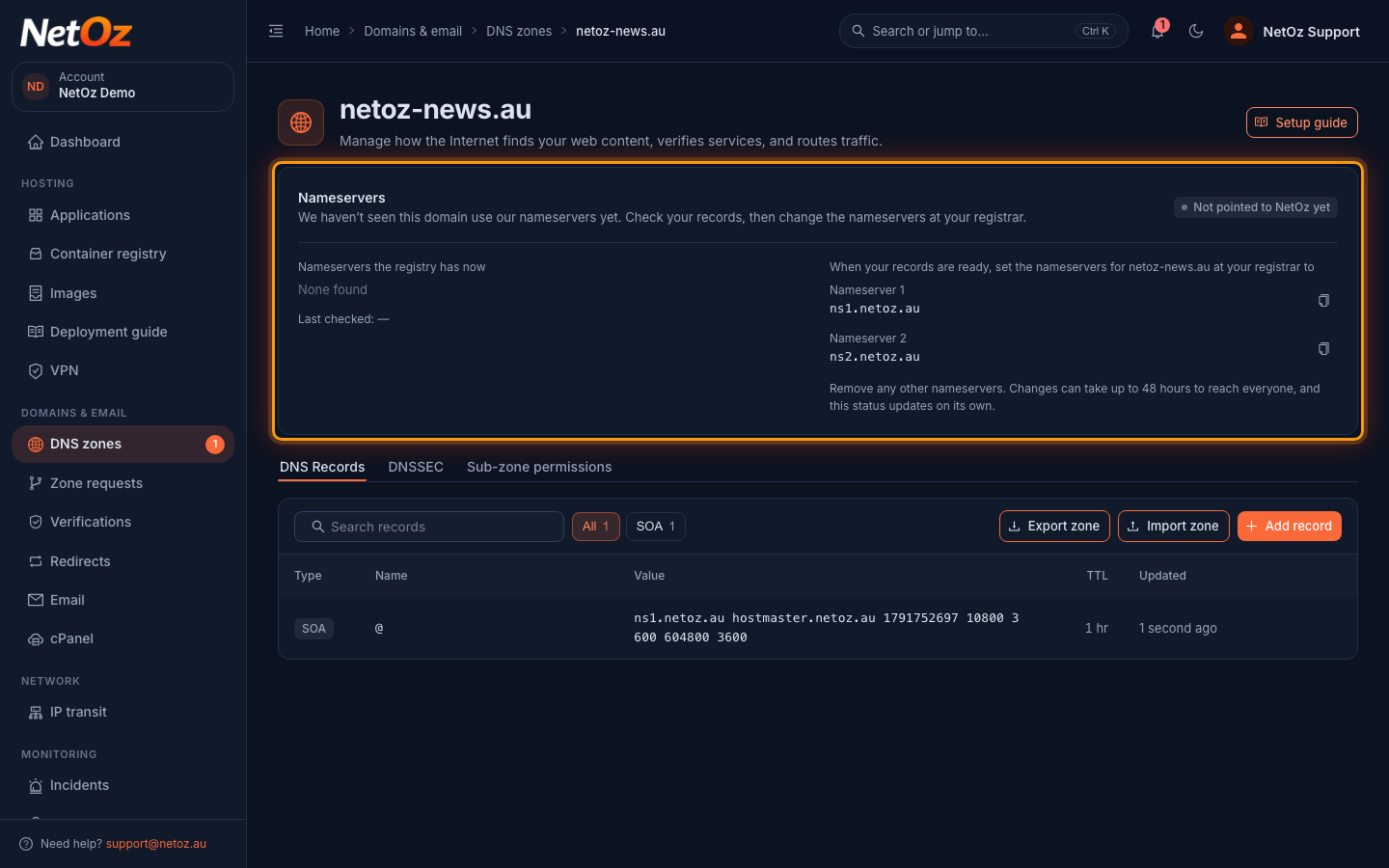
Step 6 Find the nameservers to use
The Nameservers panel at the top shows Not pointed to NetOz yet and lists the nameservers to set at your registrar once your records are ready. The status updates on its own after you make the change.
If the name is already in use
If another NetOz account already hosts the same name, holds a zone above or below it, or deleted it recently, the zone is not created straight away. Instead you see Ownership review in progress or Waiting for the owner to approve, and the name appears under Domains not live yet on the DNS zones page. Leave your nameservers where they are and follow Respond to a domain ownership review.
Next steps
A new zone does nothing until your domain uses NetOz nameservers. First add the records your website and email need, either one by one with Add or edit a DNS record or all at once with Import a zone file. Then follow Point your domain to NetOz nameservers and check the nameserver status on the zone page.
Was this guide helpful?
Your answer helps us keep these guides accurate.