Import or export a DNS zone file
Move DNS to NetOz in one go by pasting a BIND zone file from GoDaddy, Cloudflare, Route 53 or cPanel, and download a backup of your zone at any time.
On this page
A zone file is a plain-text list of DNS records in the standard BIND format. Most DNS providers can export one. Importing it into the NetOz Portal copies all of your records across at once, and exporting gives you a backup you can keep or move elsewhere.
Before you start
- Anyone who can view the zone can export it. To import, you need to be an account admin, or have Domains & DNS set to Manage for this domain.
- Export the zone file from your current DNS provider first.
Step 1 Export a backup of the zone
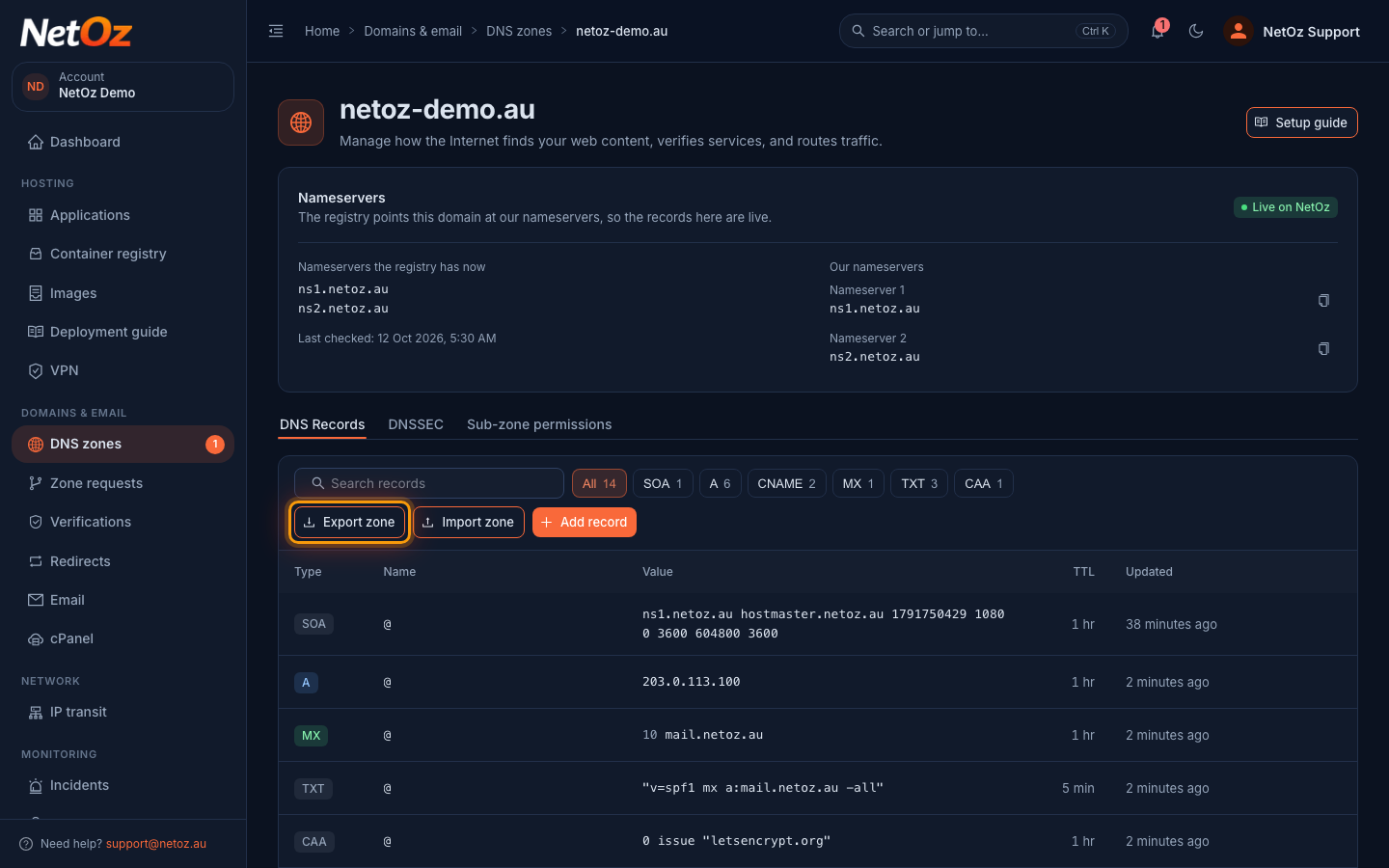
Open the zone from DNS zones and select Export zone. Your browser downloads a file named after the domain, such as netoz-demo.au.zone, containing every record in BIND format.
Step 2 Select Import zone
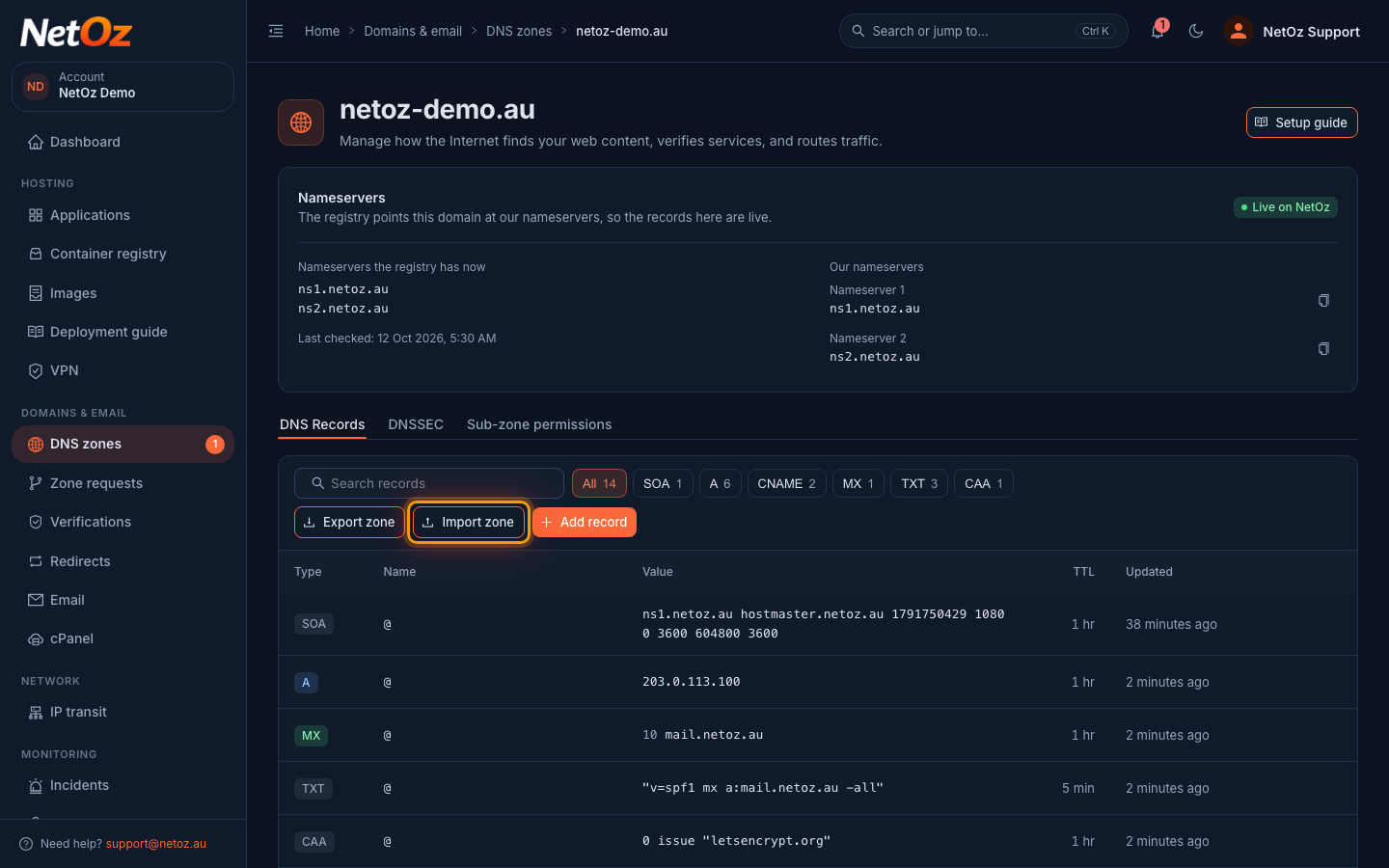
To bring records in from another provider, select Import zone.
Step 3 Paste the zone file
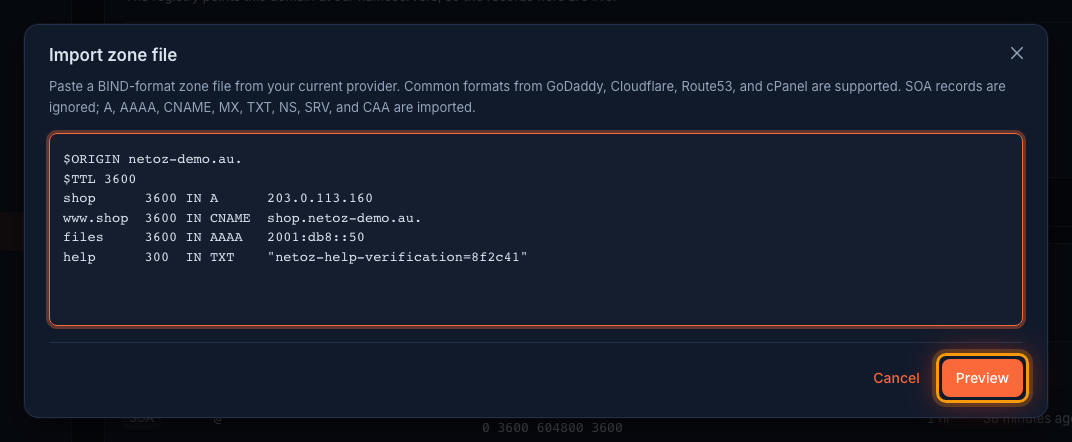
Paste the contents of the zone file into the box and select Preview. A, AAAA, CNAME, MX, TXT, NS, SRV and CAA records are imported. SOA records are ignored because NetOz manages them for you.
Step 4 Review and import
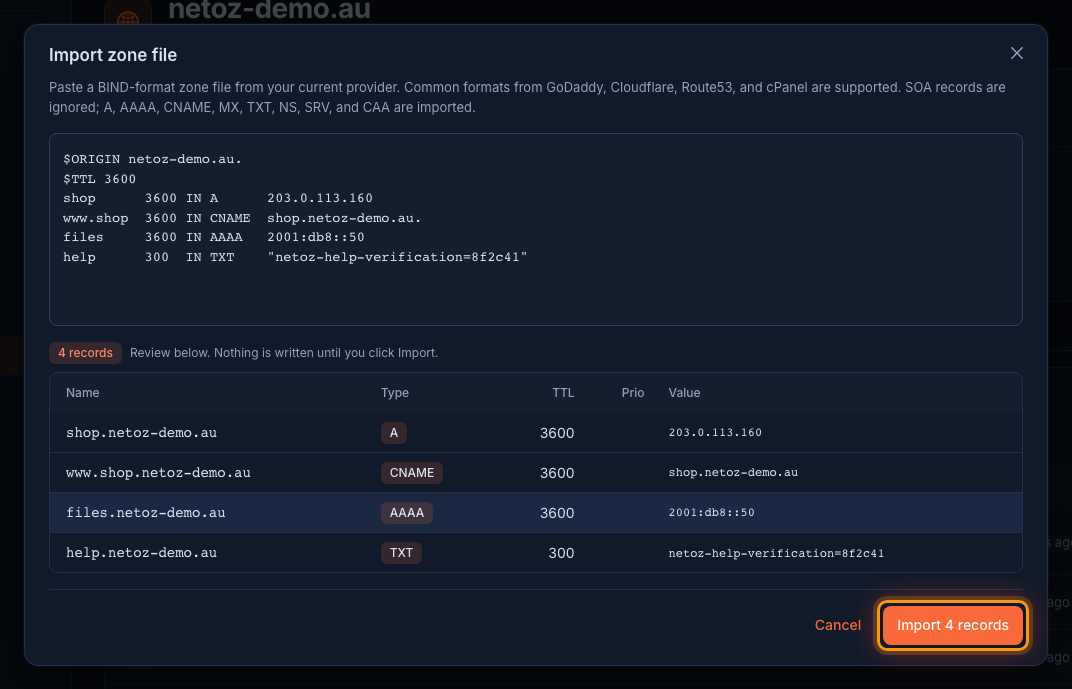
The portal lists the records it found. Nothing is written until you select Import n records. If a line could not be read, an error explains why so you can fix it and preview again.
Next steps
Check the imported records against your old provider, then point your domain to NetOz nameservers. Records that are already in the zone are not removed by an import, so delete any duplicates you do not want with Add, edit or delete a DNS record.
Was this guide helpful?
Your answer helps us keep these guides accurate.