Understand redirect status: Live, DNS not pointing and Paused
Find out what each redirect status in the NetOz Portal means, why a redirect is not working yet, and how to edit, pause or delete a redirect.
On this page
Every redirect in the NetOz Portal shows a status that tells you whether visitors are being redirected right now. This guide explains each status and what to do about it.
Before you start
- Anyone who can view Redirects can see the status. To edit, pause or delete a redirect, you need to be an account admin or have Redirects set to Manage.
Step 1 Live redirects
Live means the source domain points to NetOz and the HTTPS certificate has been issued automatically, so visitors are being redirected.
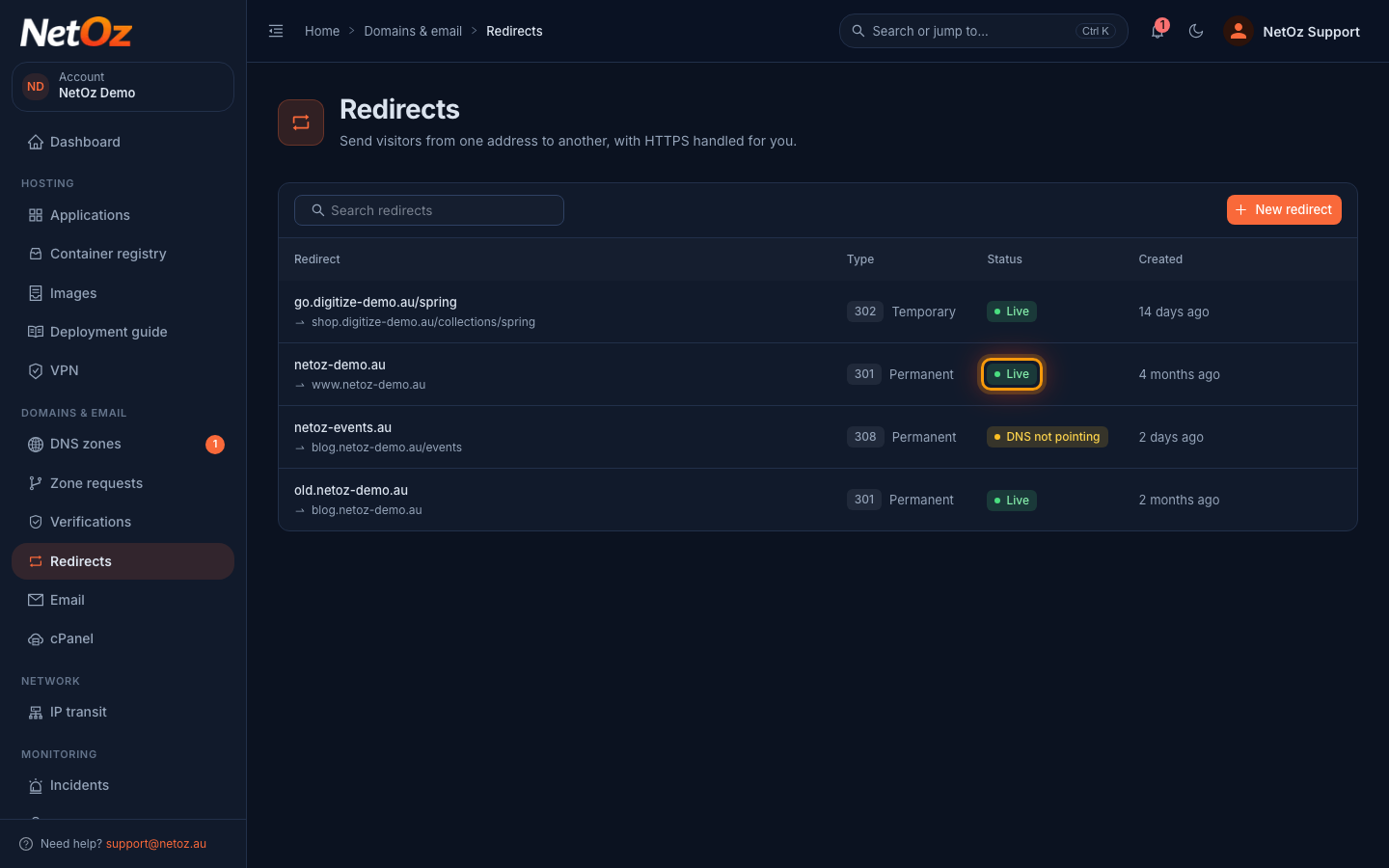
Step 2 DNS not pointing
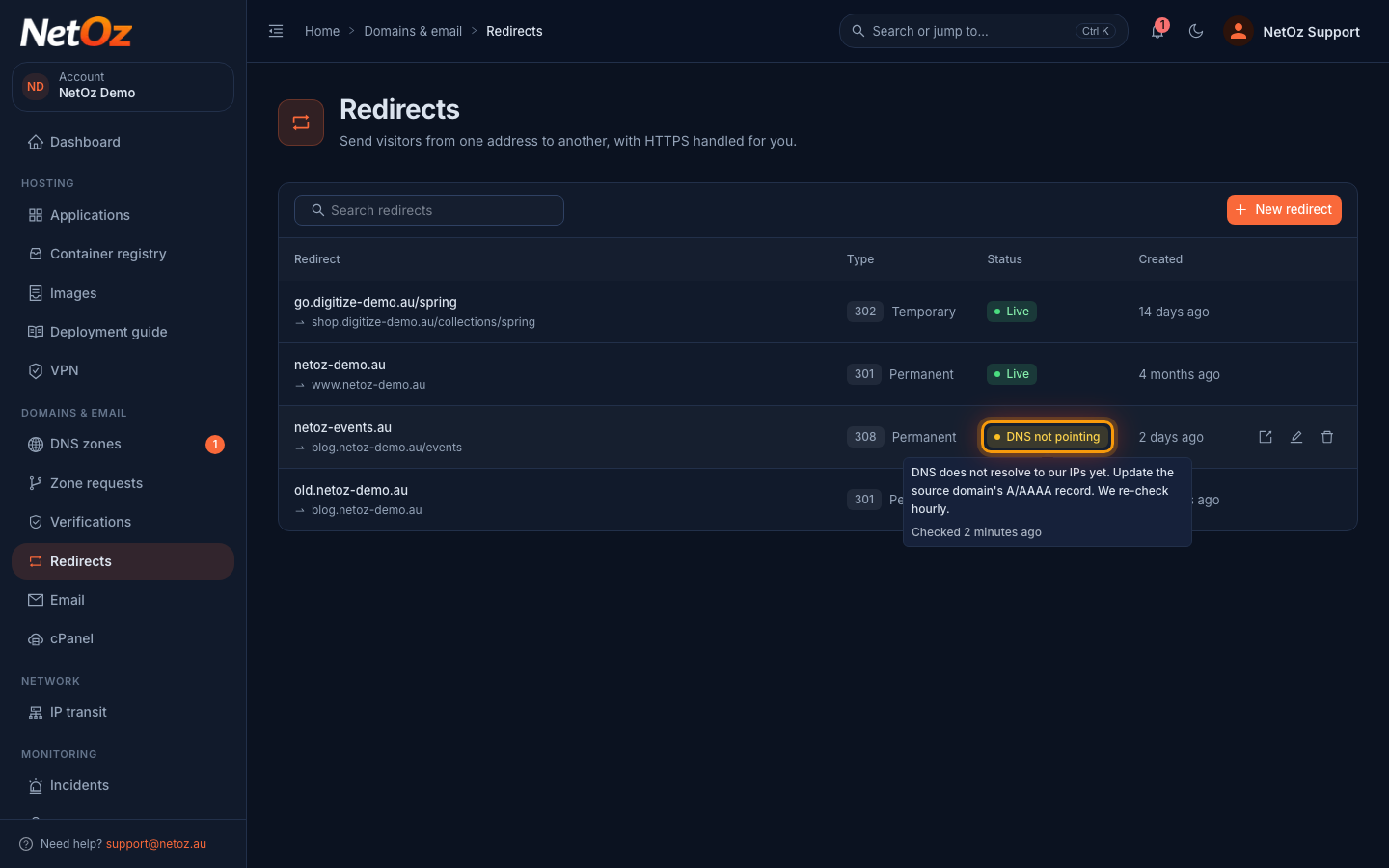
This redirect is set up, but the source domain does not resolve to NetOz yet, so no certificate can be issued. Hover over the status to see when it was last checked. Update the source domain’s A or AAAA record. NetOz re-checks every hour.
Step 3 Edit, pause or delete a redirect
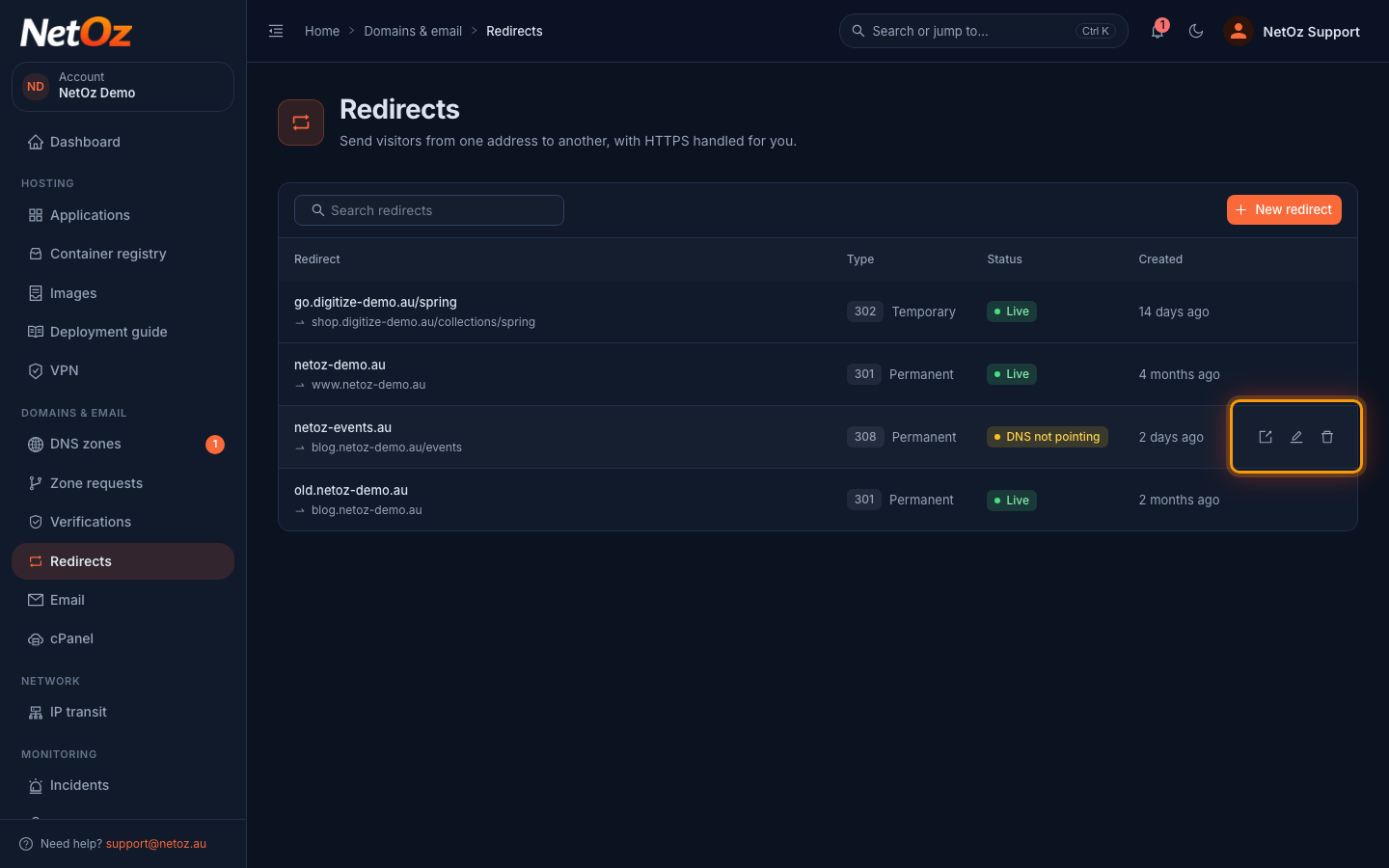
Use the icons at the end of a row to Open source URL in a new tab, Edit redirect or Delete redirect. To pause a redirect without deleting it, edit it and untick Active. It then shows as Paused.
Step 4 Change where it goes
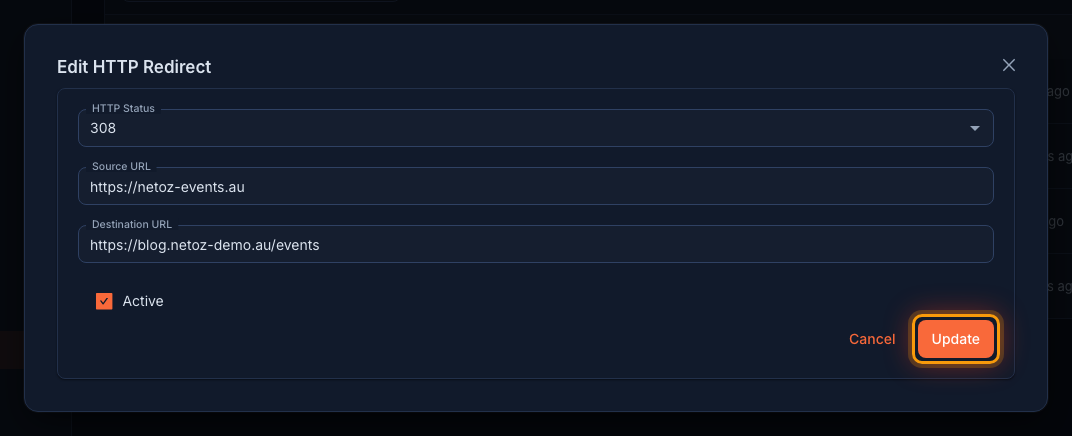
Change the status code, source or destination, tick or untick Active, and save. If you change the source domain, NetOz checks its DNS again.
Status reference
| Status | Meaning | What to do |
|---|---|---|
| Live | DNS points to NetOz and the HTTPS certificate is issued. | Nothing. |
| DNS not pointing | The source domain does not resolve to NetOz yet. | Update its A or AAAA record, then wait for the hourly re-check. |
| Checking DNS | The first DNS check is queued. | Wait a few minutes. |
| DNS check failed | The lookup itself failed. | Hover over the status for the reason, or contact NetOz support. |
| Paused | The redirect is switched off, either by someone on your team or because the verification for its domain lapsed. | If the domain is verified rather than hosted in a DNS zone, check it still shows Verified under Verifications. Then edit the redirect and tick Active. |
Was this guide helpful?
Your answer helps us keep these guides accurate.