Verify a domain you don’t host with NetOz
Prove you control a domain whose DNS stays with another provider, using a TXT record, your .au business details or a registrar nameserver, so you can use it for redirects and service hostnames.
On this page
Redirects and container hostnames in the NetOz Portal must use a domain you control. If NetOz hosts the domain’s DNS in one of your zones, that is already proven. If the DNS stays with another provider, verify the domain under Verifications instead. Once it shows Verified, you can use the domain and any name under it.
Before you start
- You need to be an account admin, or have Domains & DNS set to Manage for the whole account, to start or cancel a verification. People whose access is limited to specific domains cannot use Verifications.
- You need to be able to add a TXT record wherever the domain’s DNS is hosted.
- If the domain uses NetOz nameservers, add it as a DNS zone instead. Zones do not need verifying.
Step 1 Open Verifications
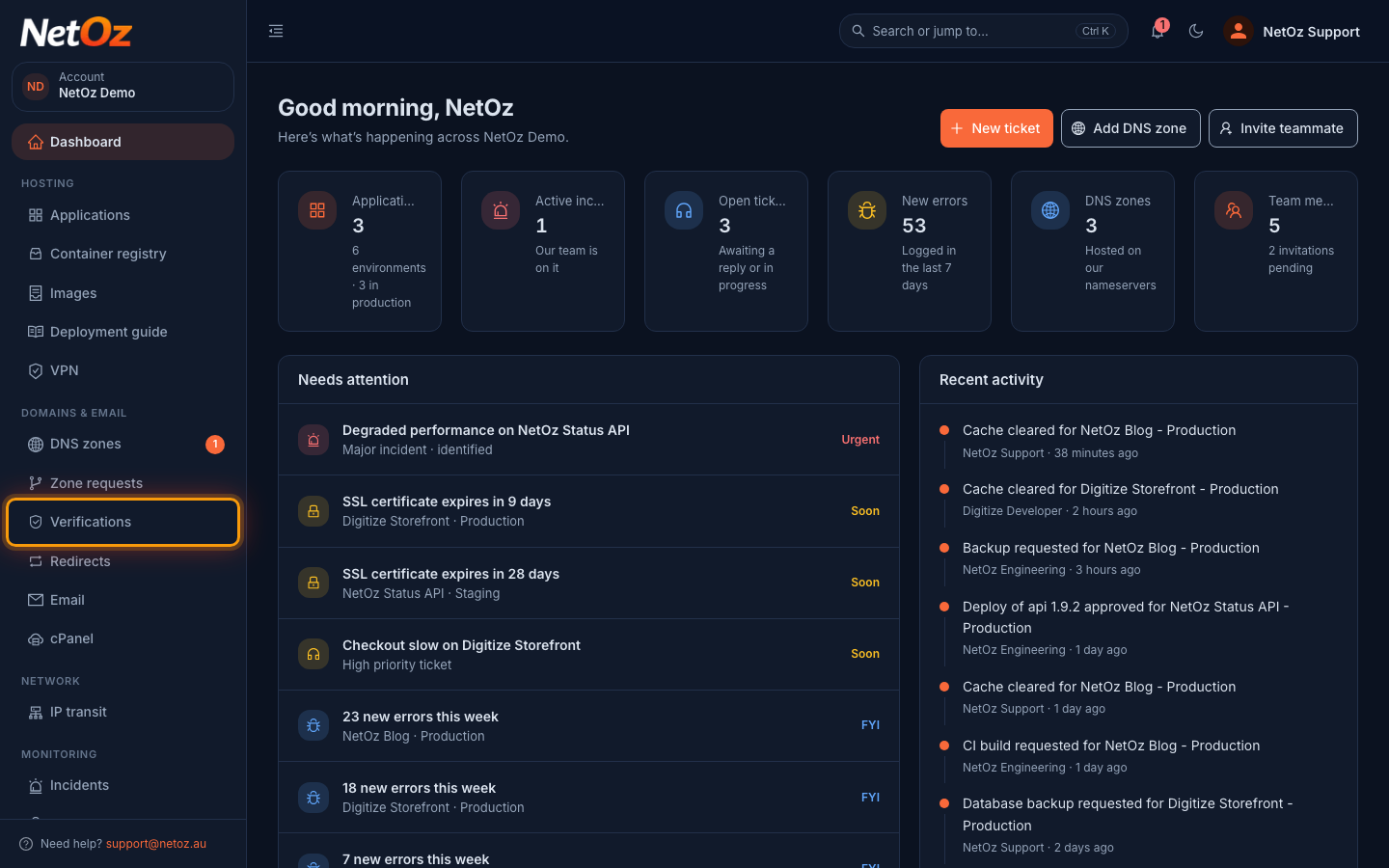
Sign in to the NetOz Portal and choose Verifications under Domains & email in the sidebar.
Step 2 Select Verify a domain
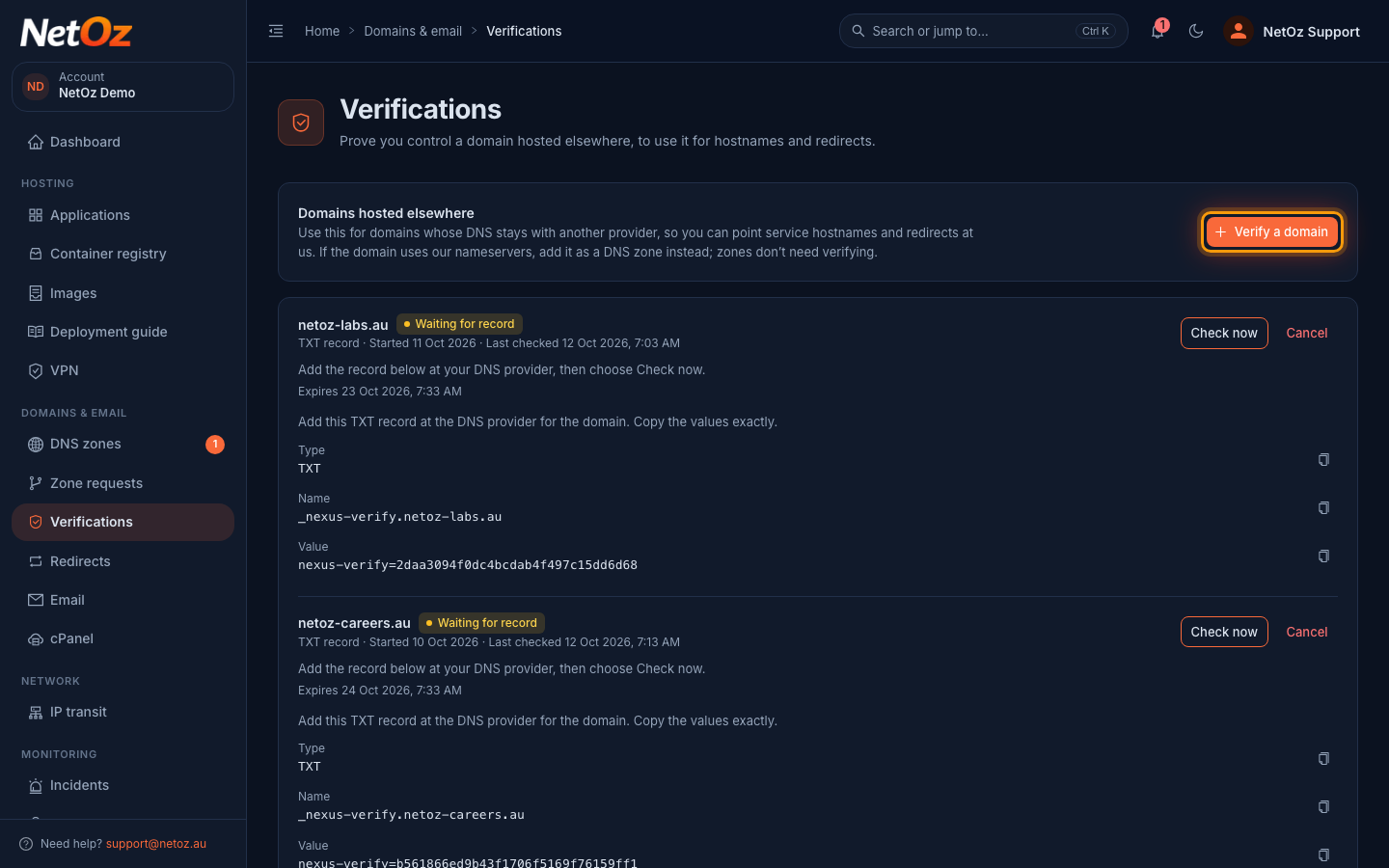
The page lists every domain you have verified or started verifying, with its status and method. Checks that NetOz support asks for during an ownership review appear here too. Select Verify a domain.
Step 3 Enter the domain
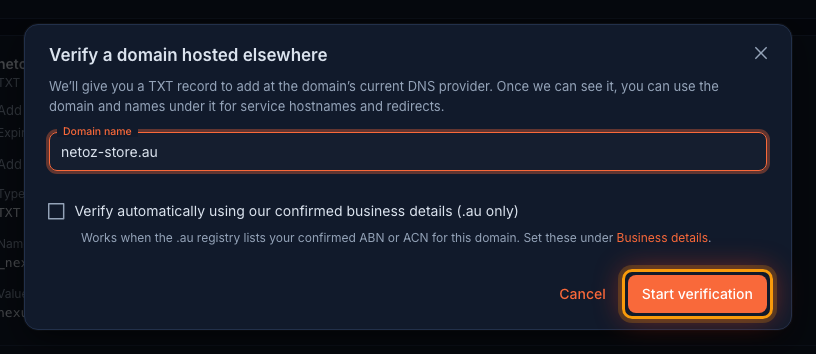
Enter the Domain name, such as netoz-store.au. Verifying a domain also covers every name under it, so you do not need to verify www or other subdomains separately.
For a .au domain registered to your business, you can tick Verify automatically using our confirmed business details (.au only) instead of adding a record. Otherwise leave it unticked, and select Start verification.
Step 4 Add the TXT record at your DNS provider
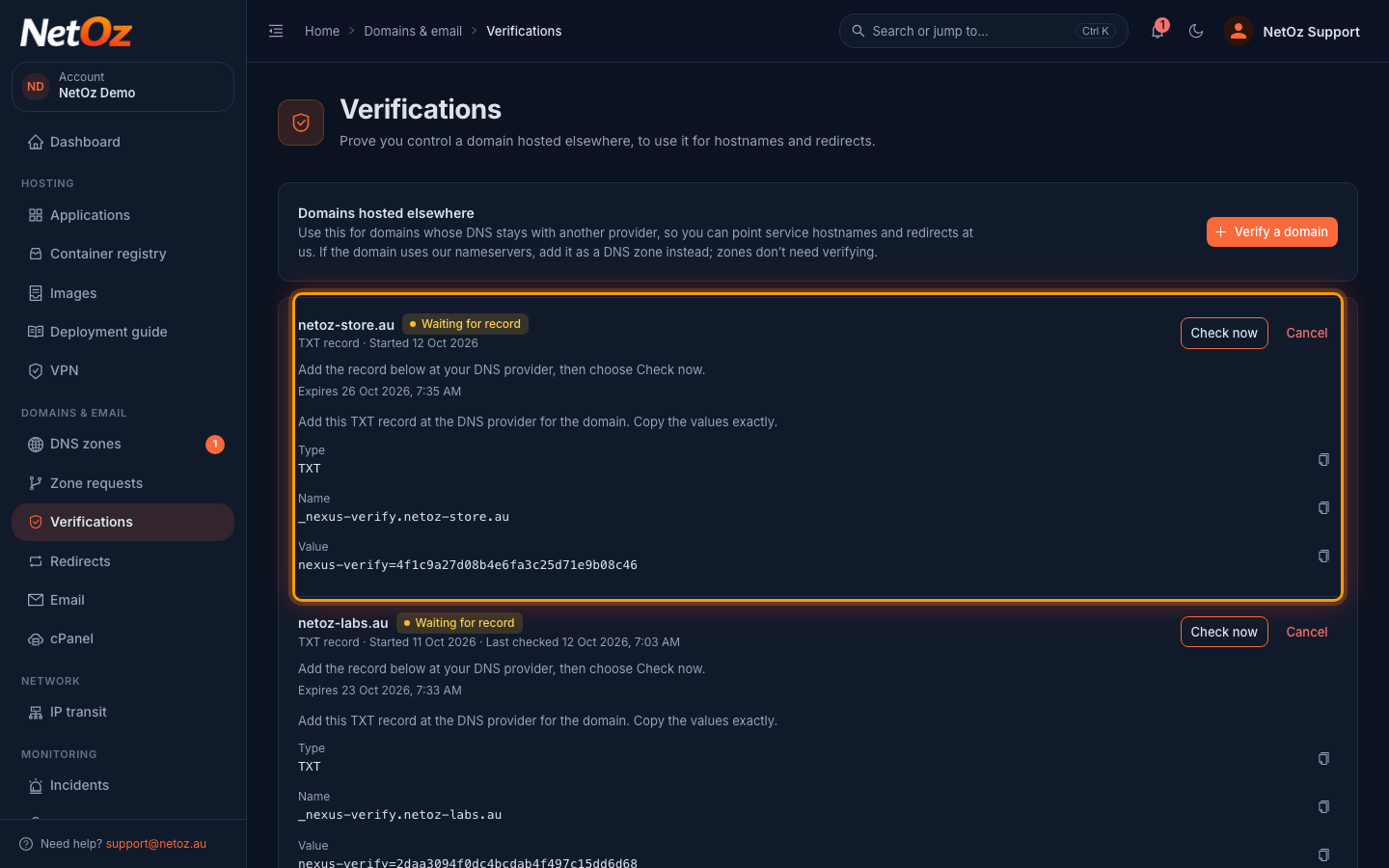
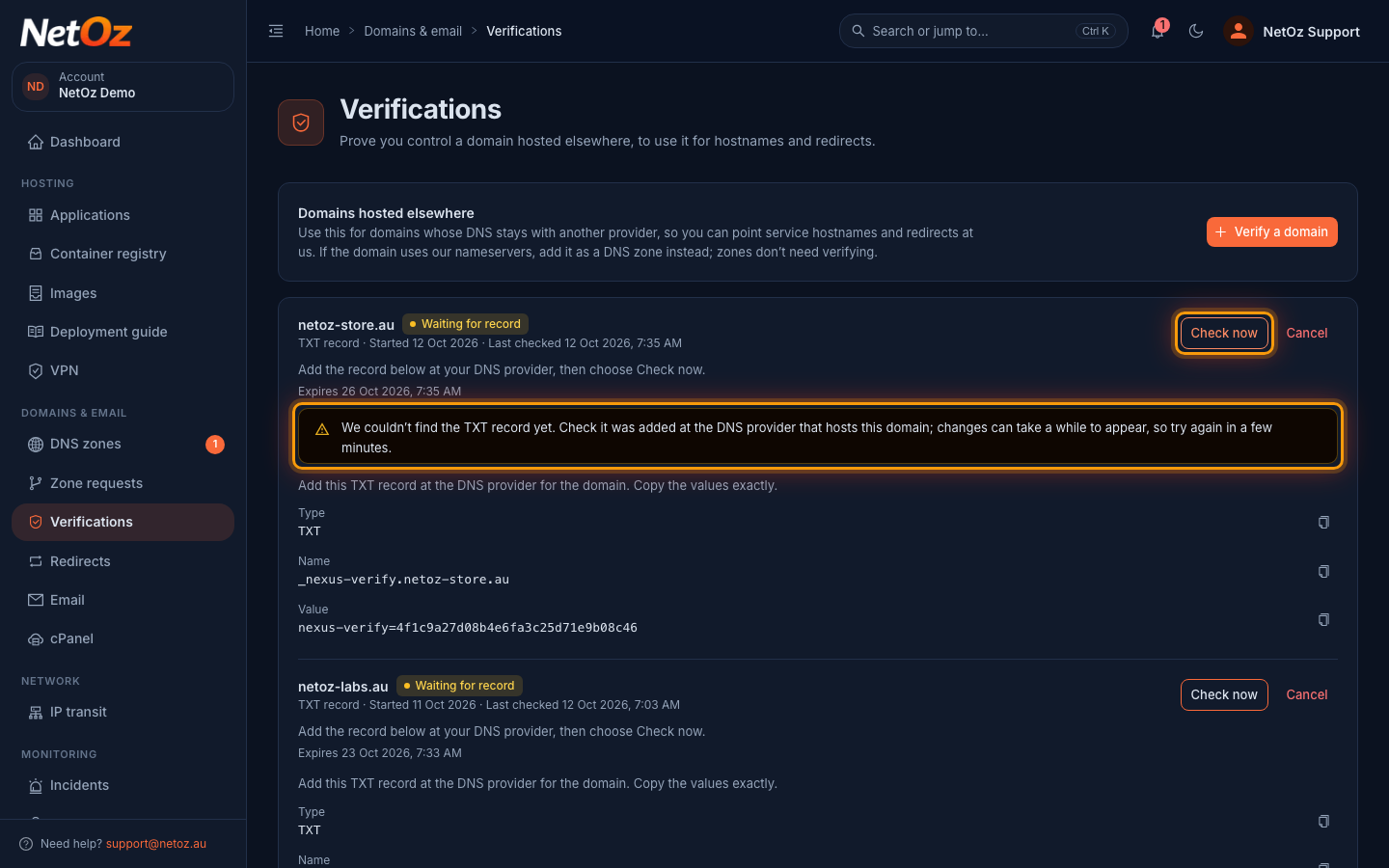
The domain appears with Waiting for record and the TXT record to add. Sign in to the provider that hosts the domain’s DNS and create a TXT record with the Name _nexus-verify.netoz-store.au and the Value shown, which starts with nexus-verify=. Use the copy buttons so nothing is added or missing.
Step 5 Select Check now
NetOz checks for the record automatically, but you can select Check now after adding it. If the record cannot be found yet, the row says so. DNS changes can take a few minutes to appear, so wait and try again. Once the record is found, the status changes to Verified.
Step 6 Keep the record in place
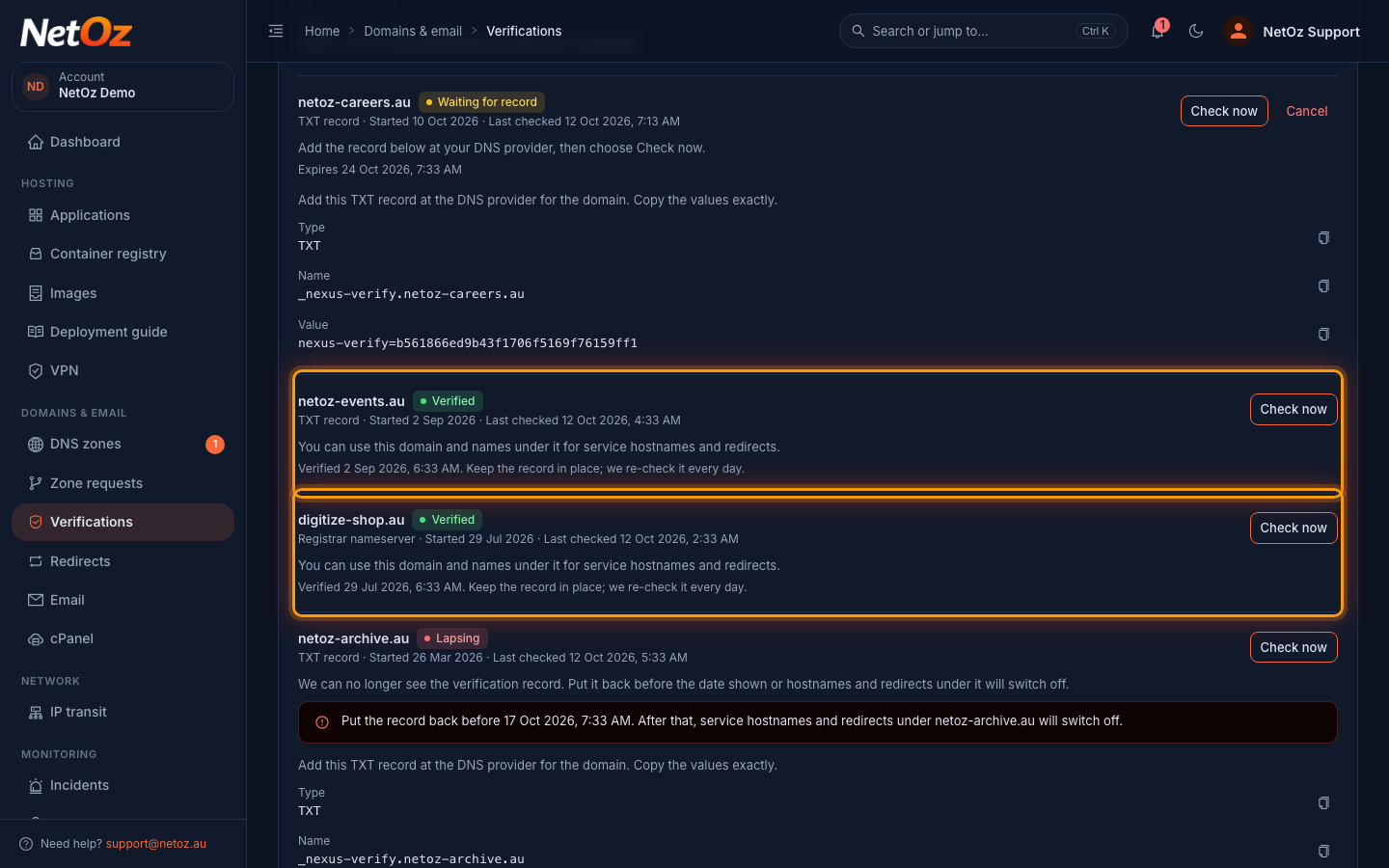
Verified domains can be used for redirects and service hostnames straight away. Leave the TXT record where it is, because NetOz re-checks it every day. Domains verified another way show their method instead, such as Registrar nameserver for a nameserver that NetOz support asked you to add at your registrar.
Step 7 Fix a lapsing verification
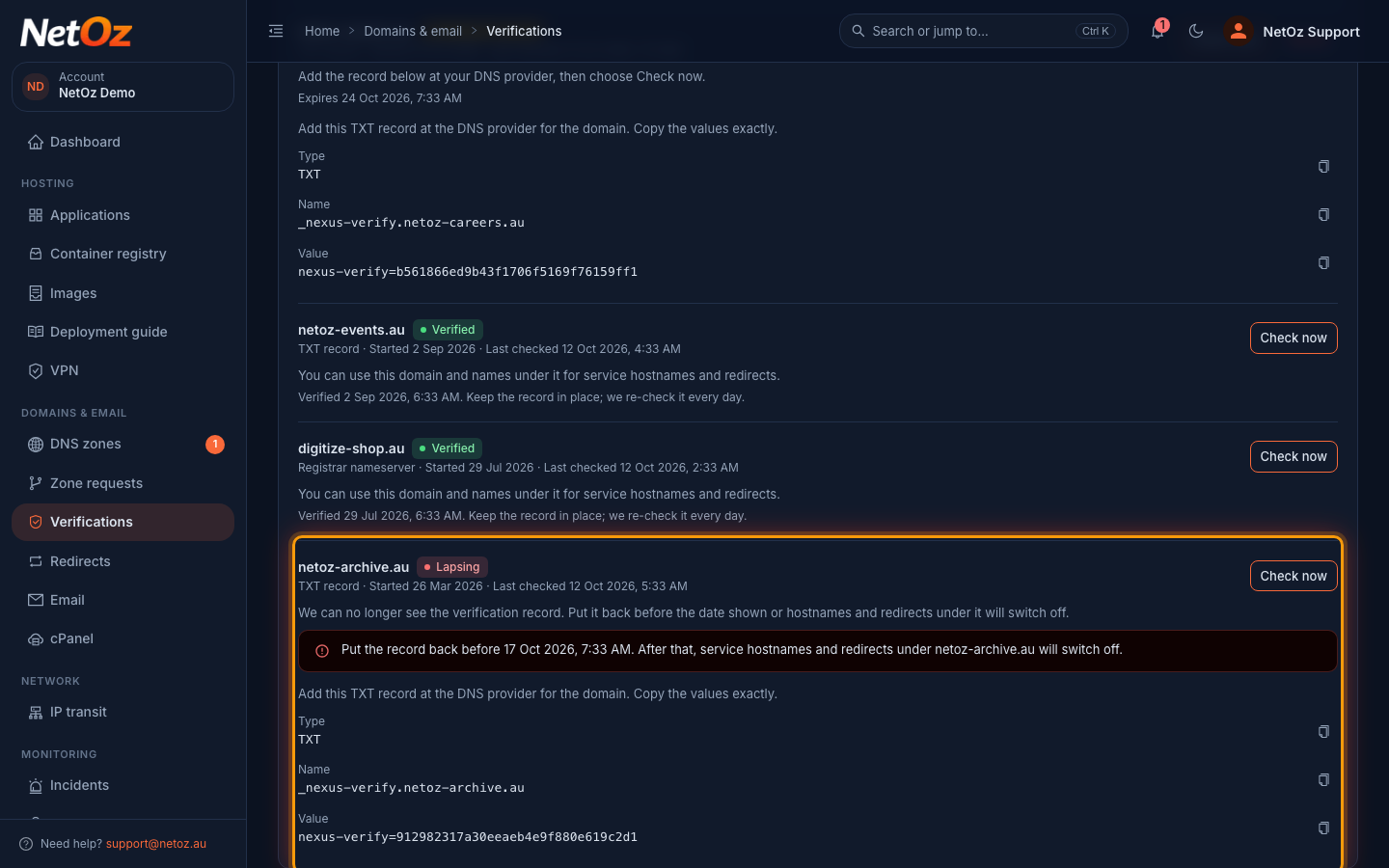
Lapsing means NetOz can no longer see the verification record, usually because it was removed or the domain moved to a new DNS provider. Add the record shown back before the date in the warning. If you do not, the status changes to Lapsed and redirects and service hostnames under the domain are switched off.
Other ways to verify
- Business details (.au): tick Verify automatically using our confirmed business details (.au only) when you start. It works when the .au registry lists the ABN or ACN confirmed under Business details in the portal, and there is nothing to add to DNS.
- Registrar nameserver: NetOz support may give you a nameserver to add at your registrar, alongside the ones already there. The instructions appear on the domain’s row.
- Verified by NetOz support: if neither works, our team can verify the domain for you after checking your documents. Open a support case to ask.
Status reference
| Status | Meaning |
|---|---|
| Waiting for record | Add the record at your DNS provider, then choose Check now. Pending checks expire after 14 days. |
| Verified | You can use the domain and names under it. NetOz re-checks every day. |
| Lapsing | NetOz can no longer see the record. Put it back within 7 days, before the date shown. |
| Lapsed | The record was missing for too long, and hostnames and redirects under the domain have been switched off. |
| Expired | The check expired or was cancelled before it passed. Start a new one. |
| Failed | The check did not pass. The reason is shown on the row. |
Related guides
Was this guide helpful?
Your answer helps us keep these guides accurate.