Manage private DNS zones for your internal network
Look after internal hostnames, such as database servers, file shares and printers, in a private DNS zone that is kept separate from your public DNS.
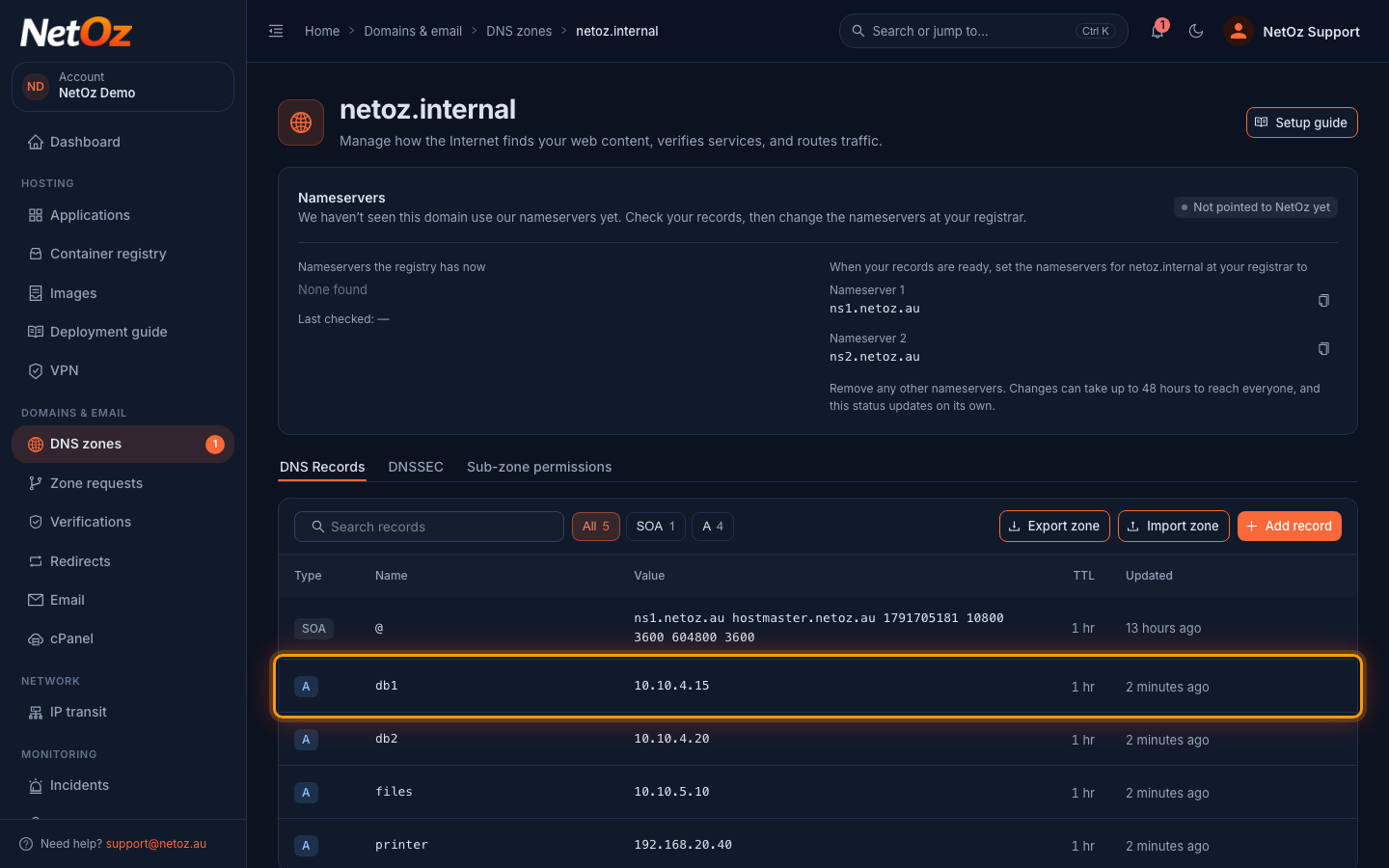
A private zone holds names that only make sense inside your own network, such as db1.netoz.internal pointing at a 10.x address. It is kept separate from your public zones, so internal addresses are not published to the world. You manage its records in the same way as a public zone.
Before you start
- Private zones are set up by NetOz. New zone in the portal always creates a public zone, so open a support case if you need a private one.
- To change records, you need to be an account admin, or have Domains & DNS set to Manage for the zone.
Step 1 Find the private zone
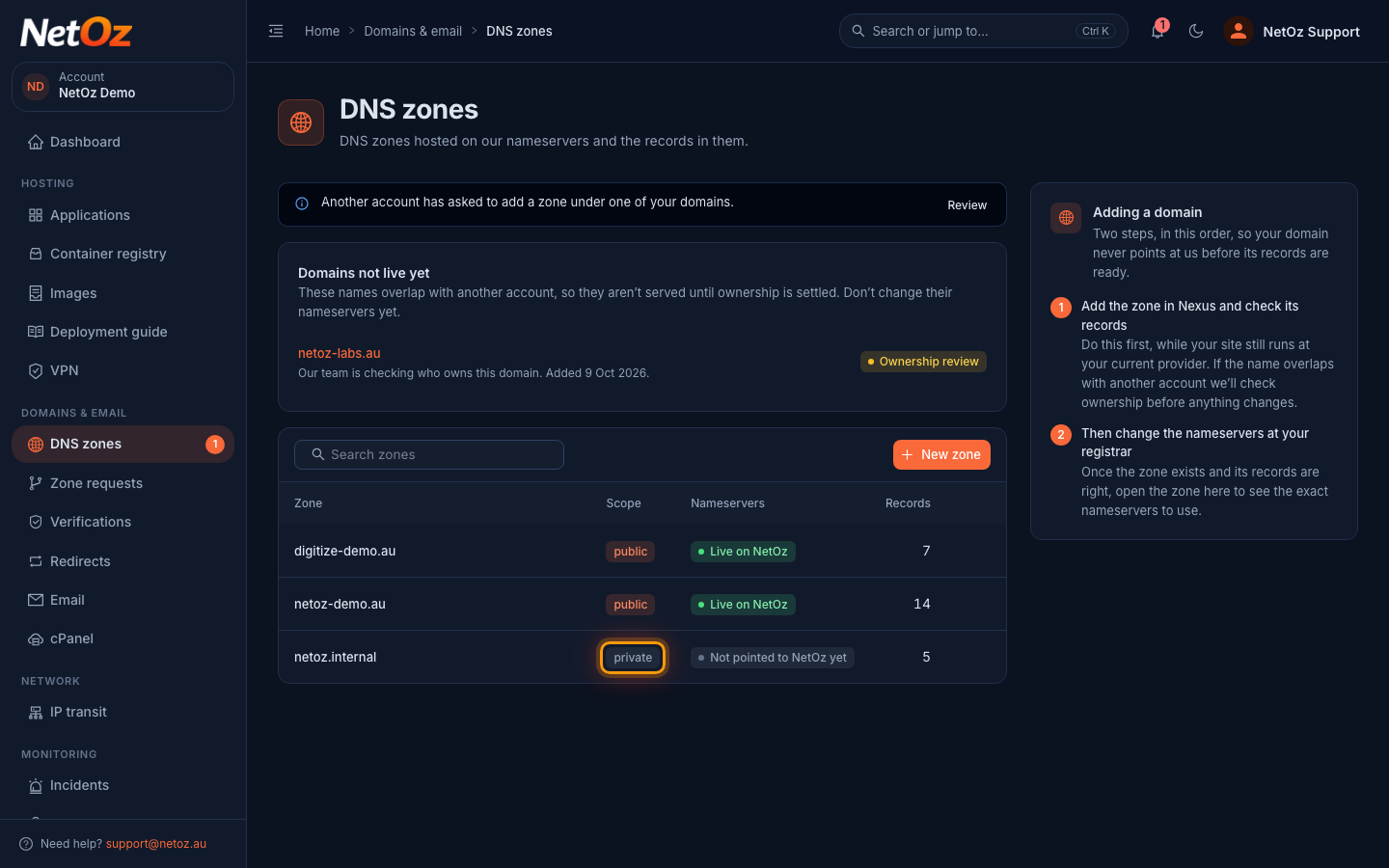
Go to DNS zones in the sidebar. The Scope column shows which zones are public and which are private. Select the private zone to open it.
Step 2 Manage internal records
Private zones usually contain A records for internal addresses, such as servers on 10.10.4.0/24 or a printer on the office network. Use Add record, Edit record and Delete record exactly as you would in a public zone. Private zones are not published on the public internet, so you can ignore the Nameservers panel at the top of the page.
Related guides
Was this guide helpful?
Your answer helps us keep these guides accurate.