Redirect a domain or URL to another address
Send visitors from an old domain, campaign address or path to a new URL with a 301 or 302 redirect. NetOz serves the redirect and handles the HTTPS certificate for you, for any domain in your DNS zones or verified domains.
On this page
Redirects send anyone who visits one address on to another, for example from an old brand domain to your main site, or from a short campaign address to a landing page. NetOz runs the redirect for you and issues the HTTPS certificate automatically once DNS points to us.
Before you start
- You need to be an account admin, or have Redirects set to Manage.
- The source domain must be one of your DNS zones, or a domain you have verified if its DNS is hosted elsewhere. Names under either work too, such as
offers.netoz-demo.au. - You need to be able to change DNS for the source domain, so that its A record can point to NetOz.
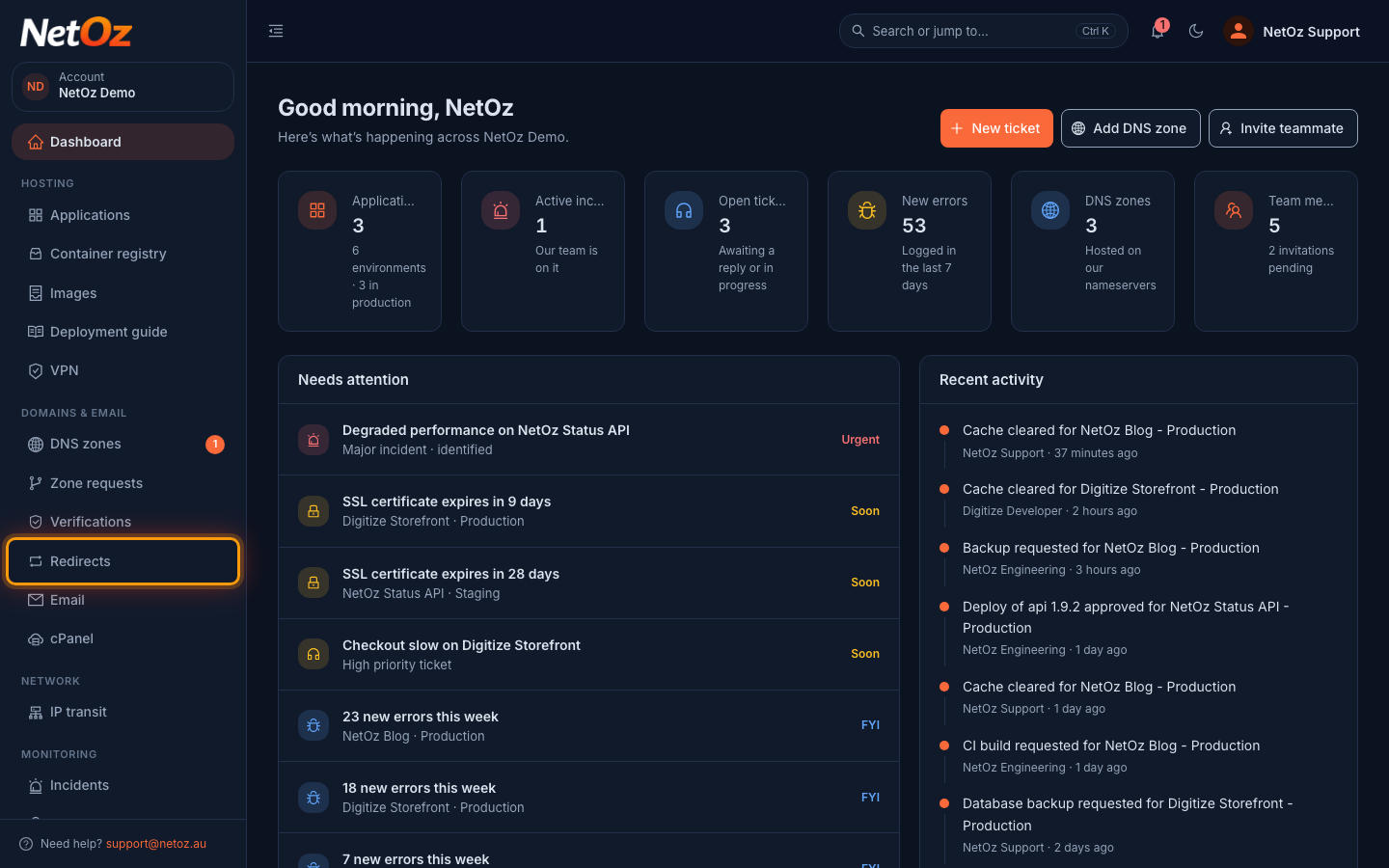
Step 1 Open Redirects
Sign in to the NetOz Portal and choose Redirects under Domains & email in the sidebar.
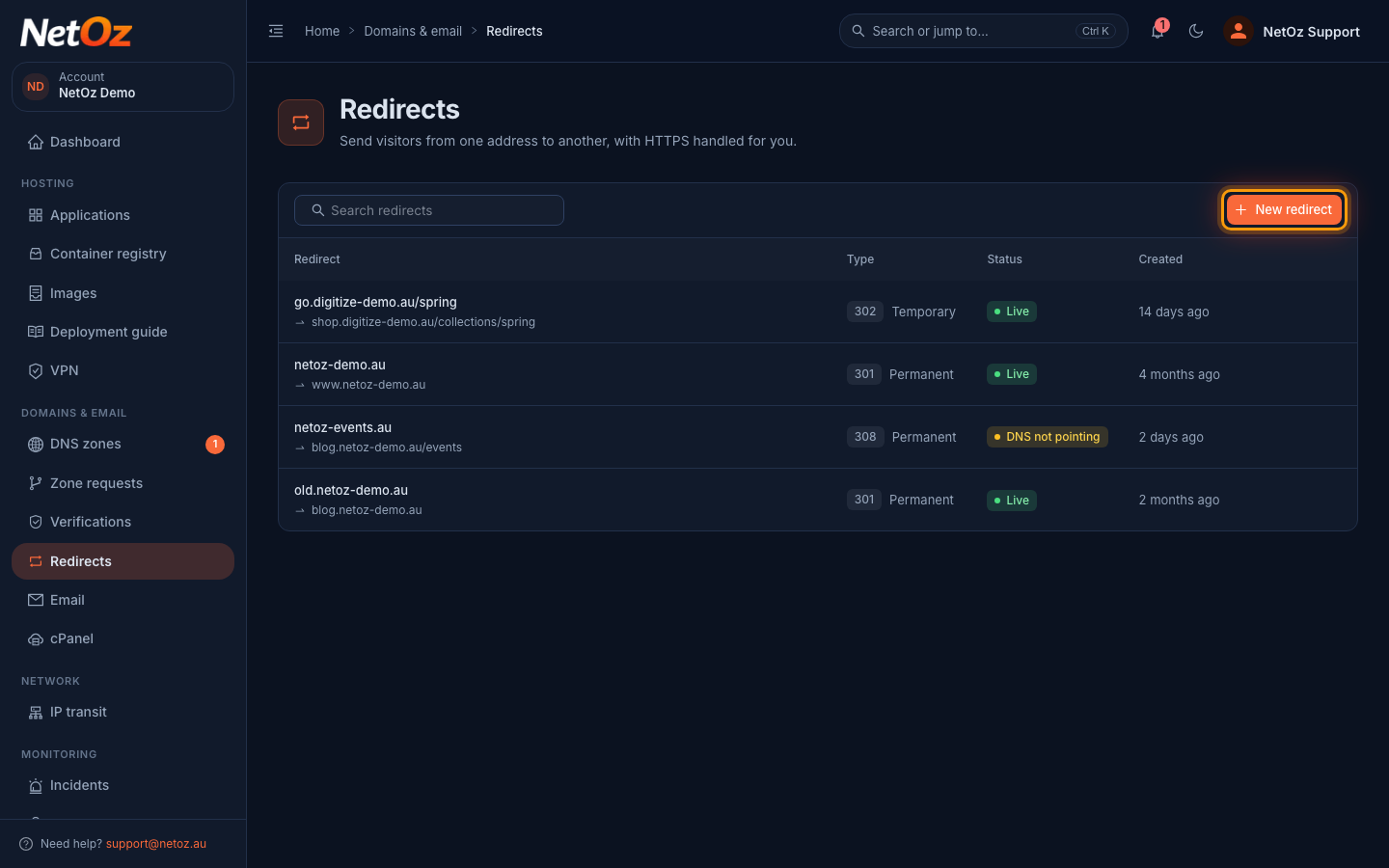
Step 2 Select New redirect
The list shows each redirect, where it goes, whether it is permanent or temporary and whether it is live. Select New redirect.
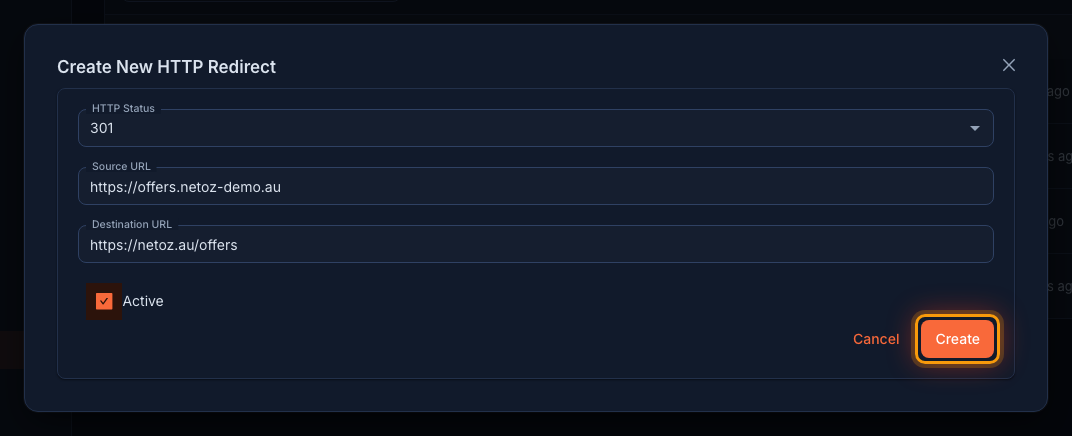
Step 3 Enter the redirect details
Choose an HTTP Status:
- 301 or 308 for a permanent move. Search engines transfer the old address’s ranking to the new one.
- 302 or 307 for a temporary redirect, such as a seasonal campaign.
Enter the full Source URL visitors will type, such as https://offers.netoz-demo.au, and the Destination URL to send them to. Tick Active so the redirect is served, then select Create.
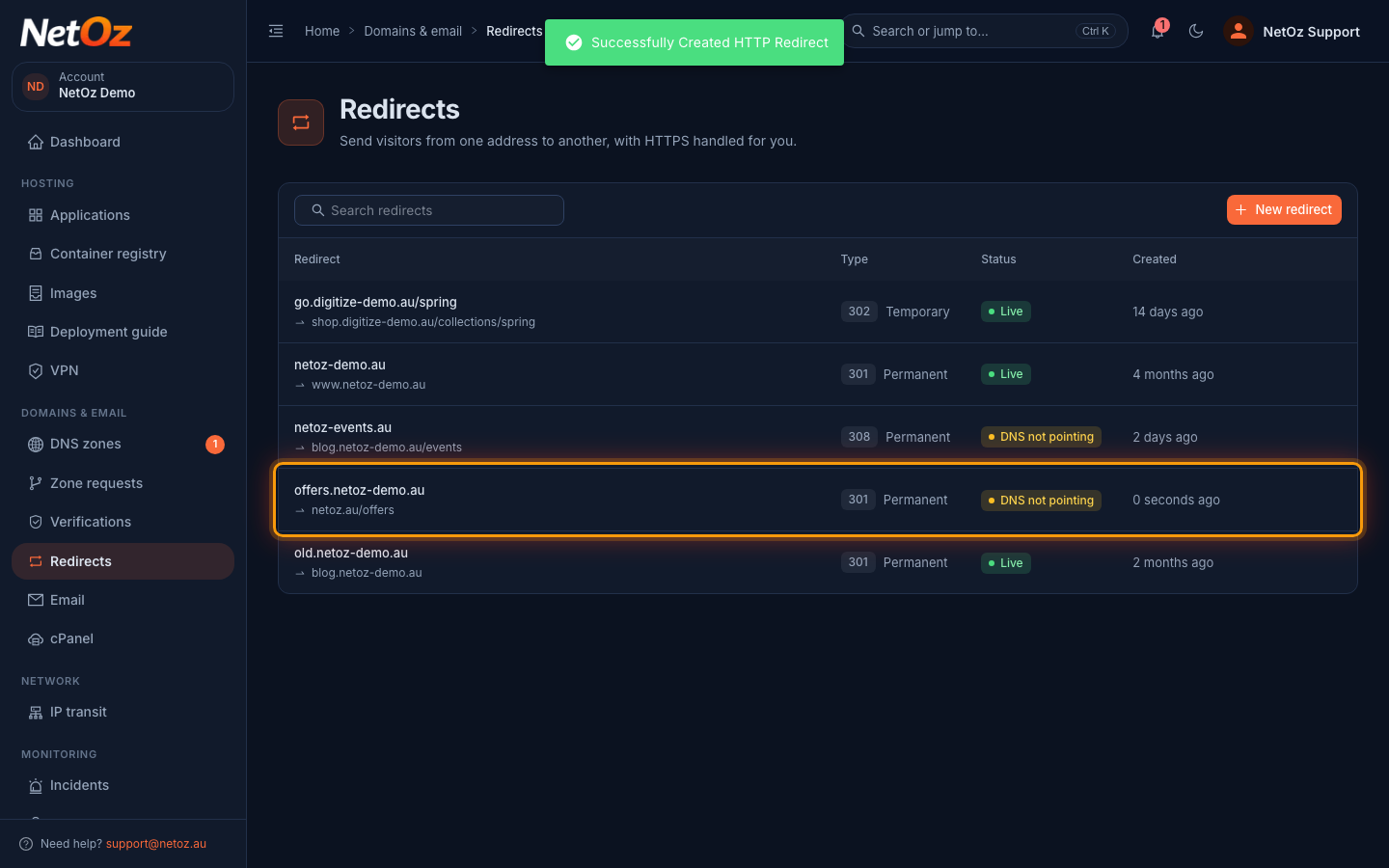
Step 4 Point the source domain at NetOz
The redirect appears in the list. Until the source domain’s A record points to NetOz, its status shows DNS not pointing. Update the record where the domain’s DNS is hosted. NetOz checks again every hour and issues the certificate once DNS is correct.
Step 5 If the source domain is not yours yet
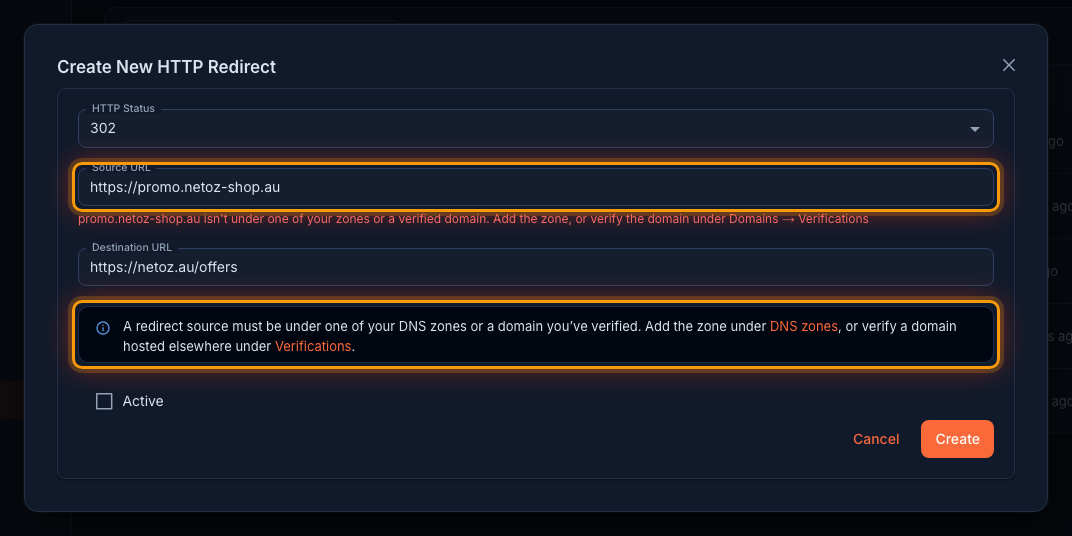
If the source is not under one of your DNS zones or a verified domain, the redirect is not saved and the portal explains why. Add the domain under DNS zones if NetOz will host its DNS, or verify it under Verifications if its DNS stays with another provider, then try again. If the domain belongs to another NetOz account, the message says so instead.
Next steps
The redirect only starts working once the source domain points to NetOz. See Understand redirect status to check its progress and fix a DNS not pointing warning.
If the source domain’s DNS stays with another provider, verify the domain first and keep its verification record in place. If the verification lapses, redirects under that domain are switched off.
Was this guide helpful?
Your answer helps us keep these guides accurate.