Check your network usage and monthly transfer allowance
See how much data your NetOz services have sent and received this month, how much of each monthly transfer allowance is left, and download the daily figures as a CSV.
On this page
The Network usage page shows the data transfer NetOz has measured for each metered service on your account. You can see how much of each monthly allowance you have used, follow your traffic day by day, look back at earlier months and download the figures for your own records.
Before you start
- Network usage must be turned on for your account by NetOz. If your services are metered and you don’t see Usage under Network in the sidebar, contact NetOz support.
- You need to be an account admin, or have Network usage set to View on your team access.
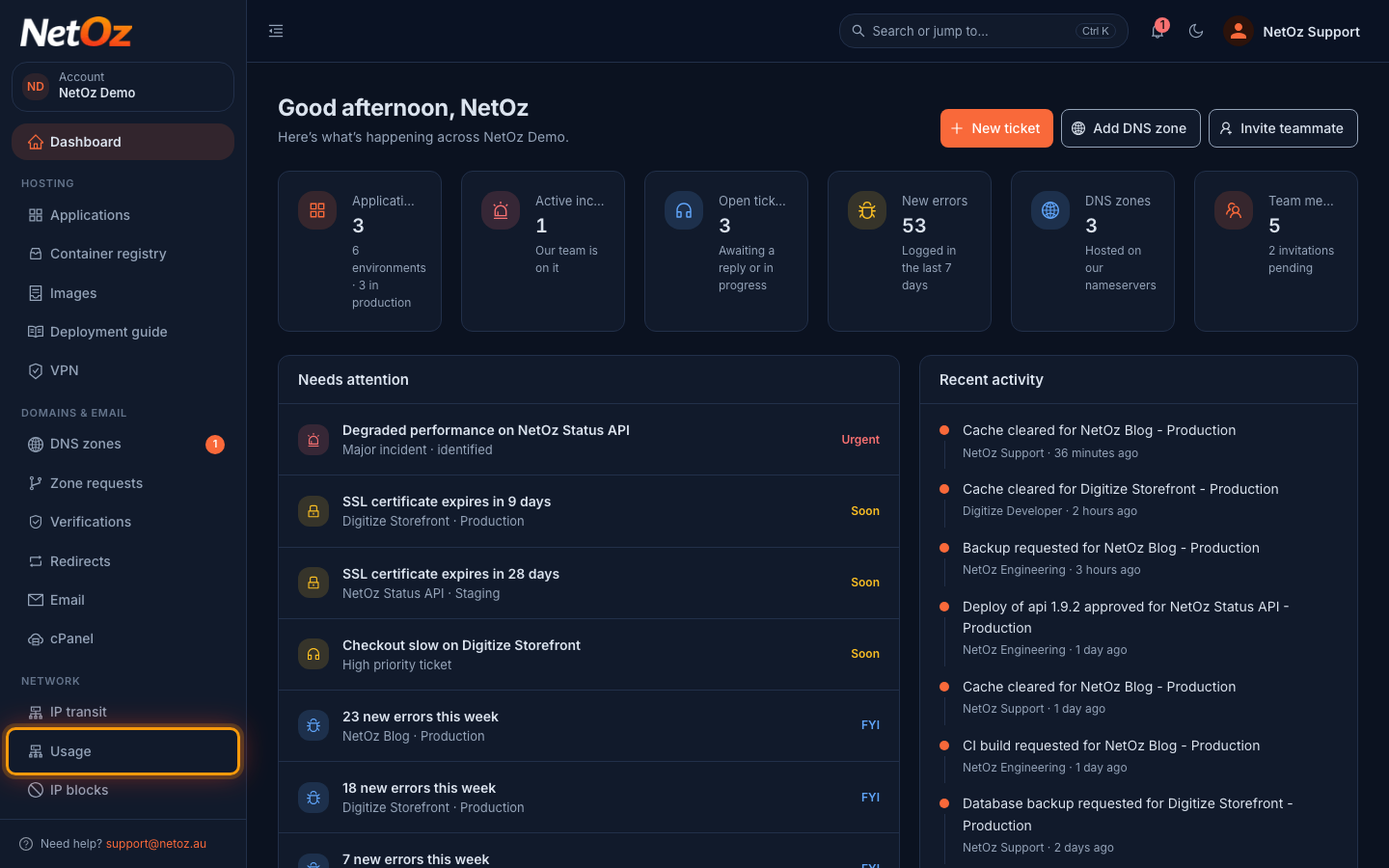
Step 1 Open Usage from the sidebar
Sign in to the NetOz Portal and choose Usage under Network in the sidebar. If it isn’t there, network usage hasn’t been turned on for your account yet, or your team access doesn’t include it.
Step 2 Check each service’s allowance
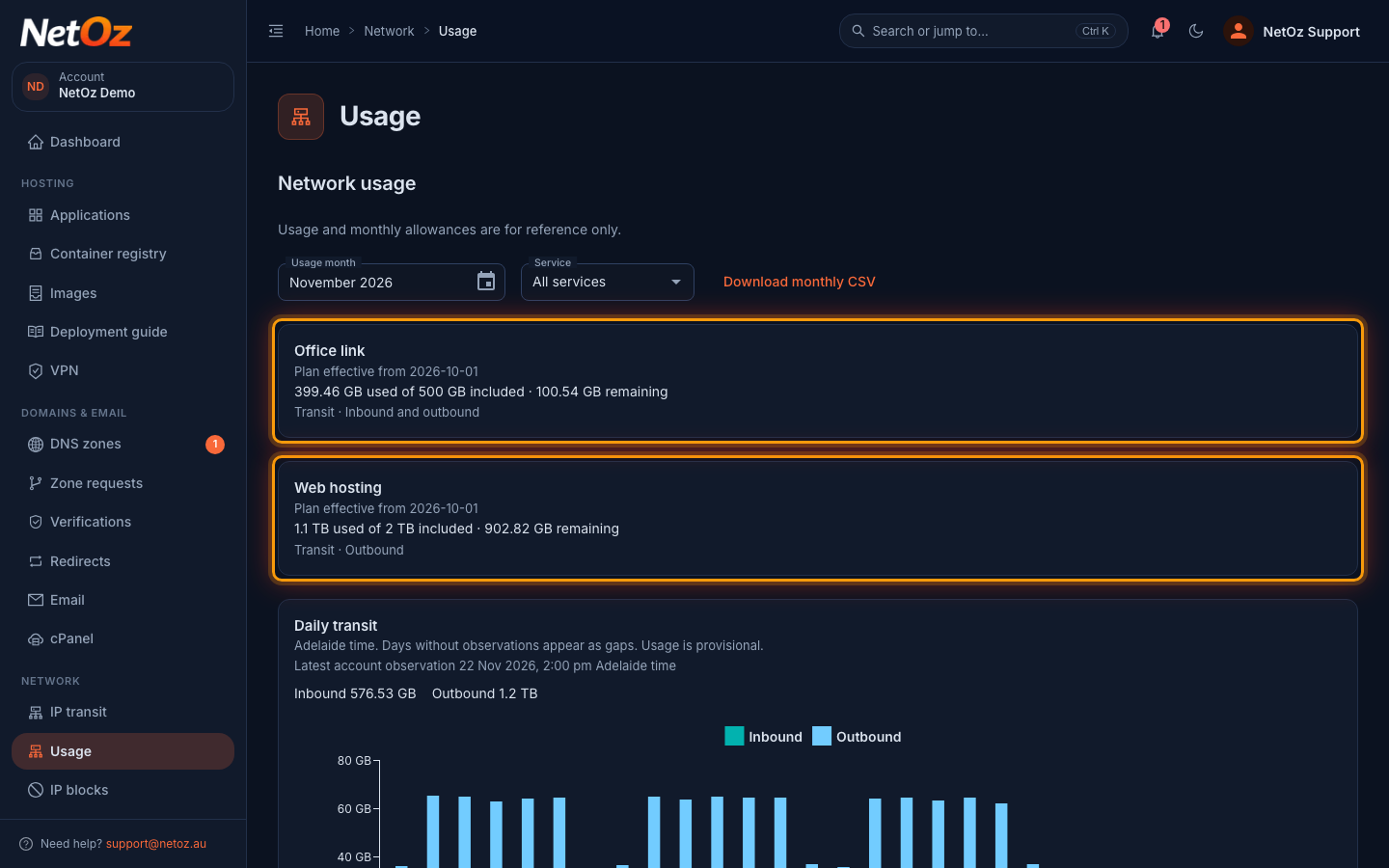
Each metered service has its own card. It shows how much has been used this month against the amount included in your plan, and how much is remaining. The line below names the direction that counts towards the allowance: Outbound, Inbound, or Inbound and outbound. If a service goes over its allowance, the card shows how much was measured above the allowance instead.
Step 3 Follow your traffic day by day
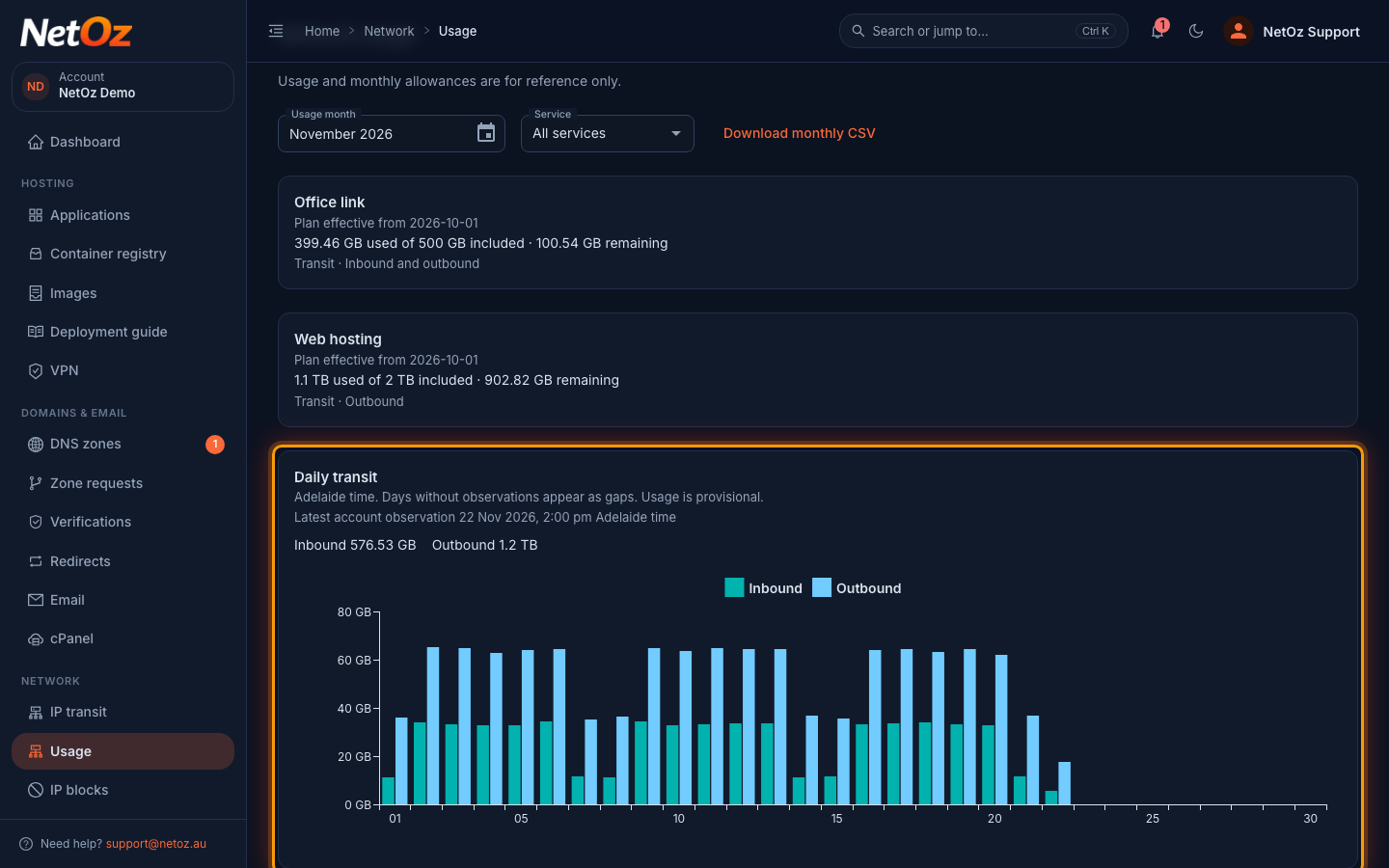
Daily transit shows the inbound and outbound traffic for each day of the month, with the month’s totals above the chart. Hover over a bar to see the exact figure for that day. Days follow Adelaide time, and days with no measurements appear as gaps. Latest account observation tells you how recent the figures are; the page refreshes itself every minute while it is open.
Step 4 Show a single service
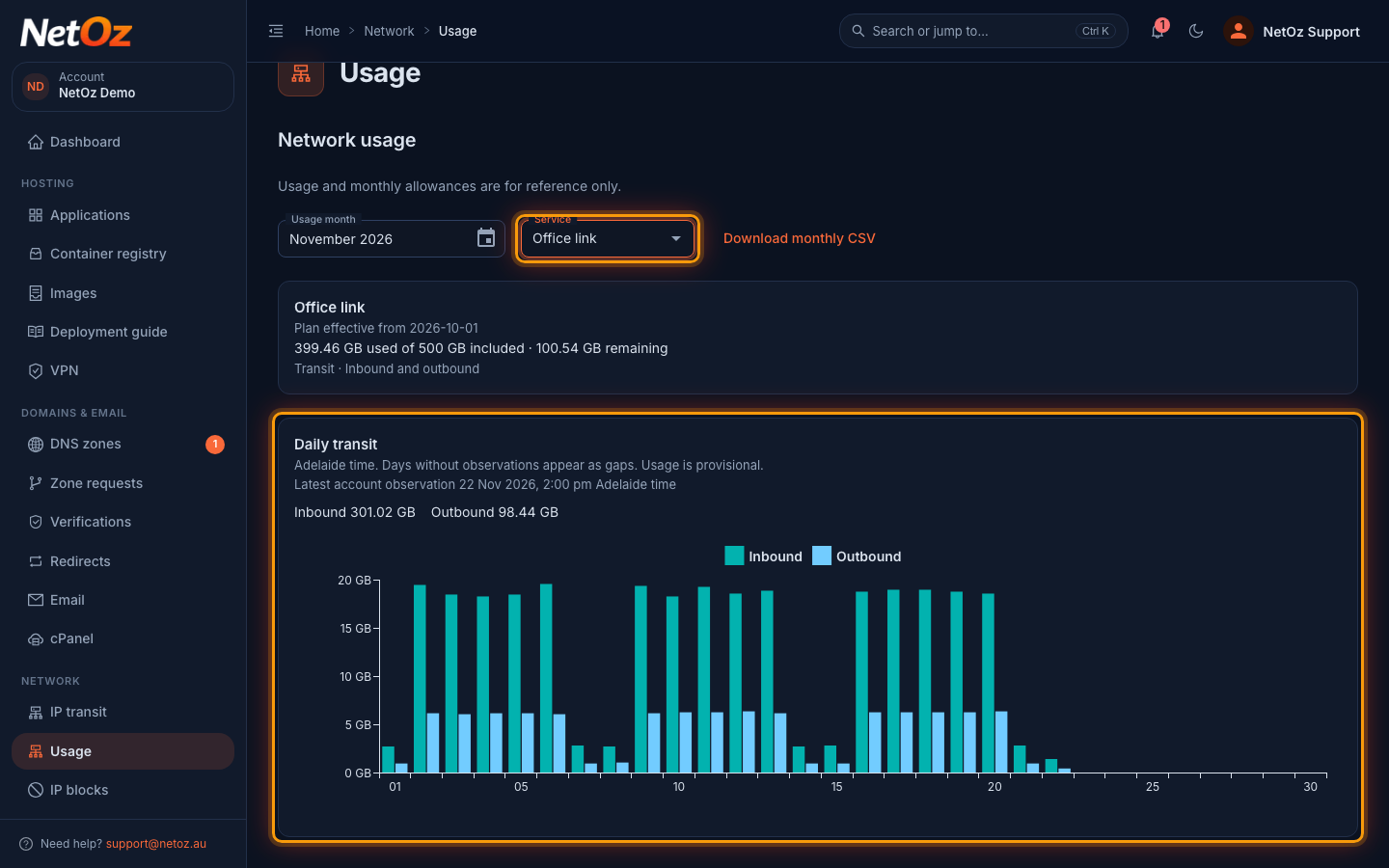
If you have more than one metered service, choose one from Service to see only its allowance and daily traffic. Choose All services to combine them again.
Step 5 Look back at an earlier month
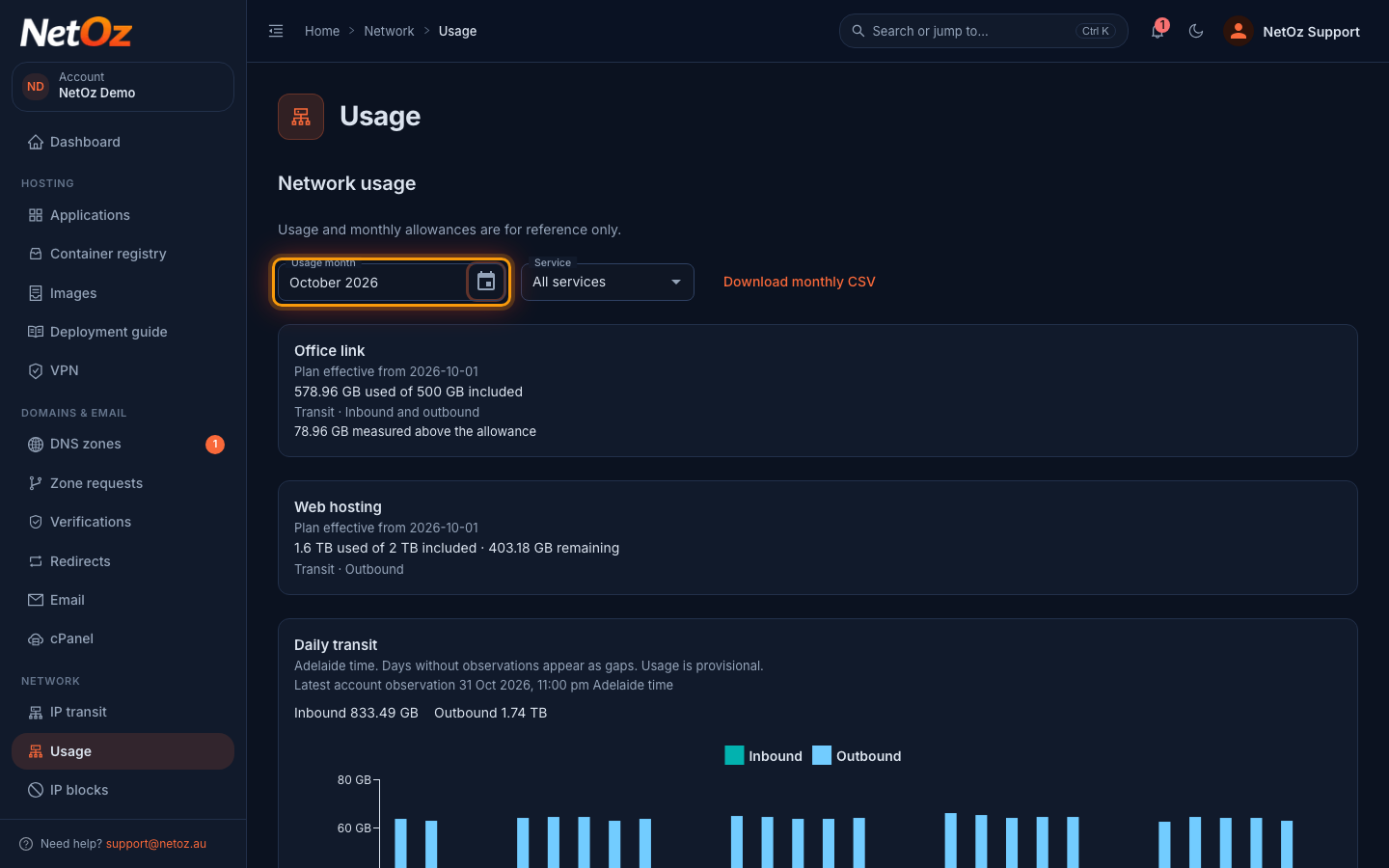
Choose a month from Usage month to see that month’s allowance and daily traffic. Here, Office link went over its allowance in October, so its card shows how much was measured above it. Months that NetOz has finalised show the figures as they stood when the month closed, including the allowance on your plan at the time.
Step 6 Download the figures
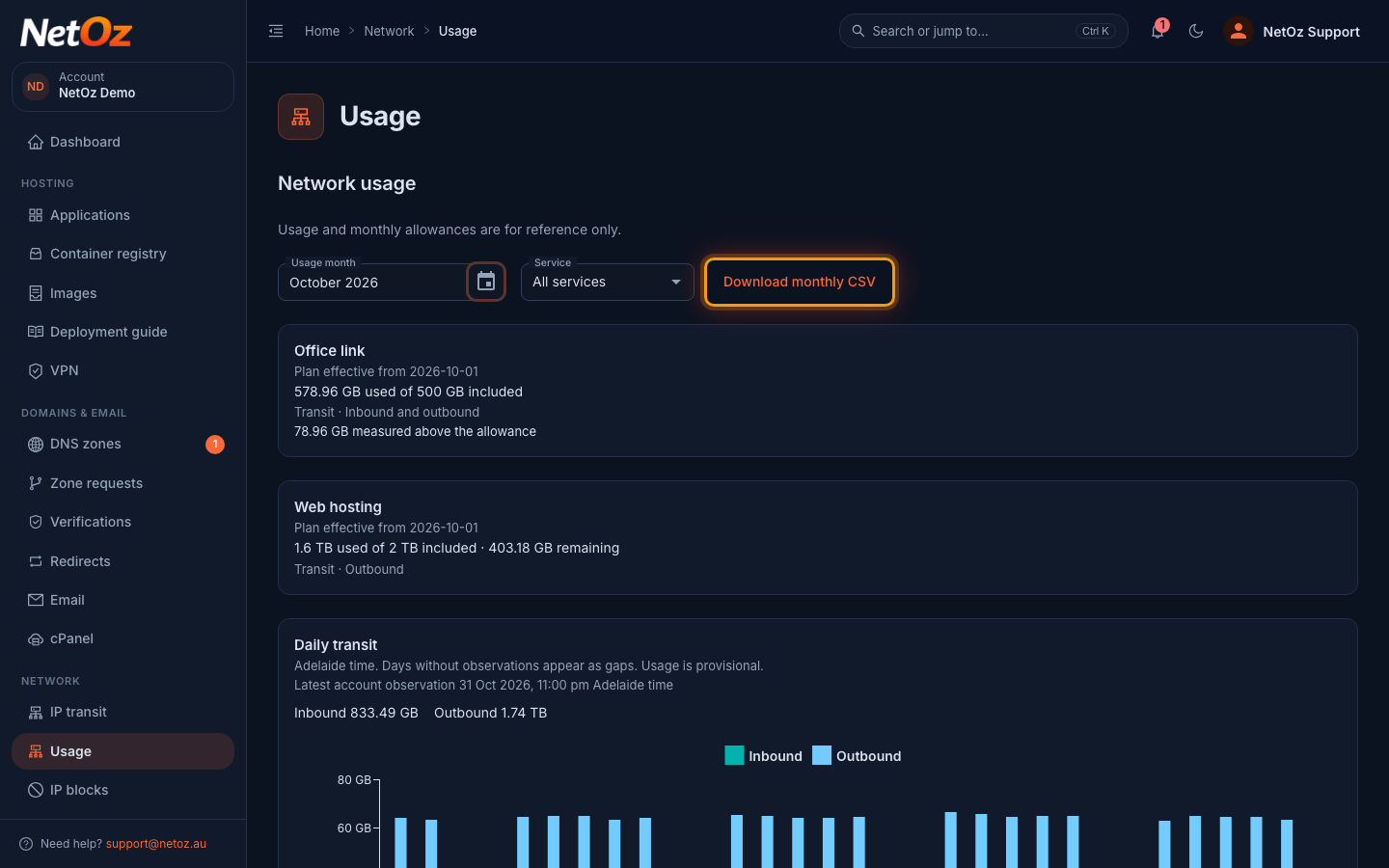
Select Download monthly CSV to save the daily figures for the month you are viewing. Each row has the service_id, the day (Adelaide time), the traffic type, the direction (upload for outbound, download for inbound) and the number of bytes, so you can total it yourself or load it into a spreadsheet.
How NetOz measures your usage
- What is counted. NetOz meters the traffic your services send and receive through our network, in five-minute intervals. Each metered service on your account is shown separately, and its traffic is shown as a single Transit total, whichever upstream or exchange carried it.
- Direction. Outbound is traffic leaving your service, such as visitors downloading pages and files from your website. Inbound is traffic arriving at your service, such as uploads. Each service’s plan shows which direction counts towards its allowance: Outbound, Inbound, or Inbound and outbound combined.
- Units. Sizes use decimal units: 1 GB is 1,000,000,000 bytes and 1 TB is 1,000 GB.
- Months and days. Days and months follow Adelaide time (ACST/ACDT), so a month runs from midnight on the 1st, Adelaide time.
- When figures are final. Usage for the current month is provisional and updates every few minutes as measurements arrive. NetOz finalises each month three days after it ends, after which its figures no longer change.
- Plan changes. If your plan changes during a month, the page shows each plan version with the dates it applies, and usage counts against the plan that was in effect at the time.
Where to next
- Expecting to go over your allowance, or seeing traffic you don’t recognise? Open a support ticket and NetOz can break it down for you.
- To let a colleague see usage, set Network usage to View on their team access.
Was this guide helpful?
Your answer helps us keep these guides accurate.