Push a Docker image to your private NetOz container registry
Create your registry login, then build and push a Docker image to your private NetOz container registry so it is ready to deploy to your environments.
On this page
Every NetOz account has its own private namespace in the NetOz container registry. You push images there from your computer or CI pipeline, and they become available to deploy on your environments’ Containers page.
Before you start
- You need Containers set to Manage on your team access to create a registry login.
- Install Docker on the computer or CI runner you will push from.
Step 1 Open Container registry
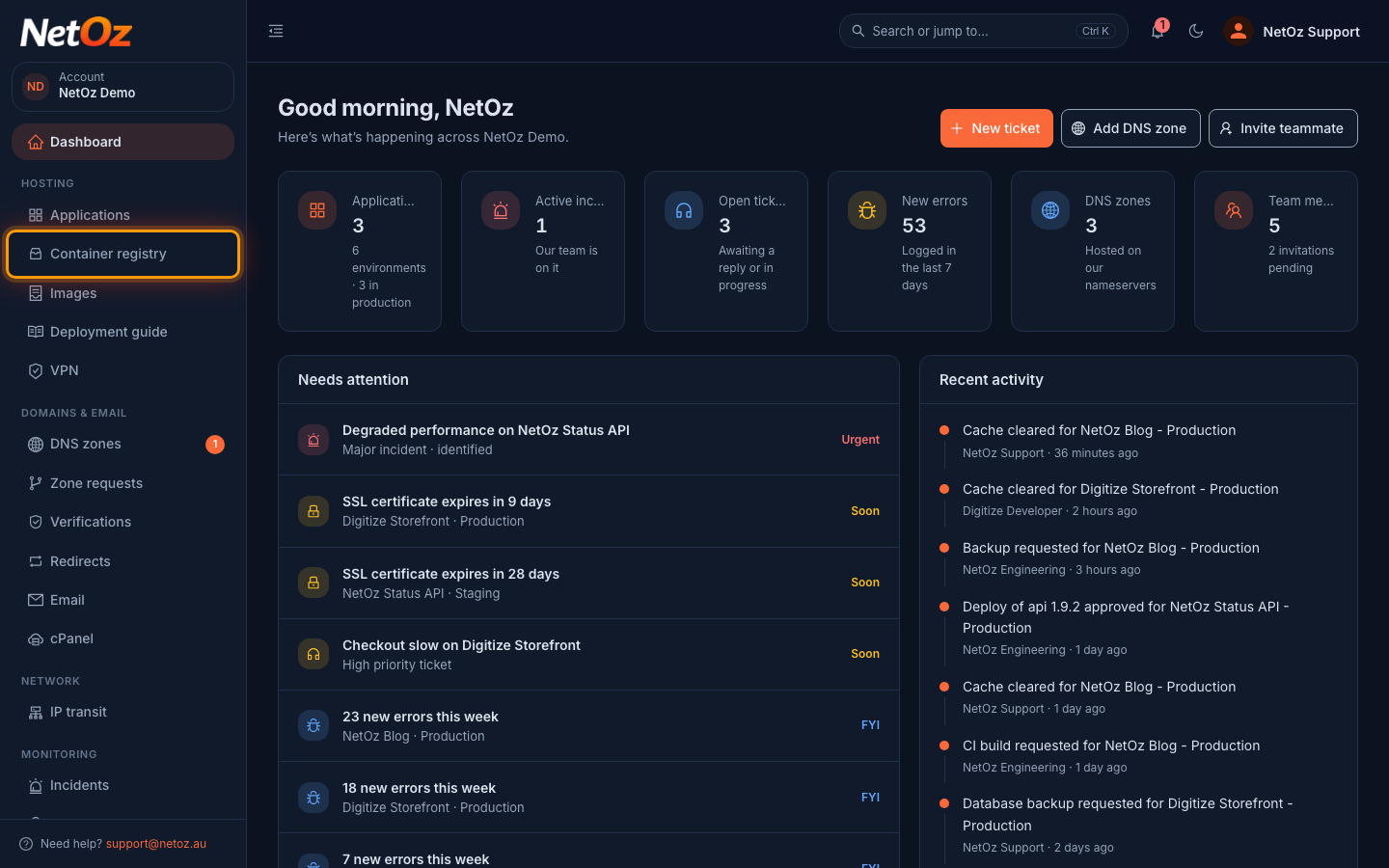
Sign in to the NetOz Portal and choose Container registry under Hosting in the sidebar.
Step 2 Note your registry and namespace
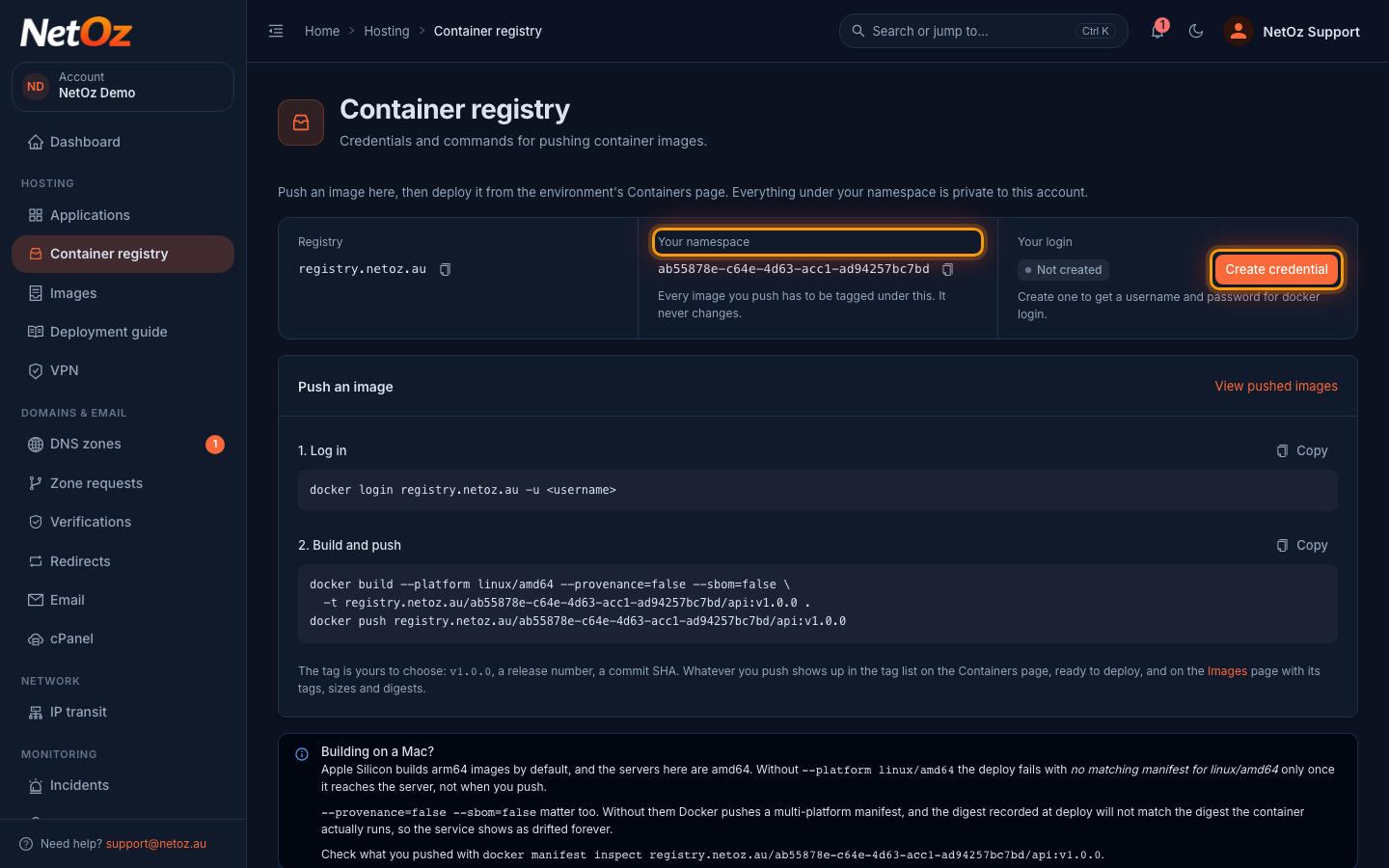
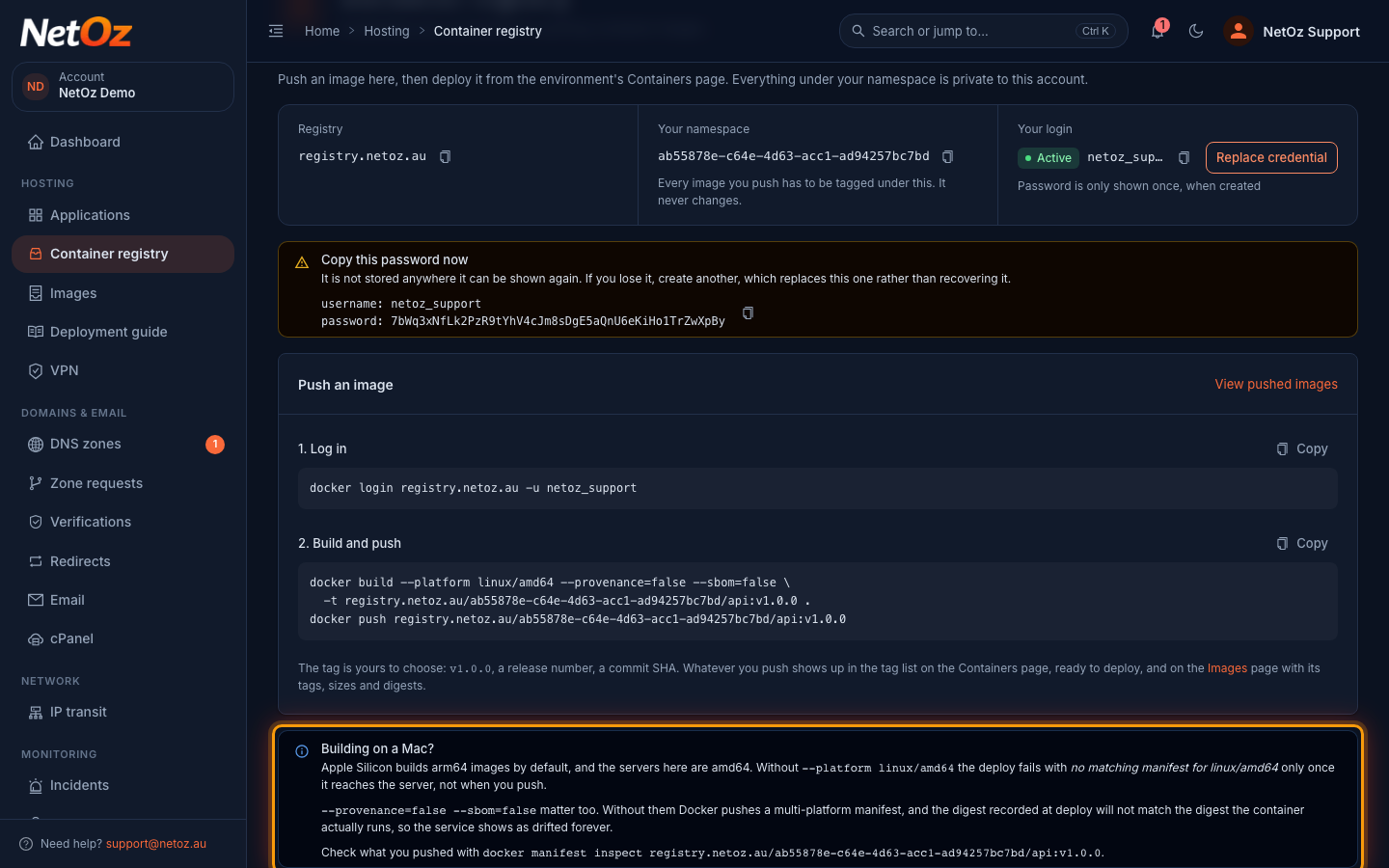
The top of the page shows the registry address and your namespace. Every image you push must be tagged under that namespace, and only your account can see it. Under Your login, select Create credential.
Step 3 Copy your password straight away
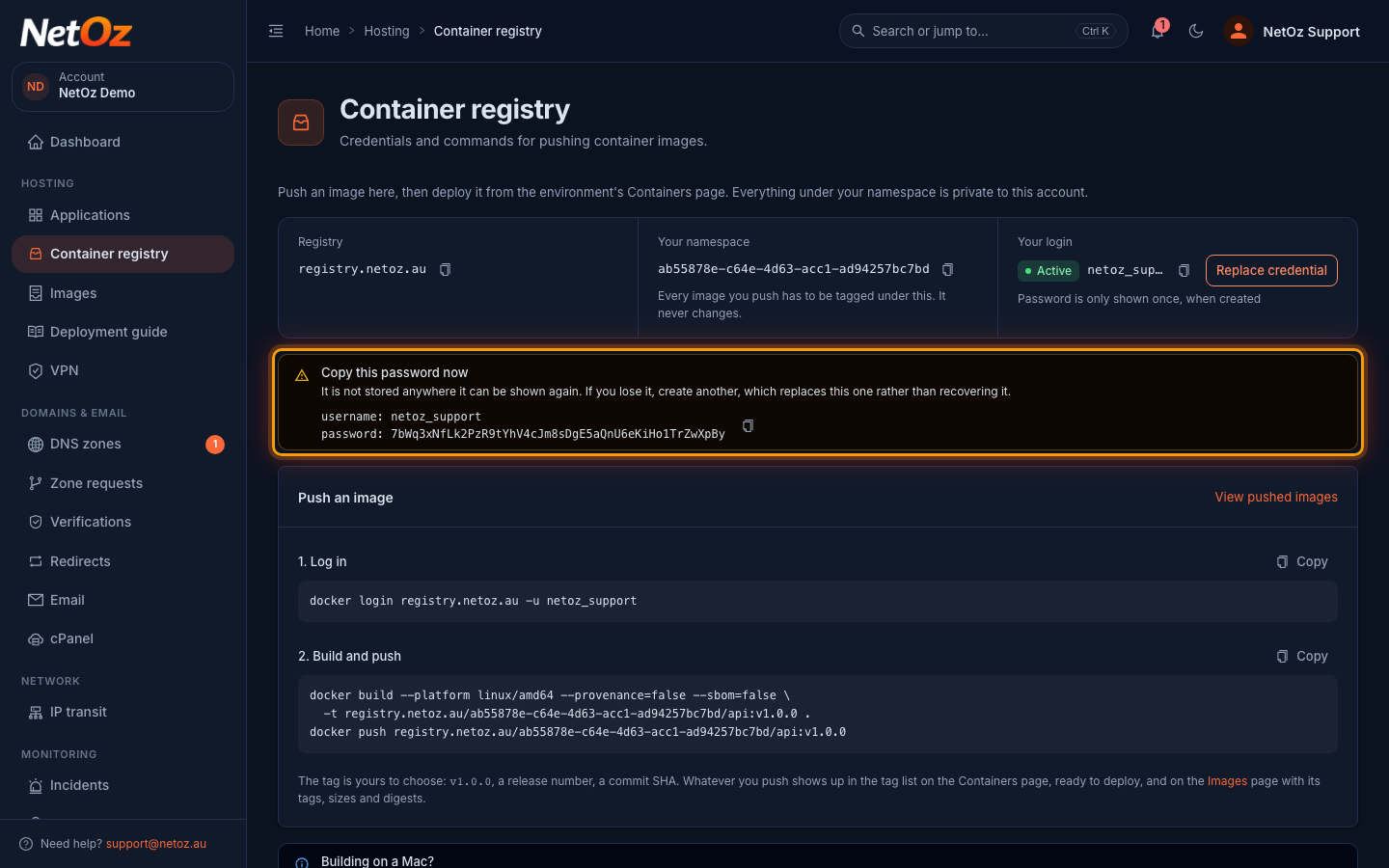
Your username and password appear once. Select the copy button and store the password somewhere safe, such as your password manager or your CI secrets. It cannot be shown again. If you lose it, create a new one, which replaces the old login.
Step 4 Log in, build and push
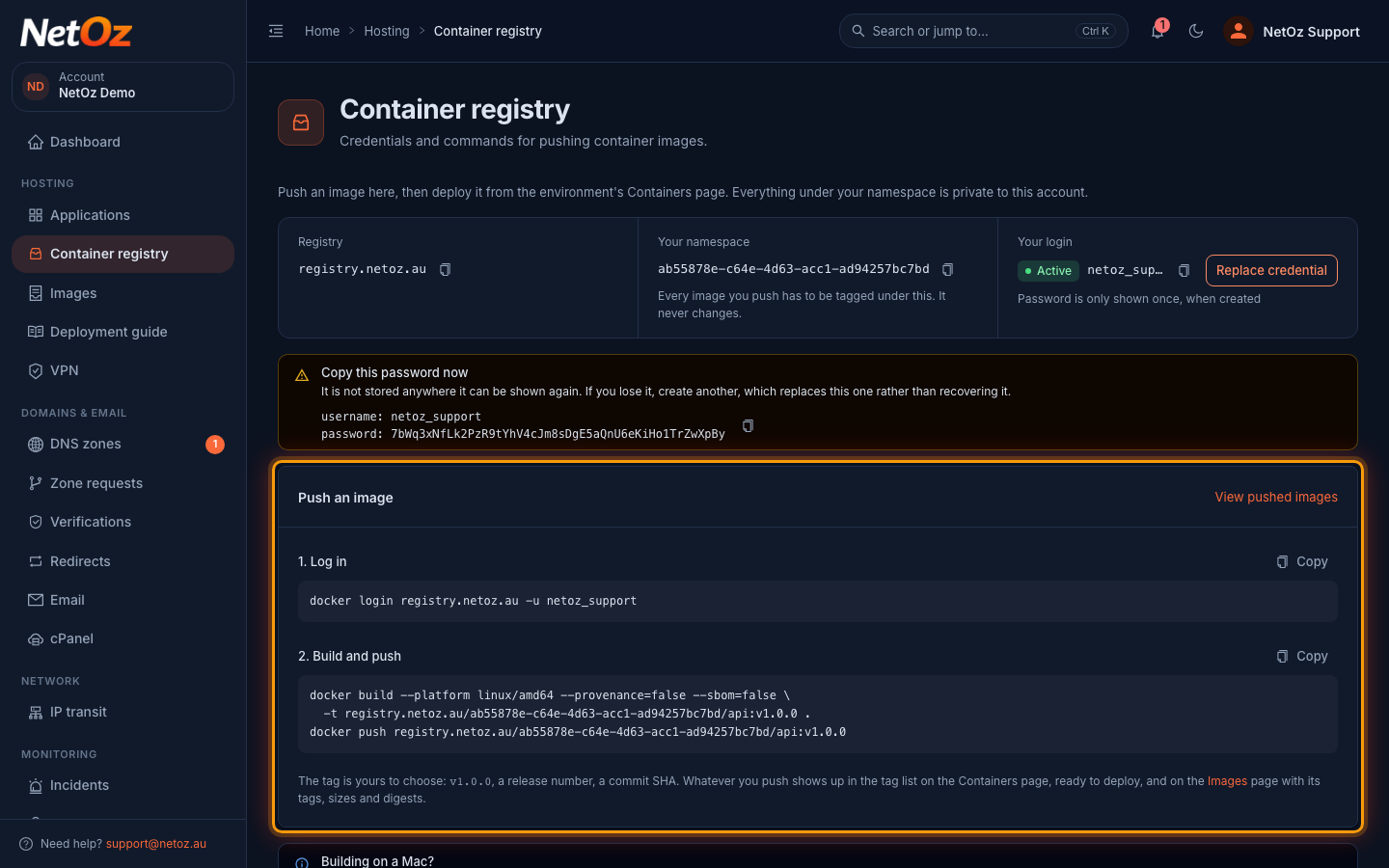
Copy the commands under Push an image into your terminal. The first logs Docker in to the registry with your username, and asks for the password. The second builds your image for linux/amd64 and pushes it under your namespace. Replace v1.0.0 with your own tag, such as a release number or commit hash.
Step 5 Building on an Apple Silicon Mac?
NetOz servers run amd64. Keep --platform linux/amd64 --provenance=false --sbom=false in the build command, otherwise the push succeeds but the deploy fails, or the service shows as drifted.
Next steps
- Browse your pushed images and tags
- Deploy the new tag to an environment
- Check your Dockerfile against the deployment guide before your first deploy.
Was this guide helpful?
Your answer helps us keep these guides accurate.