Deploy a new version, roll back and restart your containers
Deploy a new image tag to a NetOz Docker environment, check each service’s status, read container logs, restart a service or roll back to the previous version.
On this page
Docker applications on NetOz run as one or more services, such as an API, a background worker and Redis, on a server allocated to your account. From the environment’s Containers page you can deploy a new tag, see what is running, read logs and roll back if something goes wrong.
Before you start
- You need Containers set to Read to view services and logs, and Manage to deploy, restart or roll back.
- Push the image you want to deploy first. See Push a Docker image to your private registry.
Step 1 Open Containers for the environment
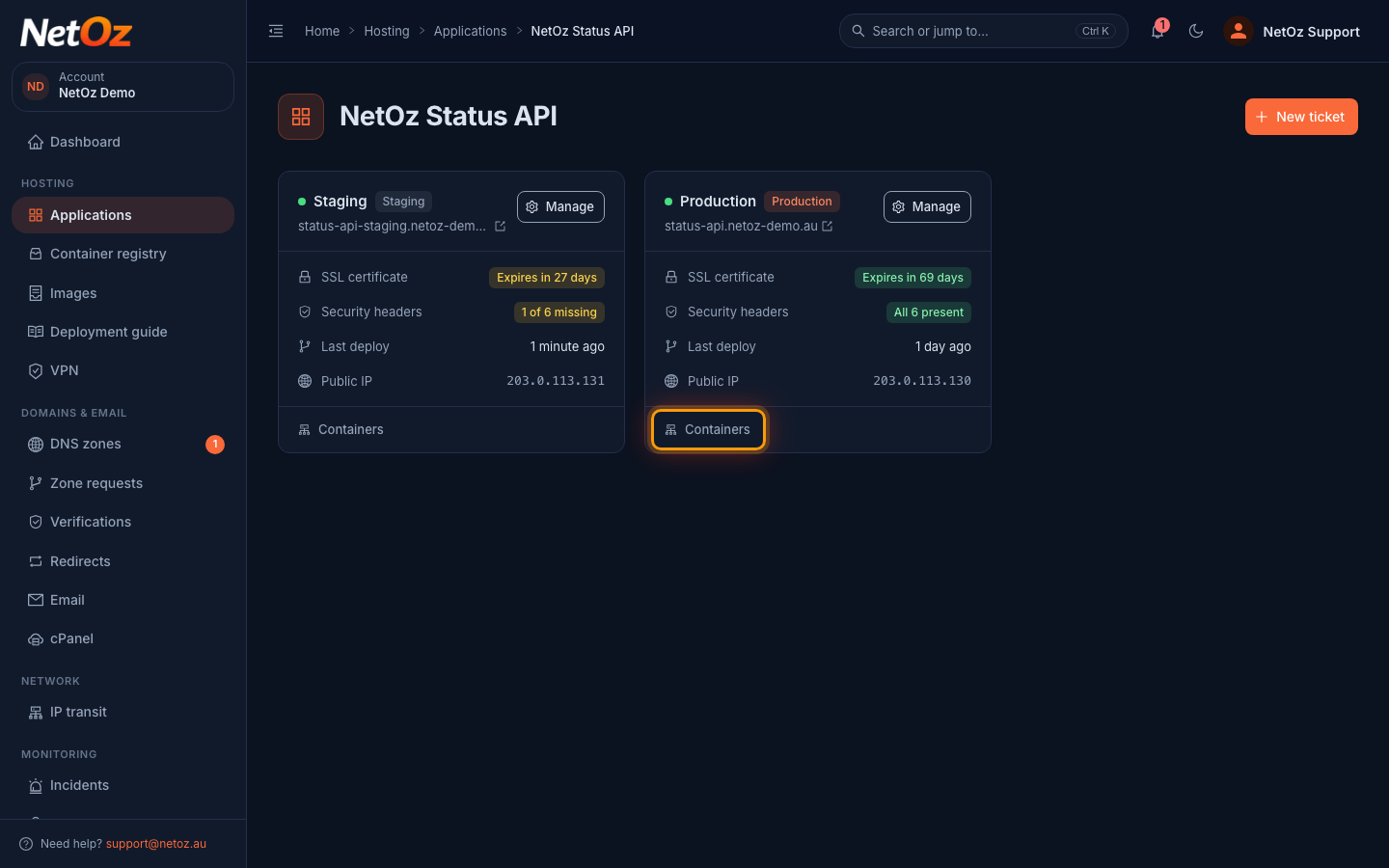
Go to Applications and open your Docker application. On the environment you want to deploy to, select Containers. You can also choose Manage > Containers.
Step 2 Check your services
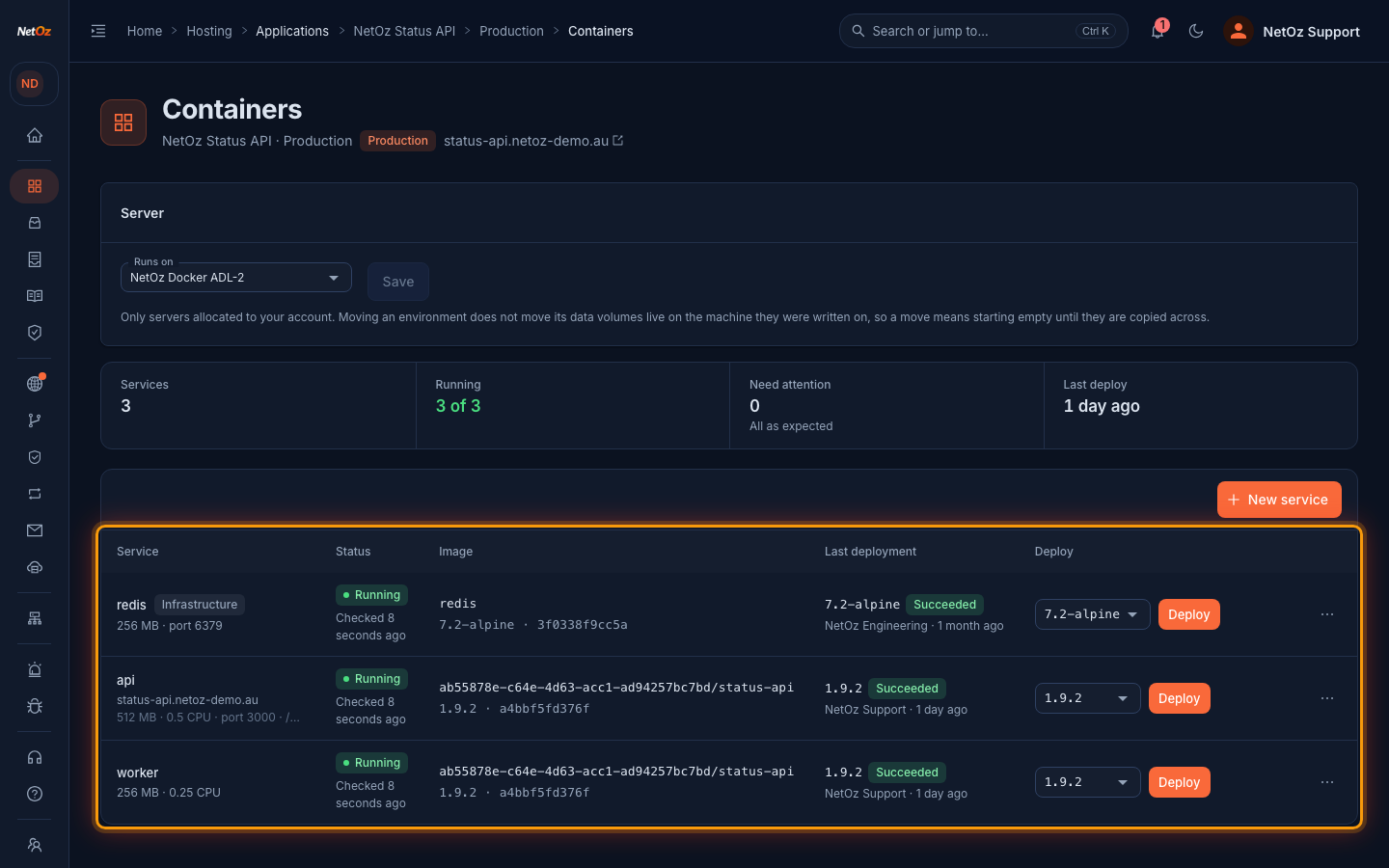
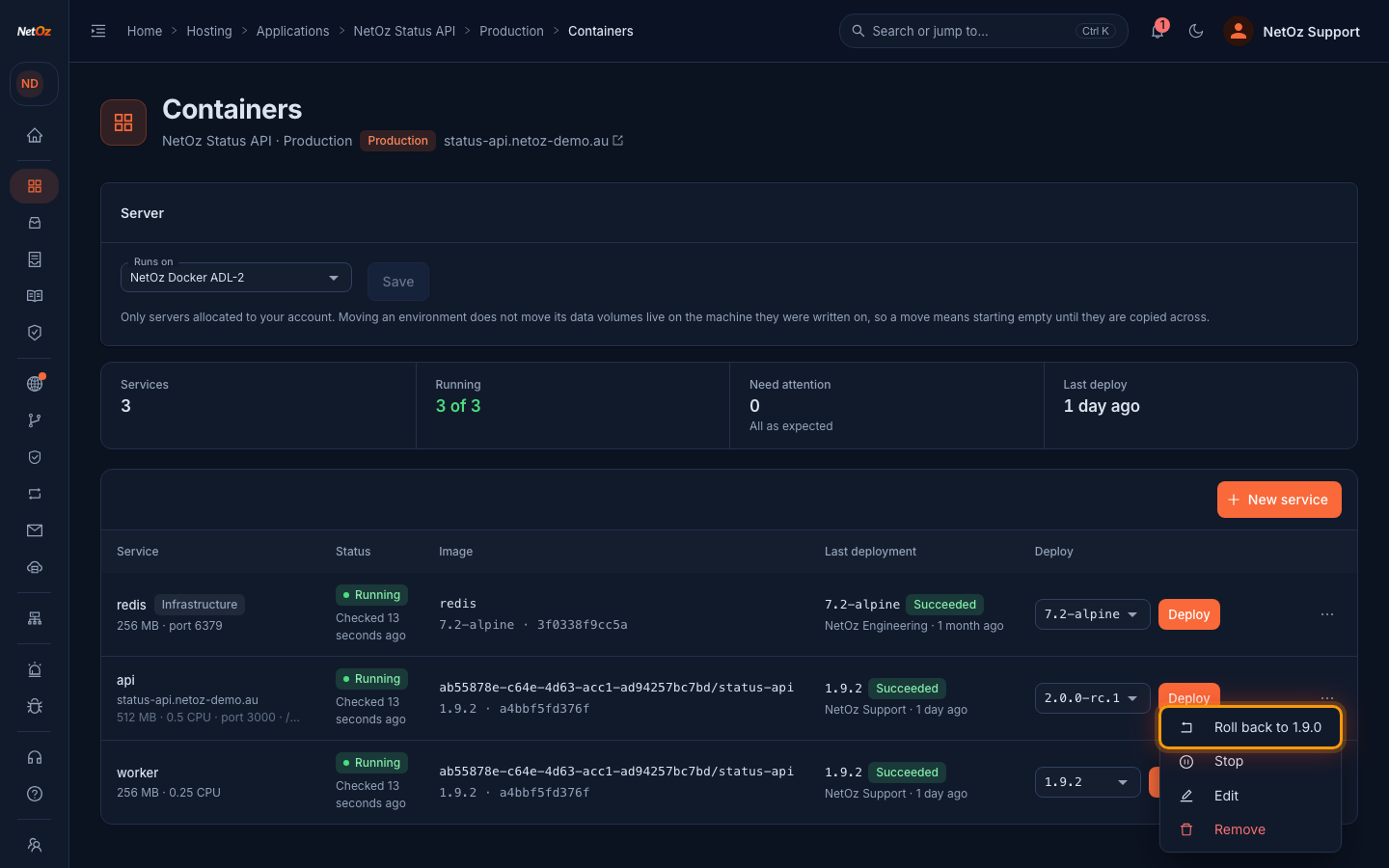
The summary shows how many services are running, any that need attention and when you last deployed. Each service lists its status, the image and tag it runs, its resource limits and its last deployment, including who ran it.
Step 3 Choose the tag to deploy
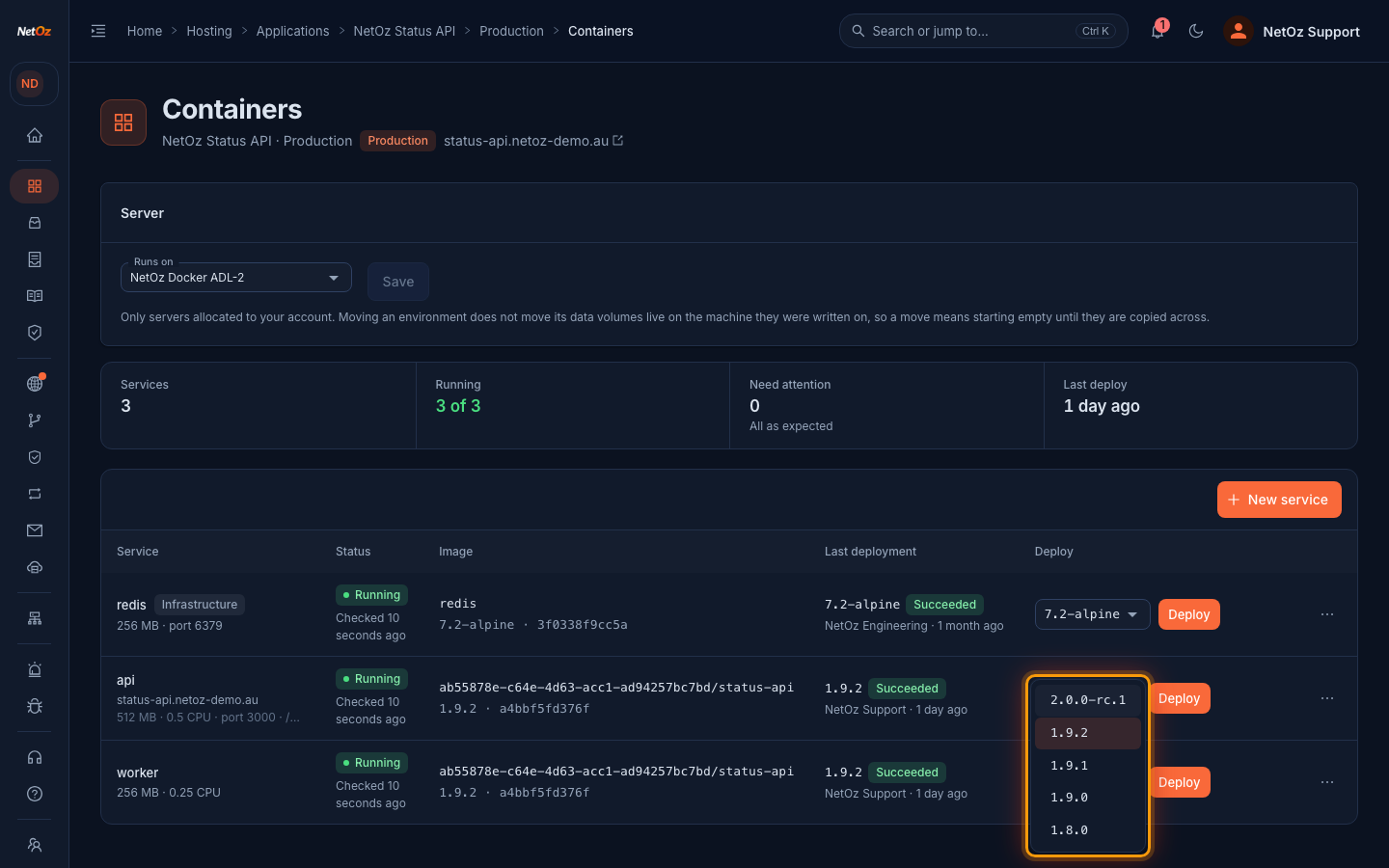
Open the tag list on the service you want to update. It shows the tags in your registry for that image, so a tag you have just pushed appears here.
Step 4 Select Deploy
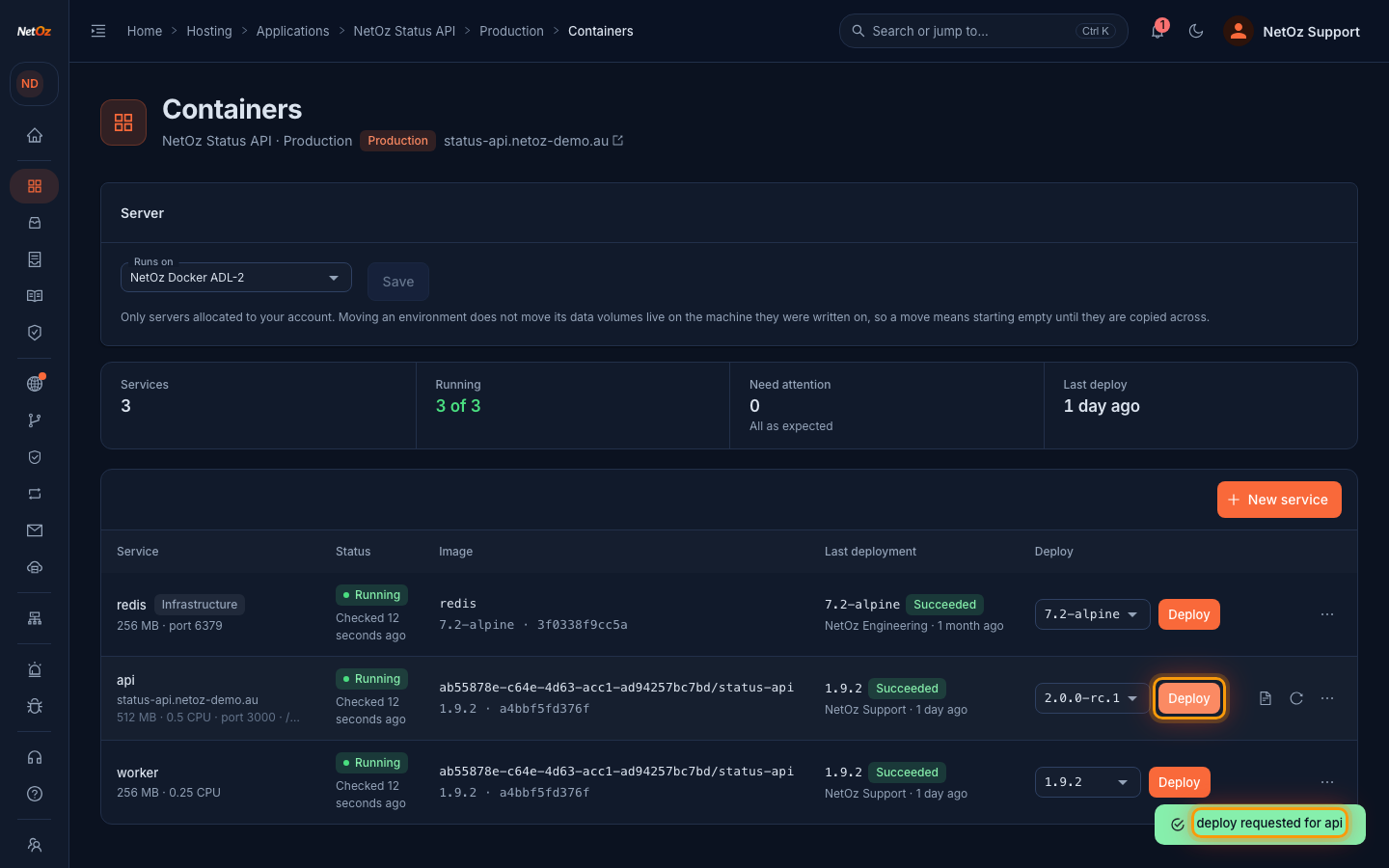
Select Deploy. NetOz pulls the image, starts the new container and waits for its health check to pass before switching traffic to it, so visitors see no downtime. The last deployment column updates when it finishes.
Step 5 Read a service’s logs
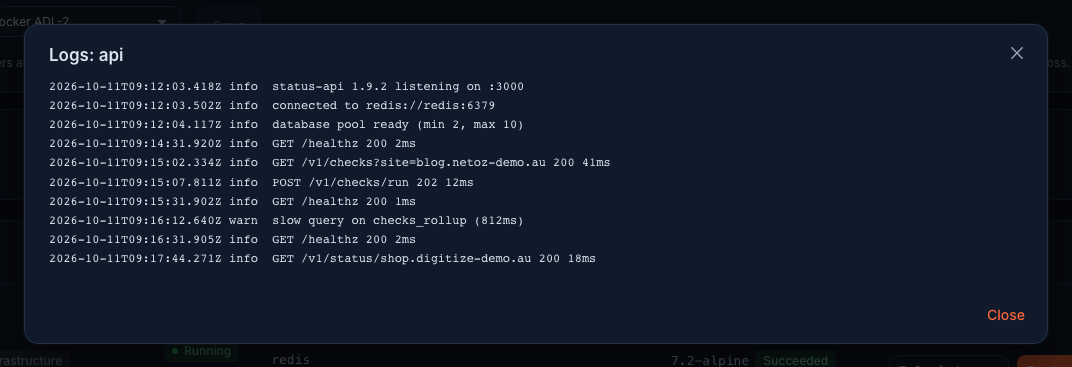
Select the logs icon on a service to see the most recent output from its container. Your application should log to standard output so it appears here.
Step 6 Restart or roll back
Hover over a service and select the restart icon, next to the logs icon, to restart it in place. To undo a deploy, open the ⋯ menu and choose Roll back to, followed by the previous version. Confirm, and NetOz puts the earlier image back. Your data stays as it is. The same menu has Stop, Edit and Remove.
If a deploy fails
NetOz checks the new container’s health path before switching traffic to it. If it never answers, the deploy is marked Failed and the previous version keeps running. Open Logs to see why, fix the image and deploy a new tag. The deployment guide covers the most common causes.
Was this guide helpful?
Your answer helps us keep these guides accurate.