Browse your container images and tags
See every image pushed to your private NetOz container registry, check the tags, sizes and digests, and copy a pull command for any tag.
On this page
The Images page lists every repository under your account’s namespace in the NetOz container registry, with the tags you have pushed. It is the quickest way to confirm a push worked before you deploy.
Before you start
- You need Containers set to at least Read on your team access.
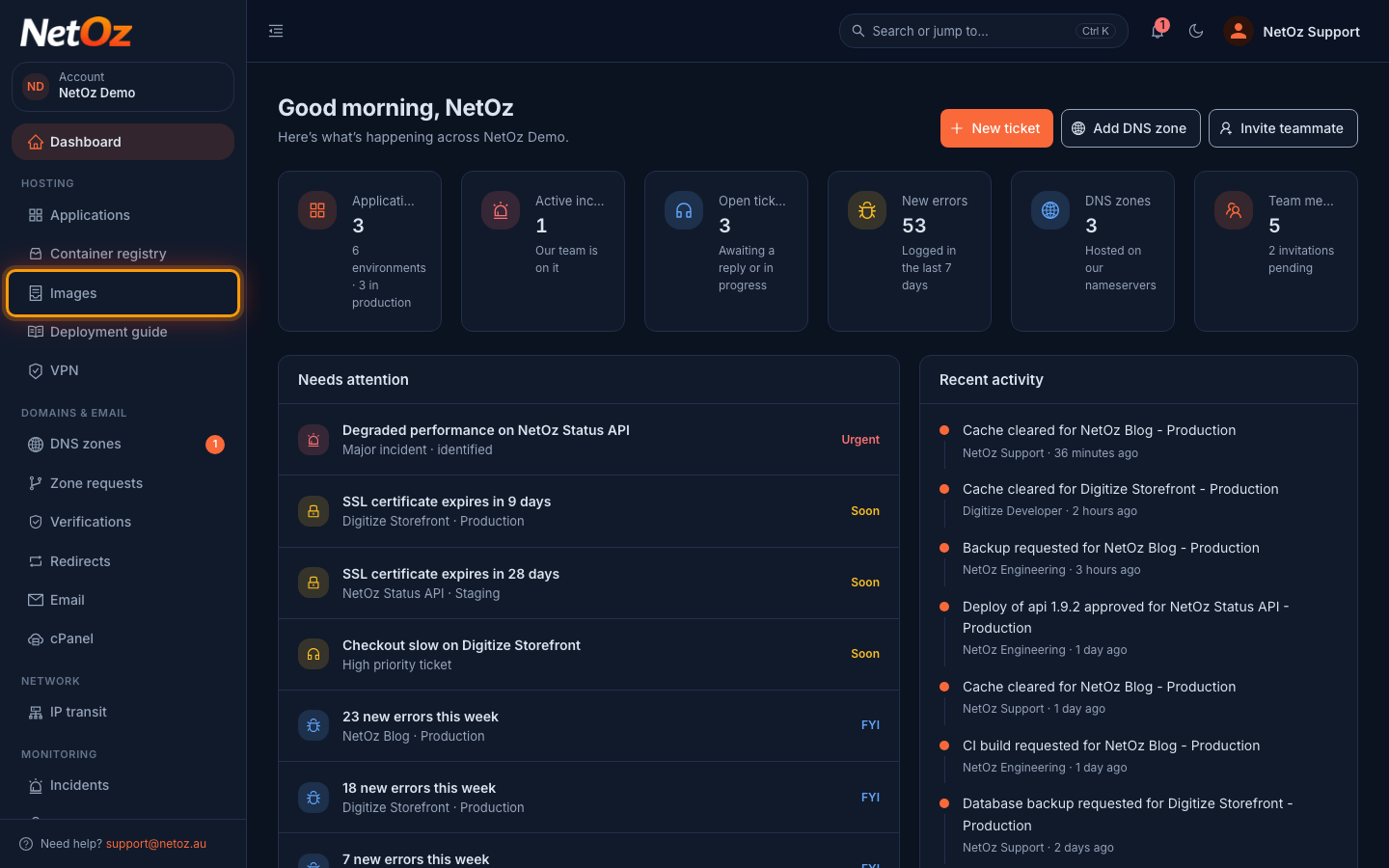
Step 1 Open Images
Choose Images under Hosting in the sidebar.
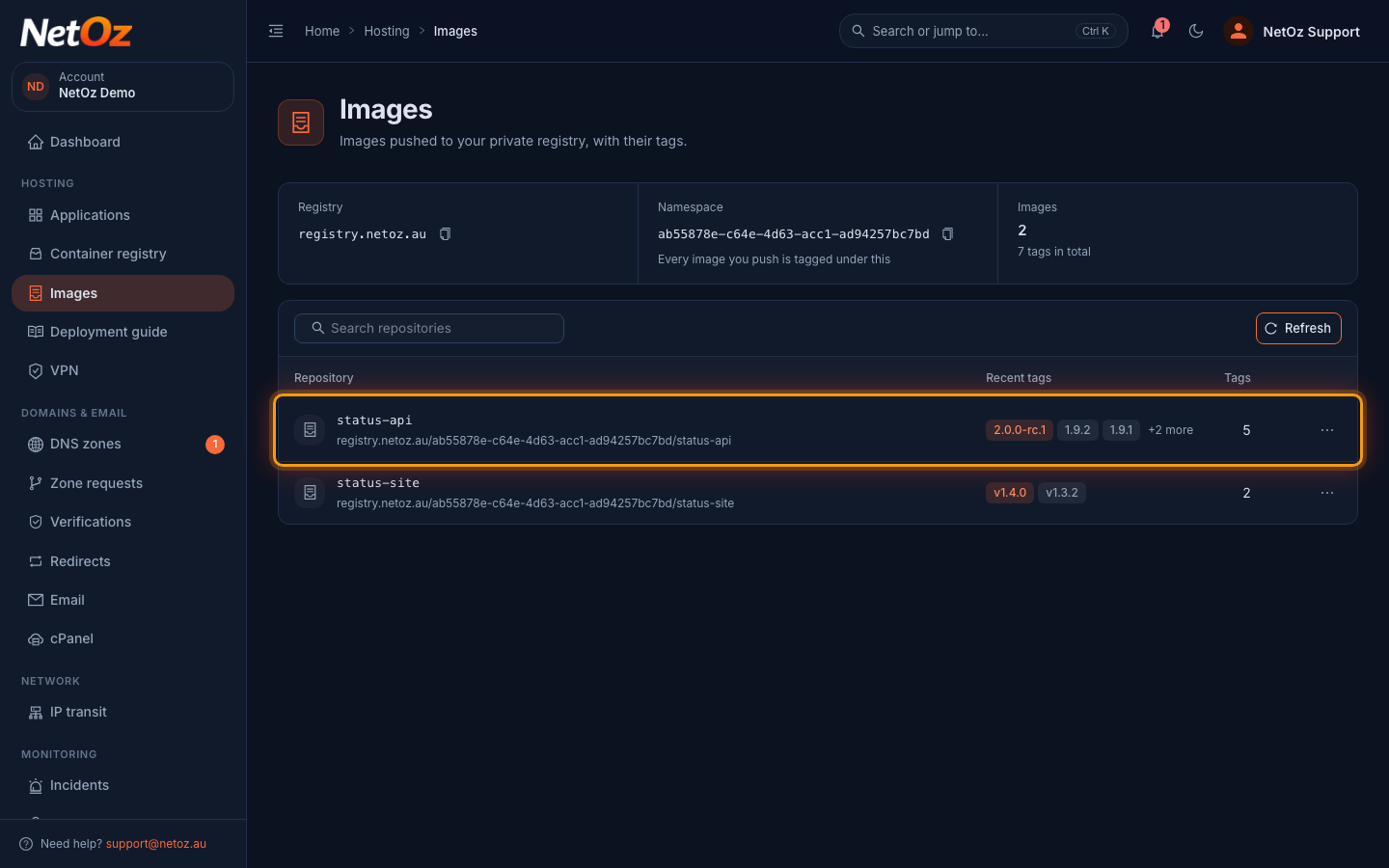
Step 2 Find your repository
Each repository shows its full address, its most recent tags and how many tags it has. The newest tag is highlighted. Select Refresh after a push to update the list.
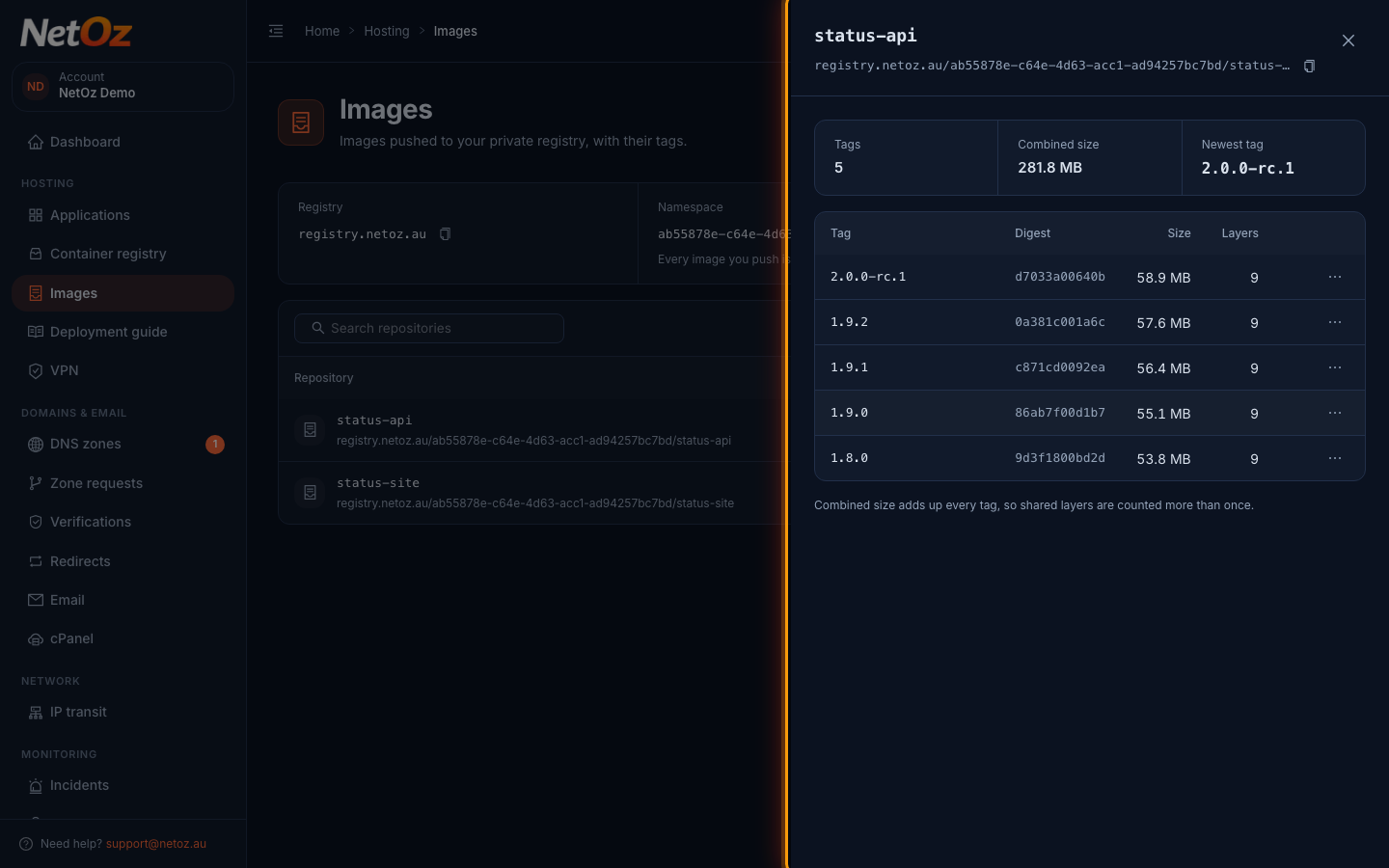
Step 3 Check the tags
Select a repository to see every tag with its digest, size and number of layers. Compare the digest with the one Docker printed when you pushed to be sure you have the right image.
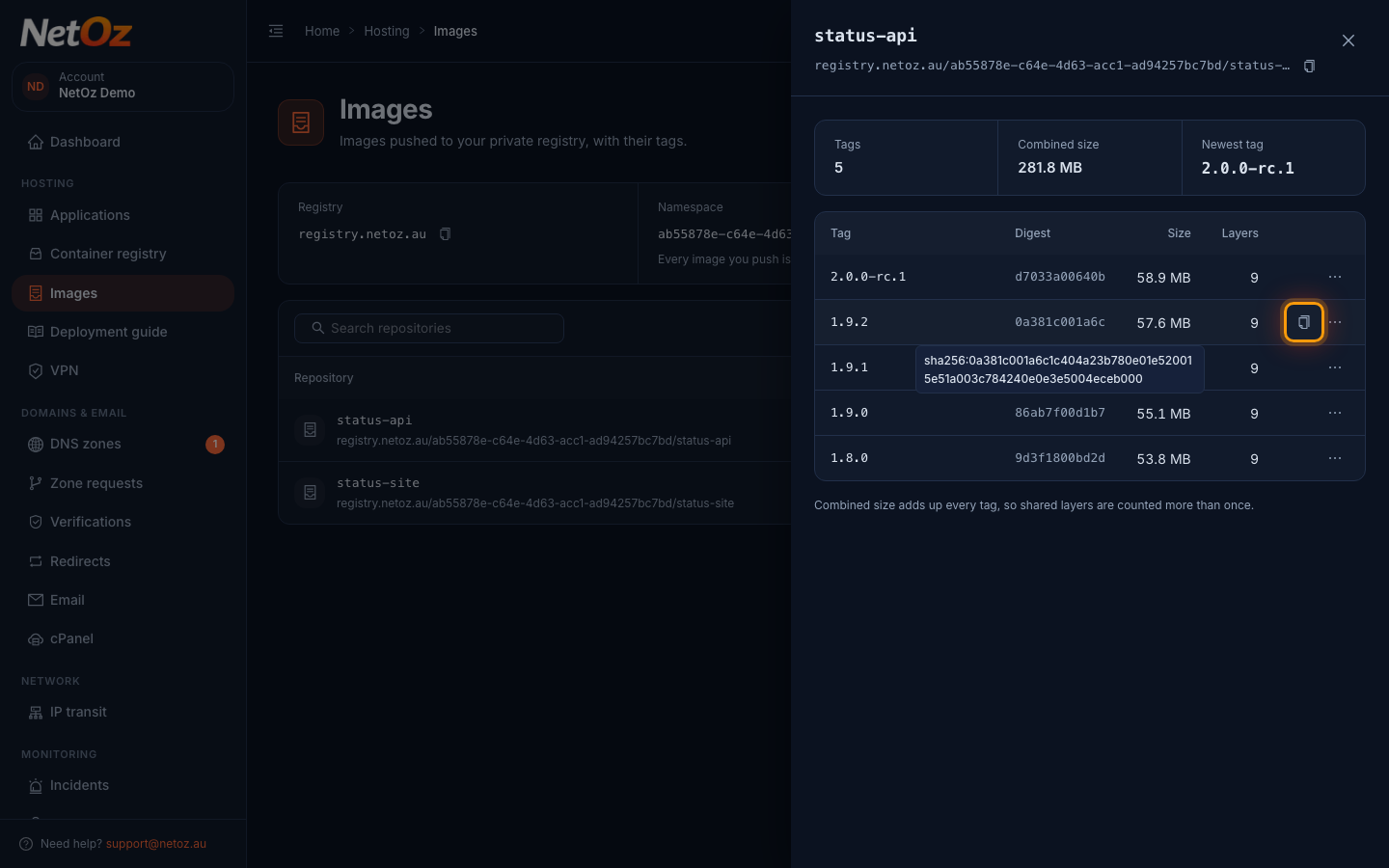
Step 4 Copy a pull command
Hover over a tag and select the copy icon to copy a ready-made docker pull command, for example to test the image on your own computer.
Next steps
Found the tag you want? Deploy it to an environment. Nothing listed yet? Follow Push a Docker image to your private registry.
Was this guide helpful?
Your answer helps us keep these guides accurate.