Manage release packages, versions and release keys
Publish versioned theme and plugin packages for your application, upload new versions and create release keys so your build pipeline and sites can push and download them.
On this page
Release packages let you keep versioned builds of your own WordPress themes and plugins in the NetOz Portal. Each package has a list of versions, and release keys control which tools can upload new versions or download them.
Before you start
- Release packages must be enabled on your account. Ask NetOz support if you do not see Release Packages in an environment’s Manage menu.
- You need Release packages set to Read to view packages, and Manage to create packages, versions and keys.
Step 1 Open Release Packages
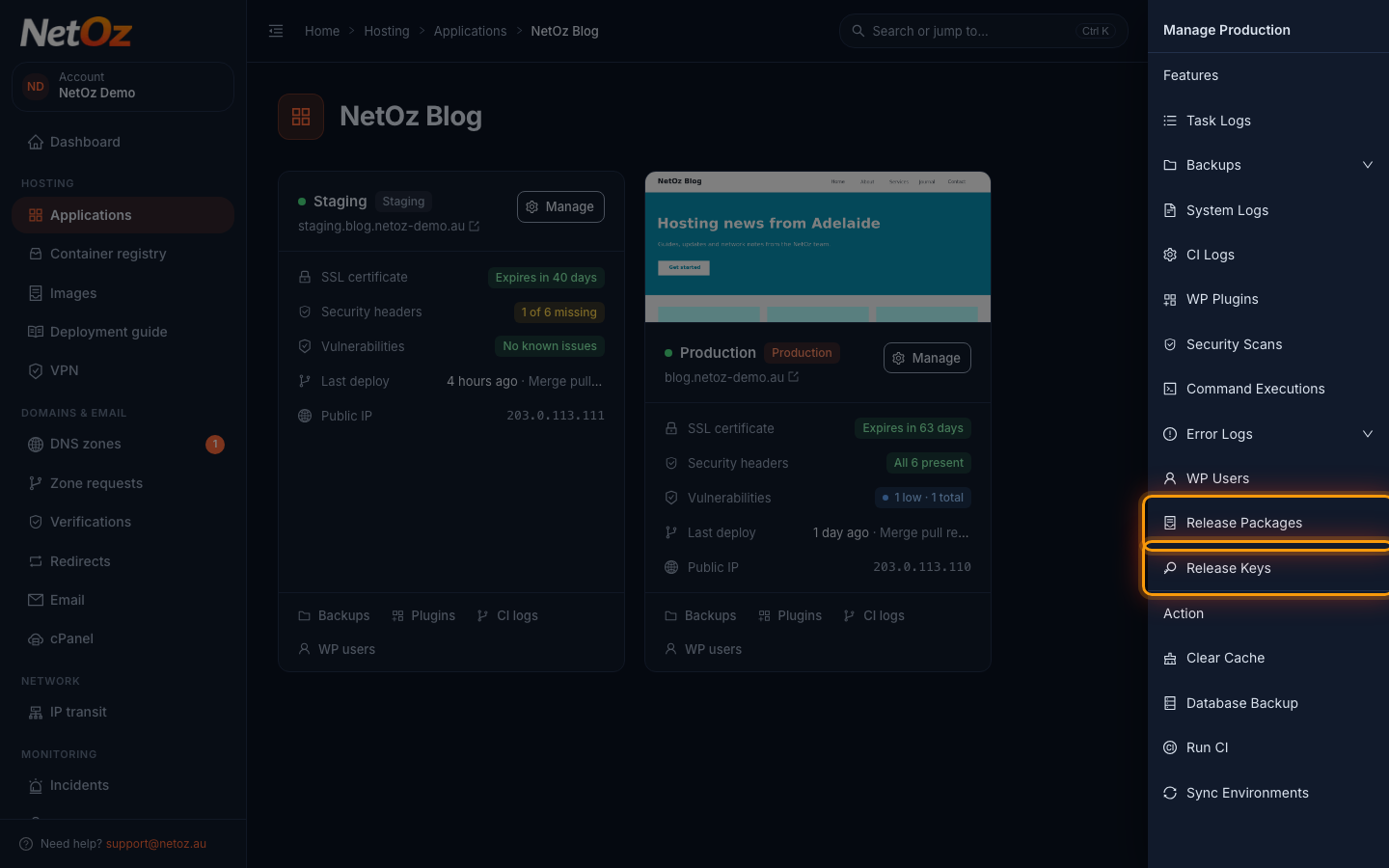
Go to Applications, open your application and select Manage on any environment. Choose Release Packages. Release Keys is just below it.
Step 2 Review your packages
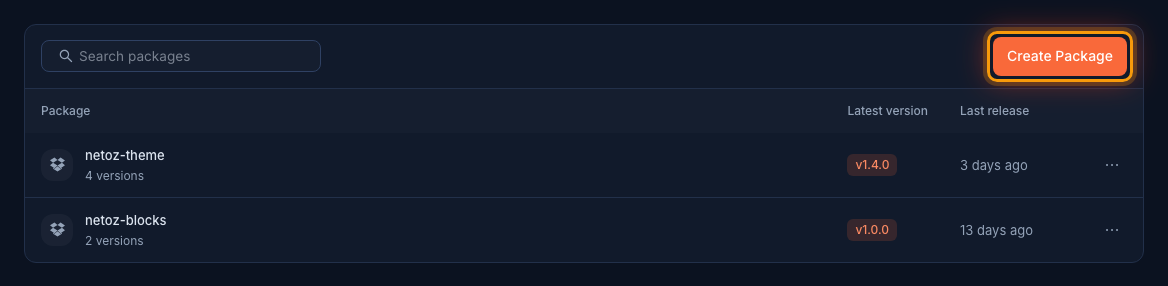
Each package shows how many versions it has, the latest version and when it was released. Select Create Package to add a new one, or select a package to see its versions.
Step 3 Check the versions
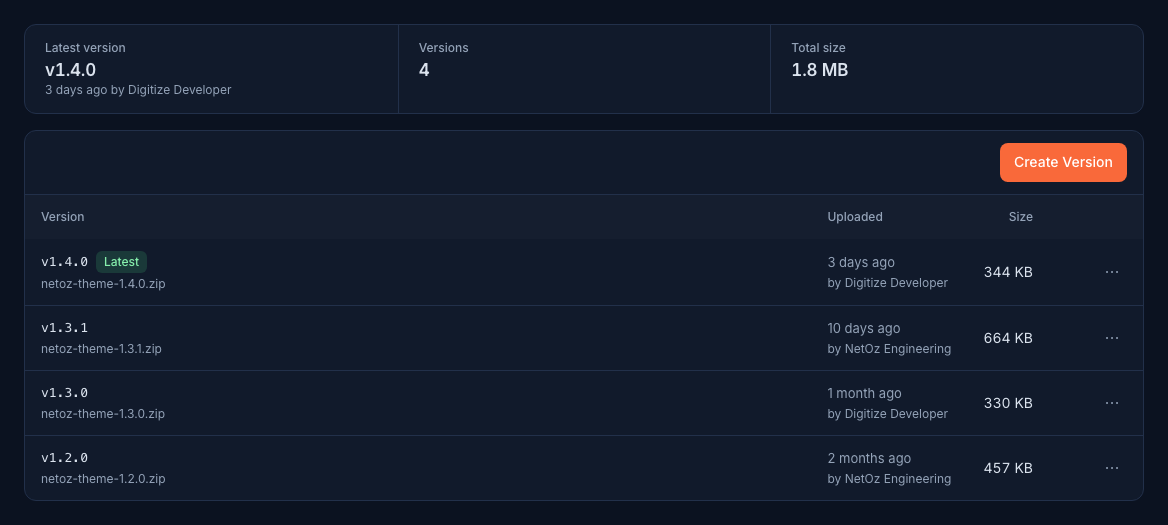
The versions page lists every version with who uploaded it, when and its size. Hover over a version to download it, or open the ⋯ menu to delete it.
Step 4 Upload a new version
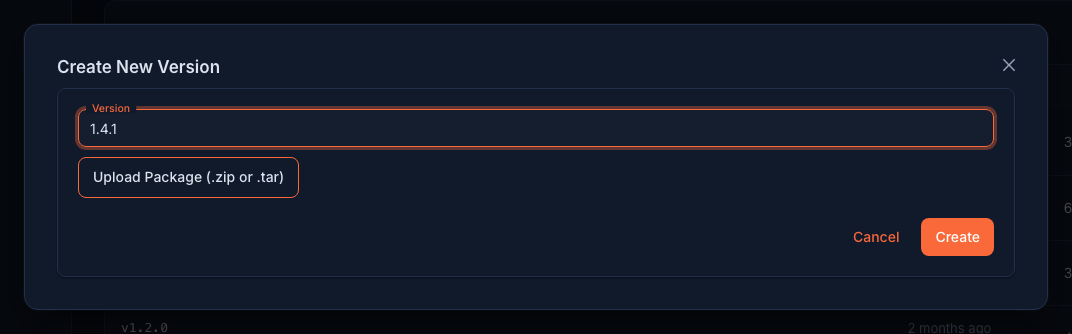
Select Create Version, enter the version number, such as 1.4.1, choose Upload Package (.zip or .tar) to pick the build file and select Create.
Step 5 Review your release keys
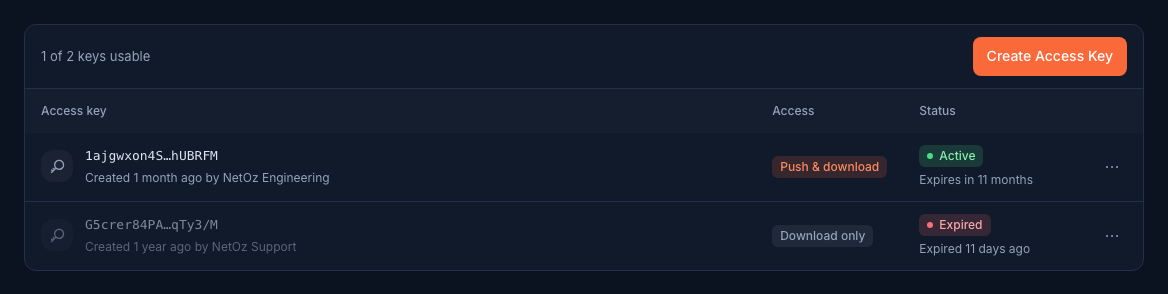
Release keys let your build pipeline or your sites talk to NetOz release packages. Push & download keys can upload new versions, Download only keys can only fetch them. Each key shows who created it and when it expires. Expired keys stop working automatically.
Step 6 Create a release key
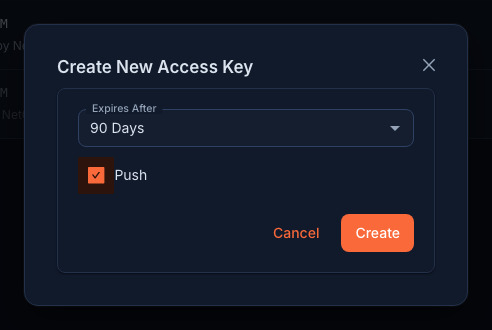
Select Create Access Key, choose when it expires, tick Push if it needs to upload versions and select Create. The new key appears in the list. Hover over it and select the copy icon, then store it in your build pipeline’s secrets.
Keeping keys safe
Create a separate key for each tool that needs one, give it the shortest expiry that works, and only tick Push for keys that must upload new versions. Delete keys you no longer use from the ⋯ menu on the release keys page.
Was this guide helpful?
Your answer helps us keep these guides accurate.