Set up your device from a NetOz VPN setup link
Received a NetOz VPN email? Open the setup link, then scan the QR code or download the WireGuard configuration to connect in minutes.
On this page
When your administrator adds you to a NetOz VPN you receive an email with a personal setup link. That link opens a page with everything your device needs. This guide shows what the page looks like and what to do with it.
Before you start
- Install the official WireGuard app on the device you want to connect.
- Open the link on, or next to, the device you are setting up. The link is personal, so do not forward it.
Step 1 Find the setup email
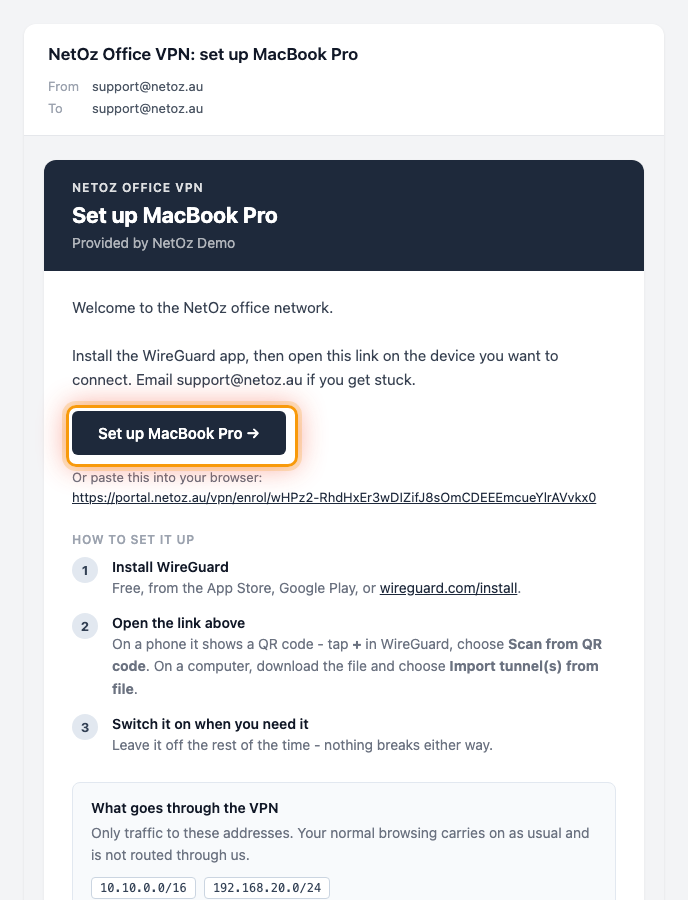
Look for an email from NetOz with the VPN and device name in the subject, for example NetOz Office VPN: set up MacBook Pro. Open it on the device you want to connect and select Set up. If the button does not work, copy the link underneath it into your browser.
Step 2 Open the link from your email
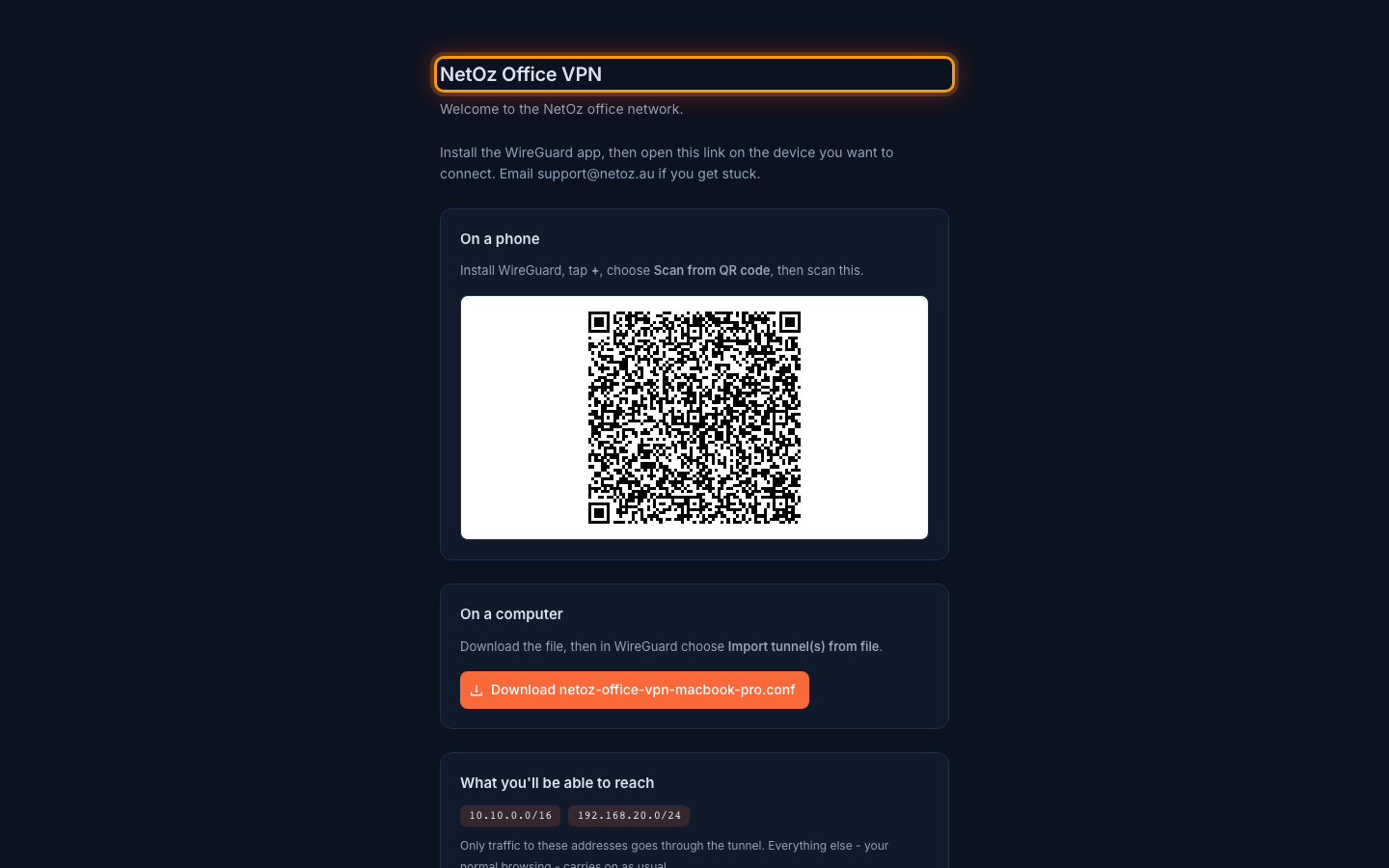
The page shows which VPN you are joining, the device the link belongs to and any welcome message from your administrator.
Step 3 On a phone, scan the QR code
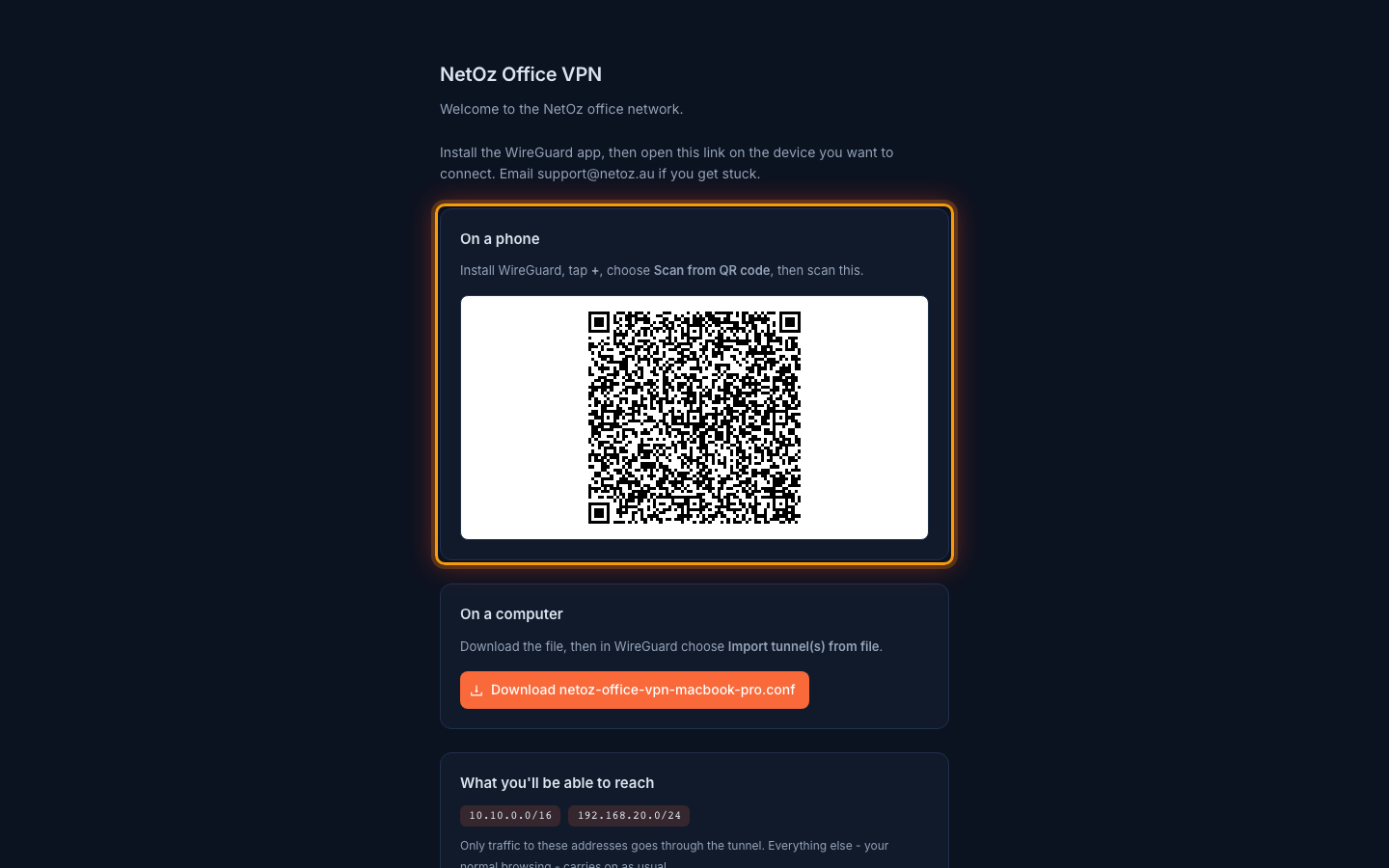
Install WireGuard on your iPhone, iPad or Android phone, tap +, choose Scan from QR code and scan the code on screen.
Step 4 On a computer, download the configuration
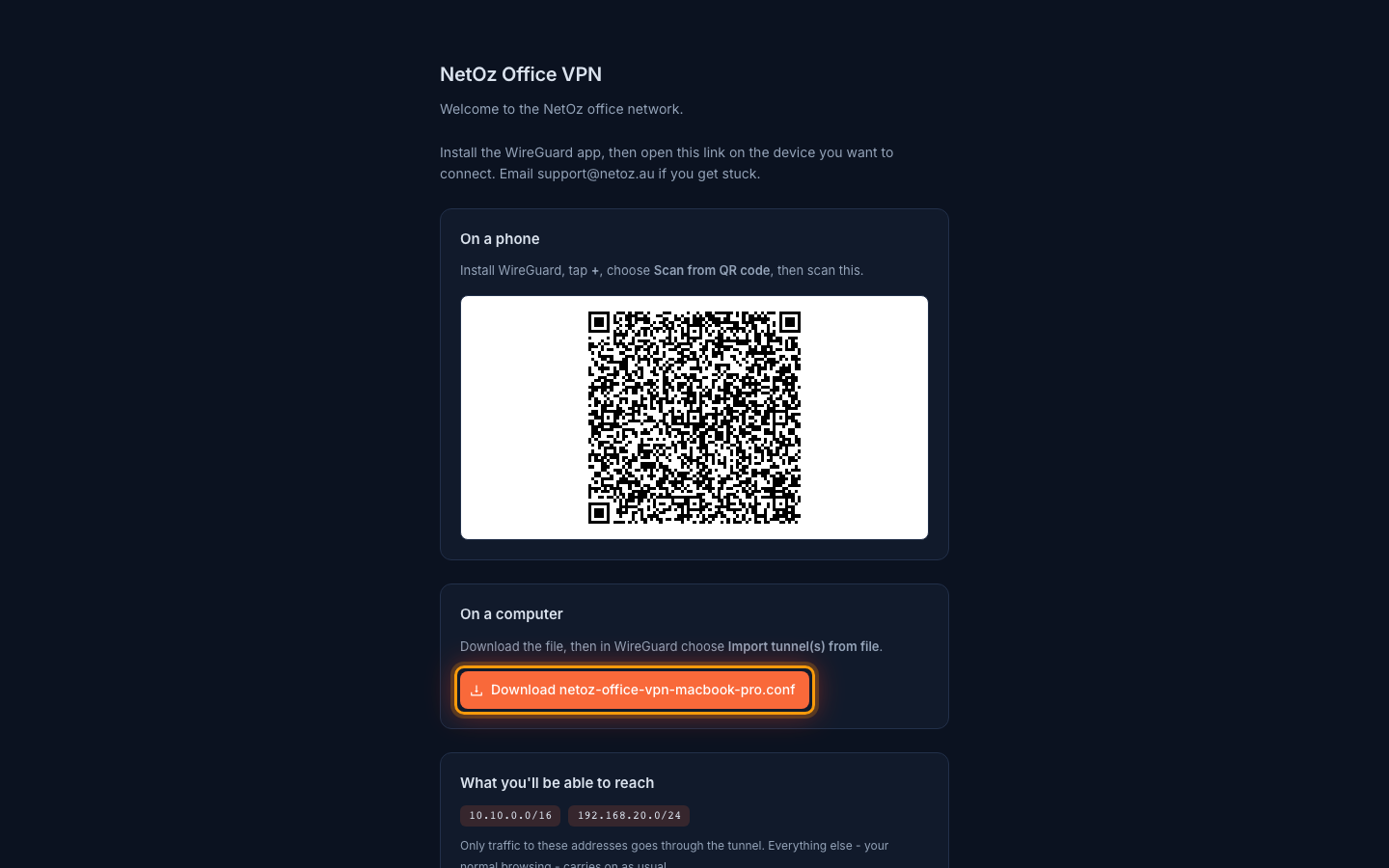
On Windows, macOS or Linux, download the .conf file and import it into WireGuard. Turn the tunnel on and you are connected.
Was this guide helpful?
Your answer helps us keep these guides accurate.